> ## Documentation Index
> Fetch the complete documentation index at: https://v0.x-docs.novu.co/llms.txt
> Use this file to discover all available pages before exploring further.
# Slack
> Learn about how to use Slack provider for chat notifications
When using Slack you will have to save the integration credentials in the subscriber entity.
This guide will walk you through the steps needed to obtain the `webhookUrl` that Novu requires to send chat messages to your customers.
We will provide the basic flow that the user needs to perform, to successfully send notifications via the Slack integration.
We've a [dedicated guide](/guides/slack-guide) on integrating Novu in a Slack app.
### Creating application
This step is optional, if you already have a Slack application you can reuse it.
1. Go to Slack's developer dashboard [https://api.slack.com/apps](https://api.slack.com/apps).
2. Create a new application.
### Integrating Novu with Slack
There are two ways to integrate Novu with Slack - Novu Managed (recommended) and manually managed. Let’s look at both of them in detail:
### 1. Novu Managed (Recommended)
If you use this approach, then Novu will manage the OAuth flow and store the credentials
1. Configure your Slack application as mentioned [below](#configuring-slack-application).
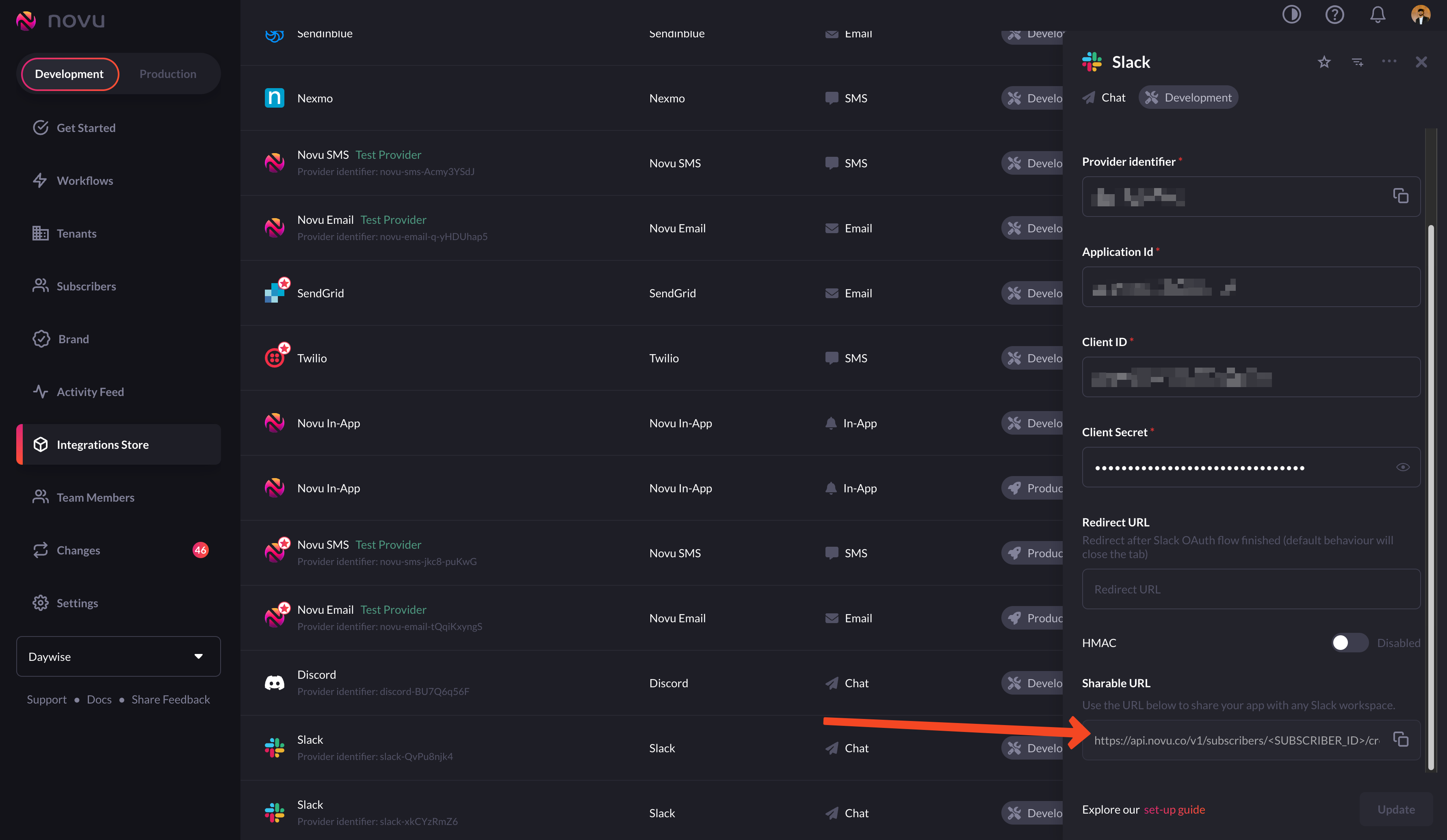
2. You need to make a network request to the `Shareable URL` to perform authentication.
3. You can find the `Shareable URL` in the [Integration Store](https://web.novu.co/integrations?utm_campaign=docs-integrations-slack)
 4. You can either add the `Add to Slack` button or use the `Shareable URL` directly, in the application you'll be using Novu in.
The network request to the 'Shareable URL' will happen when the user clicks the 'Add to Slack' button.
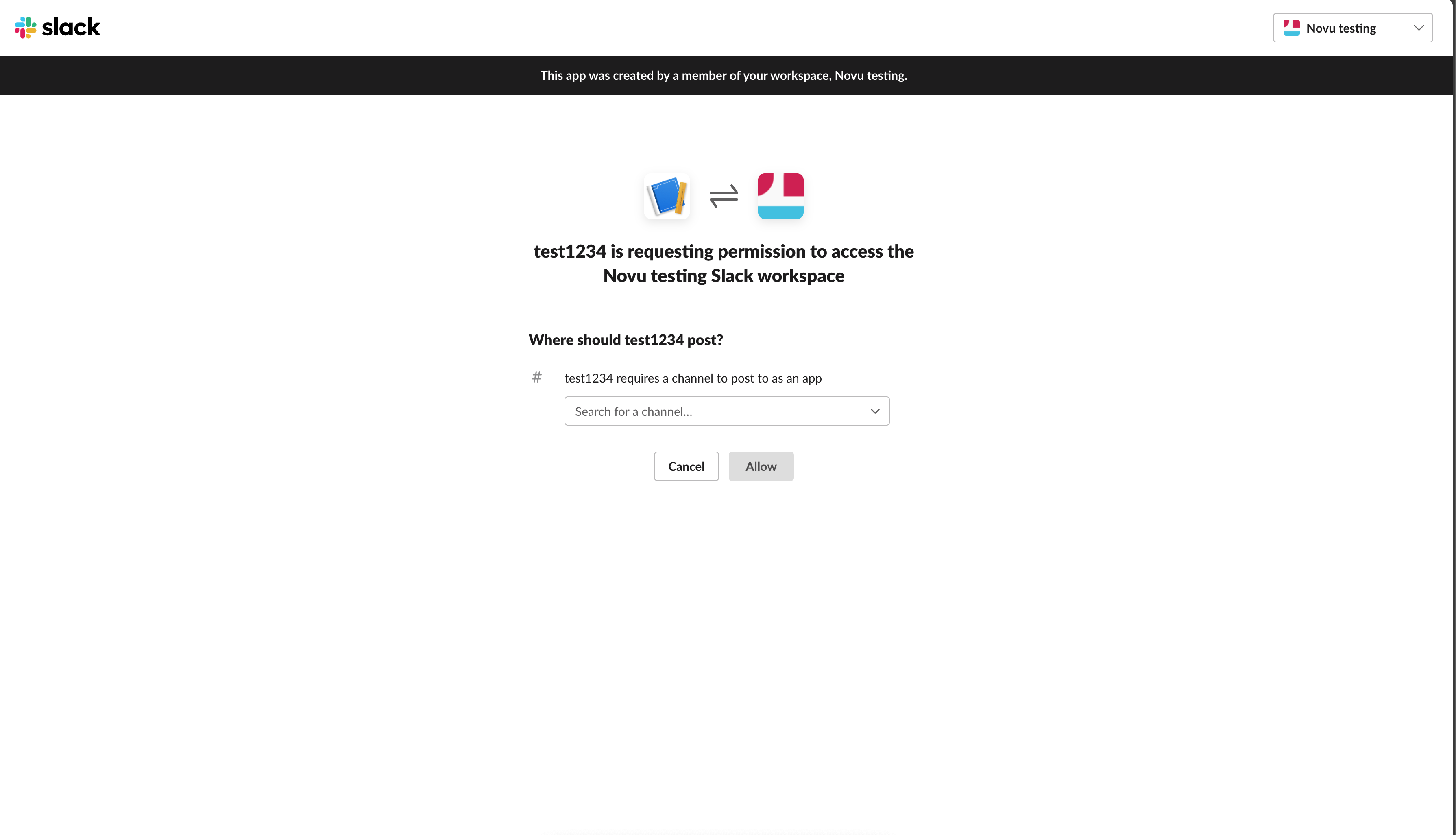
5. This is to request permission for access (scope: incoming-webhook).
6. You can use the generated `Shareable URL` that is found under the Slack integration in the [Integration Store](https://web.novu.co/integrations?utm_campaign=docs-integrations-slack). The `Shareable URL` should have the following format:
```bash theme={null}
https://api.novu.co/v1/subscribers//credentials/slack/oauth?environmentId=&integrationIdentifier=.
```
* `SUBSCRIBER_ID` is a custom identifier used when identifying your users within the Novu platform.
* `ENVIRONMENT_ID` is a context of an environment you can locate your environment id in the setting in the [dashboard settings](https://web.novu.co/settings?utm_campaign=docs-integrations-slack).
* `PROVIDER_ID` (optional) is a unique identifier of the integration and is required when you have multiple slack integrations in Novu. You can locate your integration identifier in the [Integration Store](https://web.novu.co/integrations?utm_campaign=docs-integratons-slack). When not provided, the last created integration will be used.
If you are using the `Add to Slack` button you have to provide the `Shareable URL` as the `redirect_uri` parameter like in this example. Make sure that the `Shareable URL` is URL encoded:
```html theme={null}
4. You can either add the `Add to Slack` button or use the `Shareable URL` directly, in the application you'll be using Novu in.
The network request to the 'Shareable URL' will happen when the user clicks the 'Add to Slack' button.
5. This is to request permission for access (scope: incoming-webhook).
6. You can use the generated `Shareable URL` that is found under the Slack integration in the [Integration Store](https://web.novu.co/integrations?utm_campaign=docs-integrations-slack). The `Shareable URL` should have the following format:
```bash theme={null}
https://api.novu.co/v1/subscribers//credentials/slack/oauth?environmentId=&integrationIdentifier=.
```
* `SUBSCRIBER_ID` is a custom identifier used when identifying your users within the Novu platform.
* `ENVIRONMENT_ID` is a context of an environment you can locate your environment id in the setting in the [dashboard settings](https://web.novu.co/settings?utm_campaign=docs-integrations-slack).
* `PROVIDER_ID` (optional) is a unique identifier of the integration and is required when you have multiple slack integrations in Novu. You can locate your integration identifier in the [Integration Store](https://web.novu.co/integrations?utm_campaign=docs-integratons-slack). When not provided, the last created integration will be used.
If you are using the `Add to Slack` button you have to provide the `Shareable URL` as the `redirect_uri` parameter like in this example. Make sure that the `Shareable URL` is URL encoded:
```html theme={null}
 ```
7. Either you use the 'add to Slack' button or use the `Shareable URL`, you should land here:
```
7. Either you use the 'add to Slack' button or use the `Shareable URL`, you should land here:
 8. Then you'll be redirected to the address you chose in the [Integration Store](https://web.novu.co/integrations?utm_campaign=docs-integrations-slack):
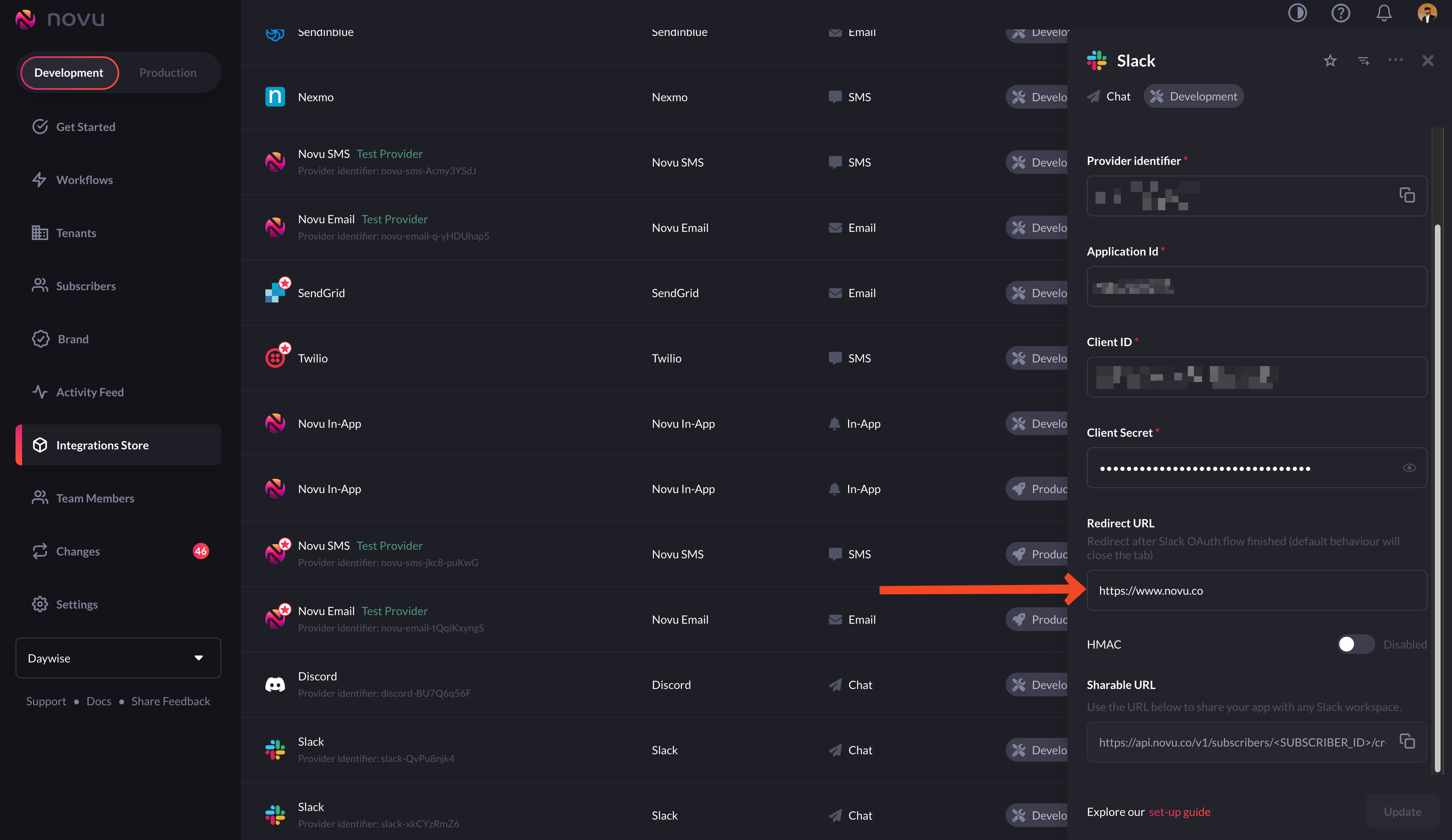 You can use the URL of whichever page you want your users to land on, after successful execution
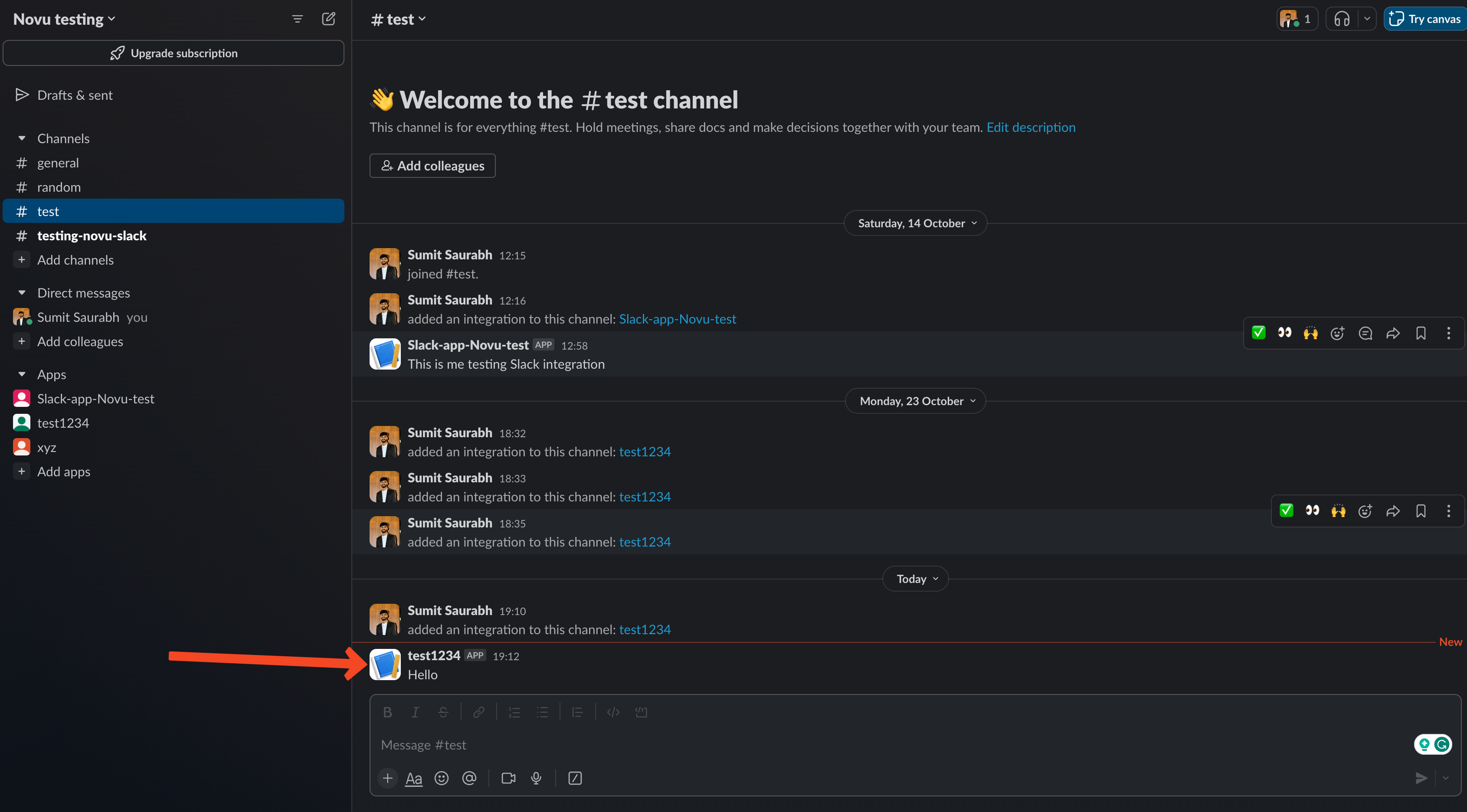
9\. That's it! Now you can trigger your workflow and send notifications:
You can use the URL of whichever page you want your users to land on, after successful execution
9\. That's it! Now you can trigger your workflow and send notifications:
 Don't forget to check out our [dedicated guide](/guides/slack-guide) on integrating Novu in a Slack app for more.
### 2. Manually managed
To use the manually managed option, you need to generate a `webhookUrl` and plug it into your backend.
1. Goto 'Incoming Webhooks' in your Slack app settings and turn it on.
Don't forget to check out our [dedicated guide](/guides/slack-guide) on integrating Novu in a Slack app for more.
### 2. Manually managed
To use the manually managed option, you need to generate a `webhookUrl` and plug it into your backend.
1. Goto 'Incoming Webhooks' in your Slack app settings and turn it on.
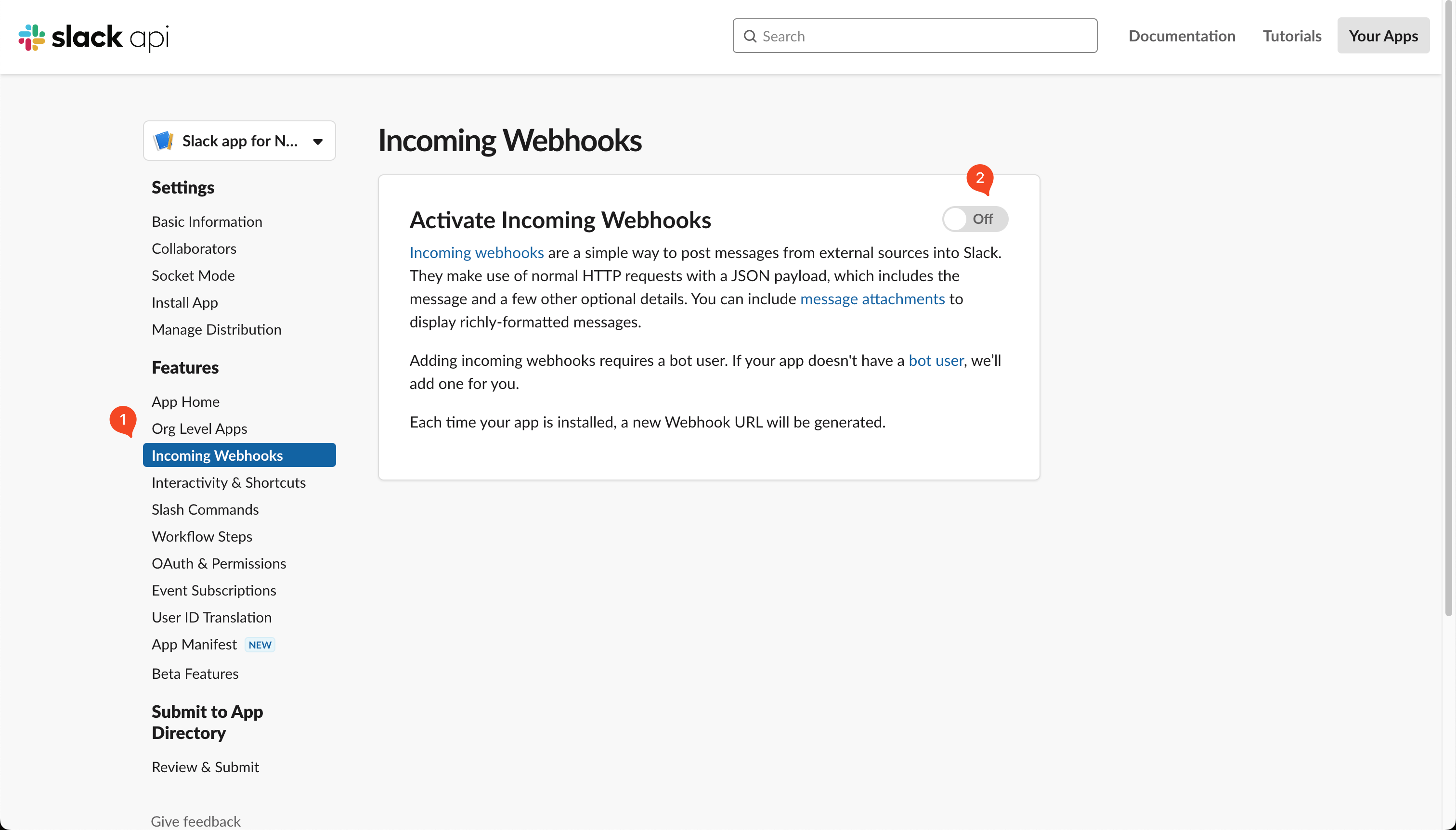 2. Click on the 'Add New Webhook to Workspace':
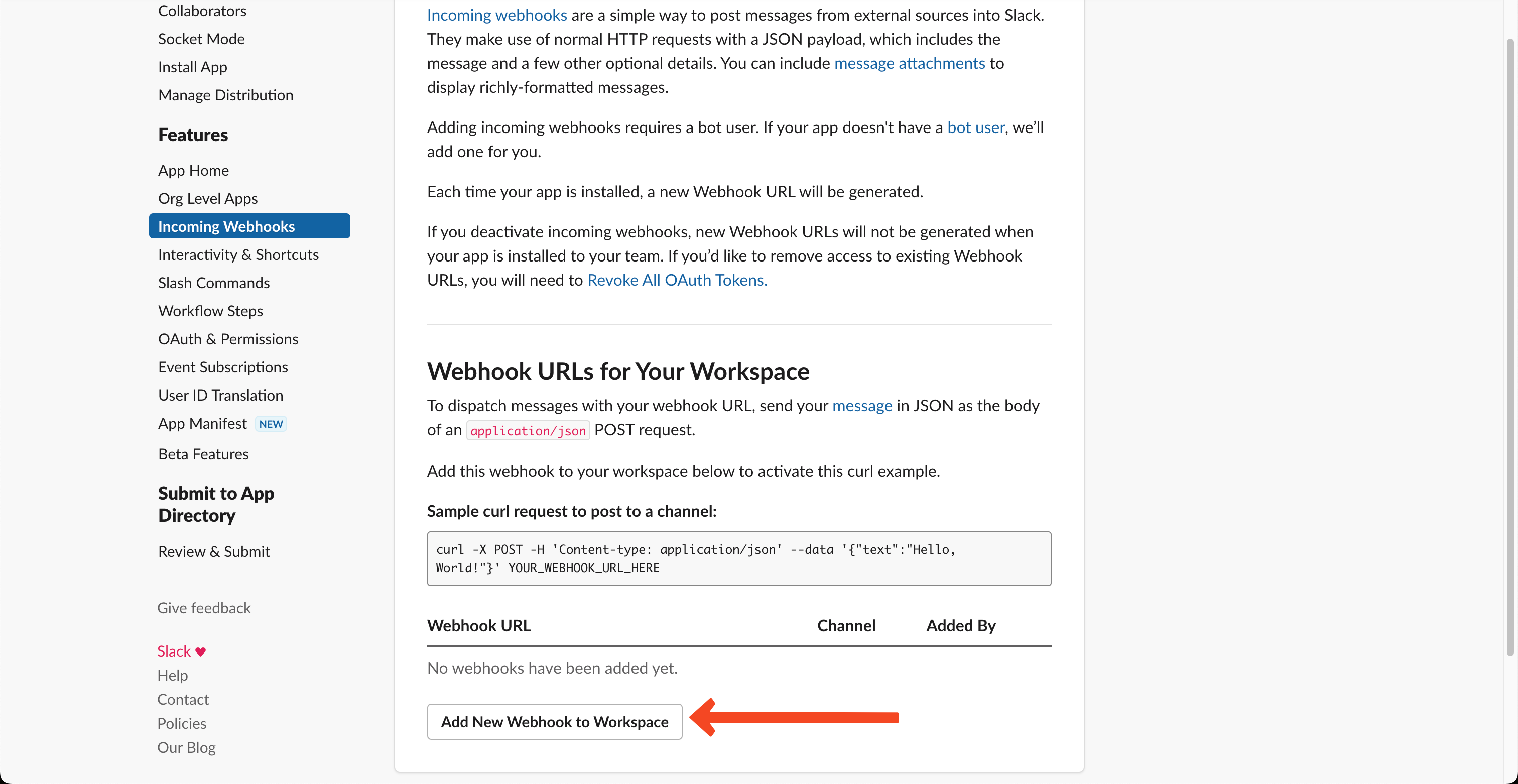 3. Now, go ahead and select the channel in which you want to send notifications and click 'allow'.
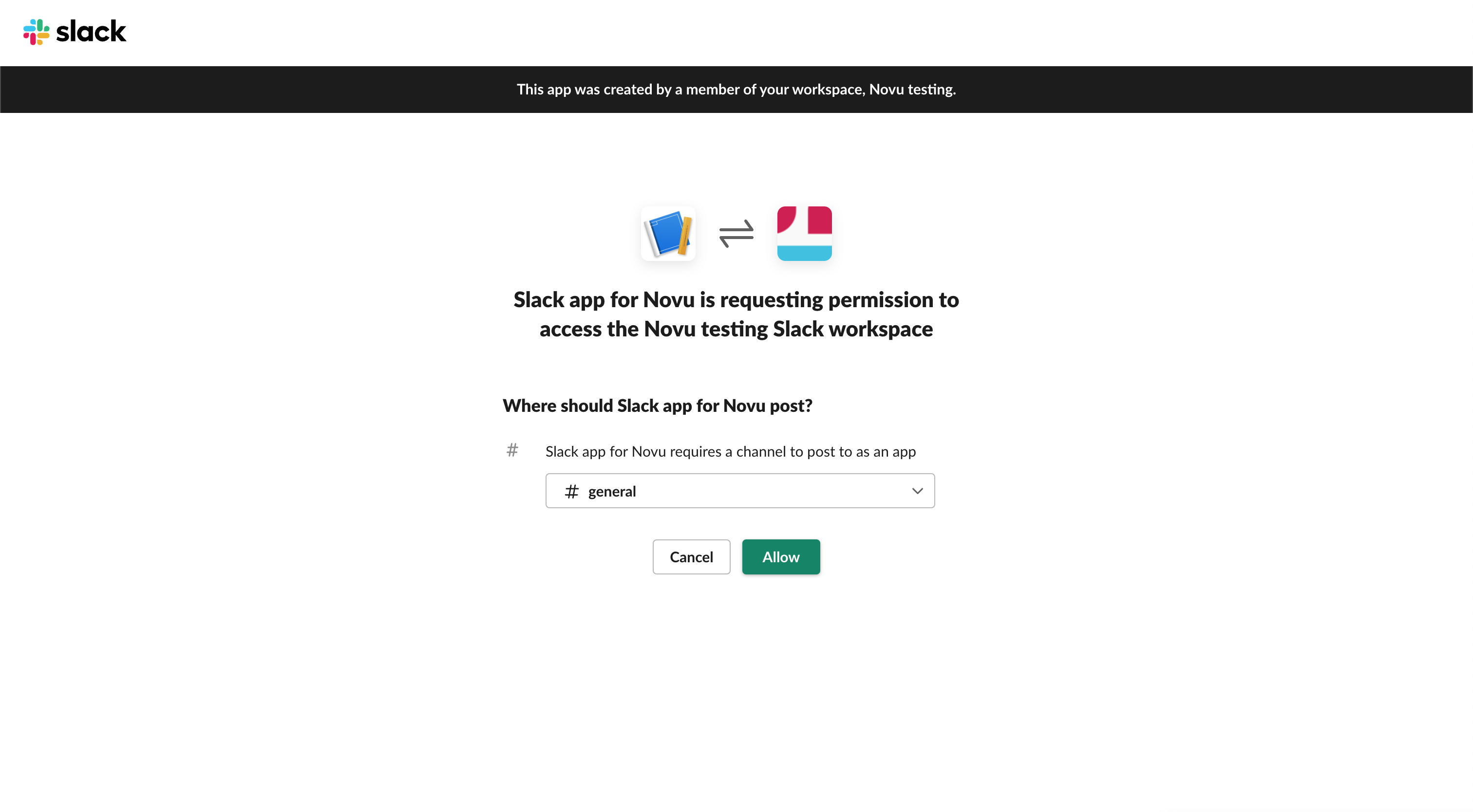 4. Then, copy the 'webhookUrl' from Slack.
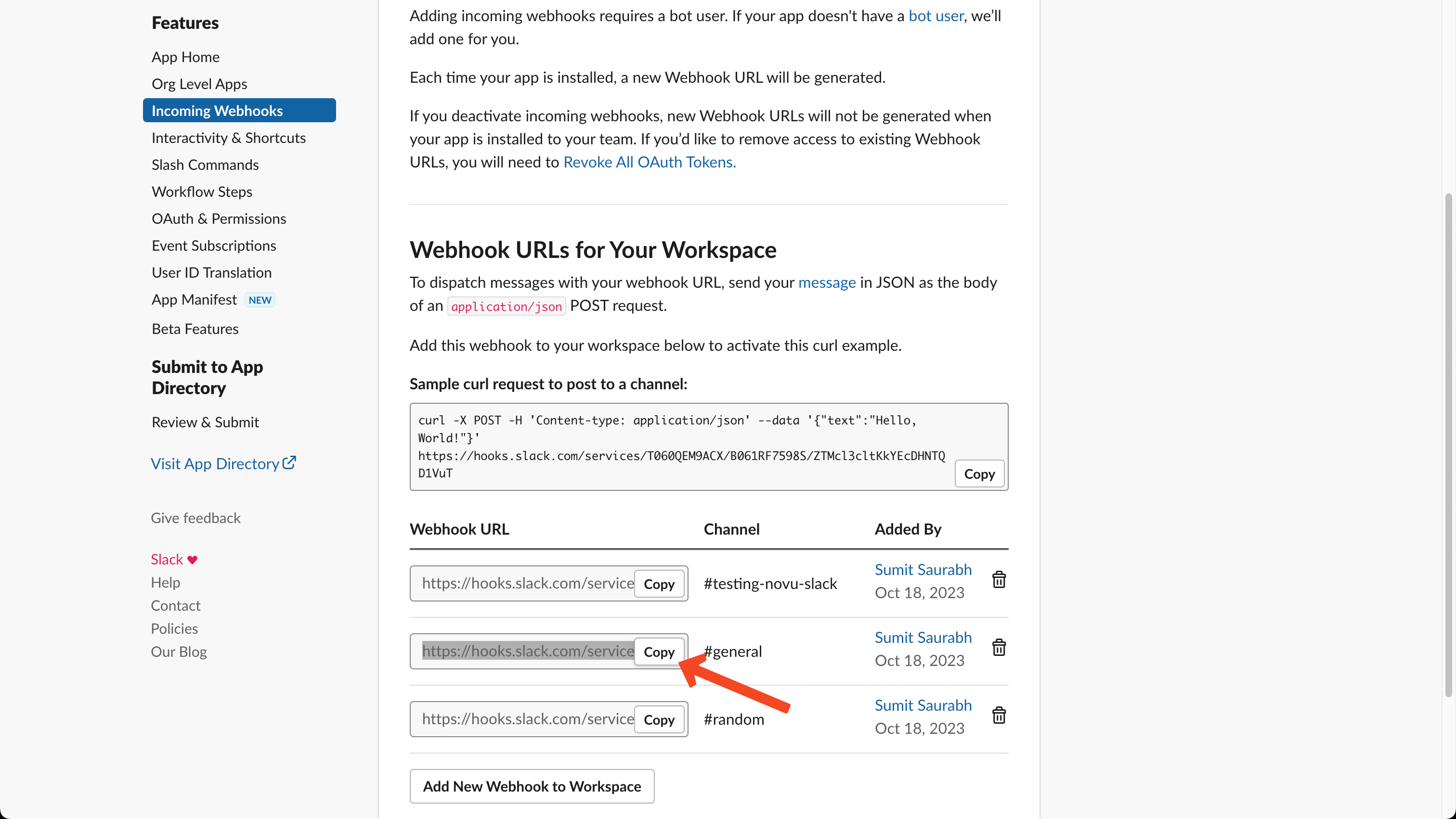 5. Now, you need to save the `webhookUrl` on the relevant subscriber entity in Novu. Here's an example to do the same using our Node SDK:
## Update credential webhookUrl
```javaScript theme={null}
import {
Novu,
ChatProviderIdEnum
} from '@novu/node';
const novu = new Novu("");
await novu.subscribers.setCredentials('subscriberId', ChatProviderIdEnum.Slack, {
webhookUrl: "",
});
```
```bash theme={null}
curl -L -X PUT 'https://api.novu.co/v1/subscribers//credentials' \
-H 'Content-Type: application/json' \
-H 'Accept: application/json' \
-H 'Authorization: ApiKey ' \
-d '{
"providerId": "slack",
"credentials": {
"webhookUrl": ""
},
"integrationIdentifier": "slack-MnGLxp8uy"
}'
```
Checkout the [API reference](/api-reference/subscribers/update-subscriber-credentials) for more details.
* `subscriberId` is a custom identifier used when identifying your users within the Novu platform.
* `providerId` is a unique provider identifier. We recommend using our ChatProviderIdEnum.Slack if you’re using Node, else string of Slack to specify the provider.
* The third parameter is the credentials object. In this case, we use the `webhookUrl` property to specify the webhook URL generated in the previous step.
6. You are all set up and ready to send your first chat message via our @novu/node package or directly using the REST API.
## Configuring Slack application
1. Go to OAuth & Permissions on Slack's Developer Dashboard and add your REDIRECT\_URL in Redirect URLs.
* If you use a manual Management solution, add the API endpoint you created in Step 1.
* If you use the Novu Managed solution add `https://api.novu.co/v1/subscribers`.
2. Go to Incoming Webhooks from the left menu and Activate Incoming Webhooks.
3. Go to Manage Distribution and at the bottom of the page, tick Remove Hard Coded Information and Activate Public Distribution.
### Enabling HMAC Encryption
To enable Hash-Based Message Authentication Codes, you need to do the following steps:
1. Visit the integration store page and enable HMAC encryption under your chat provider.
2. The next step would be to generate an HMAC encrypted subscriberId on your backend:
```jsx theme={null}
import { createHmac } from 'crypto';
const hmacHash = createHmac('sha256', process.env.NOVU_API_KEY)
.update(subscriberId)
.digest('hex');
```
3. Add the newly created hash HMAC to the Sharable URL as a query.
This concludes the Slack provider guide.
5. Now, you need to save the `webhookUrl` on the relevant subscriber entity in Novu. Here's an example to do the same using our Node SDK:
## Update credential webhookUrl
```javaScript theme={null}
import {
Novu,
ChatProviderIdEnum
} from '@novu/node';
const novu = new Novu("");
await novu.subscribers.setCredentials('subscriberId', ChatProviderIdEnum.Slack, {
webhookUrl: "",
});
```
```bash theme={null}
curl -L -X PUT 'https://api.novu.co/v1/subscribers//credentials' \
-H 'Content-Type: application/json' \
-H 'Accept: application/json' \
-H 'Authorization: ApiKey ' \
-d '{
"providerId": "slack",
"credentials": {
"webhookUrl": ""
},
"integrationIdentifier": "slack-MnGLxp8uy"
}'
```
Checkout the [API reference](/api-reference/subscribers/update-subscriber-credentials) for more details.
* `subscriberId` is a custom identifier used when identifying your users within the Novu platform.
* `providerId` is a unique provider identifier. We recommend using our ChatProviderIdEnum.Slack if you’re using Node, else string of Slack to specify the provider.
* The third parameter is the credentials object. In this case, we use the `webhookUrl` property to specify the webhook URL generated in the previous step.
6. You are all set up and ready to send your first chat message via our @novu/node package or directly using the REST API.
## Configuring Slack application
1. Go to OAuth & Permissions on Slack's Developer Dashboard and add your REDIRECT\_URL in Redirect URLs.
* If you use a manual Management solution, add the API endpoint you created in Step 1.
* If you use the Novu Managed solution add `https://api.novu.co/v1/subscribers`.
2. Go to Incoming Webhooks from the left menu and Activate Incoming Webhooks.
3. Go to Manage Distribution and at the bottom of the page, tick Remove Hard Coded Information and Activate Public Distribution.
### Enabling HMAC Encryption
To enable Hash-Based Message Authentication Codes, you need to do the following steps:
1. Visit the integration store page and enable HMAC encryption under your chat provider.
2. The next step would be to generate an HMAC encrypted subscriberId on your backend:
```jsx theme={null}
import { createHmac } from 'crypto';
const hmacHash = createHmac('sha256', process.env.NOVU_API_KEY)
.update(subscriberId)
.digest('hex');
```
3. Add the newly created hash HMAC to the Sharable URL as a query.
This concludes the Slack provider guide.