> ## Documentation Index
> Fetch the complete documentation index at: https://v0.x-docs.novu.co/llms.txt
> Use this file to discover all available pages before exploring further.
# Zulip
> Learn about how to use Zulip provider for chat notifications
Zulip does not need any API Key or client ID to push messages in it. All it needs is the webhook URL of the channel you want to send messages to. That itself acts as the credential.
Similar to Discord, the credential for this provider needs to be stored in the subscriber entity.
## Getting a Zulip webhook URL
* Sign up or Login to your Zulip account.
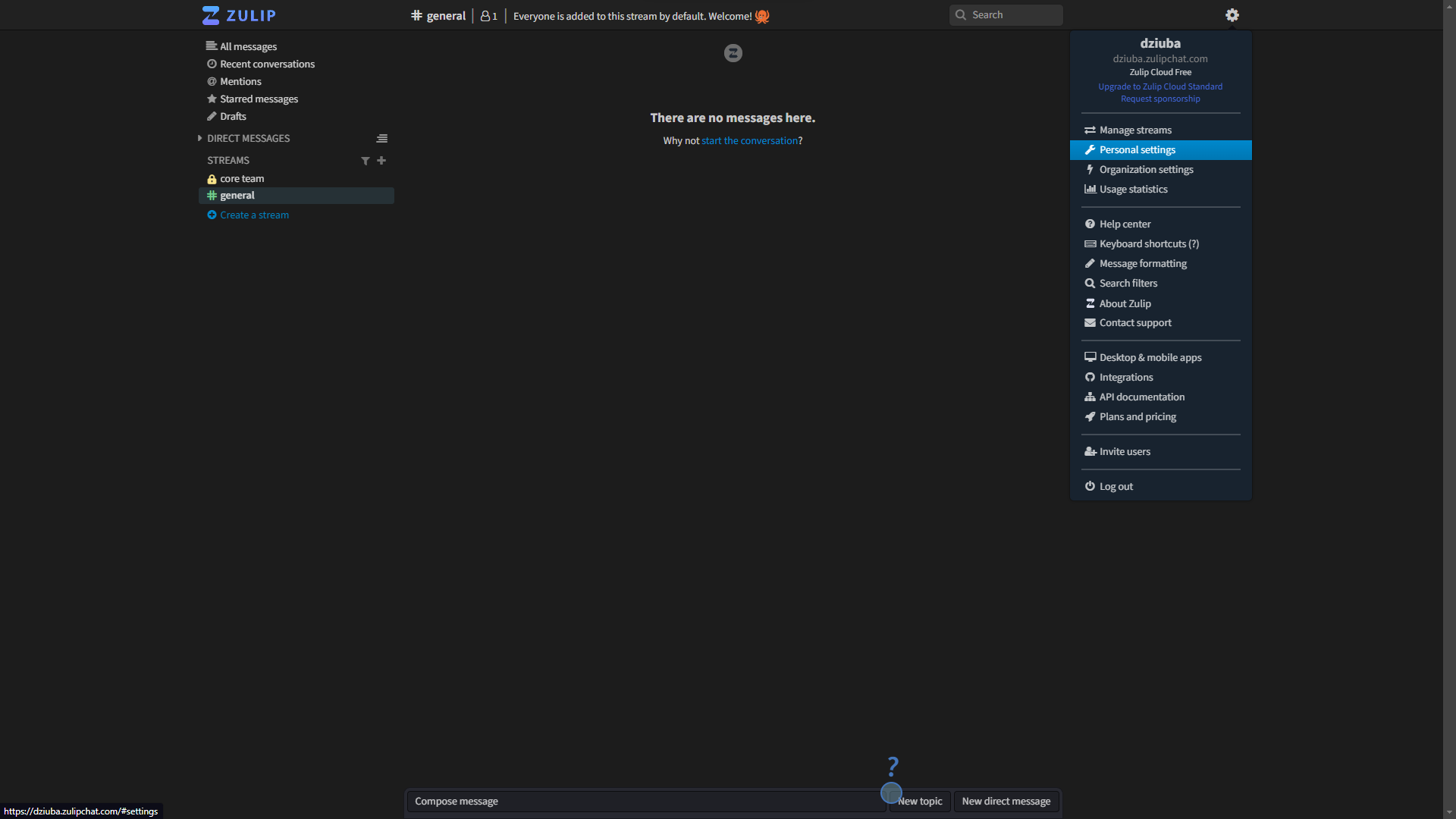
* Click on the Settings icon in the top right corner of the screen, and then click "Personal settings" from the drop-down menu.
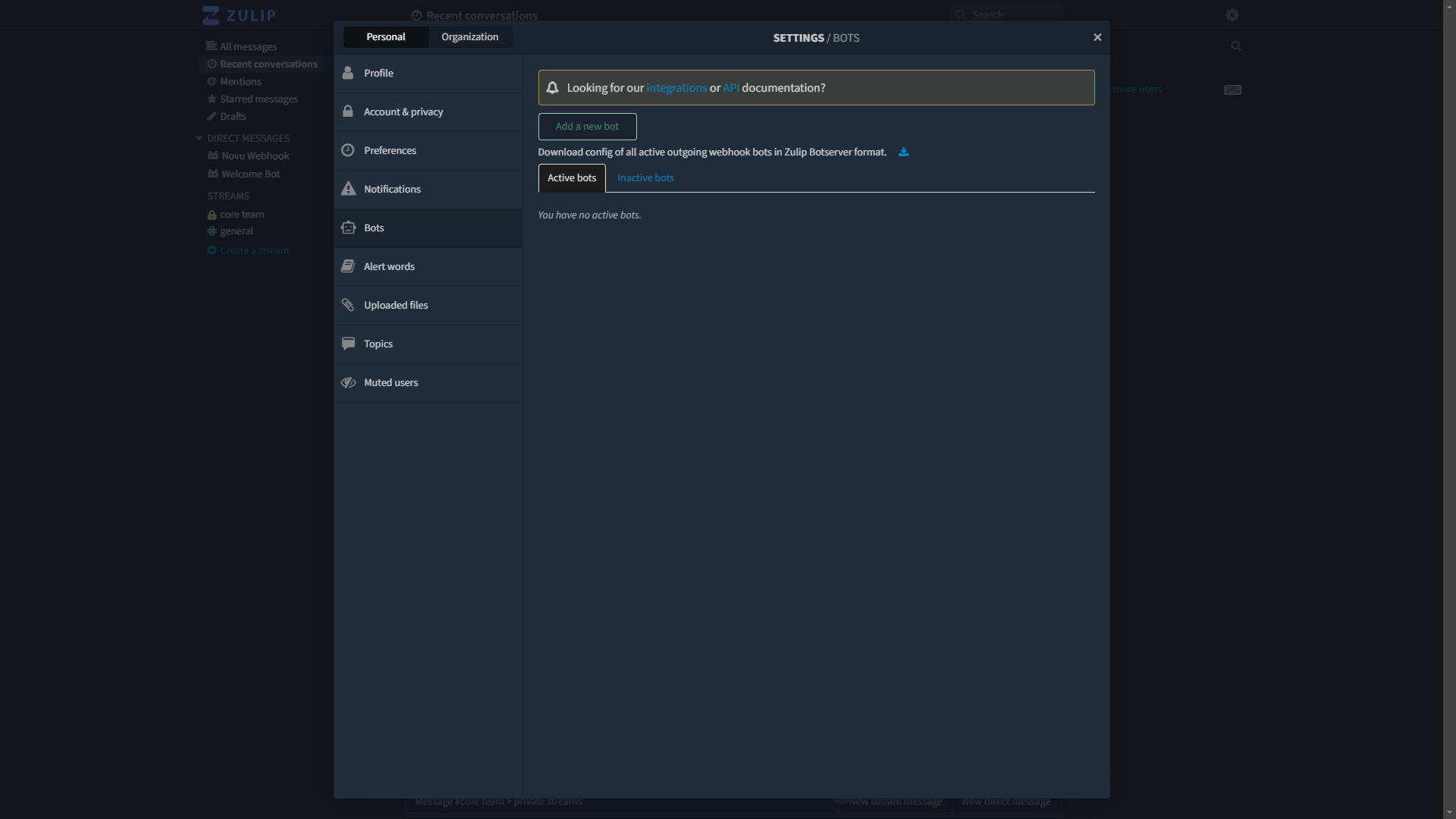
 * Click "Add a new bot" button in "Bots" tab.
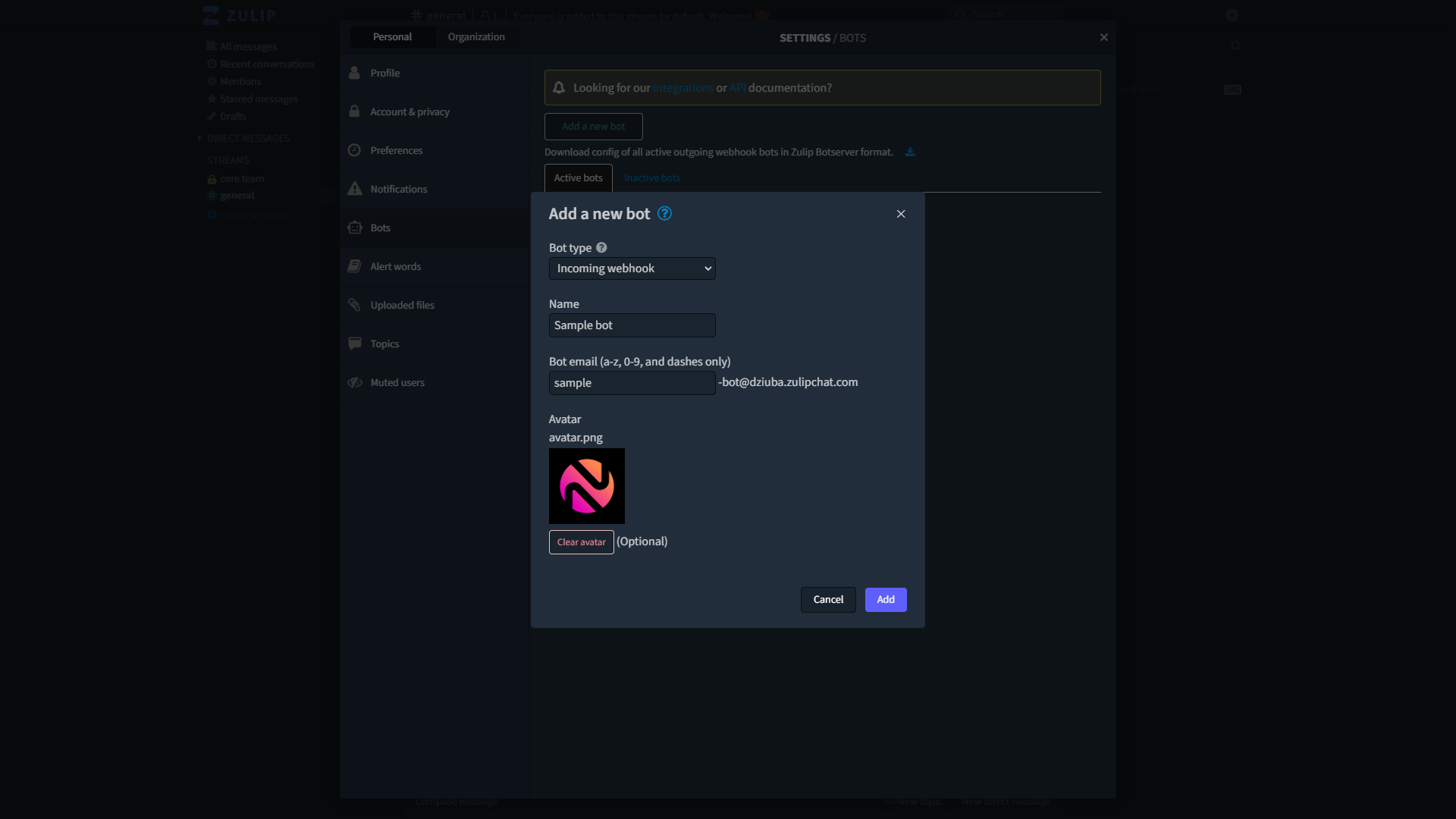
 * Set bot type as "Incoming webhook".
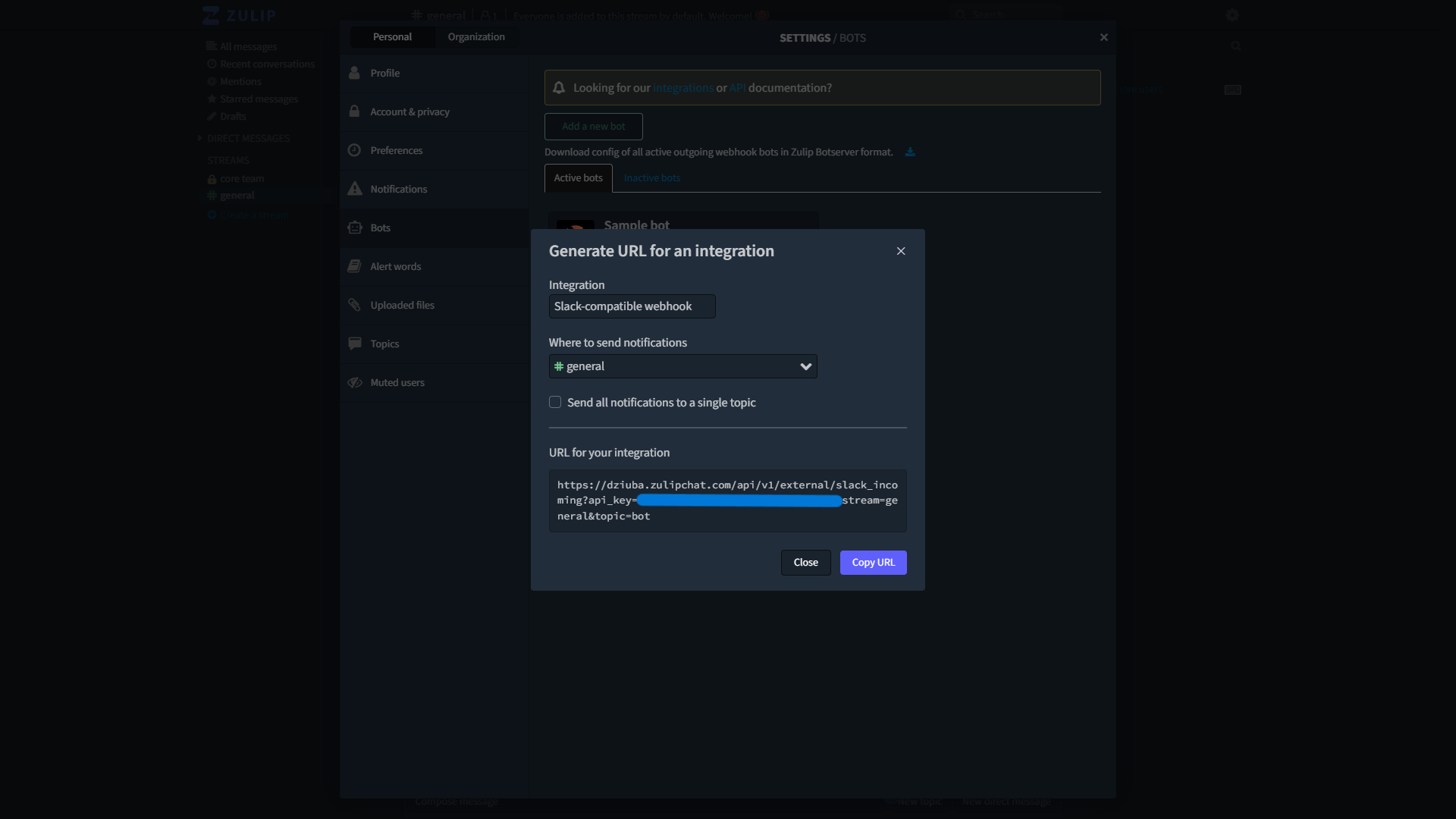
 * Click the small link icon to generate webhook URL for provider. Set Integration as `Slack compatible webhook`, choose your channel and copy webhook URL.
 ## Connecting our subscribers to Zulip
The URL generated above will be the target channel of a subscriber that you want to integrate with. To make this connection, you have to:
1. Copy the URL that you generated above
2. Update the subscriber credentials with this URL using the Zulip provider id. You can do this step by using the `@novu/node` library, as shown below:
## Update credential webhookUrl
```javaScript theme={null}
import {
Novu,
ChatProviderIdEnum
} from '@novu/node';
const novu = new Novu("");
await novu.subscribers.setCredentials('subscriberId', ChatProviderIdEnum.Zulip, {
webhookUrl: "",
});
```
```bash theme={null}
curl -L -X PUT 'https://api.novu.co/v1/subscribers//credentials' \
-H 'Content-Type: application/json' \
-H 'Accept: application/json' \
-H 'Authorization: ApiKey ' \
-d '{
"providerId": "zulip",
"credentials": {
"webhookUrl": ""
},
"integrationIdentifier": "zulip-MnGLxp8uy"
}'
```
* `subscriberId` is a custom identifier used when identifying your users within the Novu platform.
* `providerId` is a unique provider identifier. We recommend using our ChatProviderIdEnum to specify the provider.
* The third parameter is the credentials object, in this case, we use the `webhookUrl` property to specify the MS Teams channel webhook URL or by calling the `Update Subscriber Credentials` endpoint on Novu API. Check endpoint details [here](https://docs.novu.co/api/update-subscriber-credentials/).
3. You are all set up and ready to send your first chat message via our `@novu/node` package or directly using the REST API.
## Connecting our subscribers to Zulip
The URL generated above will be the target channel of a subscriber that you want to integrate with. To make this connection, you have to:
1. Copy the URL that you generated above
2. Update the subscriber credentials with this URL using the Zulip provider id. You can do this step by using the `@novu/node` library, as shown below:
## Update credential webhookUrl
```javaScript theme={null}
import {
Novu,
ChatProviderIdEnum
} from '@novu/node';
const novu = new Novu("");
await novu.subscribers.setCredentials('subscriberId', ChatProviderIdEnum.Zulip, {
webhookUrl: "",
});
```
```bash theme={null}
curl -L -X PUT 'https://api.novu.co/v1/subscribers//credentials' \
-H 'Content-Type: application/json' \
-H 'Accept: application/json' \
-H 'Authorization: ApiKey ' \
-d '{
"providerId": "zulip",
"credentials": {
"webhookUrl": ""
},
"integrationIdentifier": "zulip-MnGLxp8uy"
}'
```
* `subscriberId` is a custom identifier used when identifying your users within the Novu platform.
* `providerId` is a unique provider identifier. We recommend using our ChatProviderIdEnum to specify the provider.
* The third parameter is the credentials object, in this case, we use the `webhookUrl` property to specify the MS Teams channel webhook URL or by calling the `Update Subscriber Credentials` endpoint on Novu API. Check endpoint details [here](https://docs.novu.co/api/update-subscriber-credentials/).
3. You are all set up and ready to send your first chat message via our `@novu/node` package or directly using the REST API.