> ## Documentation Index
> Fetch the complete documentation index at: https://v0.x-docs.novu.co/llms.txt
> Use this file to discover all available pages before exploring further.
# Clickatell
> Learn how to use the Clickatell provider to send sms notifications using Novu
You can use the [Clickatell](https://www.clickatell.com/) provider to send SMS messages to your customers using the Novu Platform.
Let's see how to do it:
## Getting Started
To use the [Clickatell](https://www.clickatell.com/) provider in the SMS channel, the first step is to [create a Clickatell account](https://www.clickatell.com/sign-up/) and add your API key to the Clickatell integration on the [Novu web dashboard](https://web.novu.co/integrations?utm_campaign=docs-sms-clickatell).
## Retrieving your API Key
To find your Clickatell API key:
* [Sign up](https://www.clickatell.com/sign-up/) or [Login](https://app.clickatell.com/signin) to your Clickatell account.
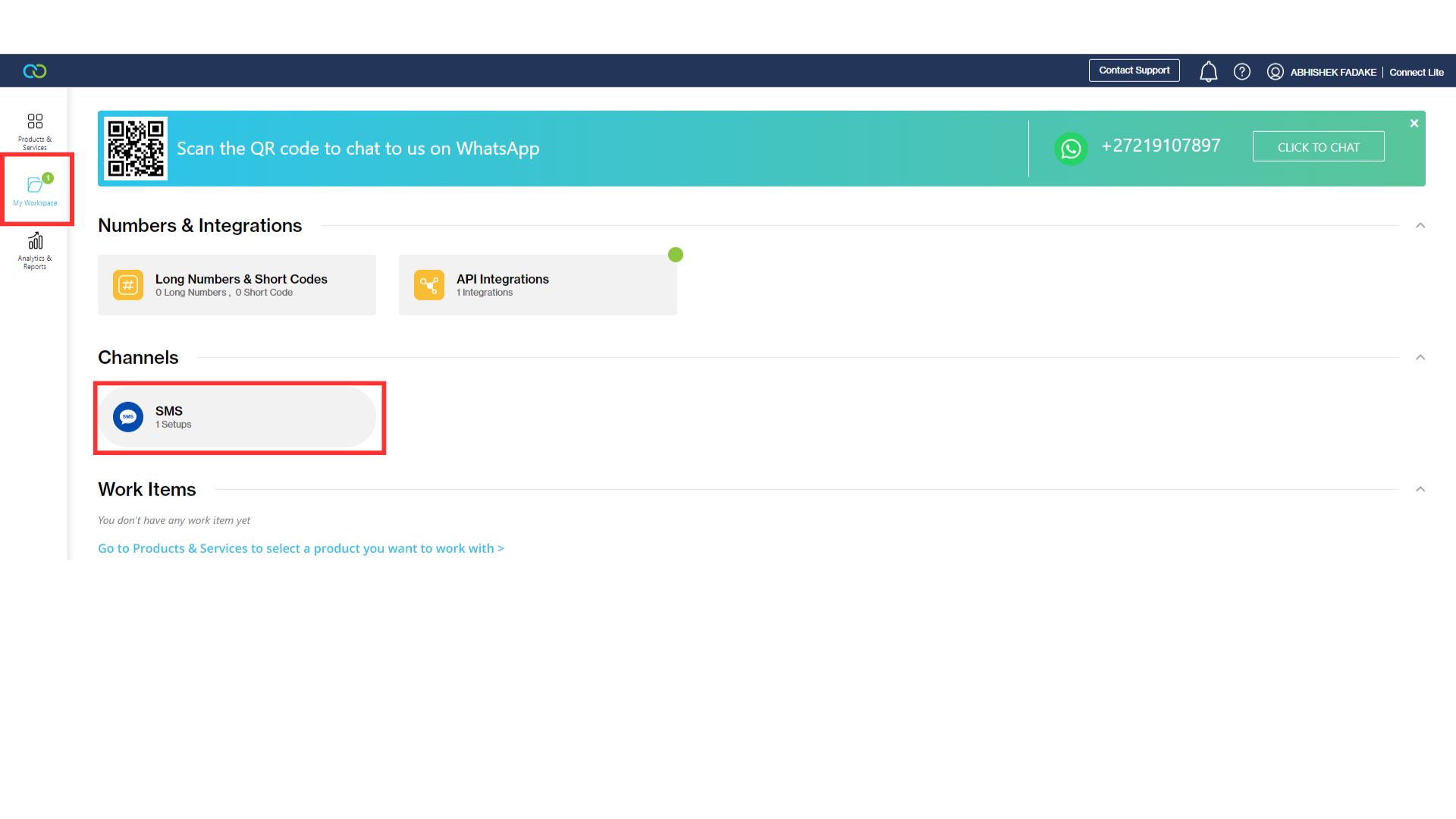
* Click on the `My Workspace`, and then click `SMS` in Channels Section.
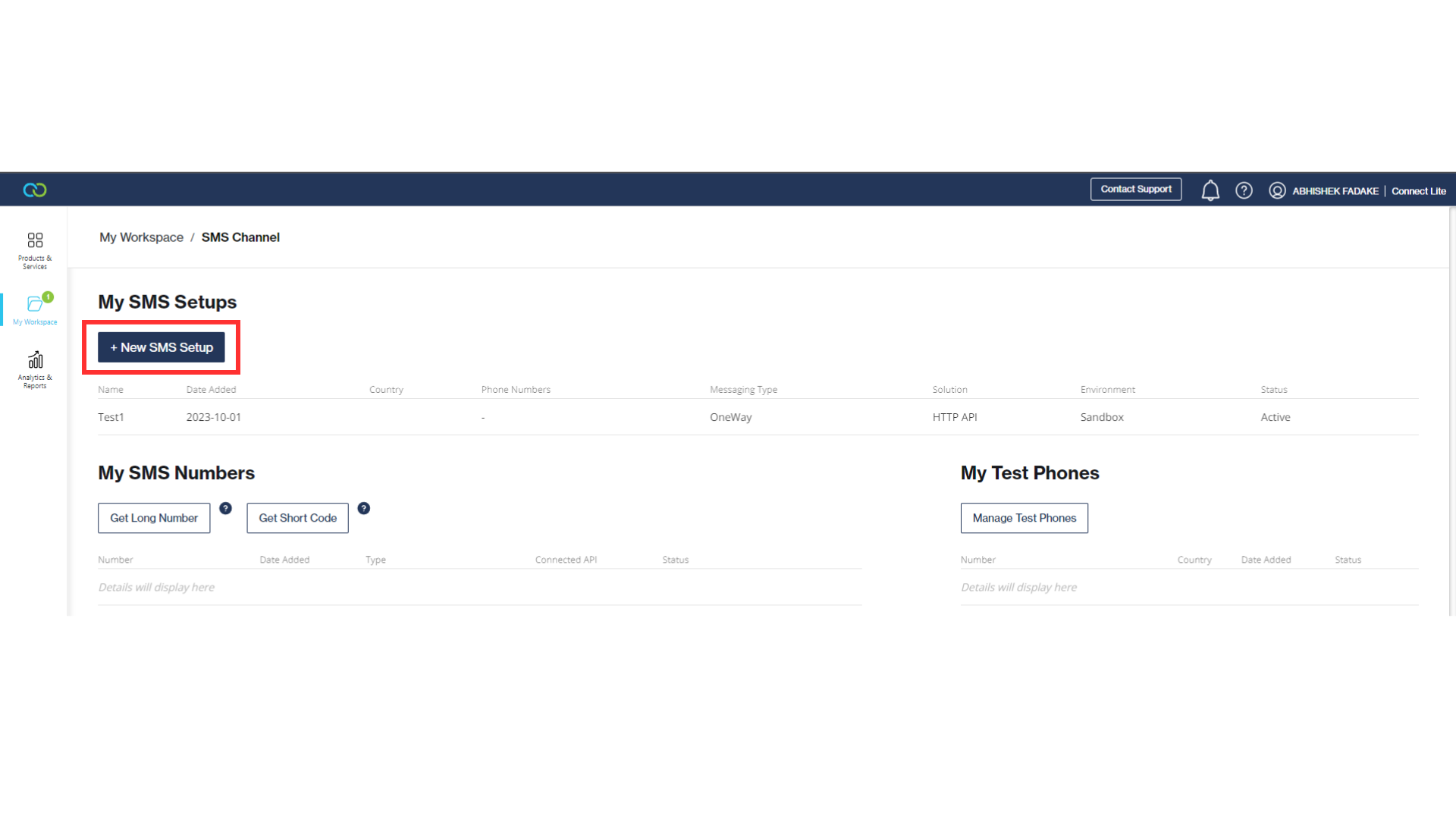
 * Click on the `New SMS Setup`.
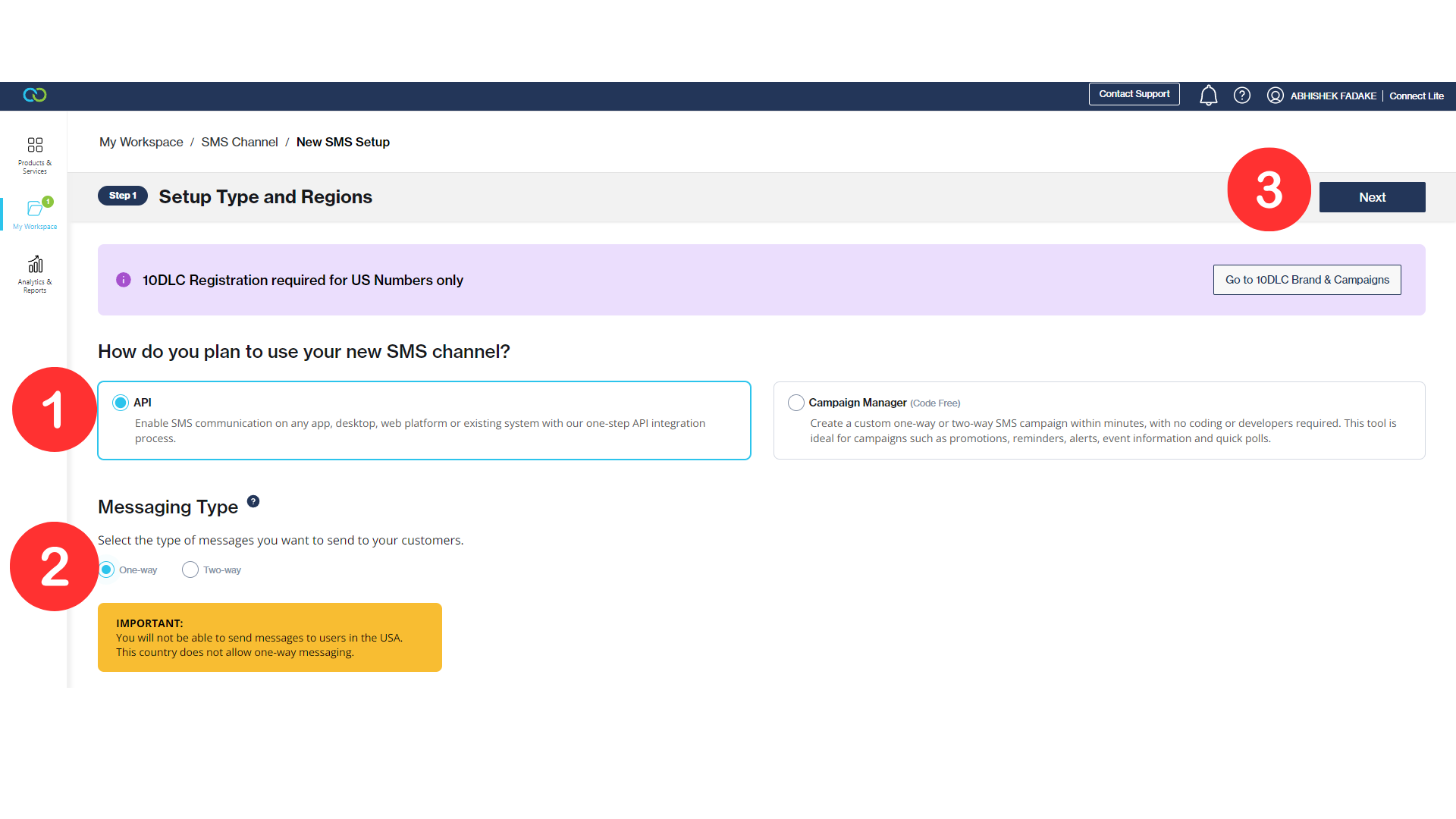
 * Select `API` then `Messaging Type` and click Next.
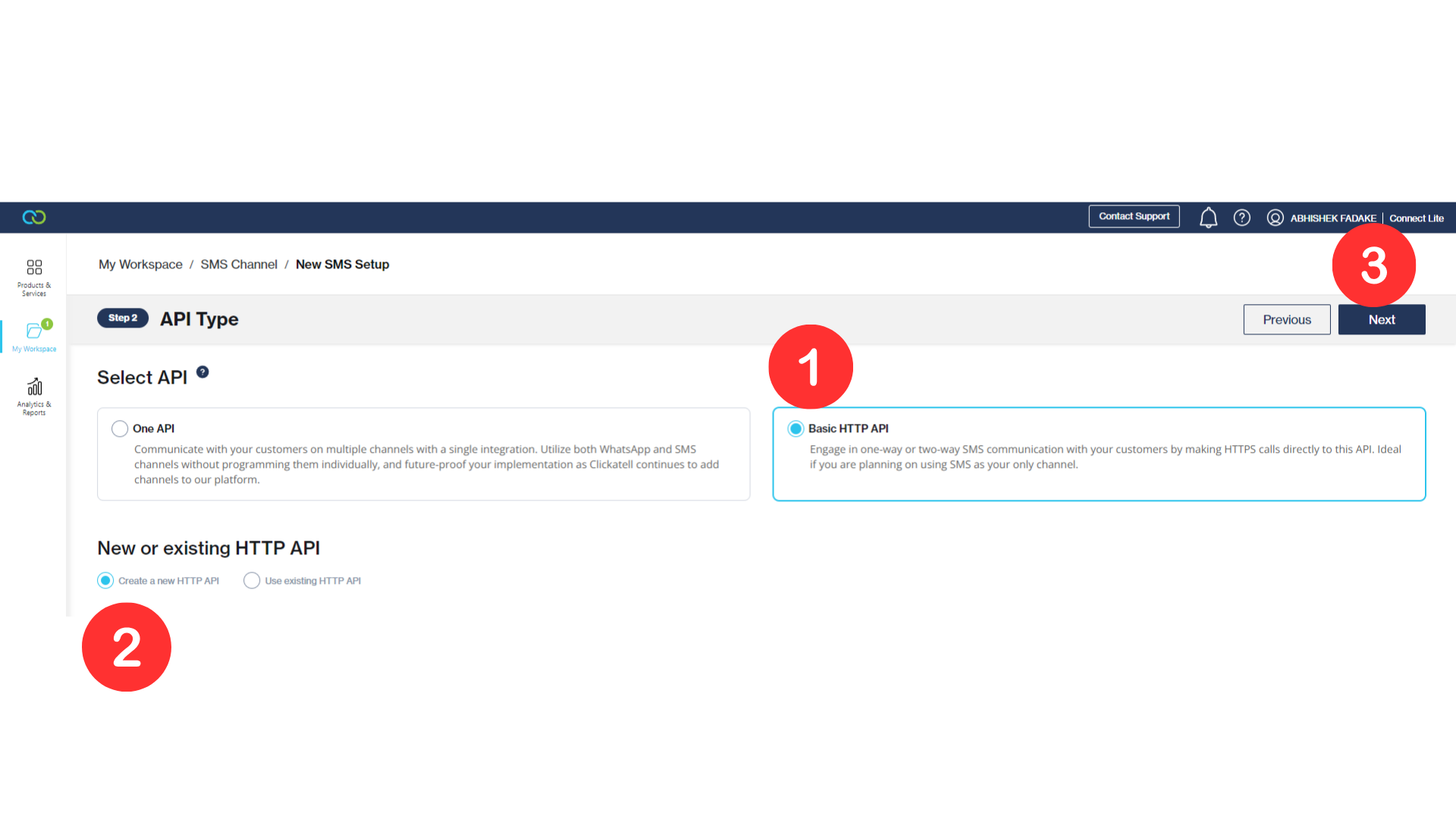
 * Select `Basic HTTP API` then `create a new HTTP API` and click Next.
 * Now fill in all details and Click Next.
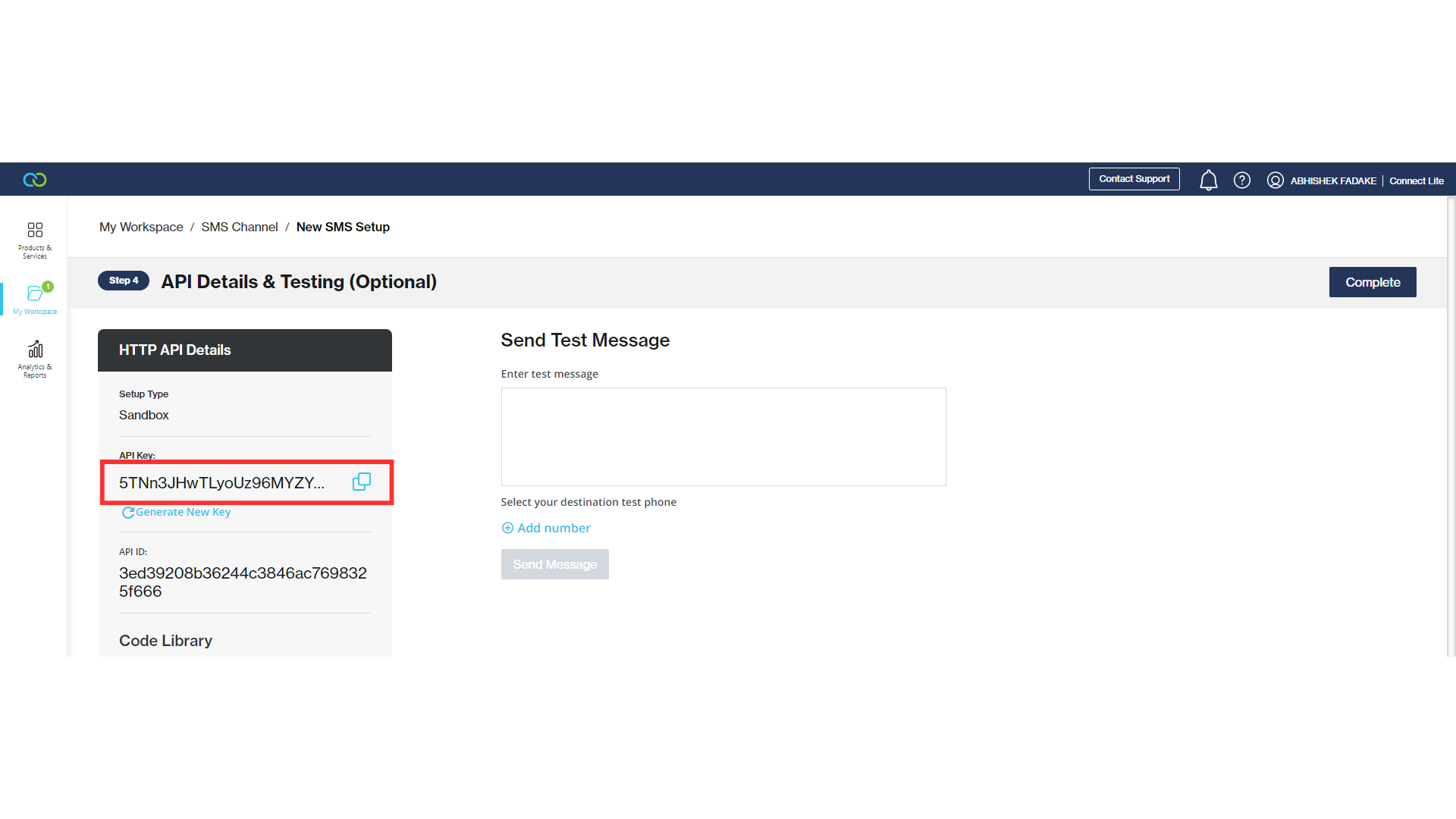
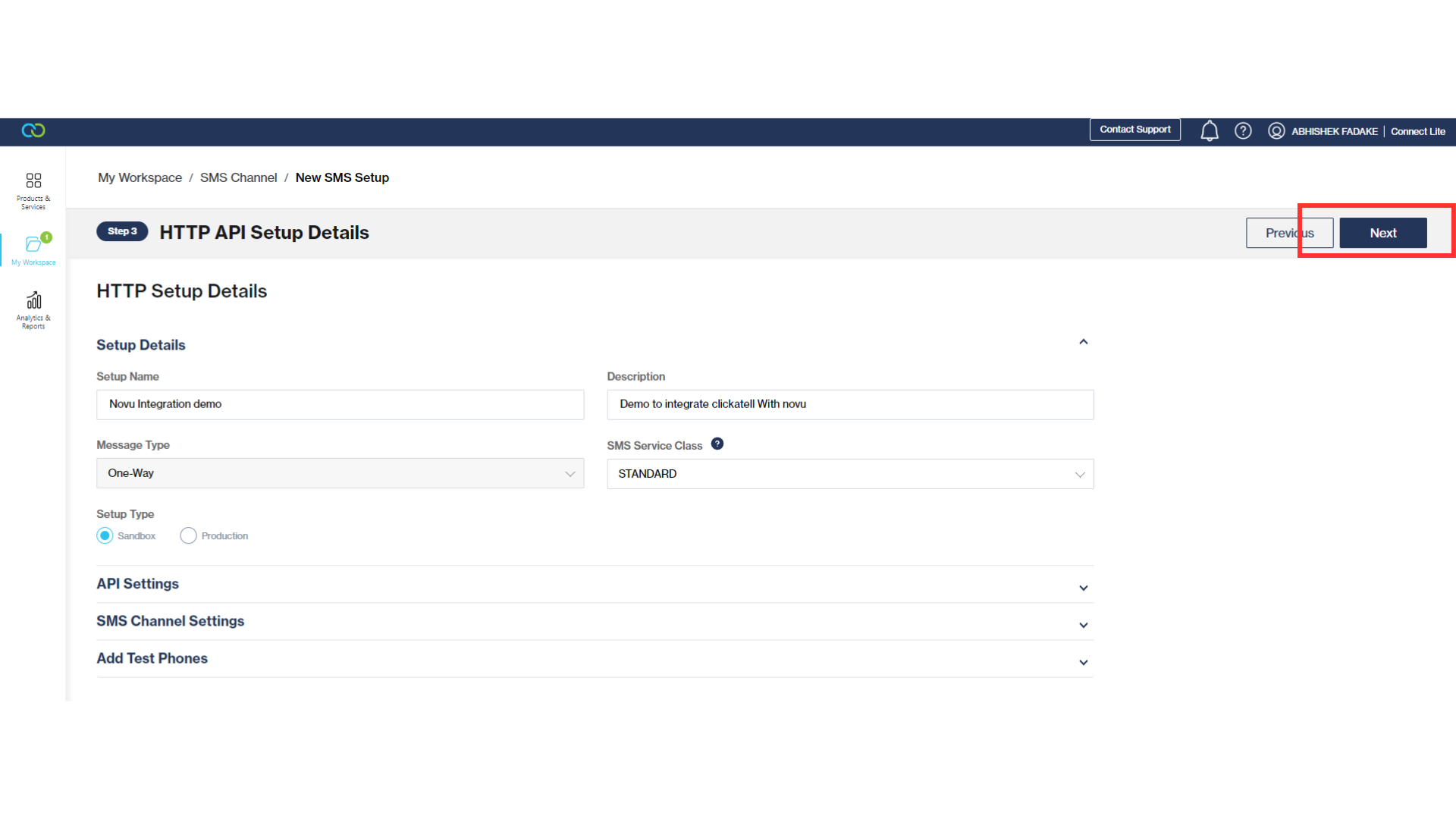 * Copy the API key and click complete.
 ## Create a Clickatell integration with Novu
* Visit the [Integrations](https://web.novu.co/integrations?utm_campaign=docs-sms-clickatell) page on Novu.
* Click the "Add a provider" button.
* Locate **Clickatell** under the SMS section and click on the **Connect** button.
* Enter your Clickatell API Key.
* Click on the `Disabled` button and mark it as `Active`.
* Click on the **Connect** button.
Now it is possible to send SMS notifications using **Clickatell** in Novu.
## Create a Clickatell integration with Novu
* Visit the [Integrations](https://web.novu.co/integrations?utm_campaign=docs-sms-clickatell) page on Novu.
* Click the "Add a provider" button.
* Locate **Clickatell** under the SMS section and click on the **Connect** button.
* Enter your Clickatell API Key.
* Click on the `Disabled` button and mark it as `Active`.
* Click on the **Connect** button.
Now it is possible to send SMS notifications using **Clickatell** in Novu.