> ## Documentation Index
> Fetch the complete documentation index at: https://v0.x-docs.novu.co/llms.txt
> Use this file to discover all available pages before exploring further.
# Sendchamp
> Learn how to use the Sendchamp provider to send sms notifications using Novu
You can use the [Sendchamp](https://www.sendchamp.com/) provider to send SMS messages to your customers using the Novu Platform with a single API to create multi-channel experiences.
## Getting Started
To use the Sendchamp provider in the SMS channel, the first step is to create a Sendchamp account and add your API key and Sender ID to the Sendchamp integration on the Novu platform.
## Retrieving your API Key
To find your Sendchamp API key:
* [Sign up](https://my.sendchamp.com/signup) or [Login](https://my.sendchamp.com/login) to your Sendchamp account.
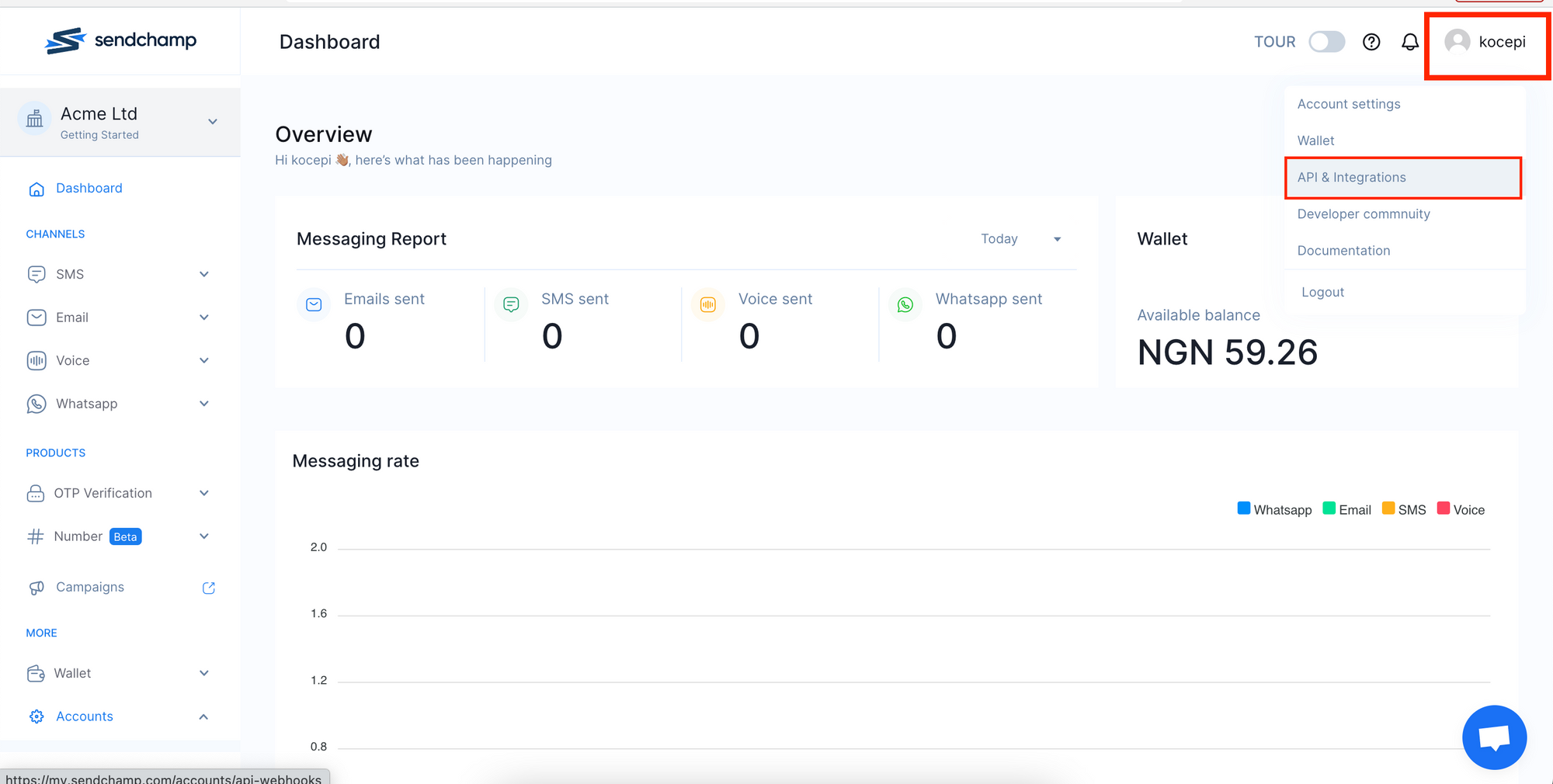
* Click on the Avatar icon in the top right corner of the screen, and then click `API & Integrations` from the drop-down menu.
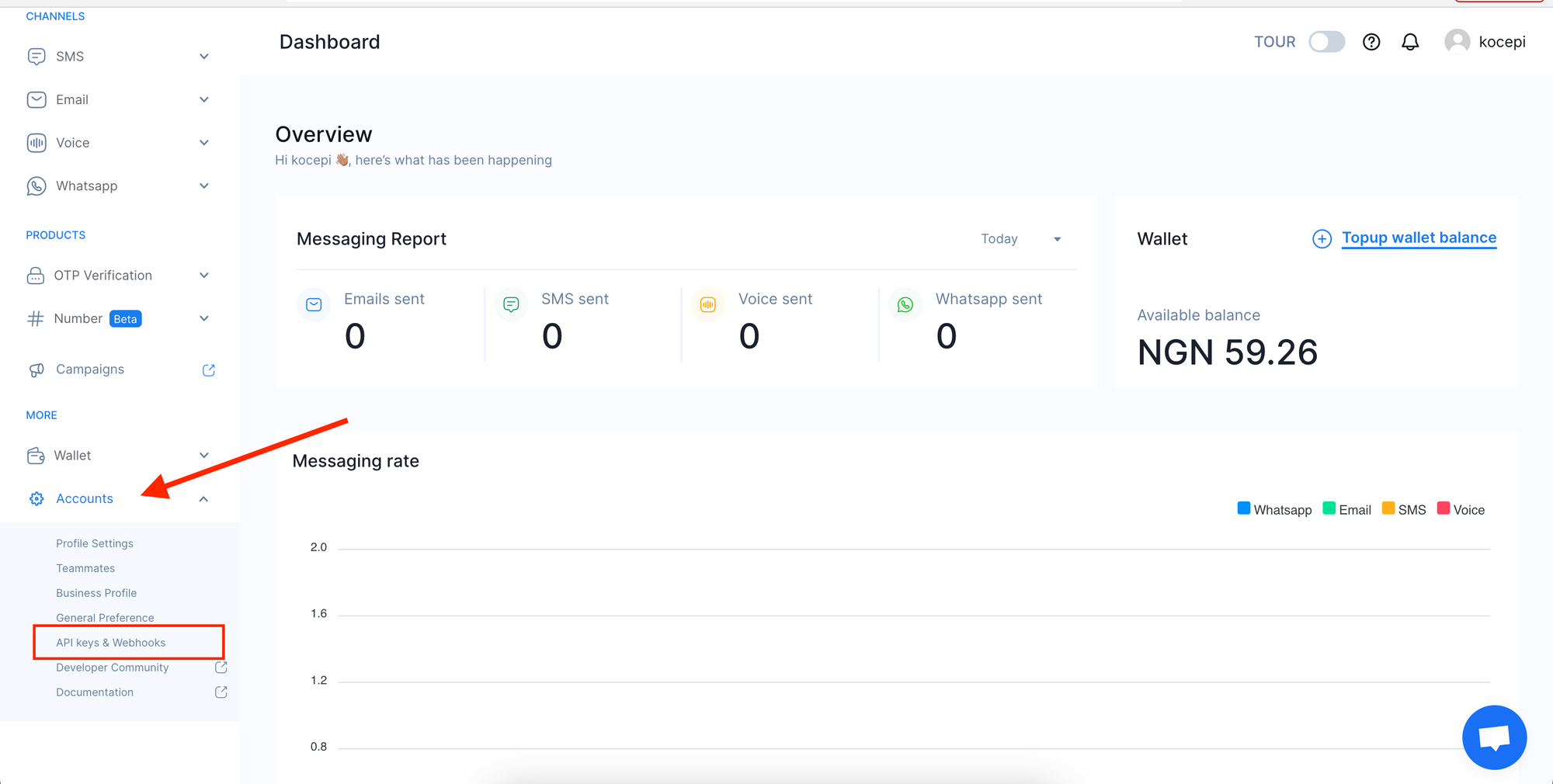
 Alternatively, you can access the API key from the Accounts menu.
* Scroll to the bottom of the sidebar (on the left) and click on `Accounts`.
* This will display a dropdown from which you can then click on `API keys & Webhooks` to view your API key.
Alternatively, you can access the API key from the Accounts menu.
* Scroll to the bottom of the sidebar (on the left) and click on `Accounts`.
* This will display a dropdown from which you can then click on `API keys & Webhooks` to view your API key.
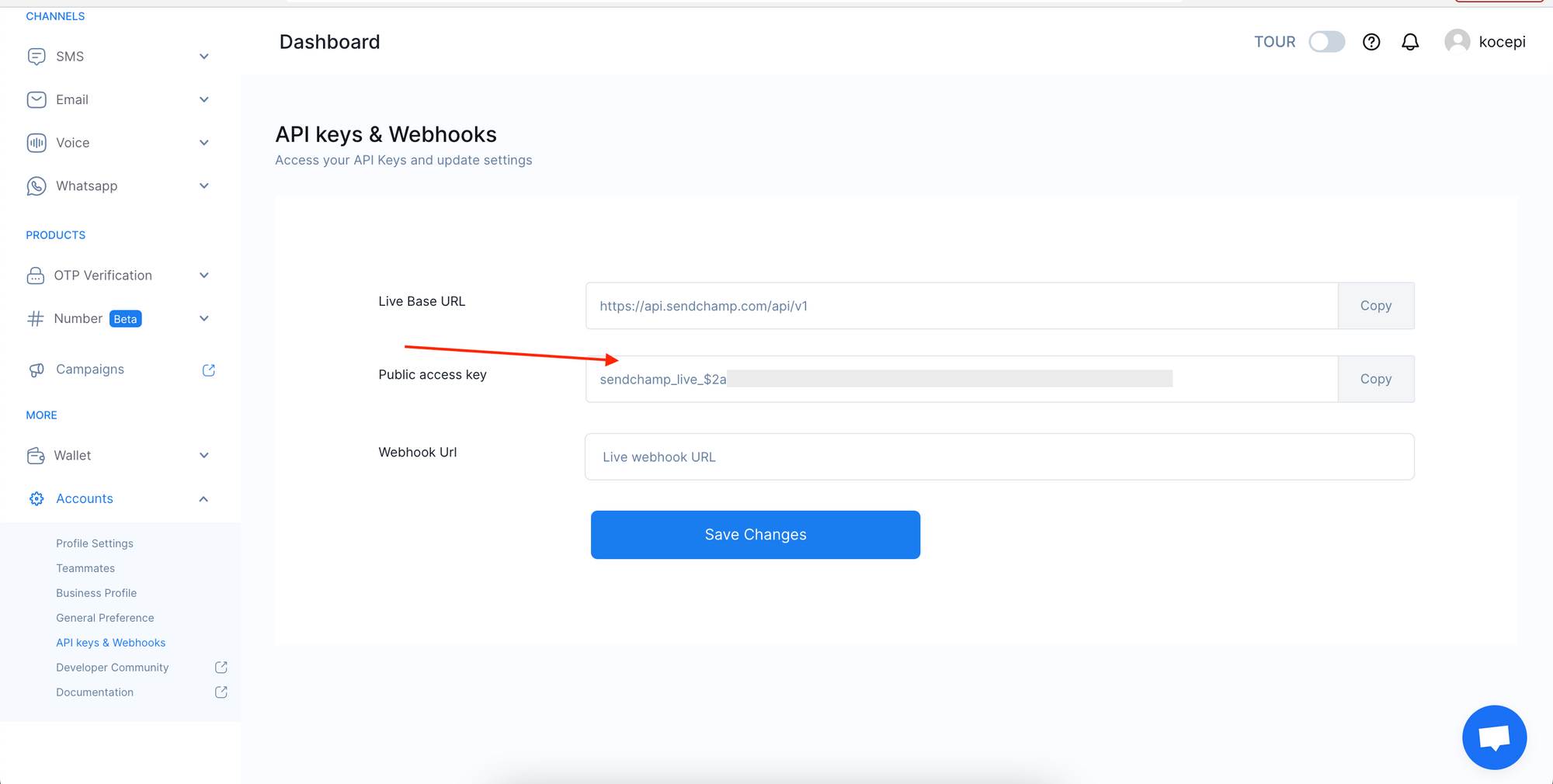
 * On the API Keys page, copy the Public access key.
 ## Get your Sender's ID
The Sender ID represents the sender of the message to your customers.
To get your Sender's ID:
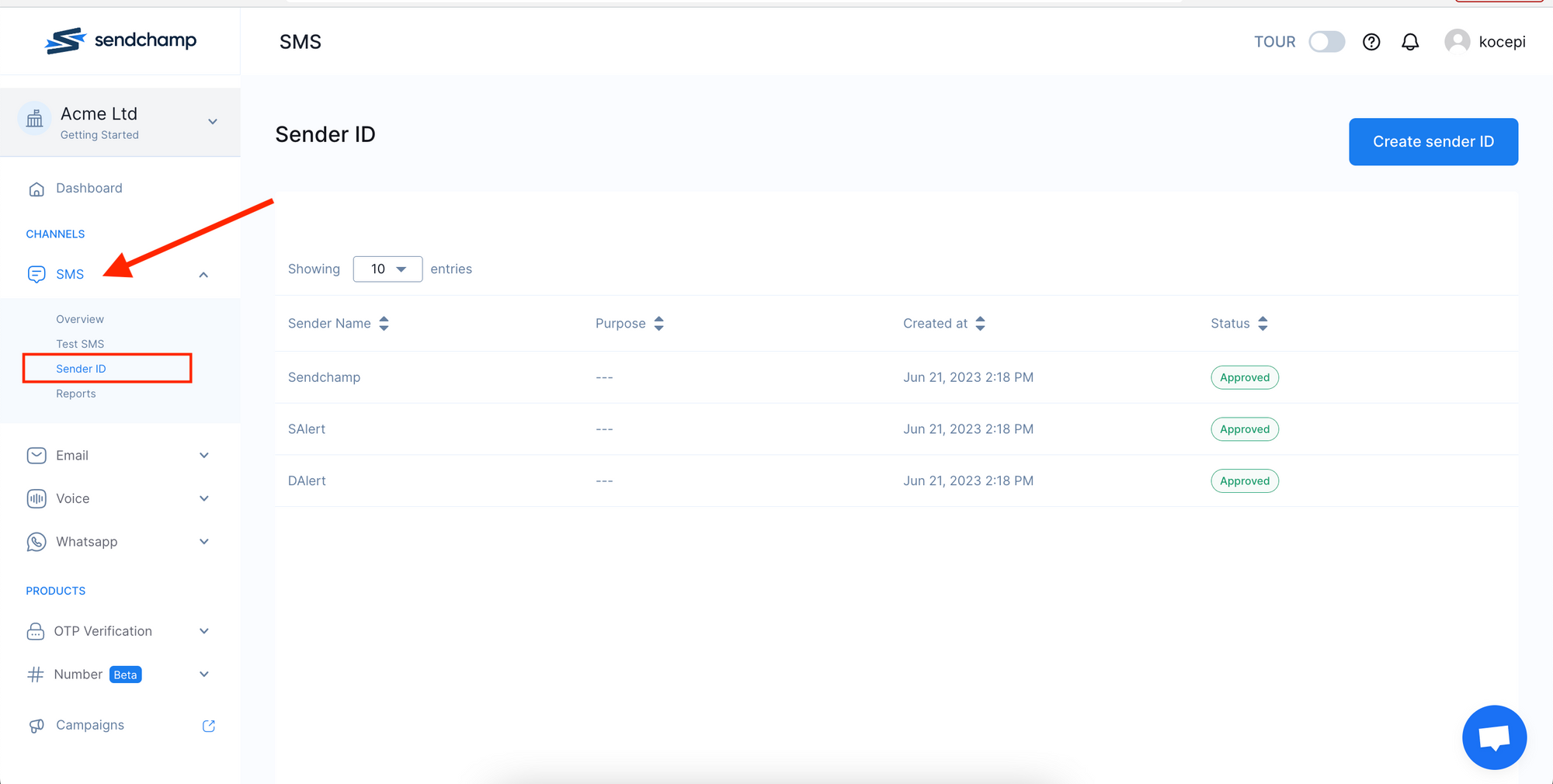
* On the sidebar (on the menu on your left), click on `SMS`. This will display a dropdown. Click on `Sender ID` from the dropdown options.
* On the page that appears, you'll find a list of your Sender IDs
## Get your Sender's ID
The Sender ID represents the sender of the message to your customers.
To get your Sender's ID:
* On the sidebar (on the menu on your left), click on `SMS`. This will display a dropdown. Click on `Sender ID` from the dropdown options.
* On the page that appears, you'll find a list of your Sender IDs
 If you have not created one yet:
* Click on the `Create Sender ID` button to request a Sender ID.
* Fill in the form.
* Click on `Add Sender ID` button.
If you have not created one yet:
* Click on the `Create Sender ID` button to request a Sender ID.
* Fill in the form.
* Click on `Add Sender ID` button.
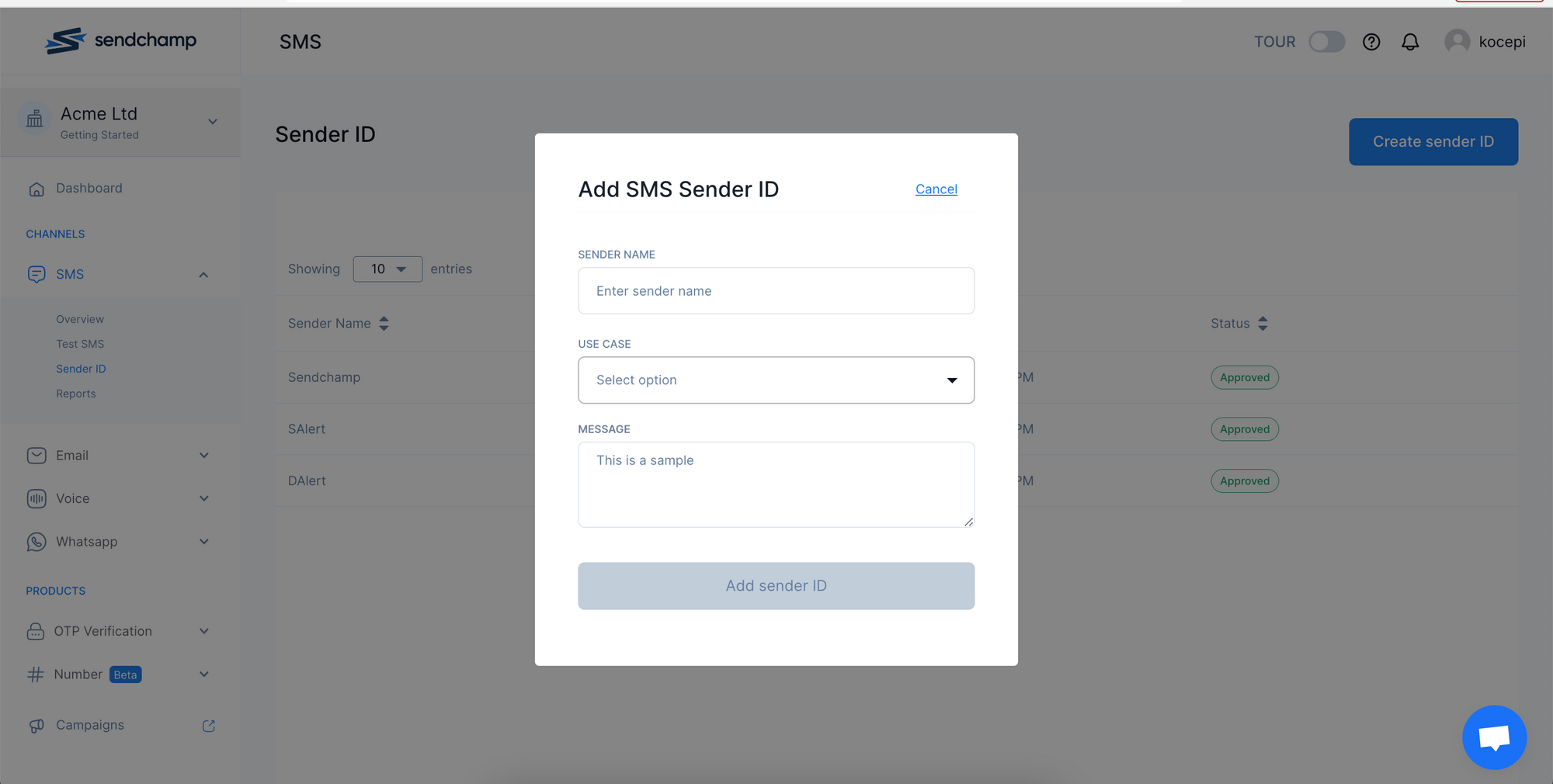 Once it is approved, you can use your Sender ID as the from field on the Novu platform.
## Create a Sendchamp integration with Novu
* Visit the [Integrations](https://web.novu.co/integrations?utm_campaign=docs-sms-sendchamp) page on Novu.
* Click the "Add a provider" button.
* Locate **Sendchamp** under the SMS section and click on the **Connect** button.
* Enter your Sendchamp API Key.
* Fill in the `From` field.
* Click on the `Disabled` button and mark it as `Active`.
* Click on the **Connect** button.
Now it is possible to send SMS notifications using **Sendchamp** in Novu.
Once it is approved, you can use your Sender ID as the from field on the Novu platform.
## Create a Sendchamp integration with Novu
* Visit the [Integrations](https://web.novu.co/integrations?utm_campaign=docs-sms-sendchamp) page on Novu.
* Click the "Add a provider" button.
* Locate **Sendchamp** under the SMS section and click on the **Connect** button.
* Enter your Sendchamp API Key.
* Fill in the `From` field.
* Click on the `Disabled` button and mark it as `Active`.
* Click on the **Connect** button.
Now it is possible to send SMS notifications using **Sendchamp** in Novu.