> ## Documentation Index
> Fetch the complete documentation index at: https://v0.x-docs.novu.co/llms.txt
> Use this file to discover all available pages before exploring further.
# Sign Up on Novu Cloud
> Sign up to our managed service
## Introduction
Novu’s aim is to simplify sending notifications across platforms. As such, we provide simple components, APIs, SDKs and more to help you manage product communication across channels.
This comprehensive guide will help you kickstart your journey with Novu and get your hands dirty!
Everything you need to get up and running successfully can be found here. Let’s begin!
## Signing up to Novu Cloud
Novu Cloud is our managed service that lets you oversee all aspects of your product communication from a user-friendly web dashboard. With Novu Cloud, you can handle various communication channels, create and manage workflows, switch organizations and monitor your activity, ensuring that you get comprehensive control over your product communication and that your message reaches your customers effectively.
To be able to do this and a lot more, you need to sign up for Novu Cloud:
1. Head to [Novu Cloud](https://web.novu.co/auth/signup?utm_campaign=docs-gs-signup). You’ll see this:
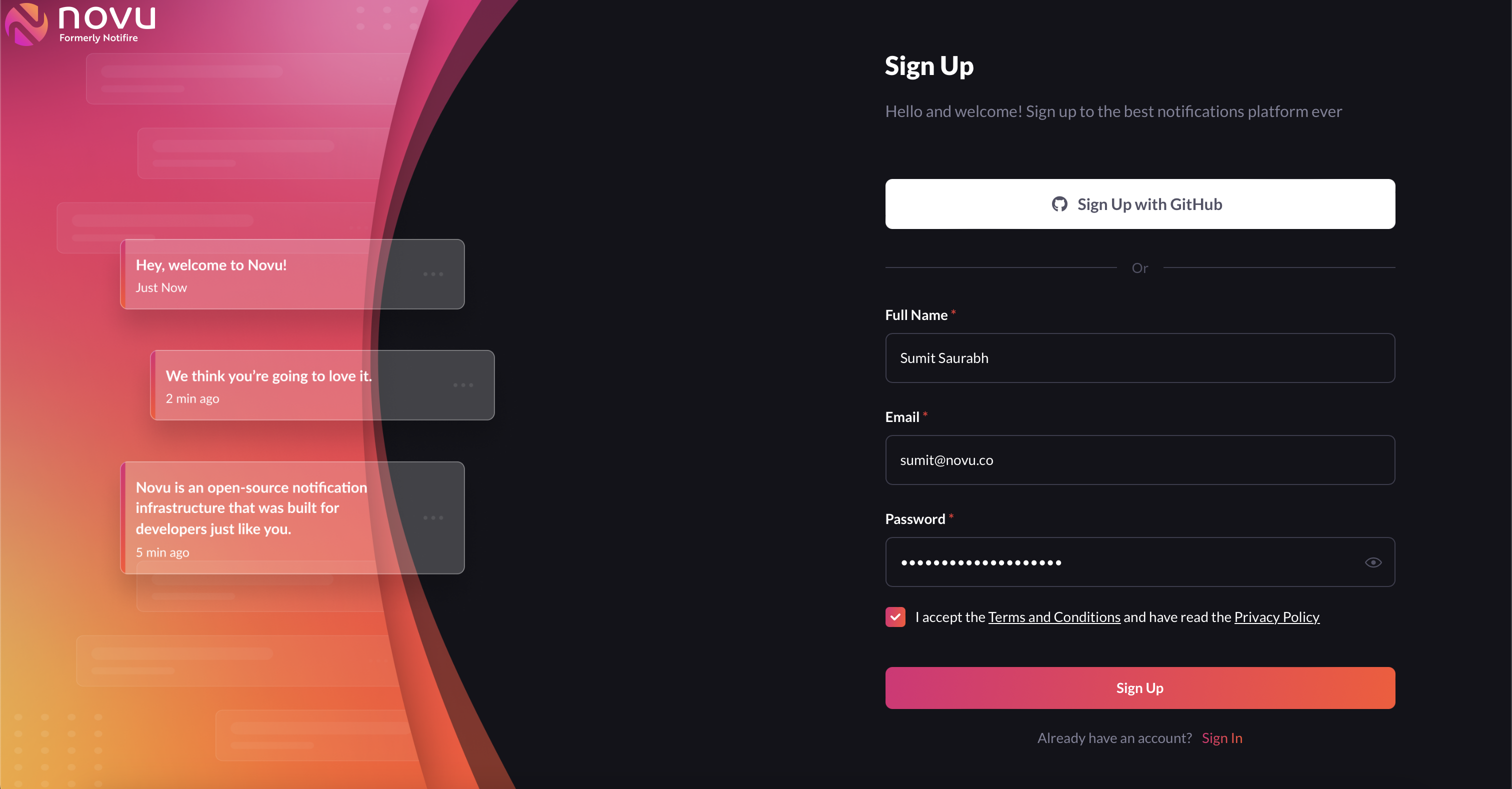
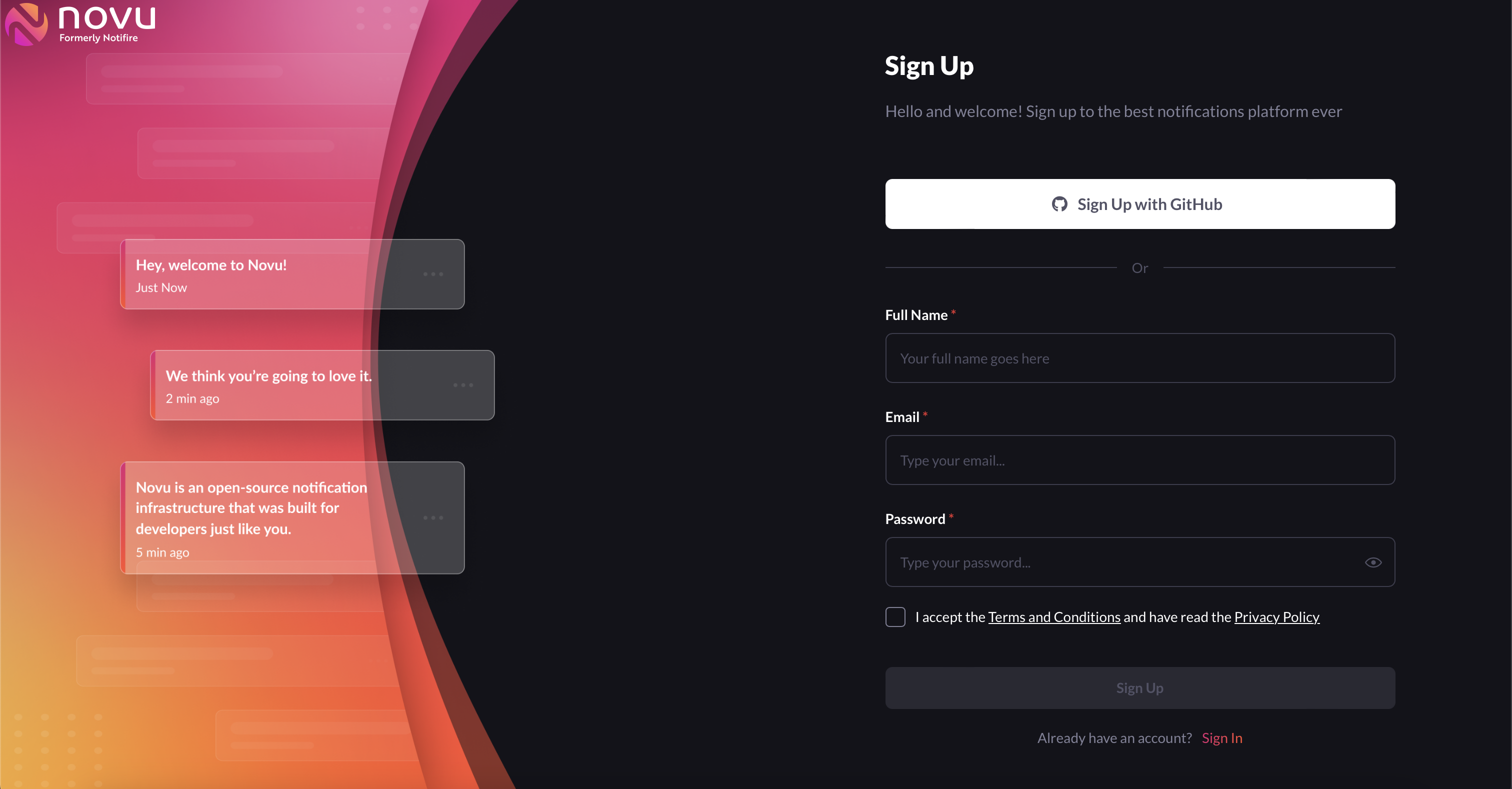 2. To sign up, you can either use your email and password or sign up using Github. Choose what you wish to proceed with, read the terms and conditions, check its checkbox and click the sign-up button.
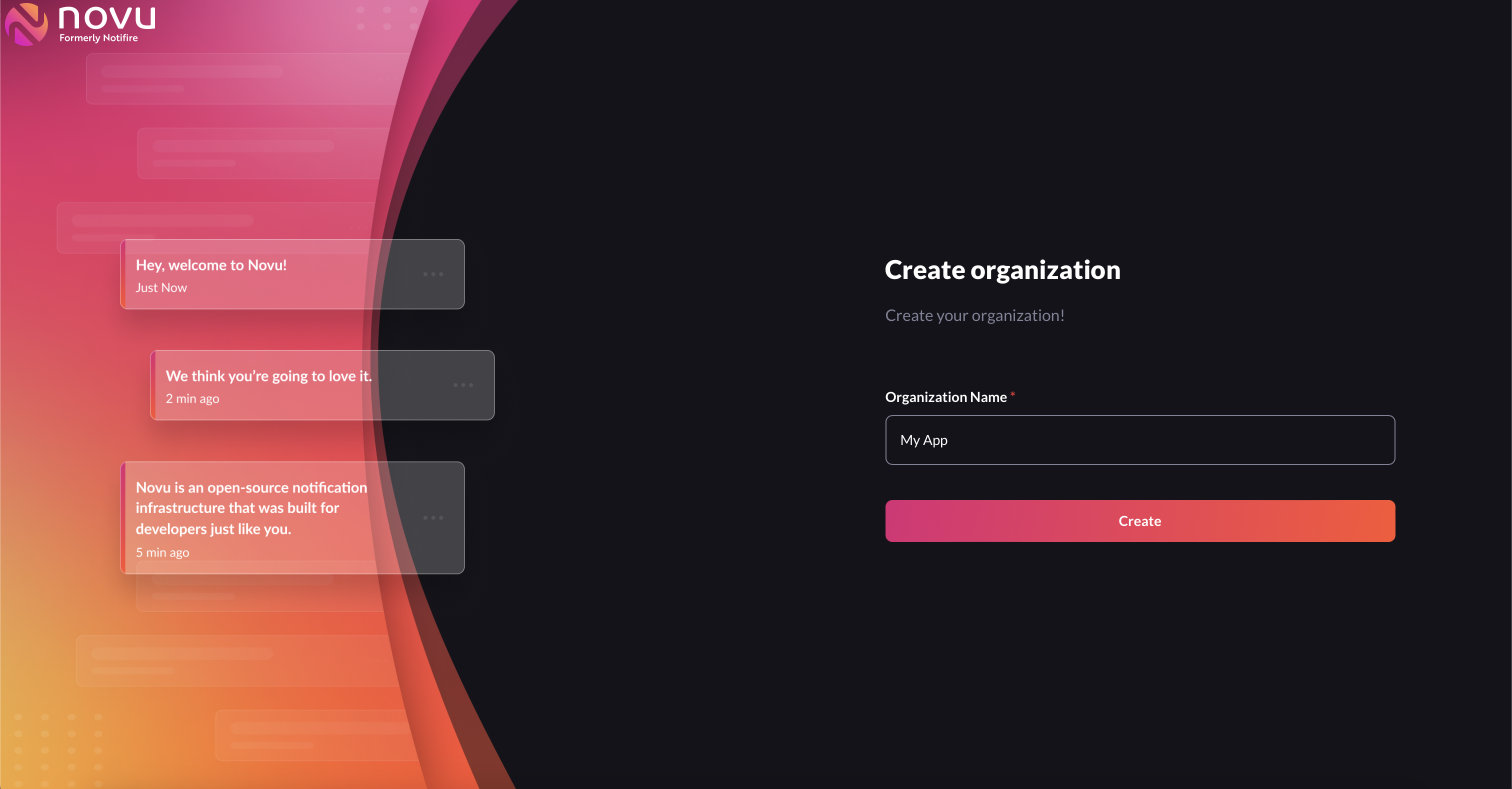
 3. You’ll then be asked to create an Organization. Organizations help you segregate communication between your different products. You can learn more about organisations here. Simply enter your organization name and click on the ‘create’ button:
 4. On creating an organization, you’ll be greeted with the get started page:
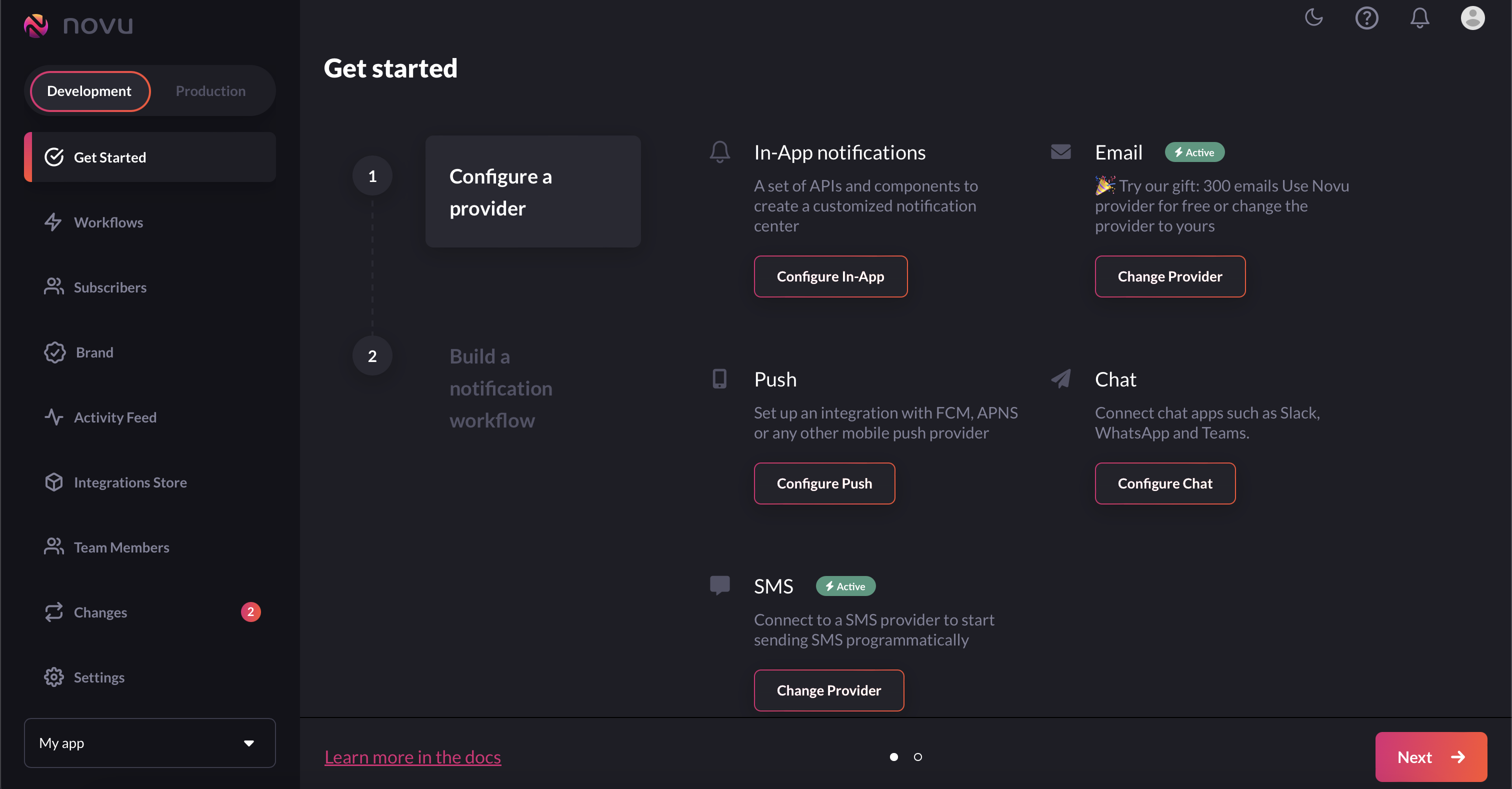 This gives you access to a lot of options:
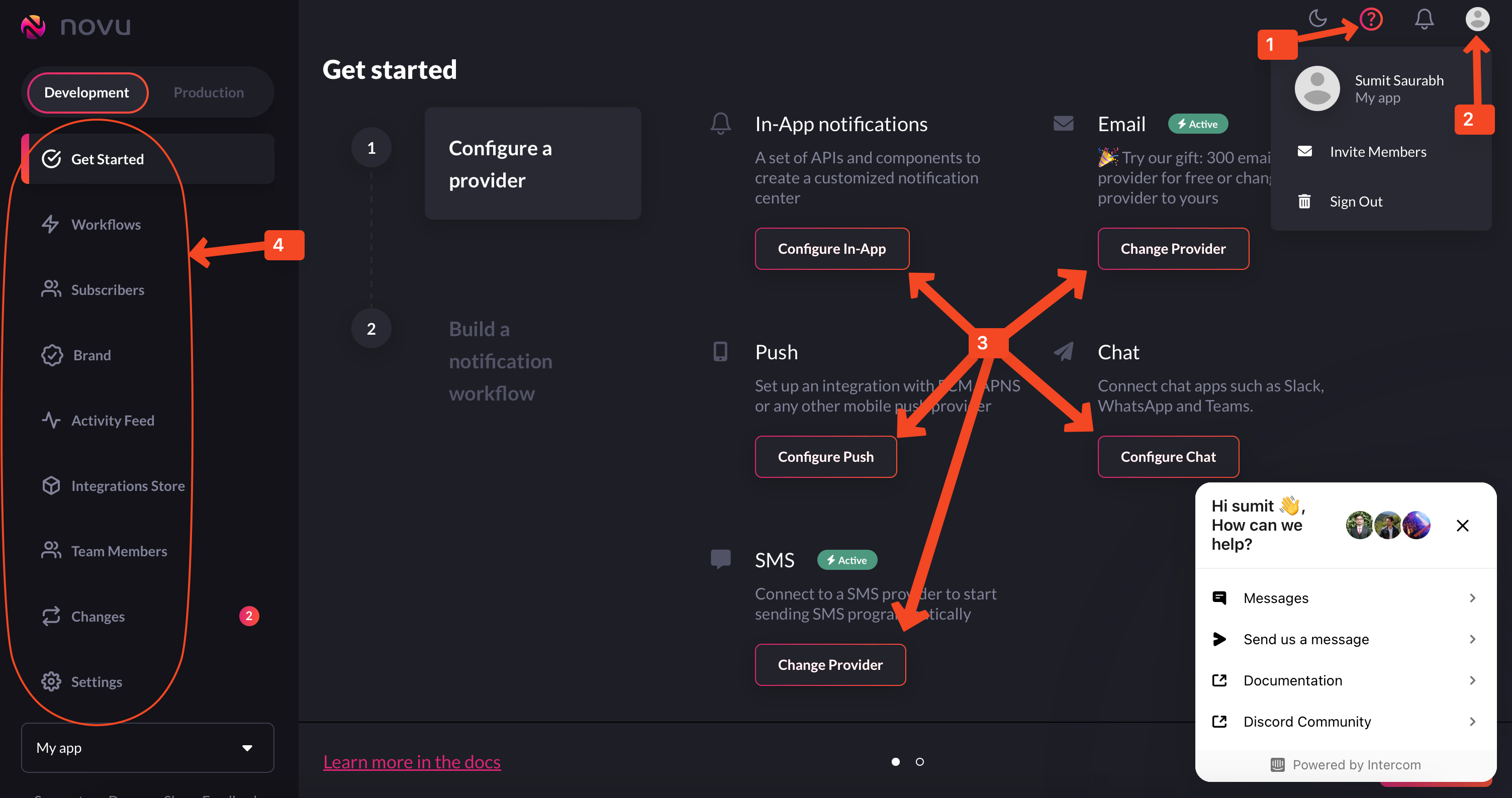 1. Accessing support
2. Managing your account
3. Configuring different channels
4. Navigating to any other sections of the dashboard
From here, you can navigate to any part of the web dashboard. Let’s now see Novu in action!
1. Accessing support
2. Managing your account
3. Configuring different channels
4. Navigating to any other sections of the dashboard
From here, you can navigate to any part of the web dashboard. Let’s now see Novu in action!