> ## Documentation Index
> Fetch the complete documentation index at: https://v0.x-docs.novu.co/llms.txt
> Use this file to discover all available pages before exploring further.
# Send Your First Notification
> Learn how to send your first notification via the Novu Cloud dashboard.
Sending the first notification is fairly simple, and can be done from within the web dashboard. To send your first notification, follow these steps:
## Workflow for Email notifications
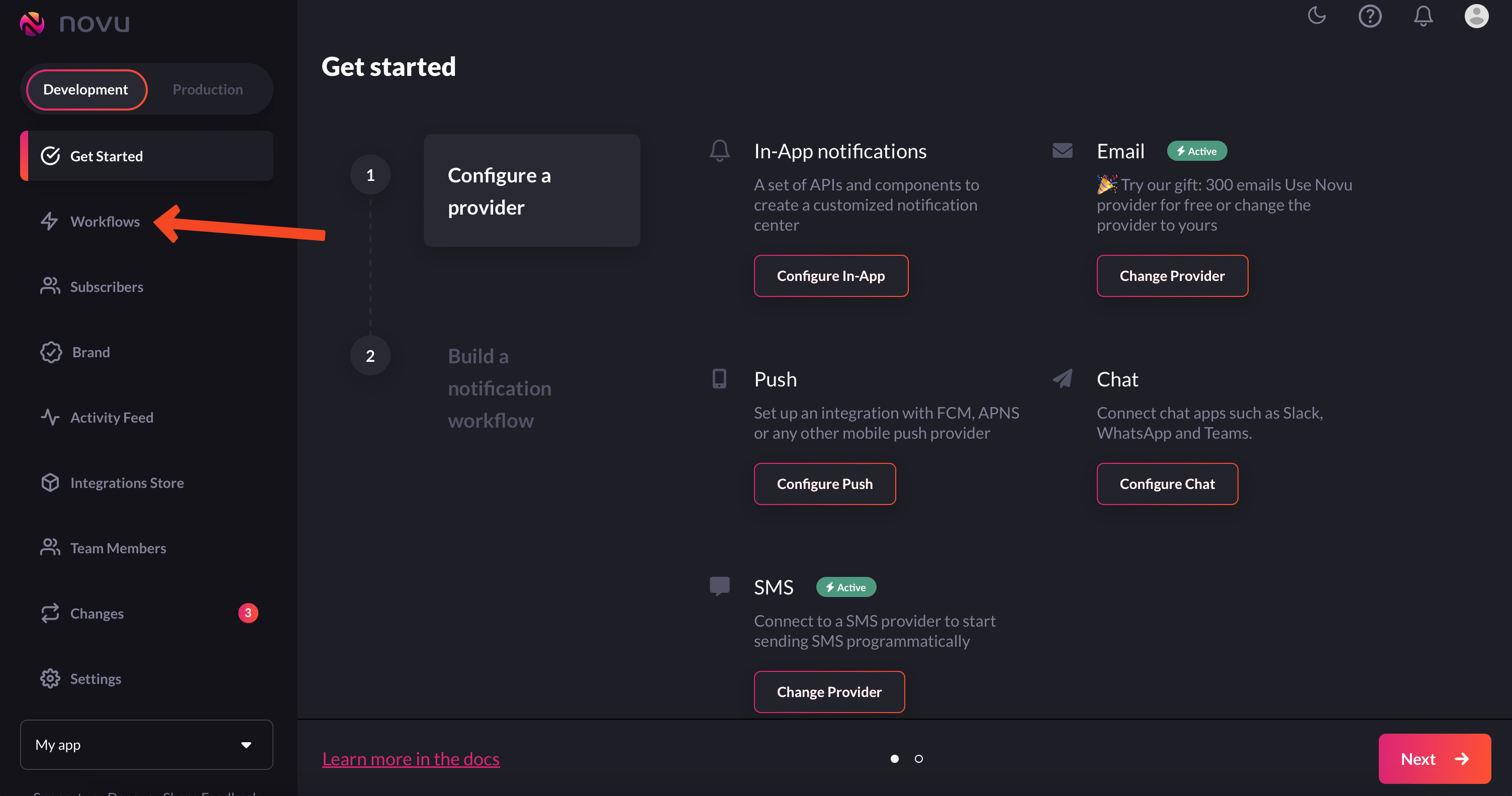
1. Navigate to the workflow section from the left sidebar:
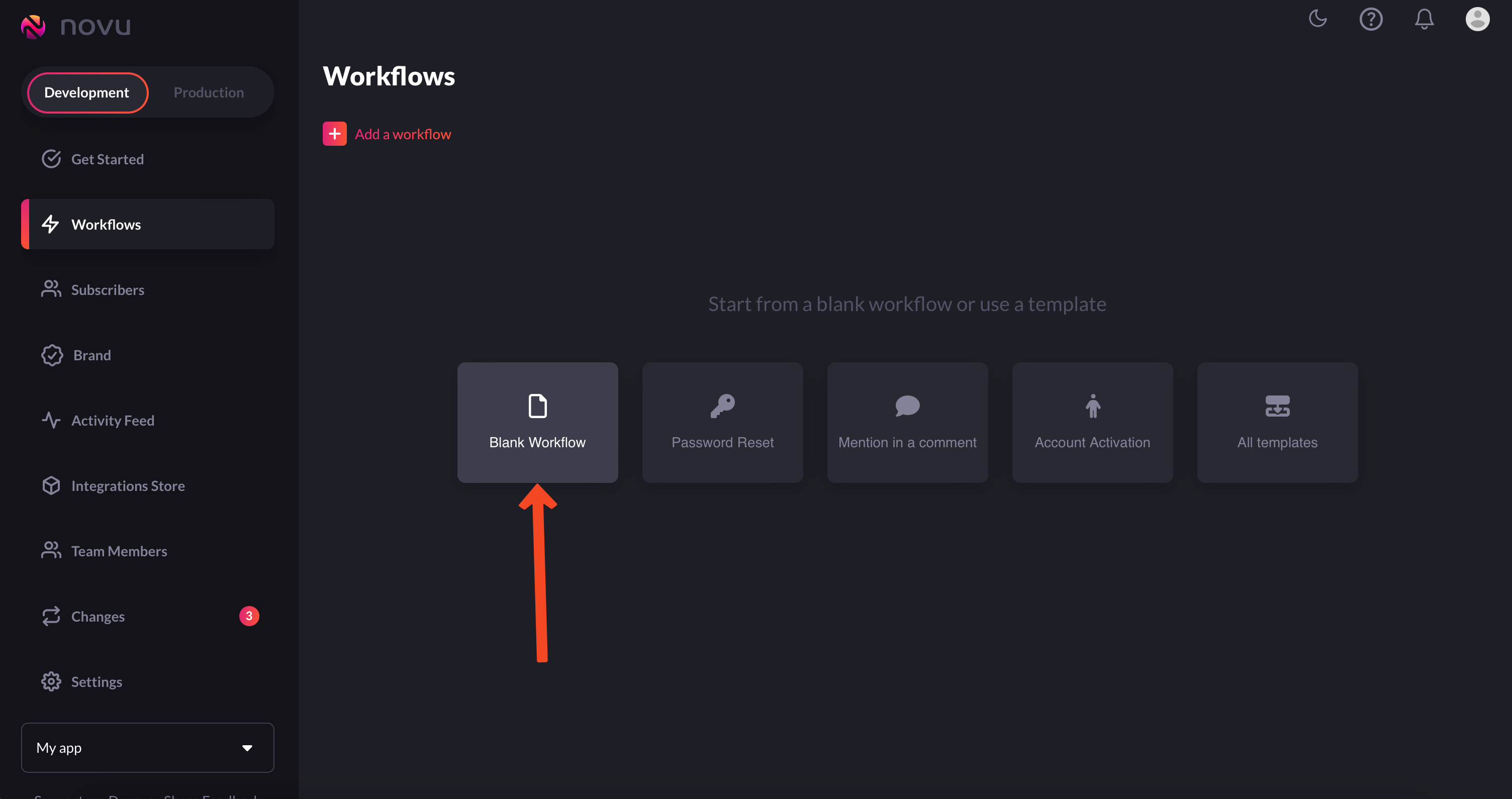
 2. Click on the `Blank Workflow` button to create an empty workflow:
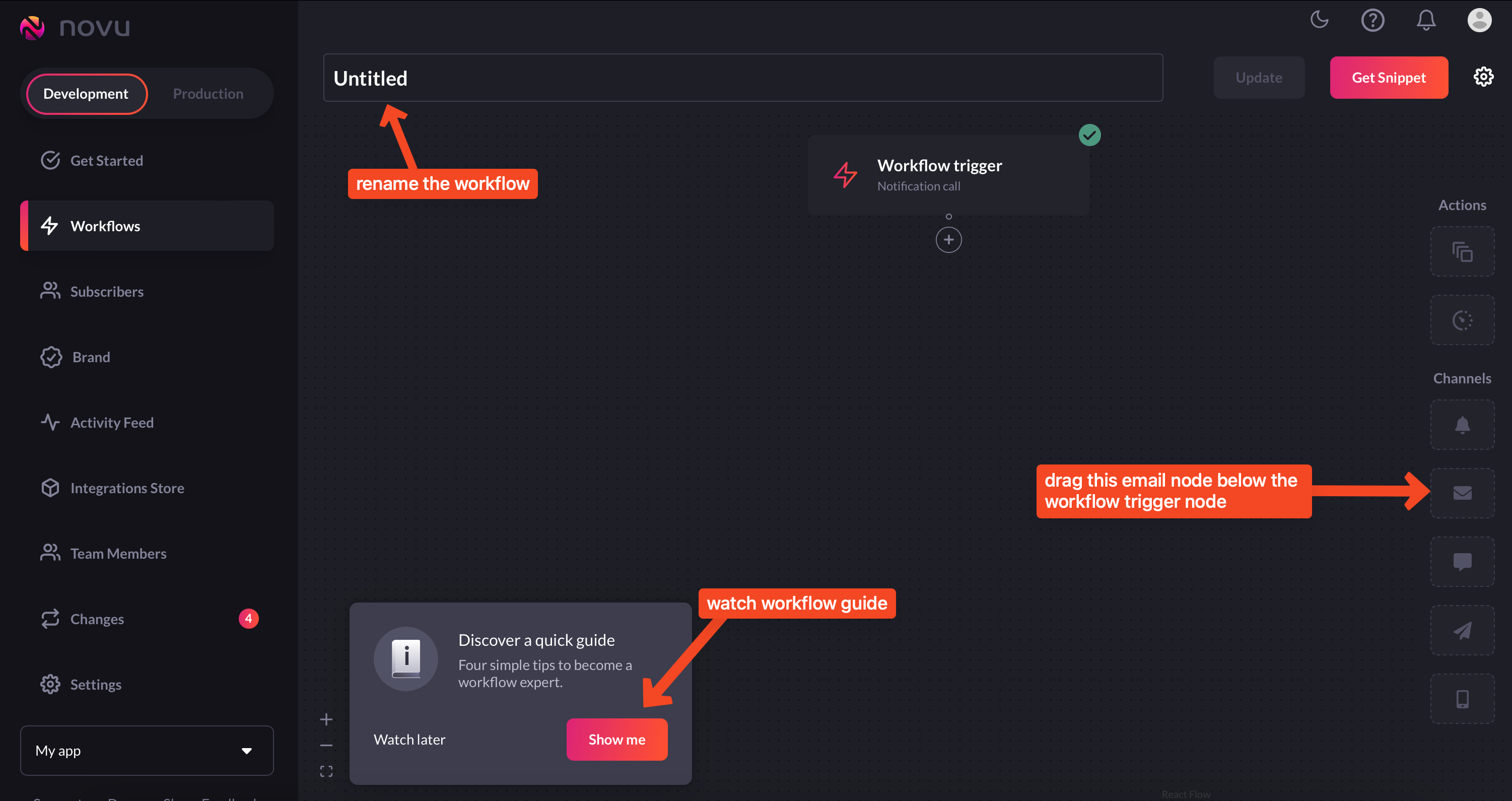
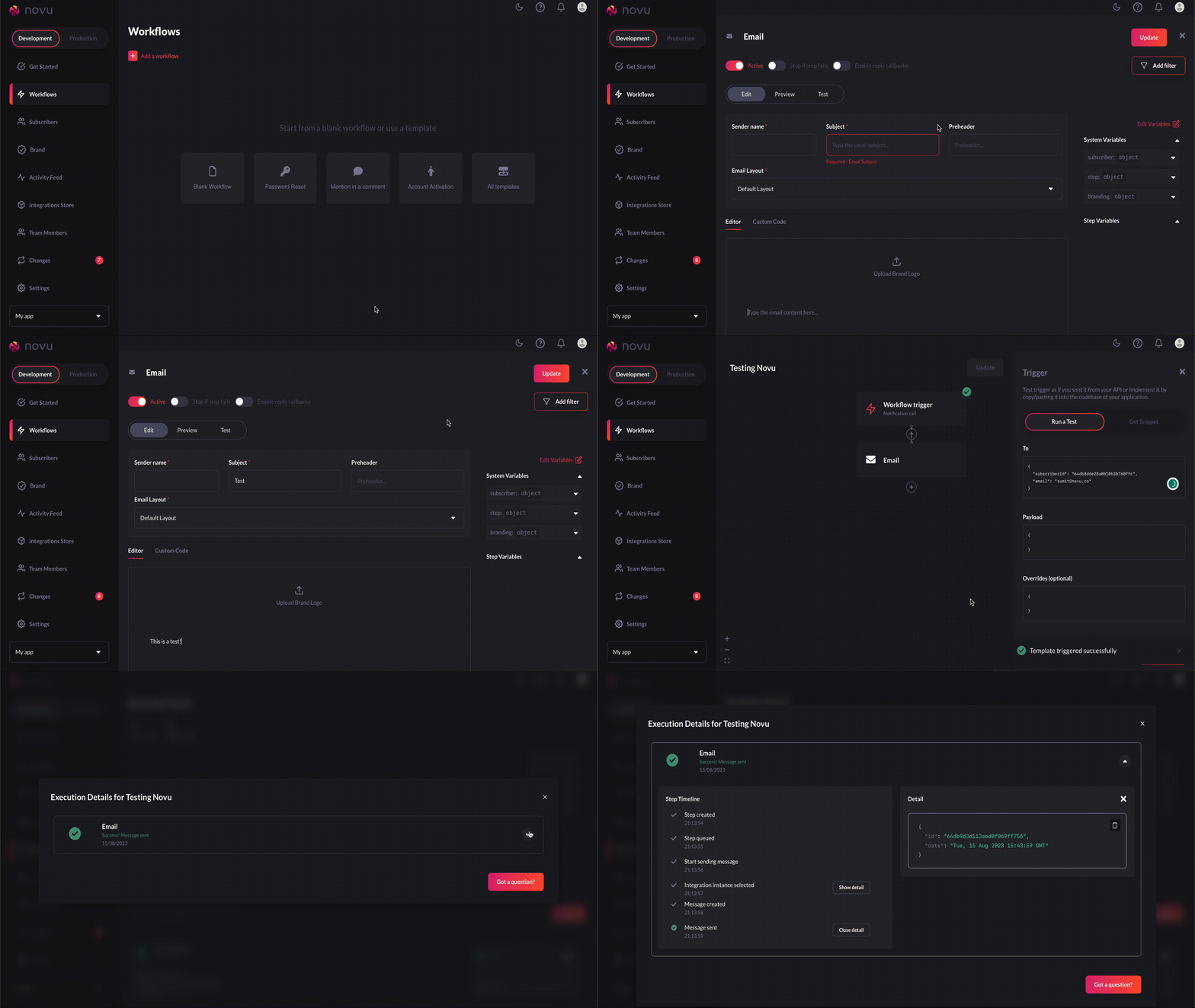
 3. You are now in the workflow editor. Here you can add steps to your workflow. We’ll just drag the email node from the right sidebar to our workflow as illustrated below:
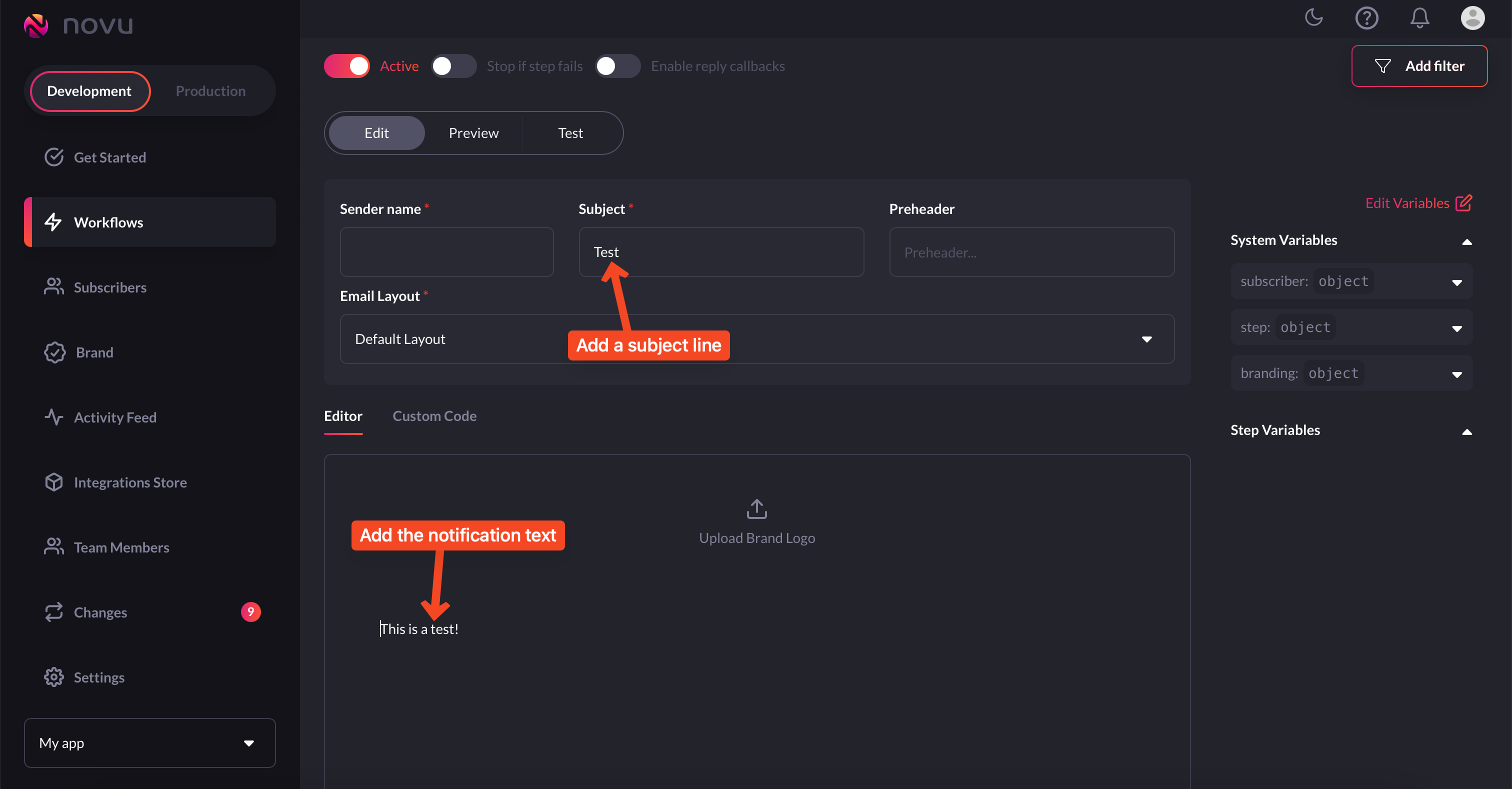
 4. Now, simply click on the email node, and add the subject and the notification
text in the email node editor:
4. Now, simply click on the email node, and add the subject and the notification
text in the email node editor:
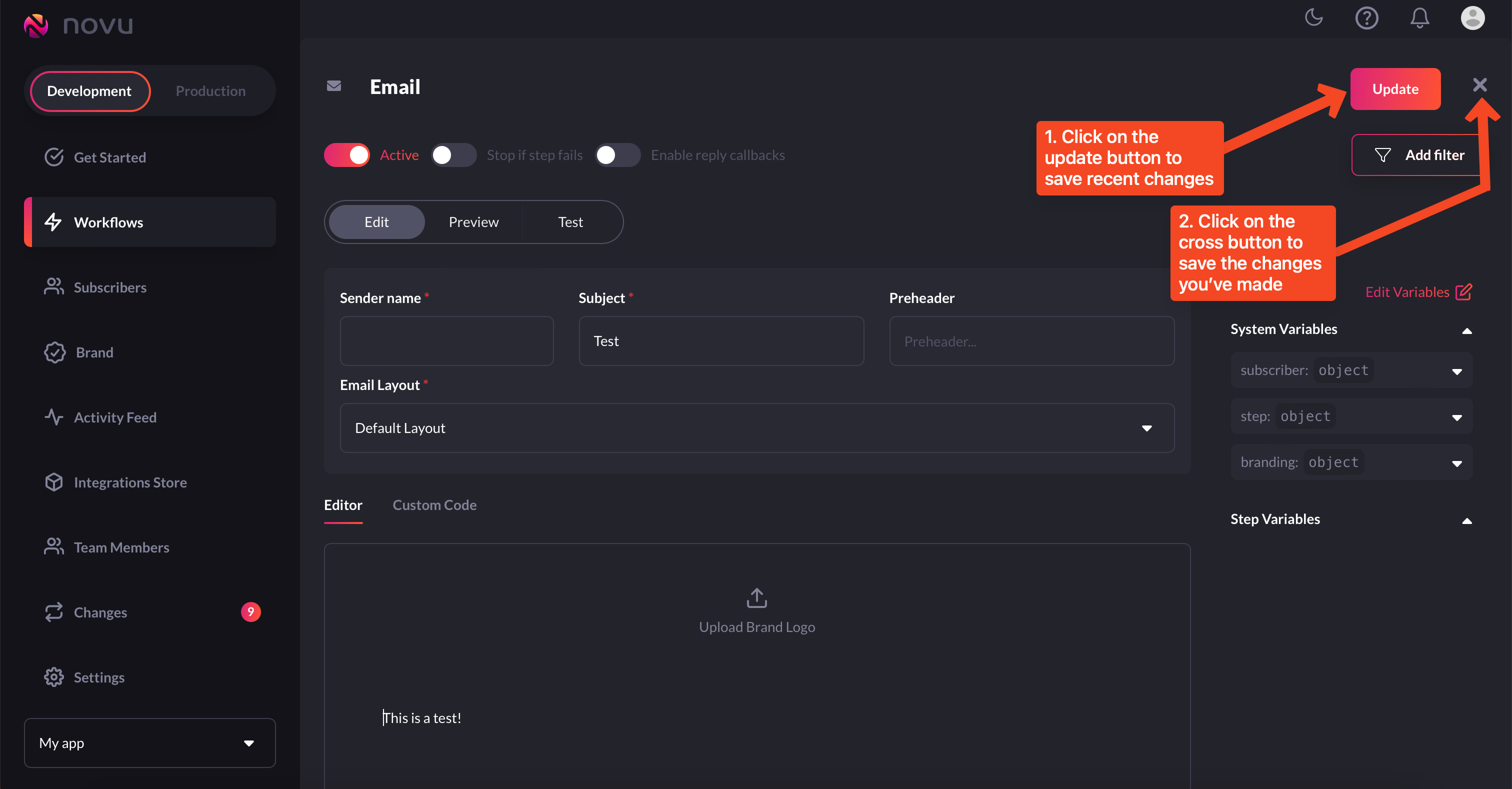
 5. Now, update the workflow and save it as shown in the image below:
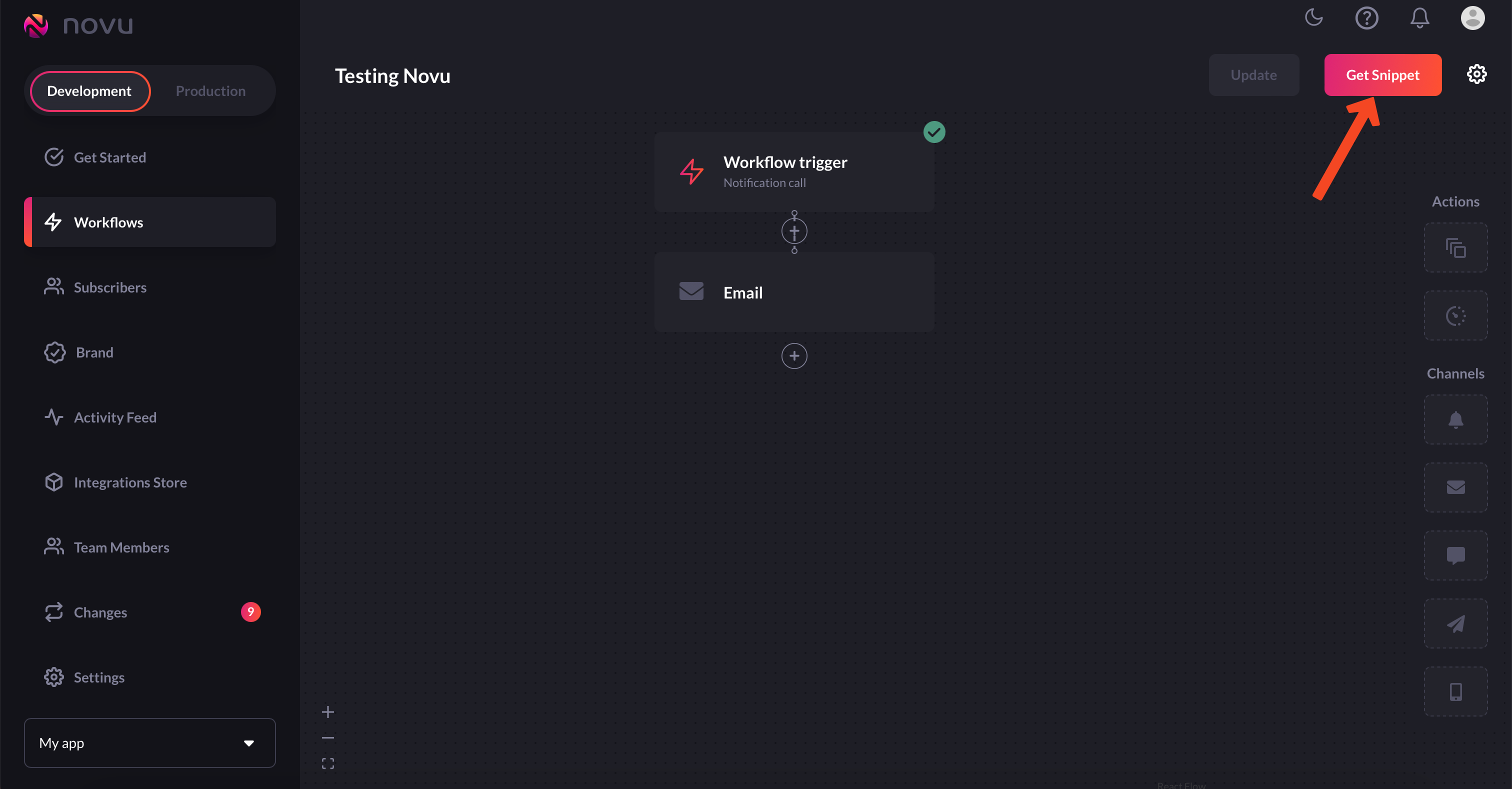
 6. Now, to execute this workflow, click on the `get snippet` button from the workflow editor:
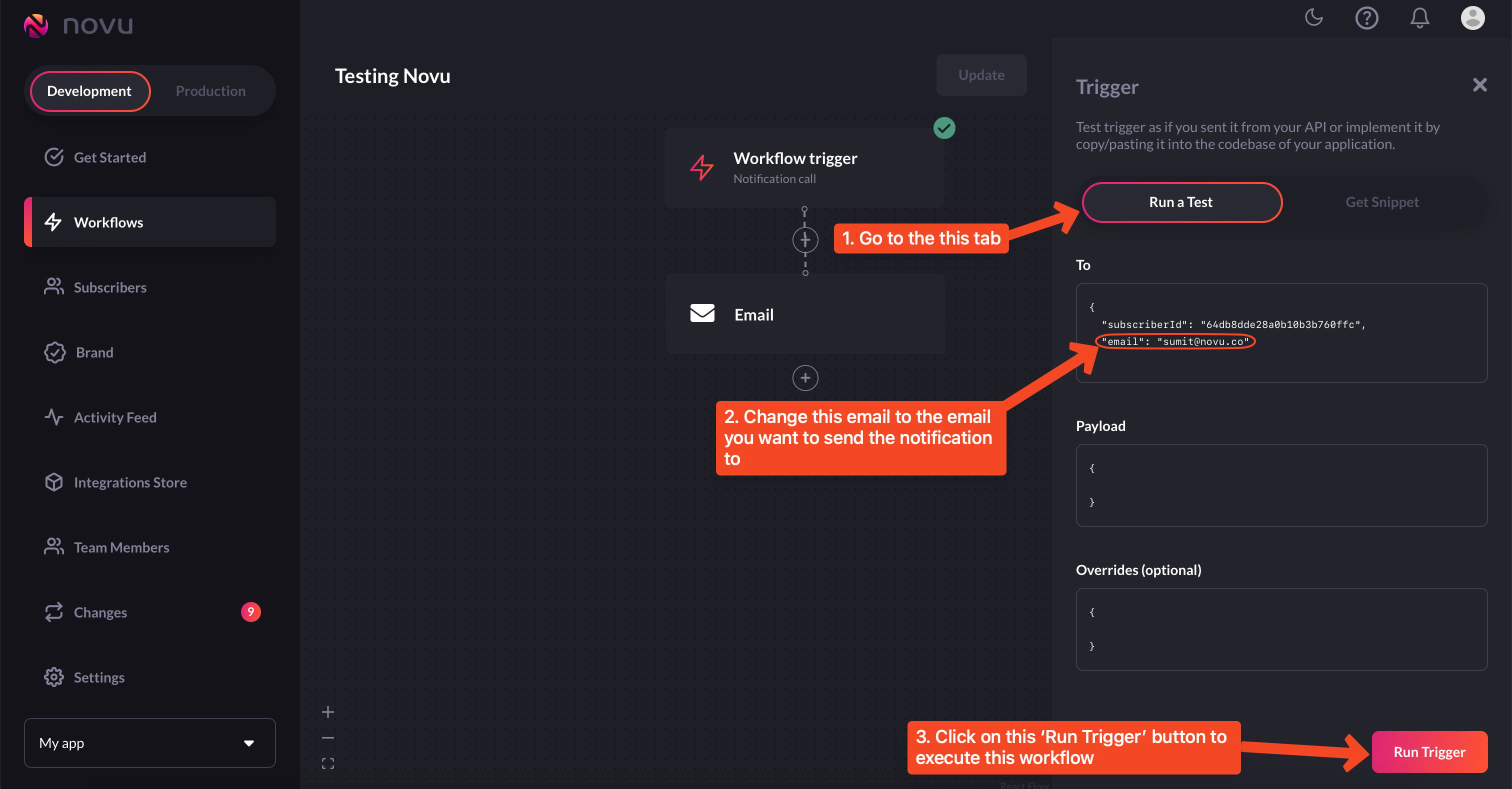
 7. From the `run a test` tab, you can change the email to which you want the notification. Once you’ve done that, simply click on the `Run Trigger` button on the bottom right:
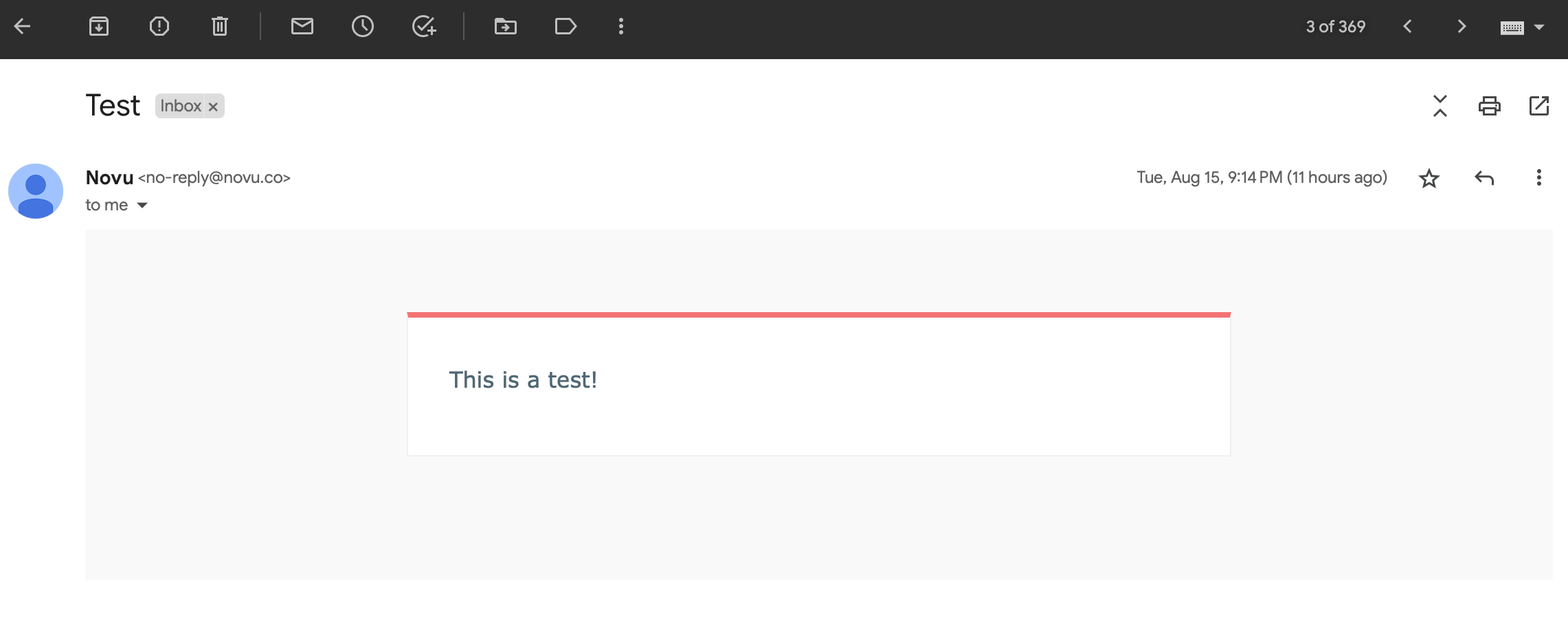
 8. Now, go to the inbox and you’ll see the email notification there. Don’t forget also to check spam as it may sometimes land in there:
 9. This gif below captures the entire process:
 ## Workflow for In-App notifications
Creating workflows for sending in-app notifications is pretty straightforward. Just follow the following steps and you'll be good to go:
1. Head to `workflows` on the [Novu web dashboard](https://web.novu.co/workflows?utm_campaign=docs-gs-sendfirstnotification).
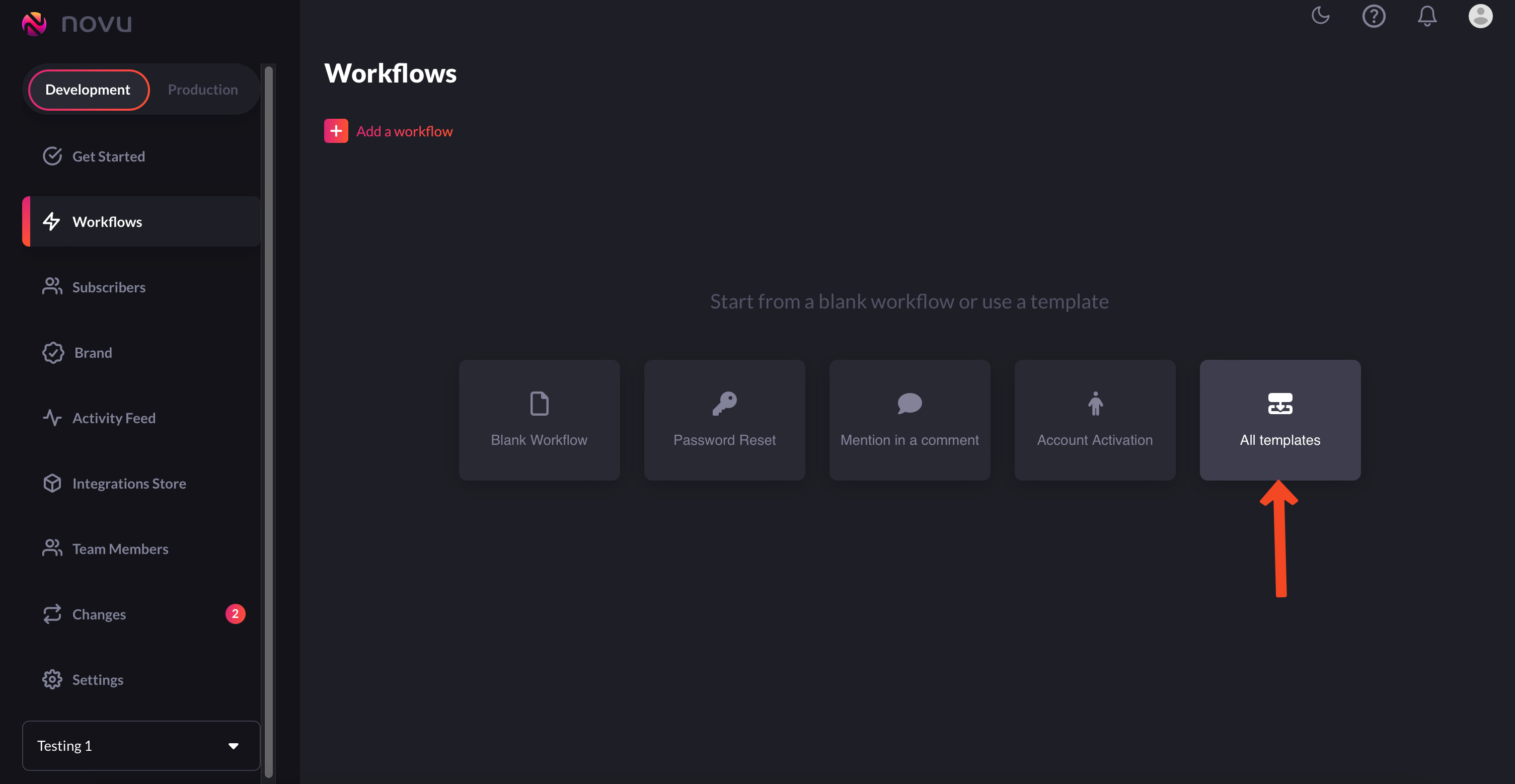
2. Click on the Blank Workflow button to create a workflow from scratch.
If you want to avoid creating a workflow from scratch, then instead of
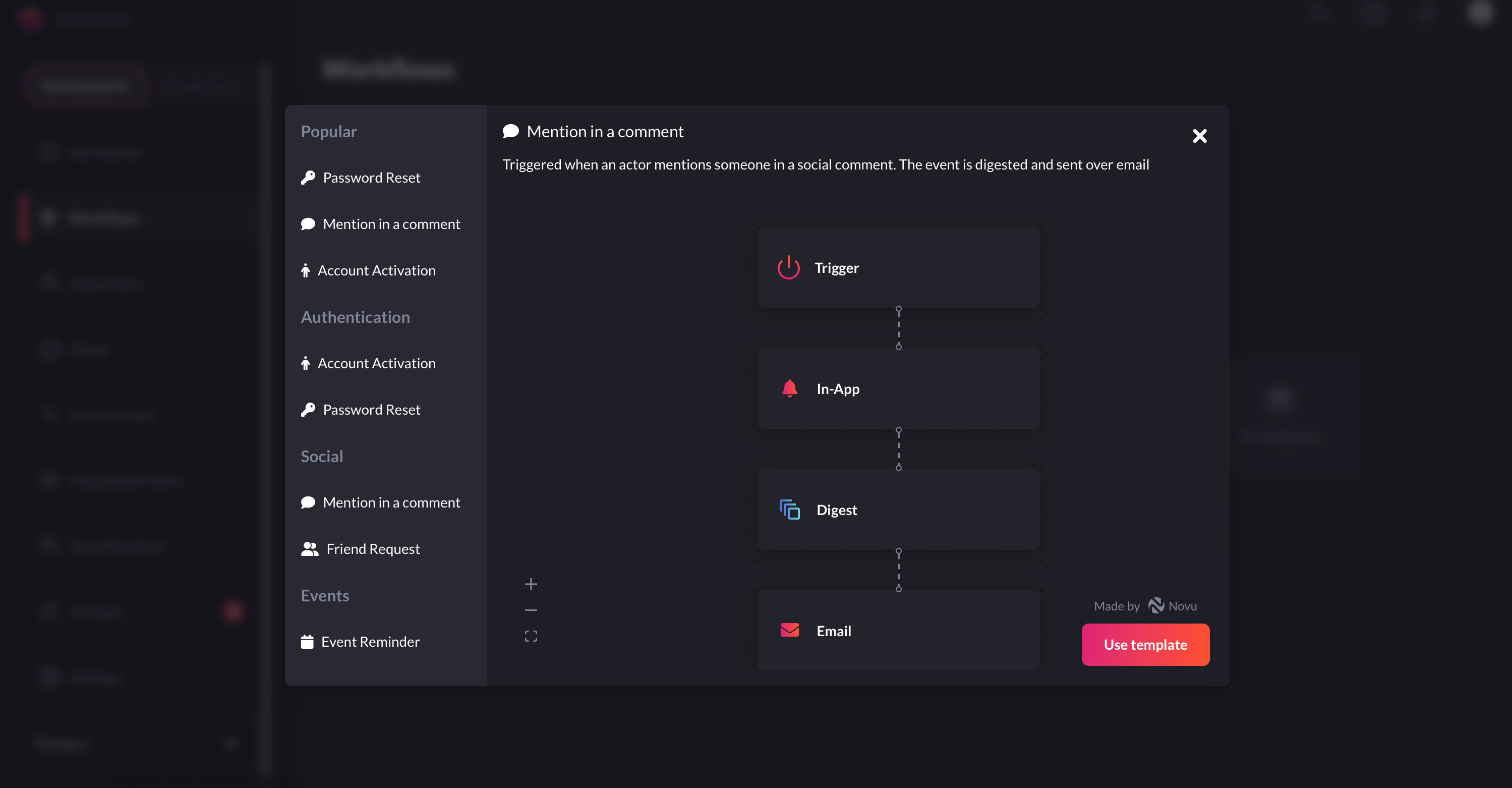
choosing `Blank Workflow`, select `All Templates` and you'll find a bunch of
workflow templates that you can customize and use:
## Workflow for In-App notifications
Creating workflows for sending in-app notifications is pretty straightforward. Just follow the following steps and you'll be good to go:
1. Head to `workflows` on the [Novu web dashboard](https://web.novu.co/workflows?utm_campaign=docs-gs-sendfirstnotification).
2. Click on the Blank Workflow button to create a workflow from scratch.
If you want to avoid creating a workflow from scratch, then instead of
choosing `Blank Workflow`, select `All Templates` and you'll find a bunch of
workflow templates that you can customize and use:
 3. You'll now end up in the workflow editor. Workflow editor, as the name suggests, is the place from where you can edit workflows. You can select which [channels](/channels-and-providers/introduction#channels) you want to send notifications in, add [digest](/guides/add-digest-to-inapp-notifications) to your in-app notifications and more.
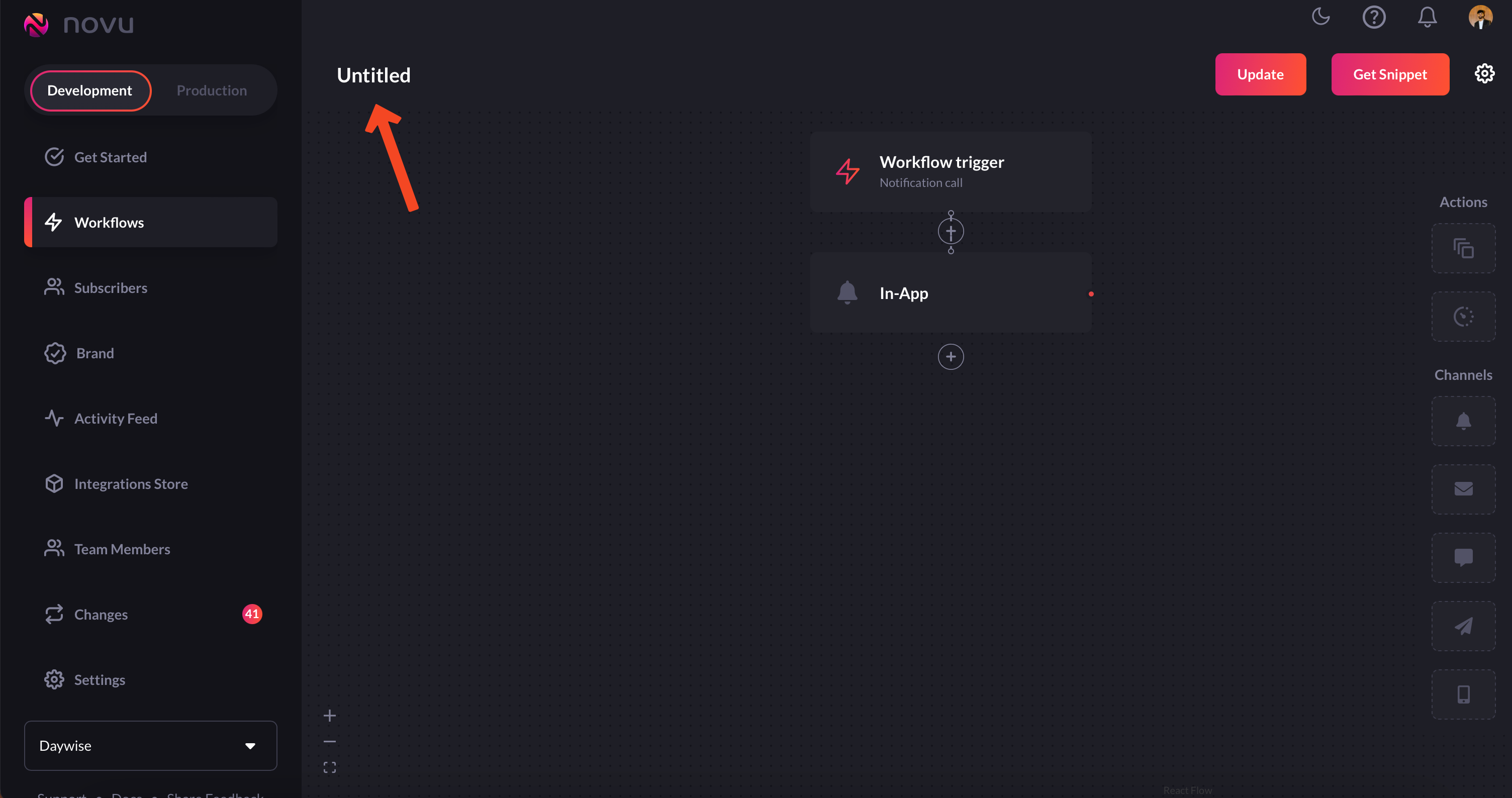
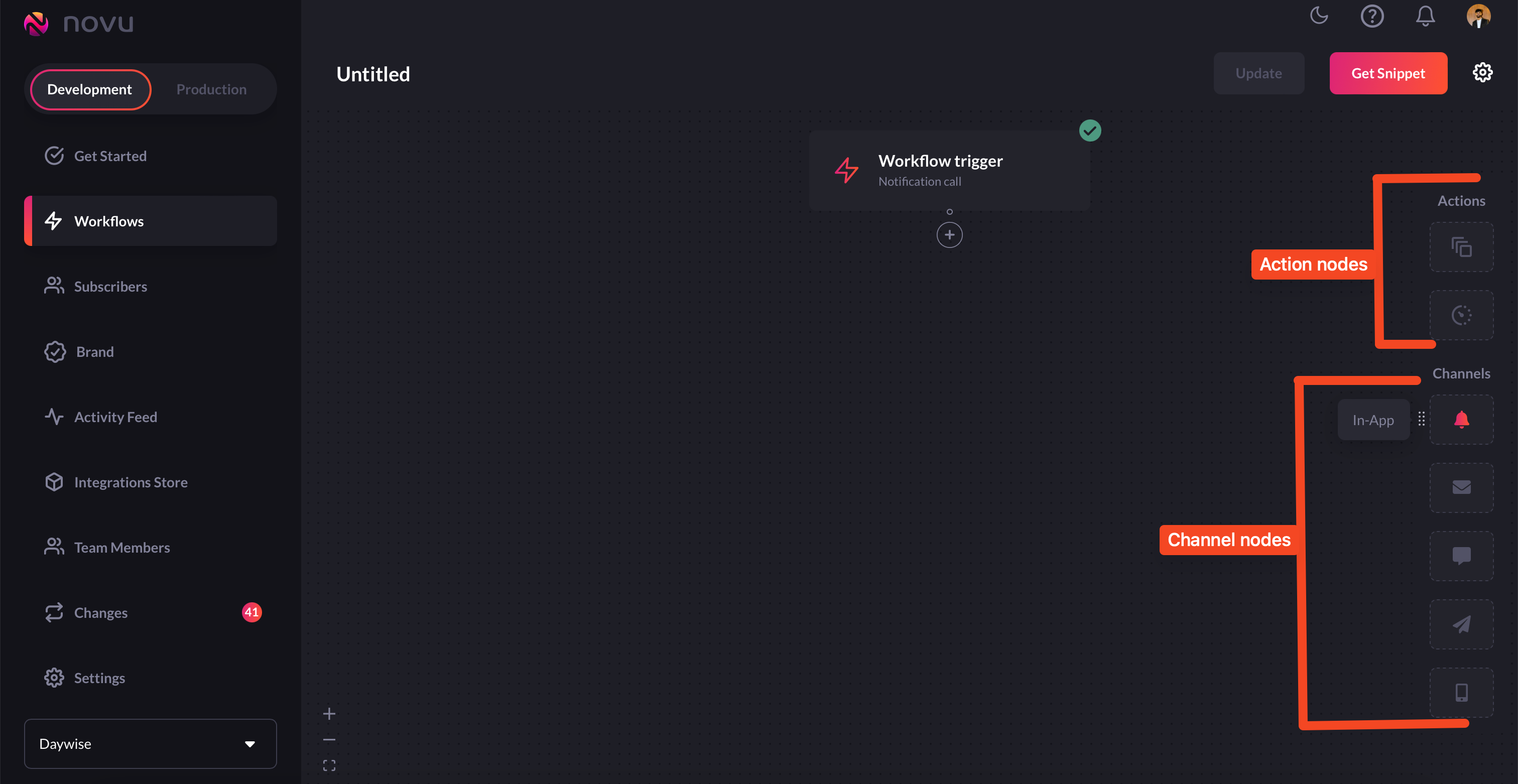 4. For your use case here, we'll simply add an `in-app` node to our workflow.
Don't forget to rename your workflow to an appropriate name.
4. For your use case here, we'll simply add an `in-app` node to our workflow.
Don't forget to rename your workflow to an appropriate name.
 5. Now, the `in-app` node has a lot of options for you to configure:
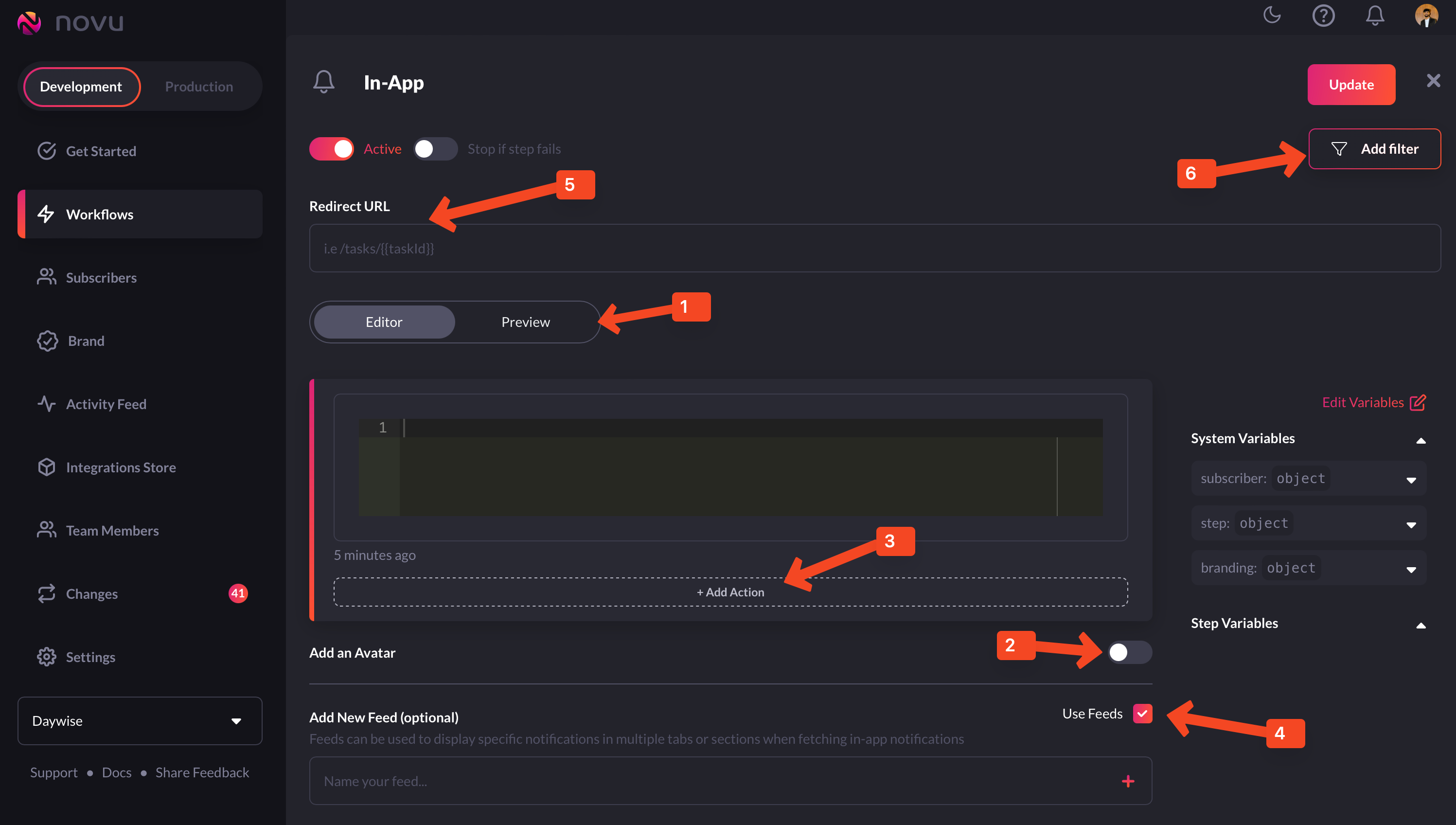 * **Preview**: This shows you a glimpse of what each notification item will look like in the Notification Center UI.
* **Avatar:** If turned on, each notification item will show the avatar of the subscriber.
* **Action:** With this, you can add a primary and secondary call to action button to each notification item.
* **Notification Feeds:** This displays a stream of specific notifications. You can have multiple feeds to show specific notifications in multiple tabs.
* **Redirect URL** - This is the URL to which a subscriber can be directed when they click on a notification item.
* **Filter** - This feature allows you to configure the criteria for delivering notifications. For instance, you can apply a filter based on a subscriber's online status to send them an email if they were online within the last hour.
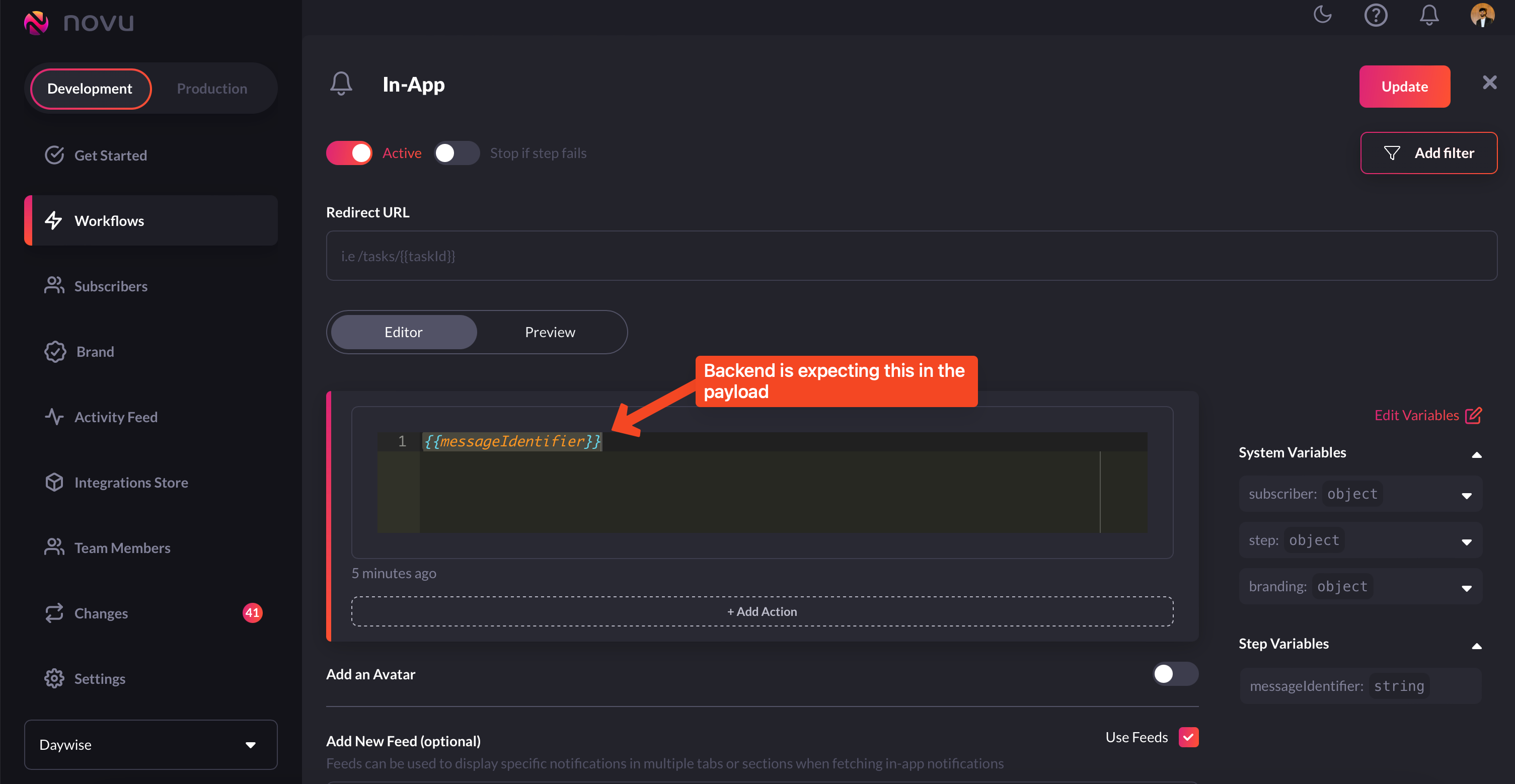
6. In this editor, you need to plug in the variable that your backend is expecting in the payload:
* **Preview**: This shows you a glimpse of what each notification item will look like in the Notification Center UI.
* **Avatar:** If turned on, each notification item will show the avatar of the subscriber.
* **Action:** With this, you can add a primary and secondary call to action button to each notification item.
* **Notification Feeds:** This displays a stream of specific notifications. You can have multiple feeds to show specific notifications in multiple tabs.
* **Redirect URL** - This is the URL to which a subscriber can be directed when they click on a notification item.
* **Filter** - This feature allows you to configure the criteria for delivering notifications. For instance, you can apply a filter based on a subscriber's online status to send them an email if they were online within the last hour.
6. In this editor, you need to plug in the variable that your backend is expecting in the payload:
 7. You can even use [handlebars](/content-creation-design/handlebars-helpers) to further customise this.
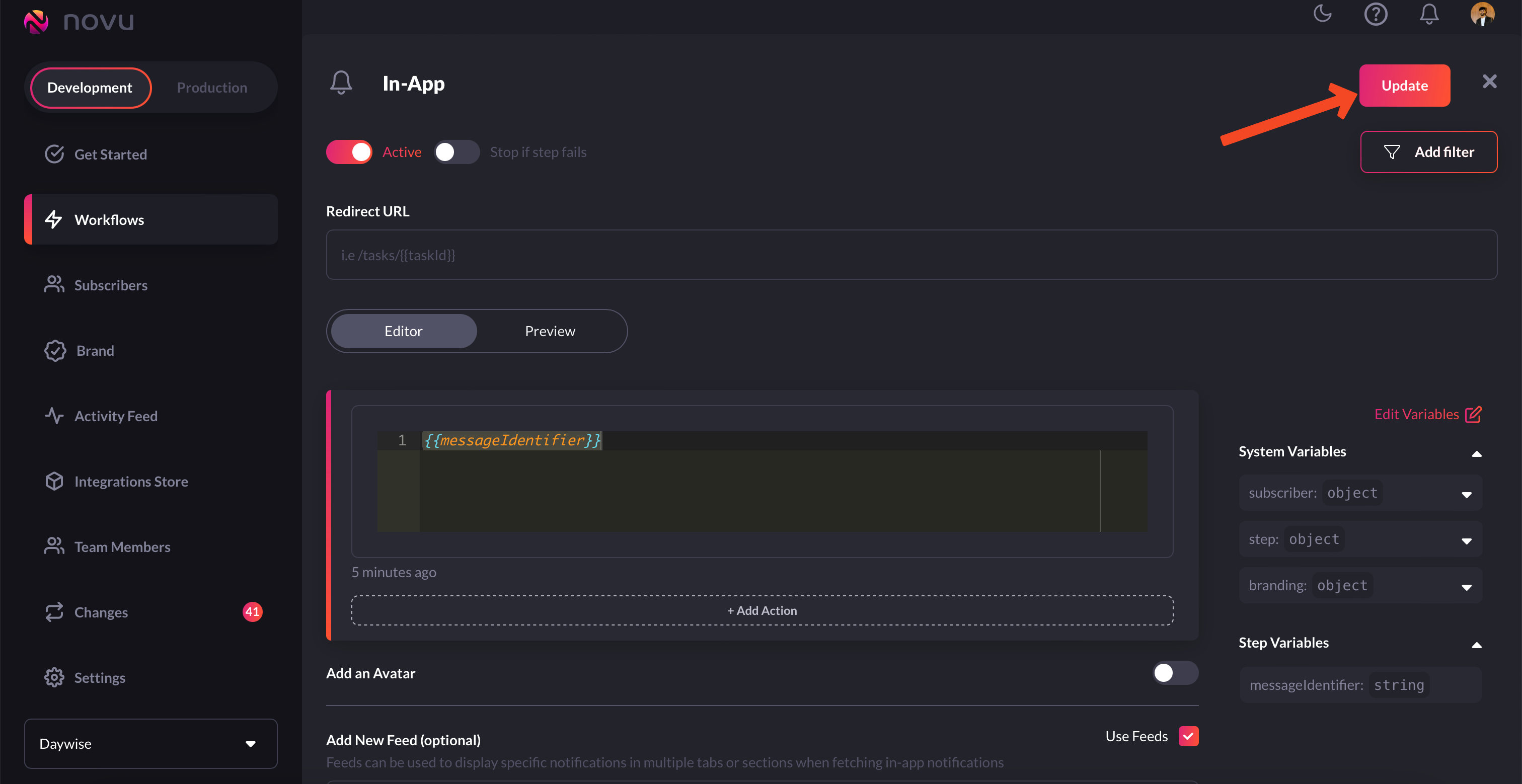
8. Once you're done configuring it, simply click the `update` button on the top right corner.
7. You can even use [handlebars](/content-creation-design/handlebars-helpers) to further customise this.
8. Once you're done configuring it, simply click the `update` button on the top right corner.
 9. Now, simply click on the `Get Snippet` button to get the trigger code snippet.
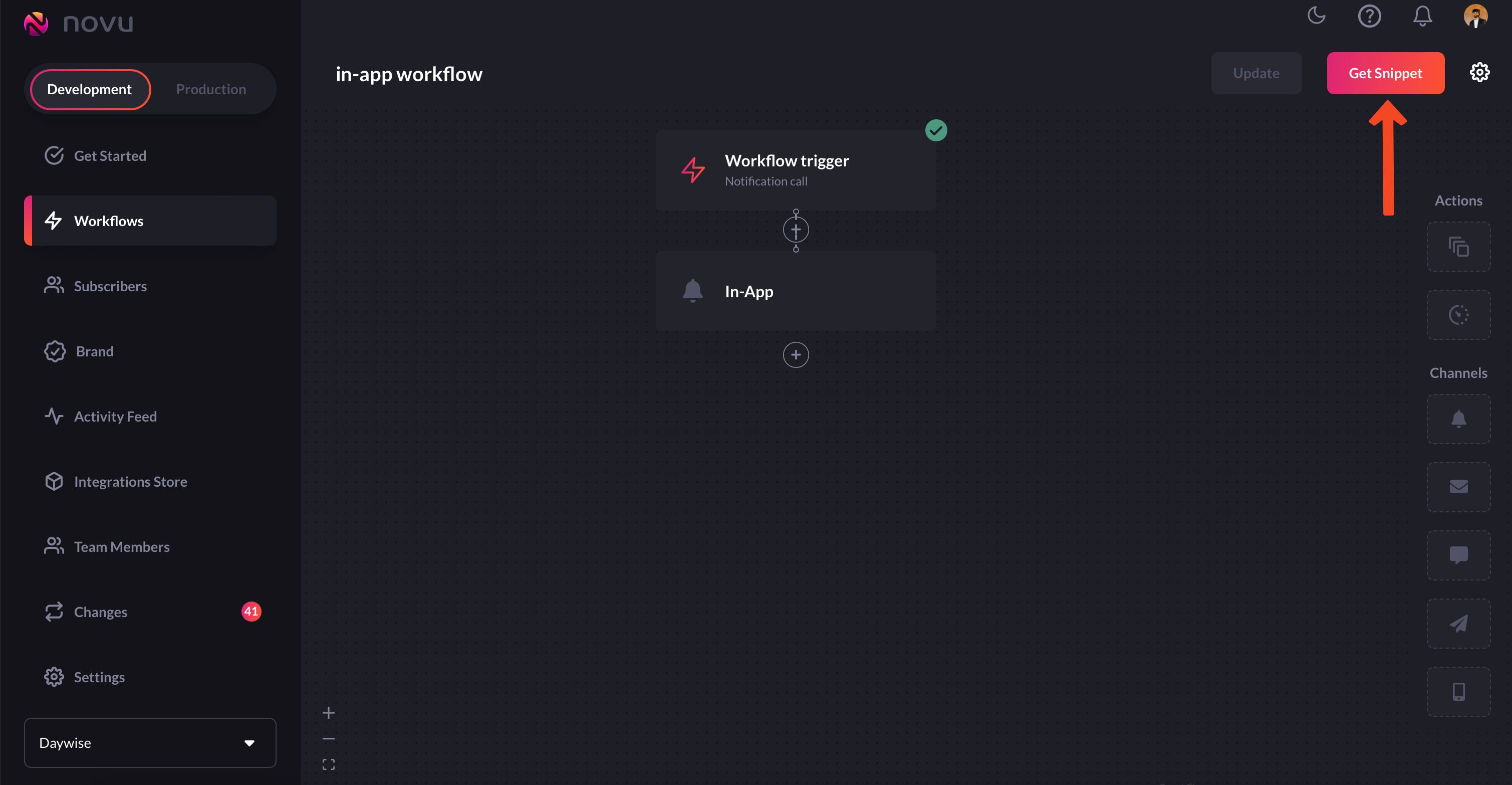 10. You'll get the code that you need to plug into your backend to be executed whenever an event fires.
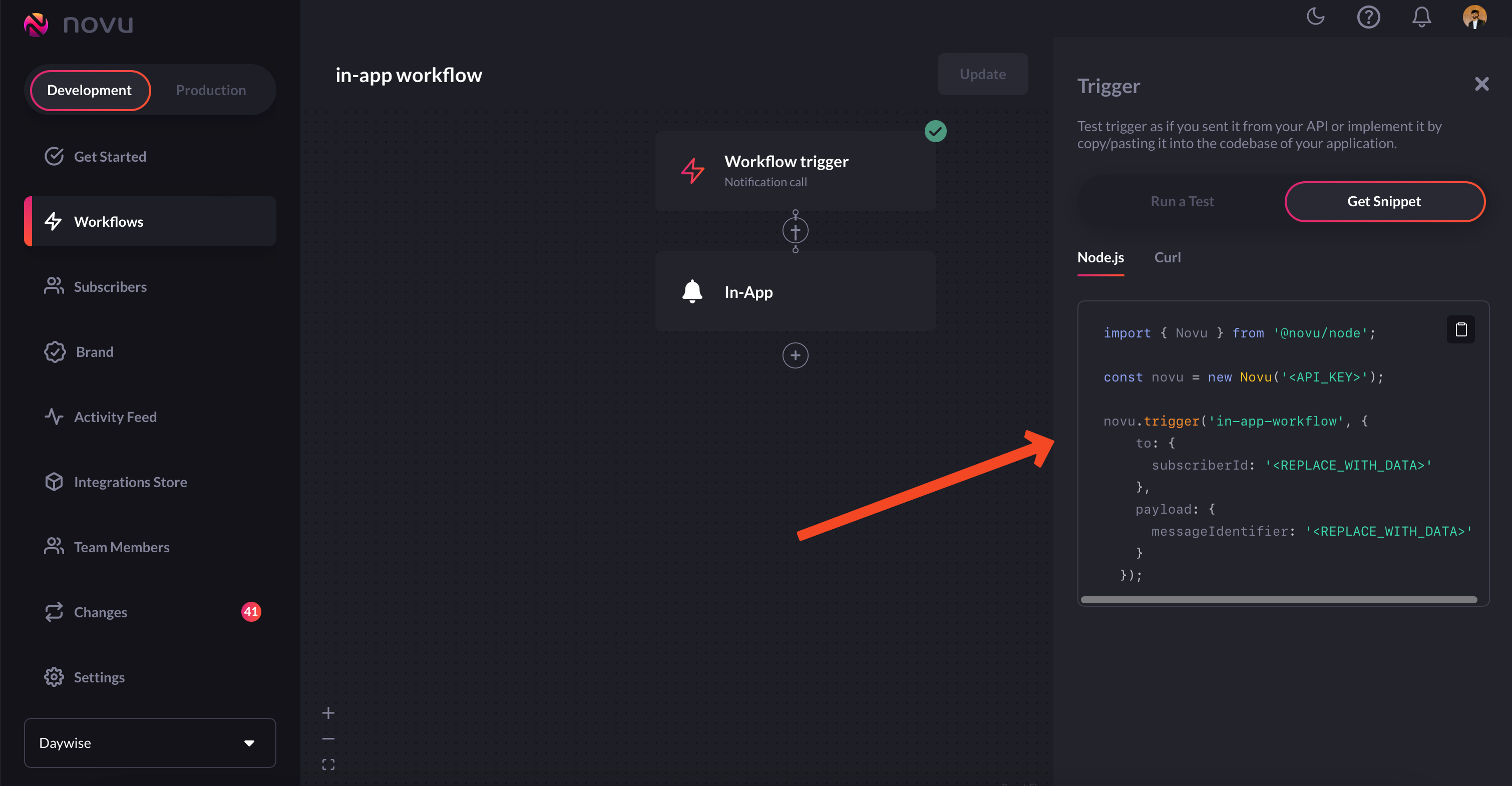
Don't forget to use your actual `API_KEY` and `subscriberId`.
That's it, you've successfully built a workflow for sending in-app notifications!
## Workflow for SMS notifications
SMS workflows are not very different from [email](/getting-started/send-your-first-notification#workflow-for-email-notifications) and [in-app](localhost:3001/getting-started/send-your-first-notification#workflow-for-in-app-notifications) workflows we've created above. Let's take a look at it:
1. Head to `Workflows` on the [Novu web dashboard.](https://web.novu.co/workflows?utm_campaign=docs-gs-sendfirstnotification)
2. Click on the `Blank Workflow` button to create a workflow from scratch.
If you want to avoid creating a workflow from scratch, then instead of
choosing `Blank Workflow`, select `All Templates` and you'll find a bunch of
workflow templates that you can customize and use:
3. You'll now end up in the workflow editor. Workflow editor, as the name suggests, is the place from where you can edit workflows. You can select which [channels](/channels-and-providers/introduction#channels) you want to send notifications in, add [digest](/guides/add-digest-to-inapp-notifications) to your in-app notifications and more.
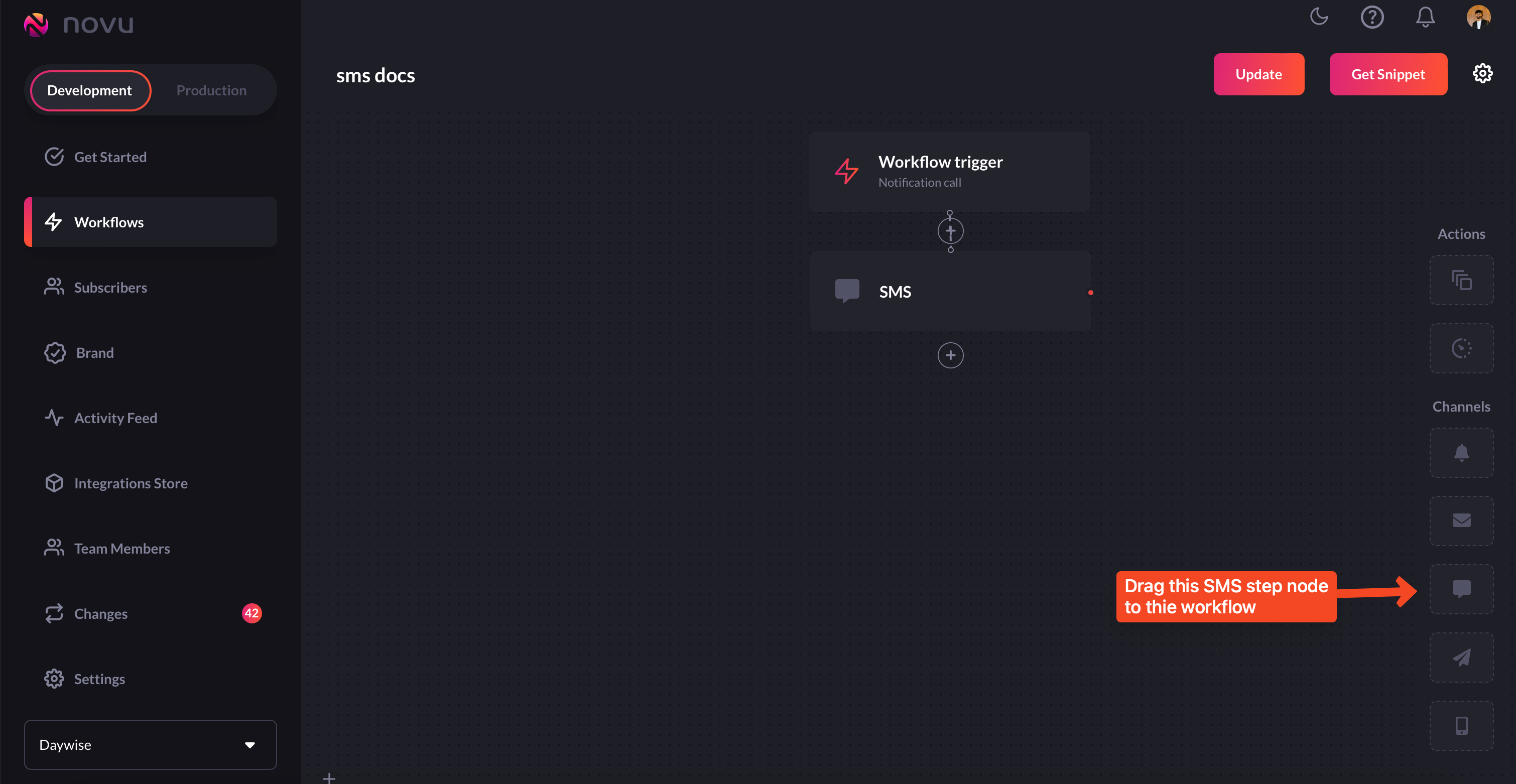
4. Since we're creating a workflow for SMS notifications, we'll drag the `SMS` step to our workflow, as shown in this picture below:
 5. If you hover over the SMS node, you will get a message saying 'Required - SMS content\`. Click on the SMS node and add a message to it. This is what will be sent as a notification in the SMS.
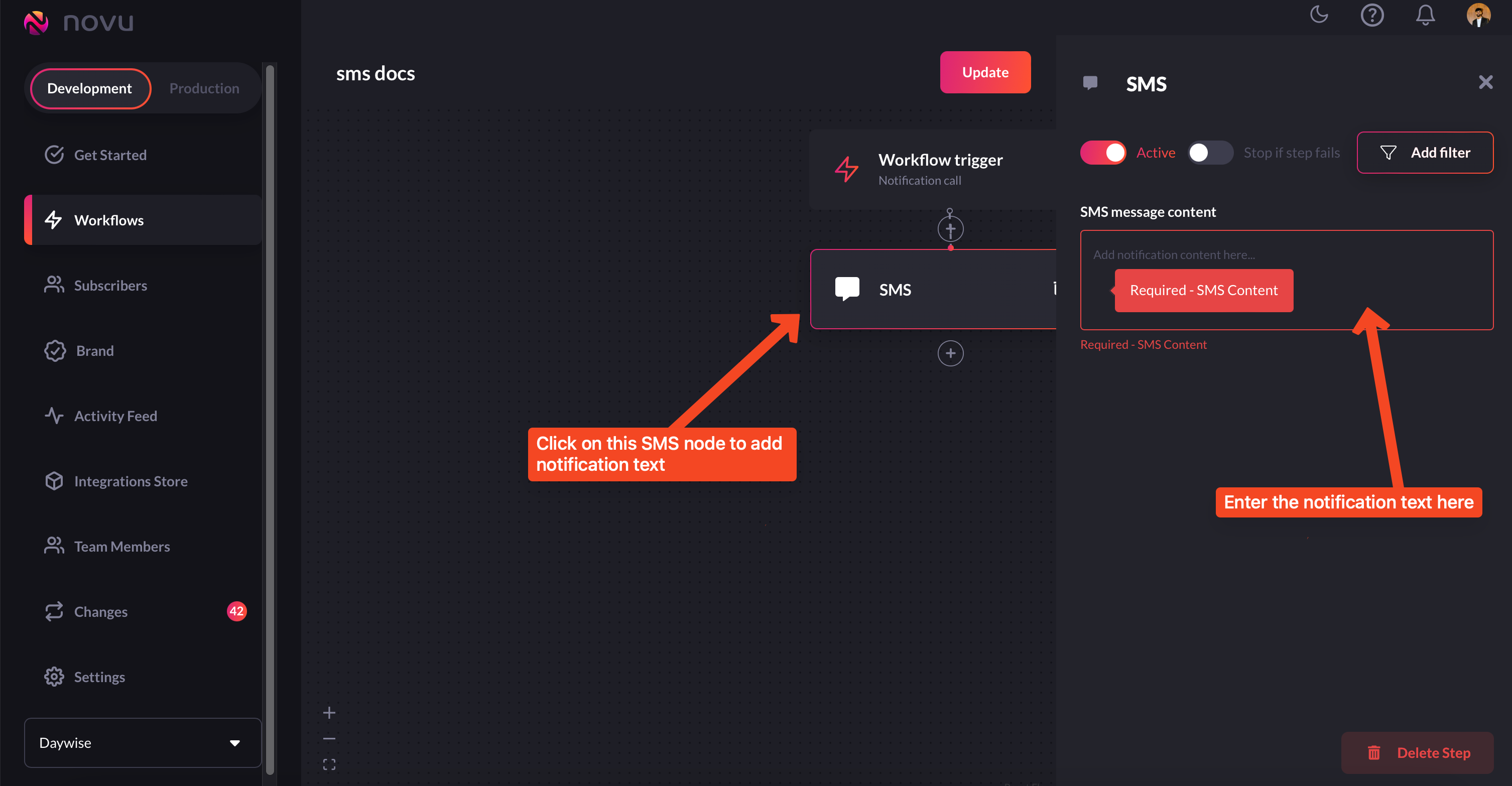
Instead of having static messages, you can have your notifications be
dynamic by using `handlebars`. Take a look
[here](/content-creation-design/handlebars-helpers) for more. If your
backend is expecting data in the payload, plug that variable here in double
braces.
6. Once you’re done configuring it, simply click the update button on the top right corner.
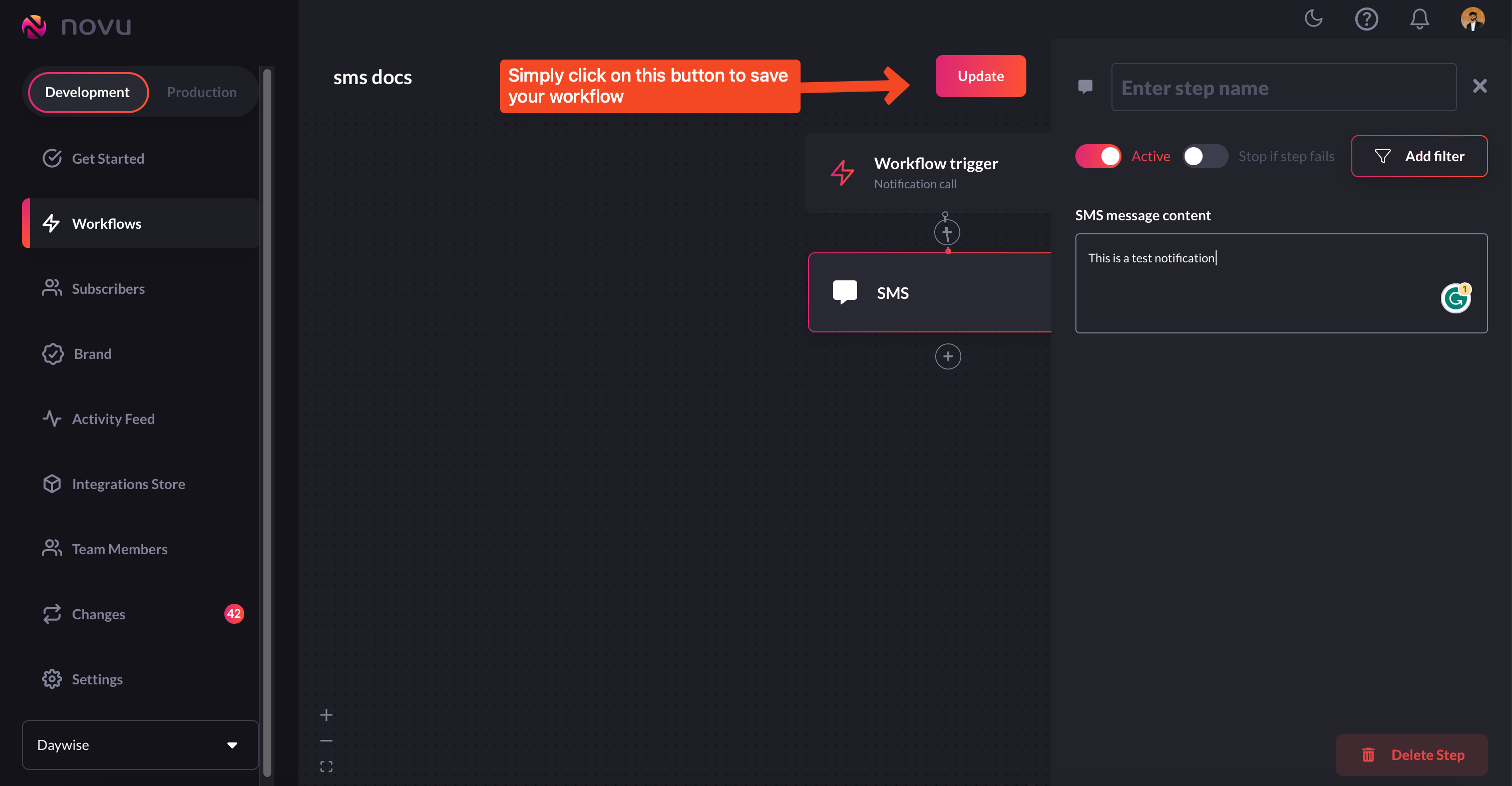 7. Now, simply click on the Get Snippet button to get the trigger code snippet.
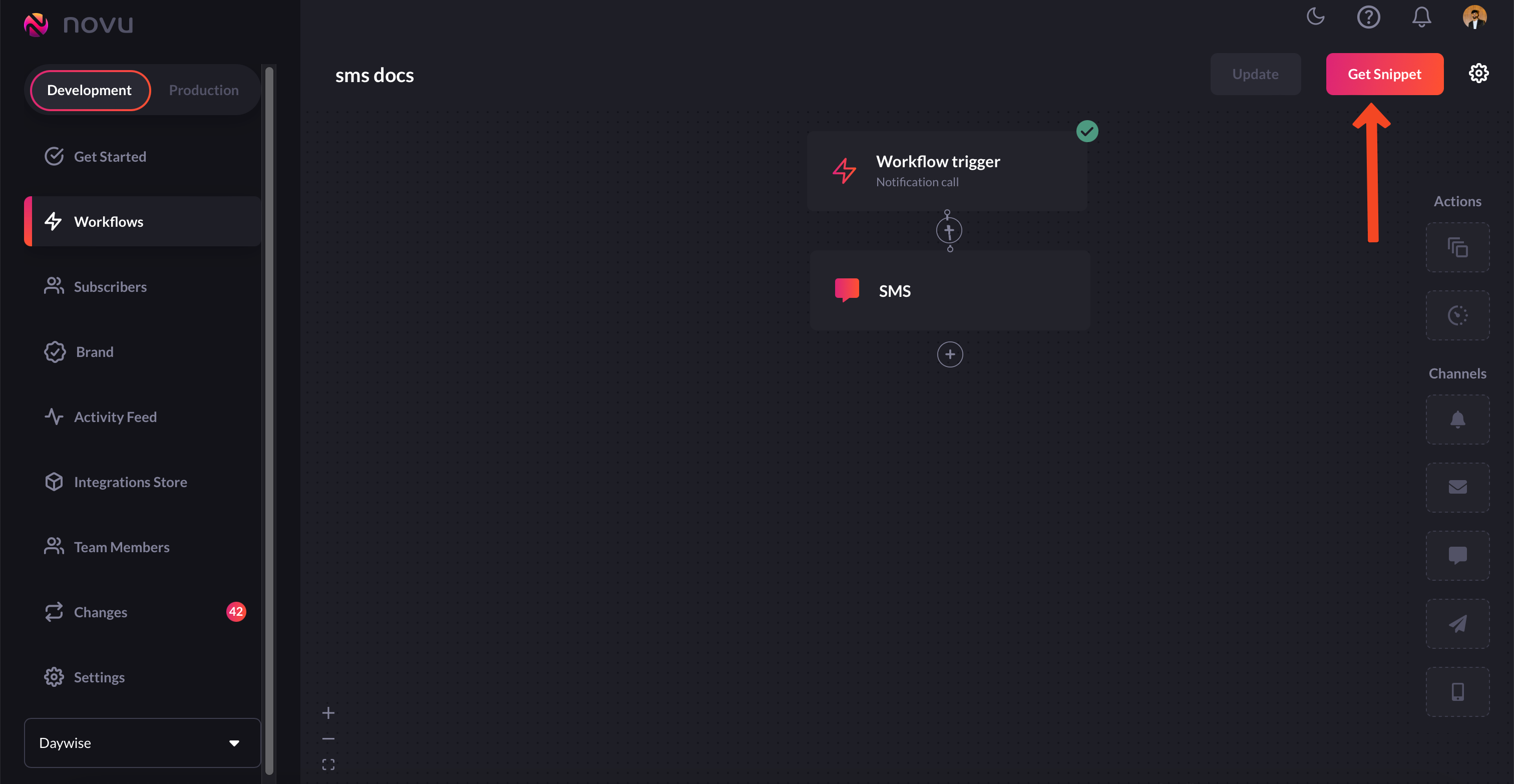 8. You’ll get the code that you need to plug into your backend to be executed whenever an event fires.
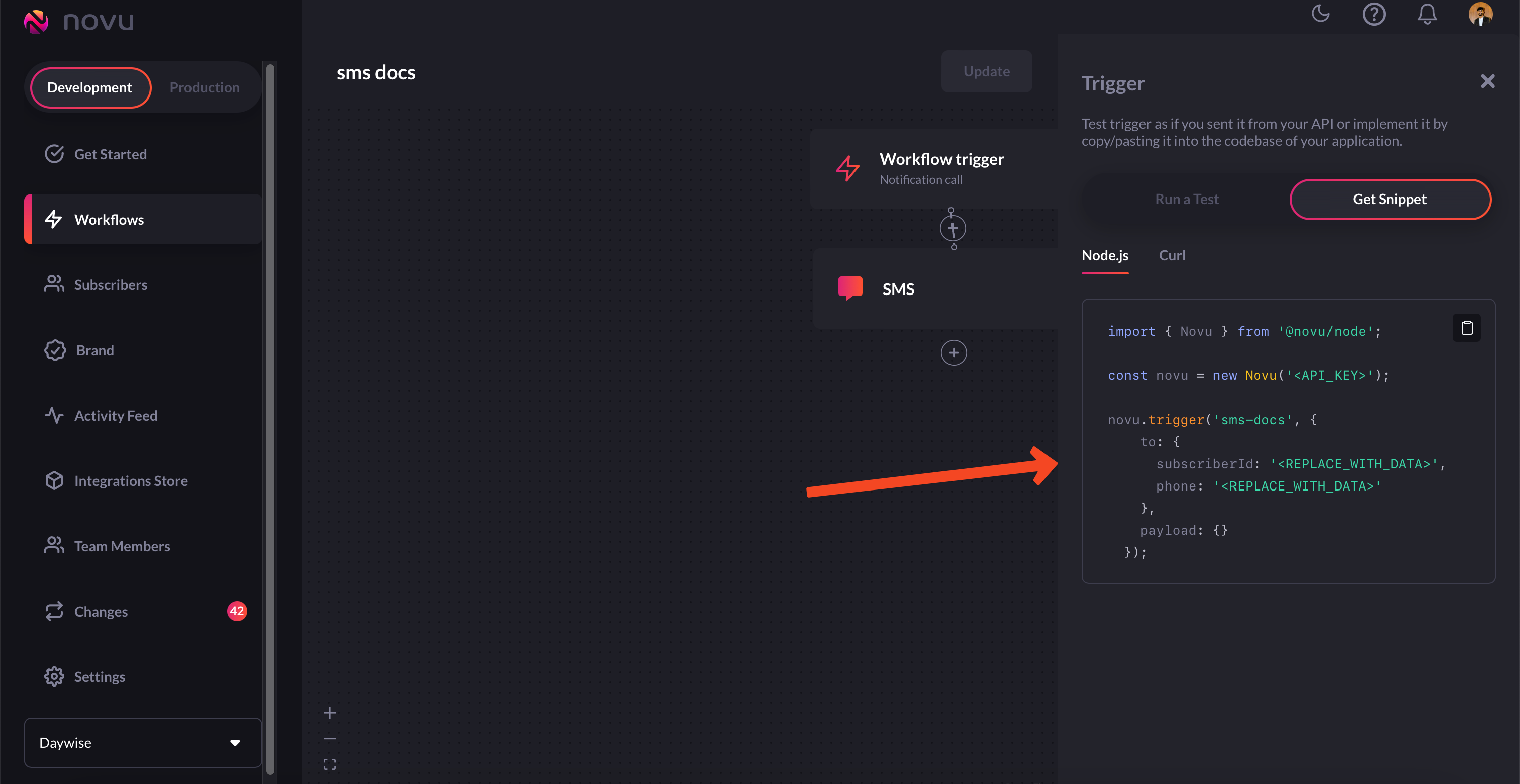 Don’t forget to use your actual API\_KEY and subscriberId.
That’s it, you’ve successfully built a workflow for sending in-app
notifications!
## Workflow for Chat notifications
Chat workflows are quite similar to [email](/getting-started/send-your-first-notification#workflow-for-email-notifications), [in-app](localhost:3001/getting-started/send-your-first-notification#workflow-for-in-app-notifications), and [SMS workflows](/getting-started/send-your-first-notification#workflow-for-sms-notifications) workflows we've created above. Let's take a look at it in detail:
1. Head to `Workflows` on the [Novu web dashboard.](https://web.novu.co/workflows?utm_campaign=docs-gs-sendfirstnotification)
2. Click on the `Blank Workflow` button to create a workflow from scratch.
Don’t forget to use your actual API\_KEY and subscriberId.
That’s it, you’ve successfully built a workflow for sending in-app
notifications!
## Workflow for Chat notifications
Chat workflows are quite similar to [email](/getting-started/send-your-first-notification#workflow-for-email-notifications), [in-app](localhost:3001/getting-started/send-your-first-notification#workflow-for-in-app-notifications), and [SMS workflows](/getting-started/send-your-first-notification#workflow-for-sms-notifications) workflows we've created above. Let's take a look at it in detail:
1. Head to `Workflows` on the [Novu web dashboard.](https://web.novu.co/workflows?utm_campaign=docs-gs-sendfirstnotification)
2. Click on the `Blank Workflow` button to create a workflow from scratch.
If you want to avoid creating a workflow from scratch, then instead of
choosing `Blank Workflow`, select `All Templates` and you'll find a bunch
of workflow templates that you can customize and use:
3. You'll now end up in the workflow editor. Workflow editor, as the name suggests, is the place from where you can edit workflows. You can select which [channels](/channels-and-providers/introduction#channels) you want to send notifications in, add [digest](/guides/add-digest-to-inapp-notifications) to your in-app notifications and more.
4. Just add this `Chat` node to the workflow.
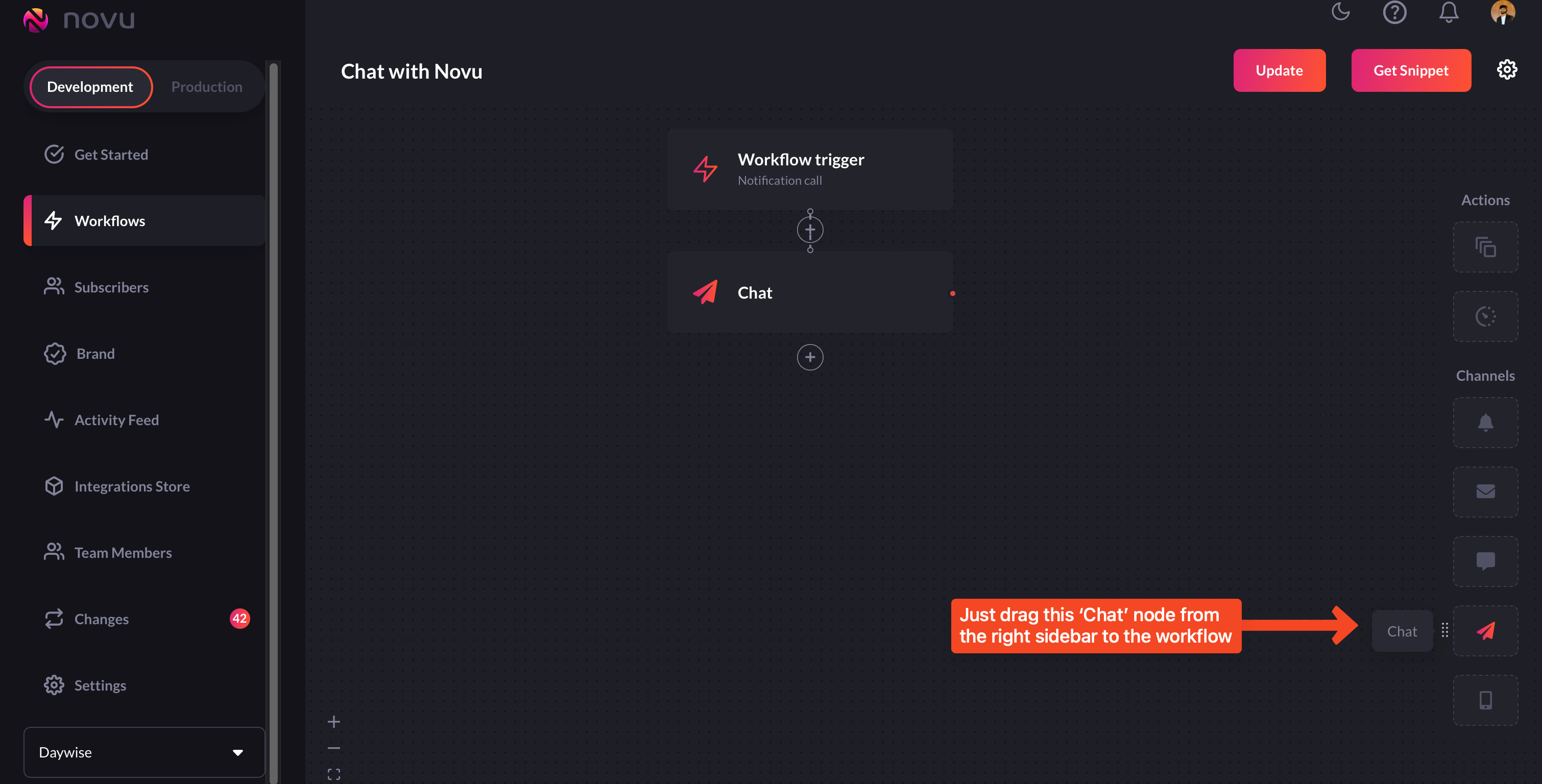 5. In the `Chat` node, you can enter the notification message. This is what will get sent to the [subscriber](/subscribers/subscribers) as a notification. If you're sending dynamic messages, use the variable that is expected in your payload in double braces here. Using [handlebars](/content-creation-design/handlebars-helpers), you can further extend this functionality.
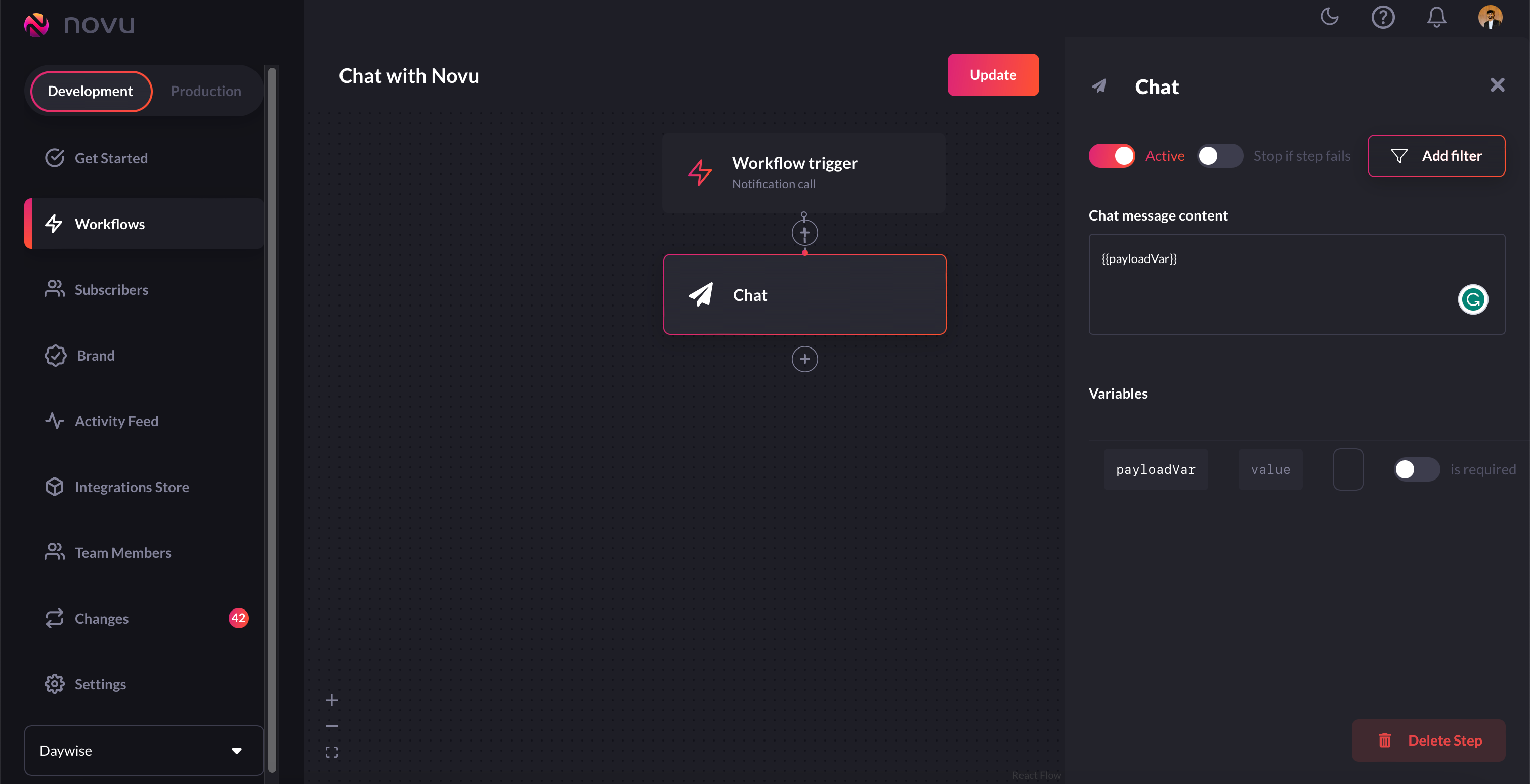 6. Once you’re done configuring it, simply click the update button on the top right corner.
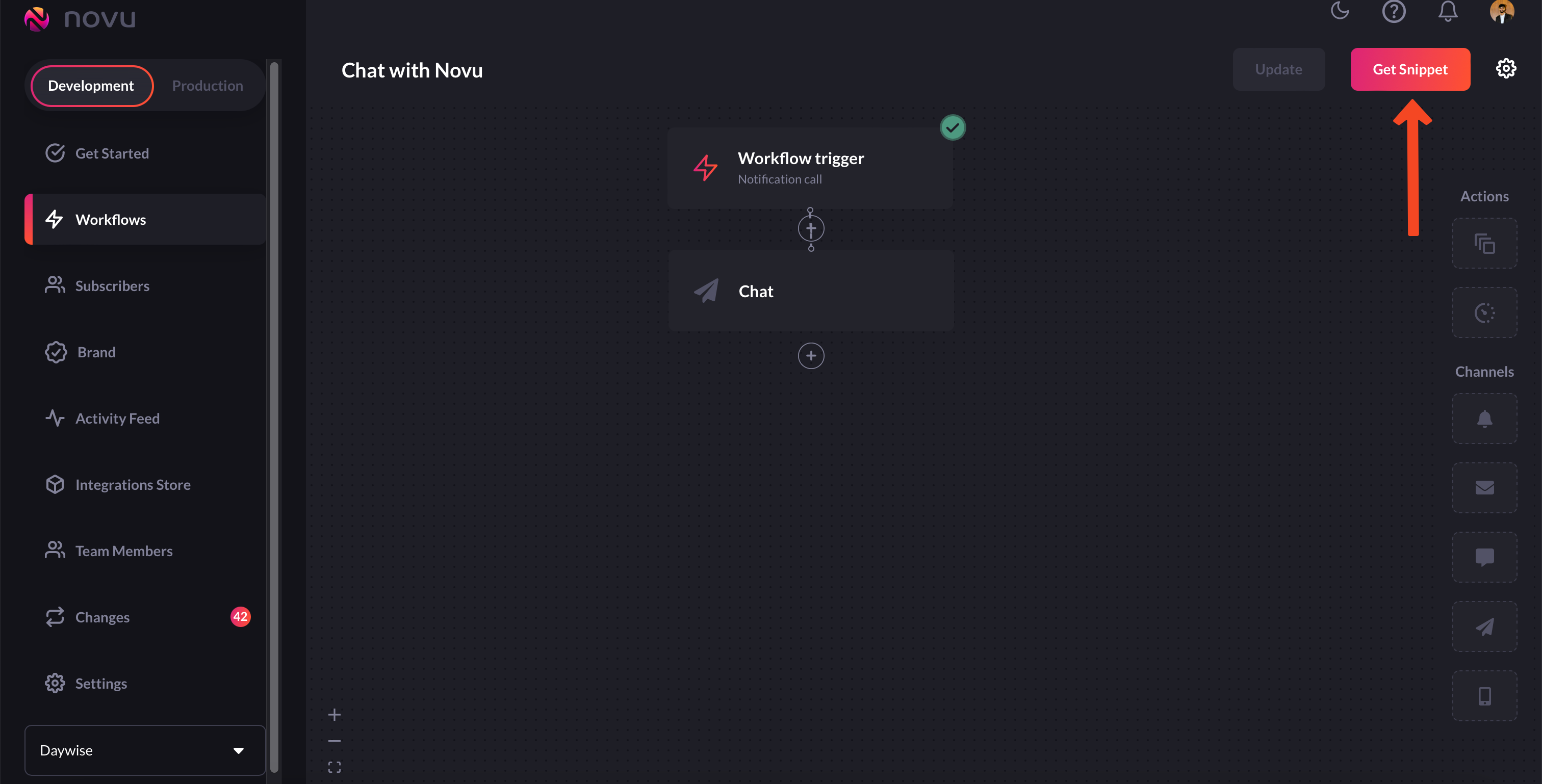
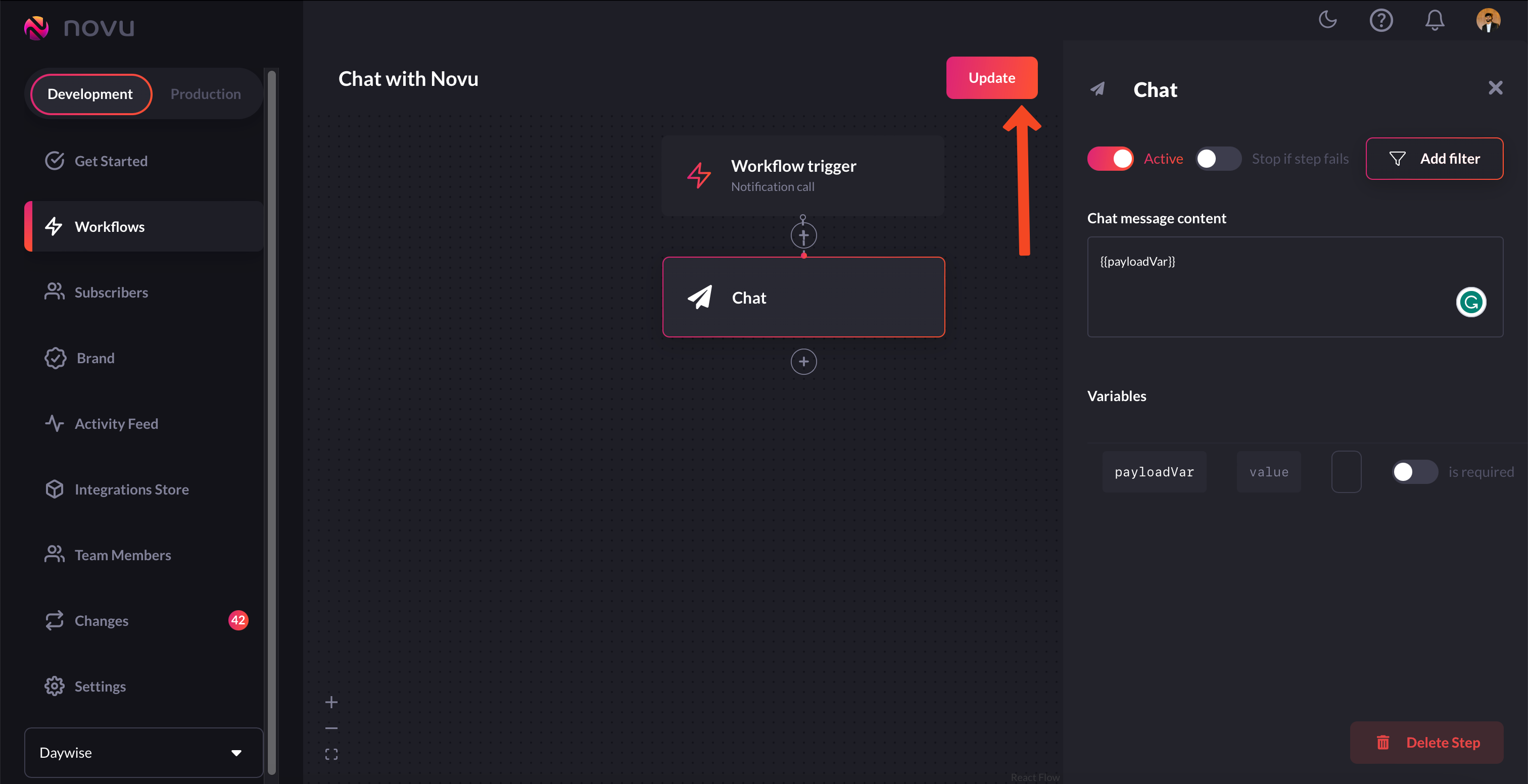 7. Now, simply click on the Get Snippet button to get the trigger code snippet.
 8. You’ll get the code that you need to plug into your backend to be executed whenever an event fires.
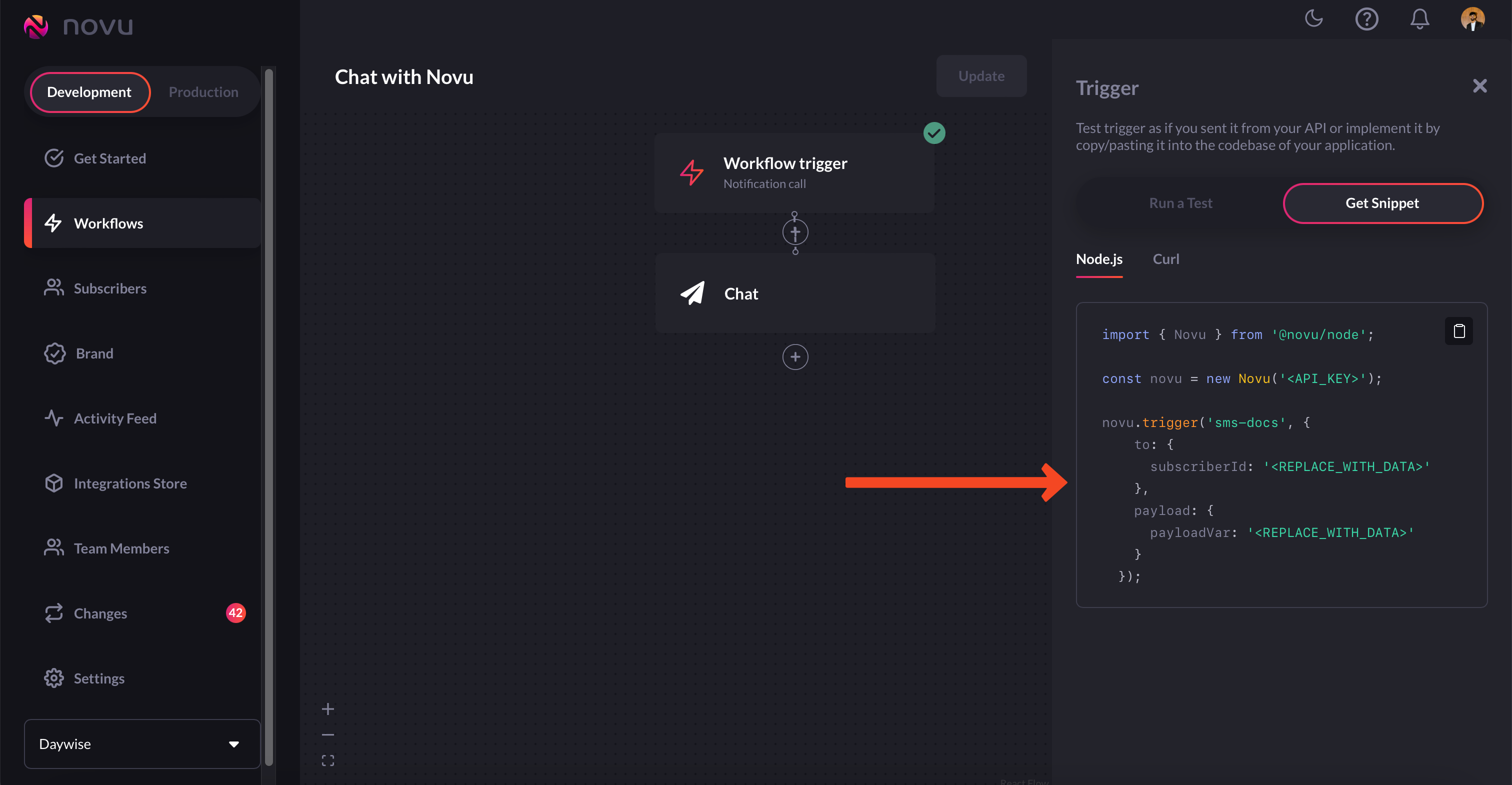 Don’t forget to use your actual API\_KEY and subscriberId.
That’s it, you’ve successfully built a workflow for sending chat notifications!
Don't forget to check out our [guides](/guides/add-digest-to-inapp-notifications) and [demo apps](/demos/introduction) for more information on specific features.
Don’t forget to use your actual API\_KEY and subscriberId.
That’s it, you’ve successfully built a workflow for sending chat notifications!
Don't forget to check out our [guides](/guides/add-digest-to-inapp-notifications) and [demo apps](/demos/introduction) for more information on specific features.