> ## Documentation Index
> Fetch the complete documentation index at: https://v0.x-docs.novu.co/llms.txt
> Use this file to discover all available pages before exploring further.
# How to send PUSH notifications to iOS devices with FCM using Novu
> Learn how to integrate Firebase Cloud Messaging with Novu and send notifications to iOS
## Prerequisites
To complete this tutorial, you will need the following:
* [Apple Developer](https://developer.apple.com/) membership (to obtain the required permissions to send push notifications)
* A machine running MacOS to work on an iOS project
* [Firebase](https://firebase.google.com/) account
* [Novu](https://web.novu.co/?utm_campaign=docs-gs-guides-fcm-ios) account
* [Xcode](https://developer.apple.com/xcode/) installed on your machine
## Create an iOS app
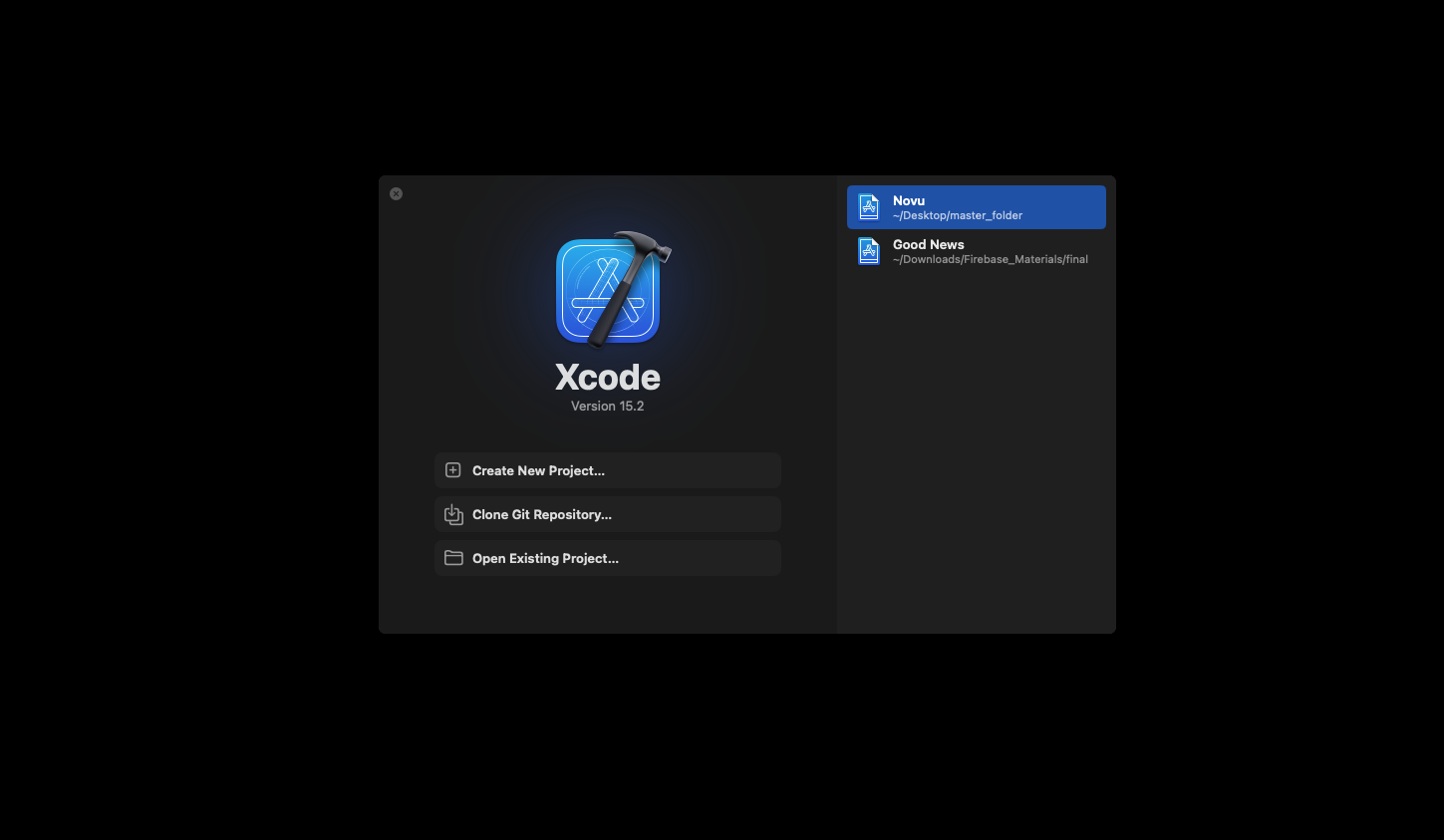
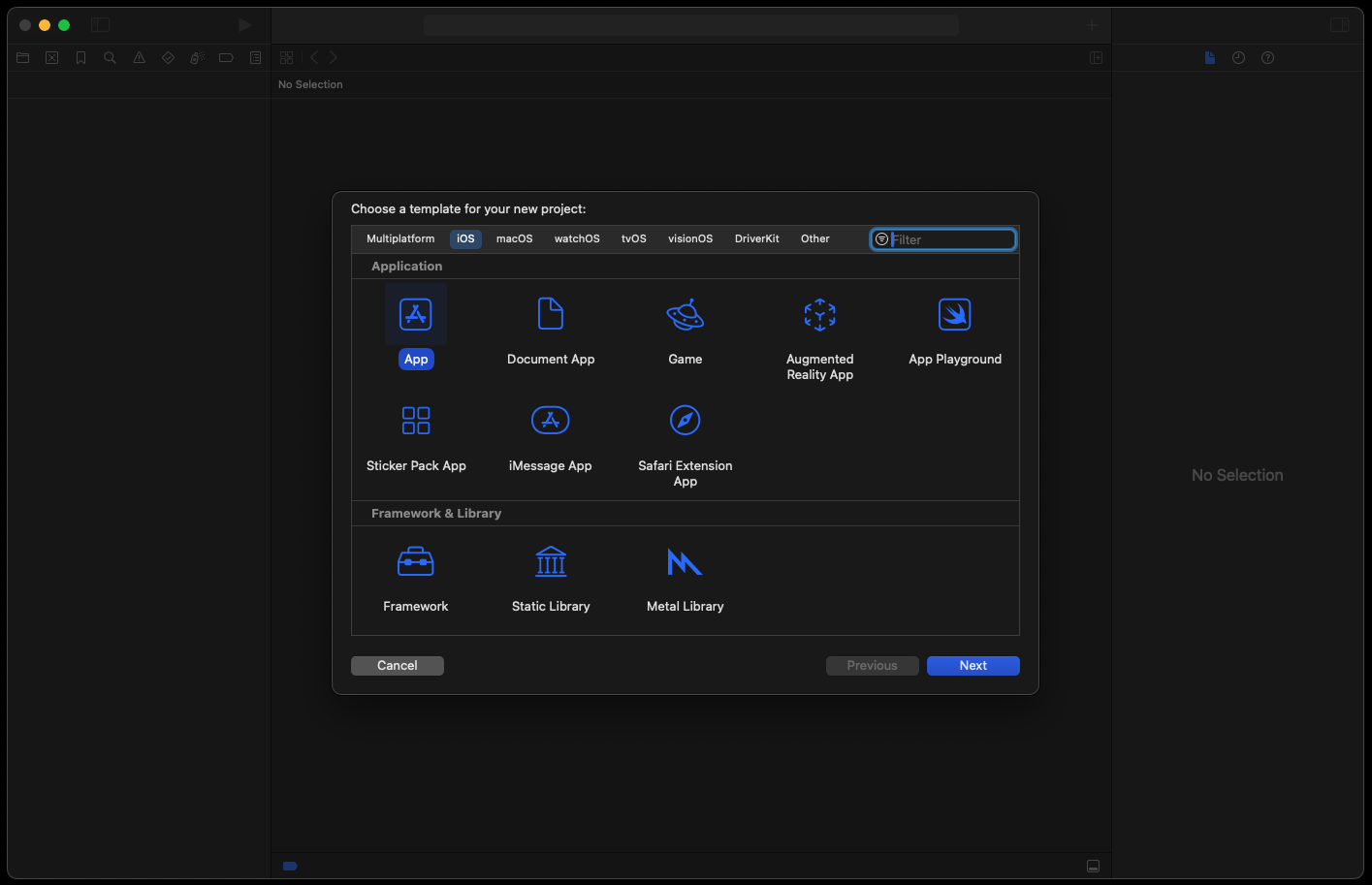
Open Xcode and create a new project, choosing the **App** template.
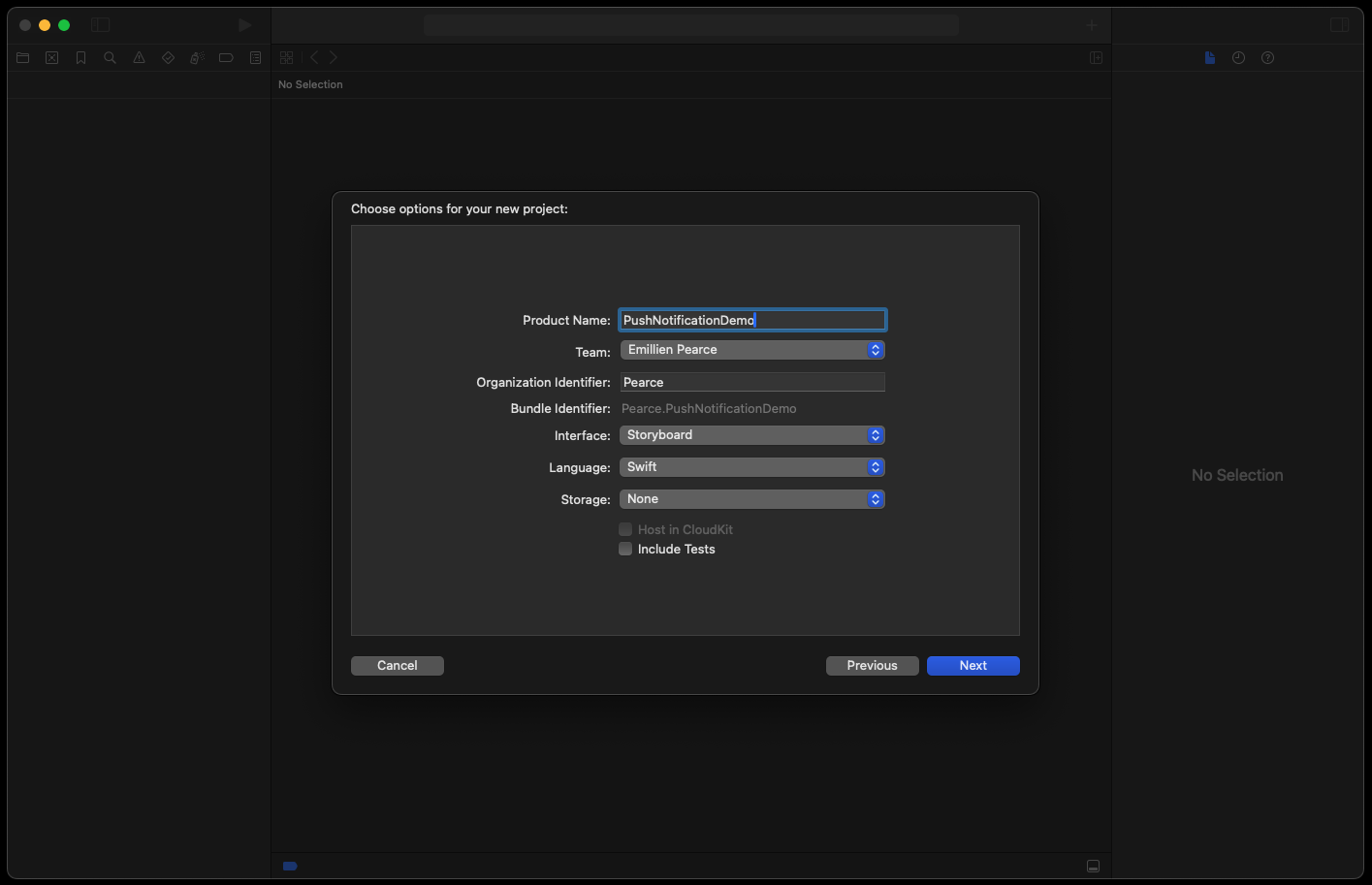
Give your project a name, and select your name as the team for now, or leave it blank.
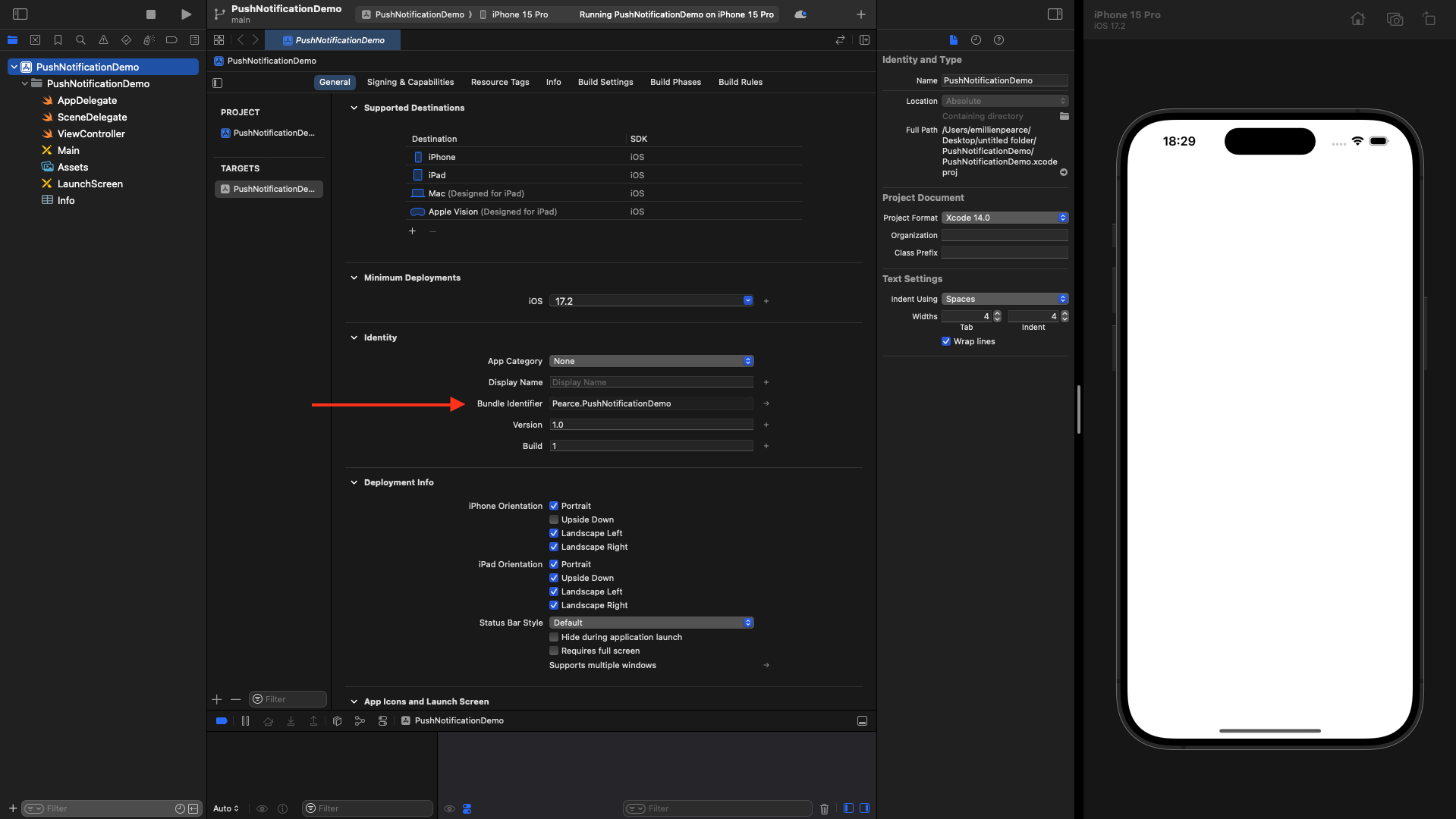
Your bundle identifier will be generated here — you will use this later when connecting to Firebase.
Select **SwiftUI** as your interface and **Swift** as your language.
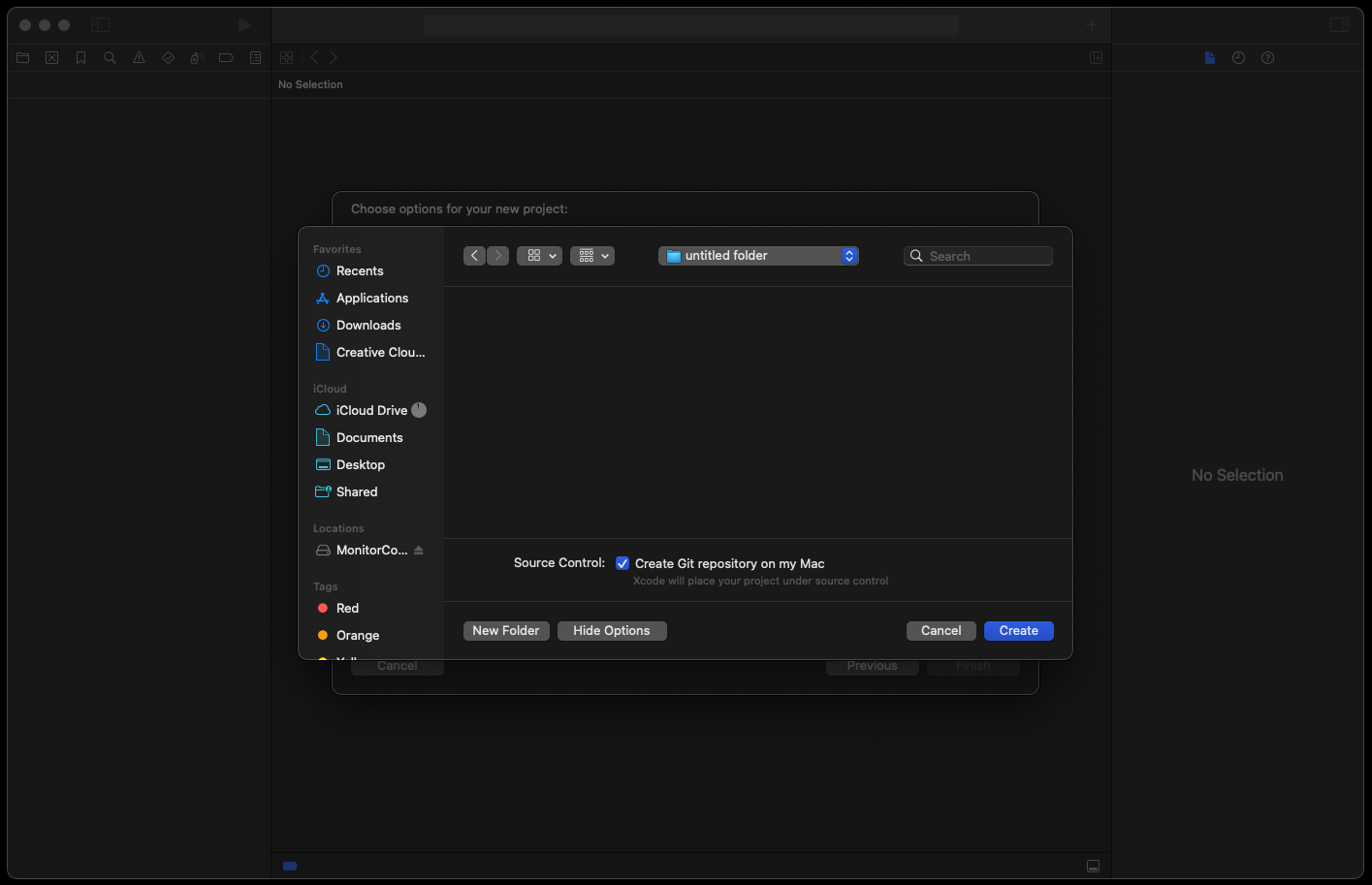
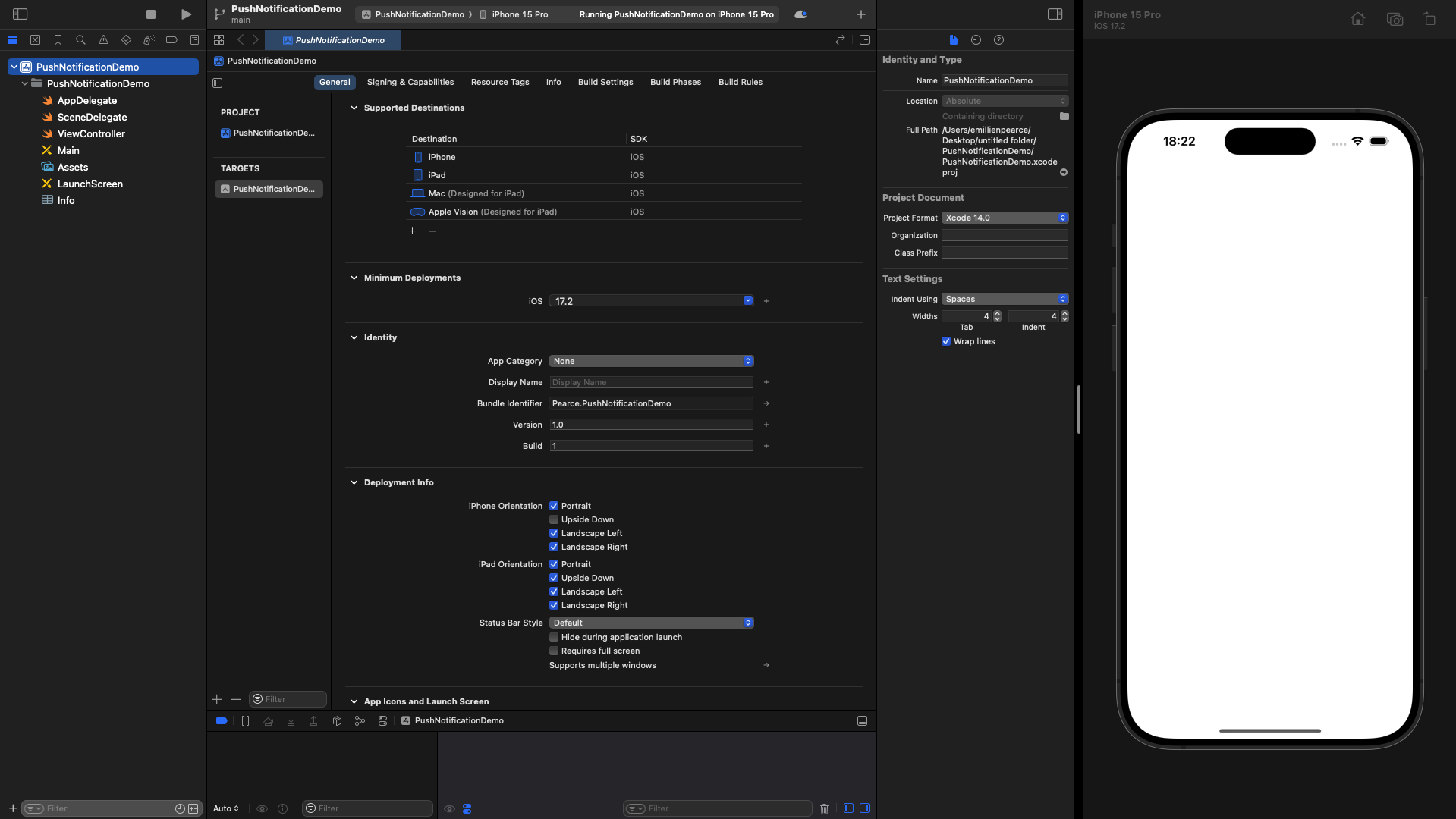
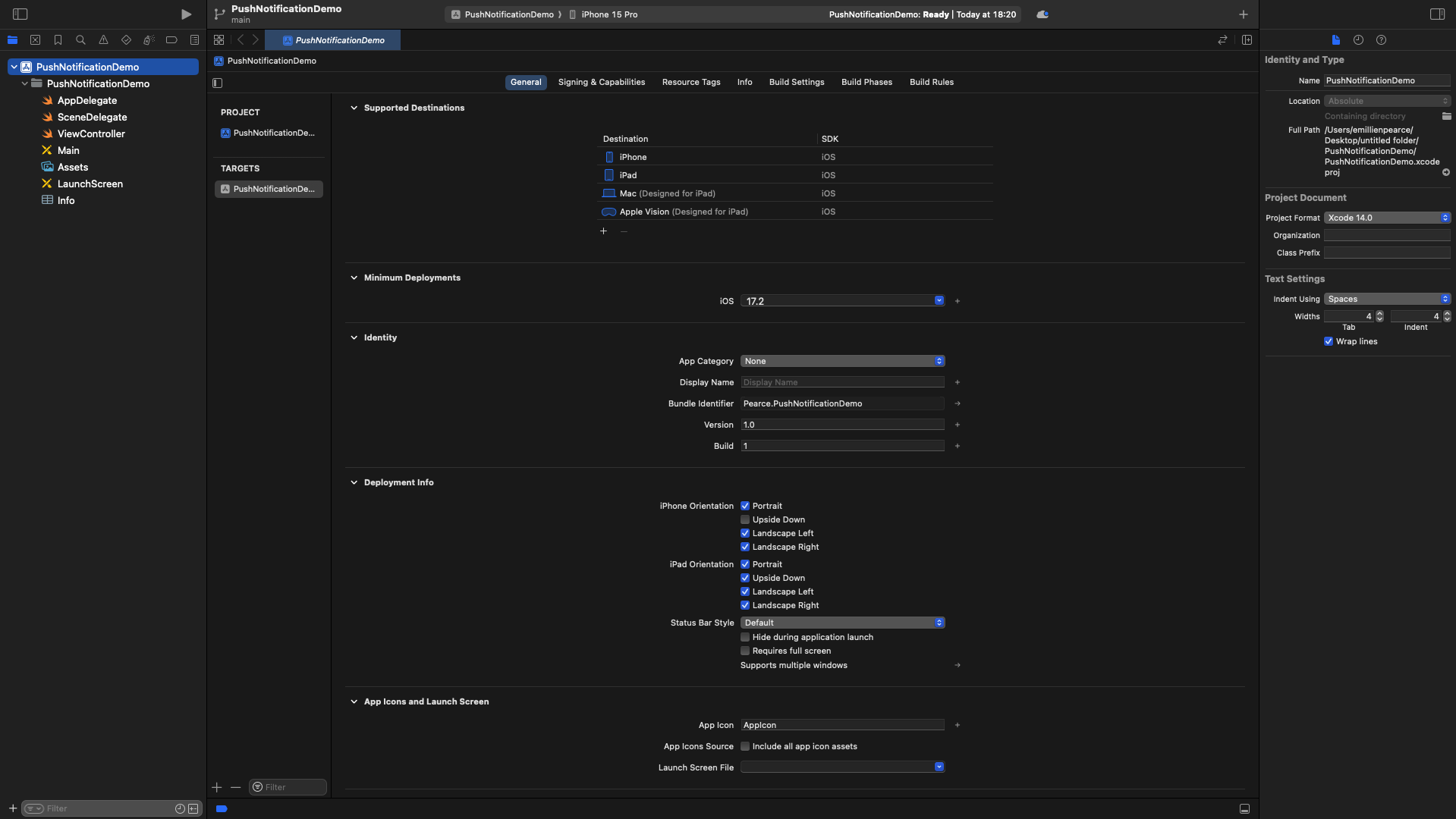 Let's build and run our iOS application to see if everything works correctly.
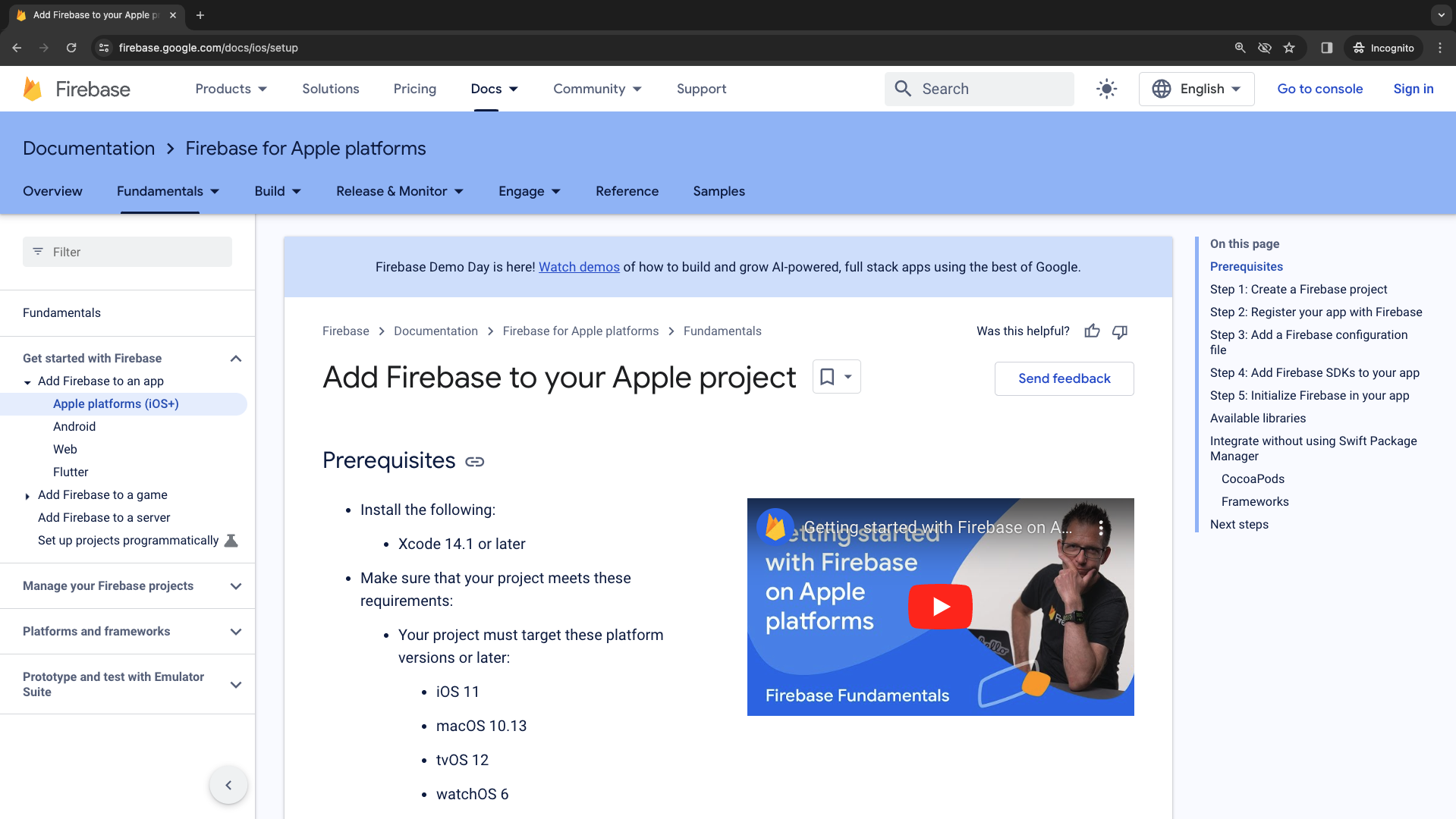
 Go to the Firebase documentation website, go to docs here, and select Cloud Messaging.
We will follow this guide to set up cloud messaging inside the app.
You can read more about how Firebase Cloud Messaging works by reading their [official documentation](https://firebase.google.com/docs/cloud-messaging/ios/client).
Go to the Firebase documentation website, go to docs here, and select Cloud Messaging.
We will follow this guide to set up cloud messaging inside the app.
You can read more about how Firebase Cloud Messaging works by reading their [official documentation](https://firebase.google.com/docs/cloud-messaging/ios/client).
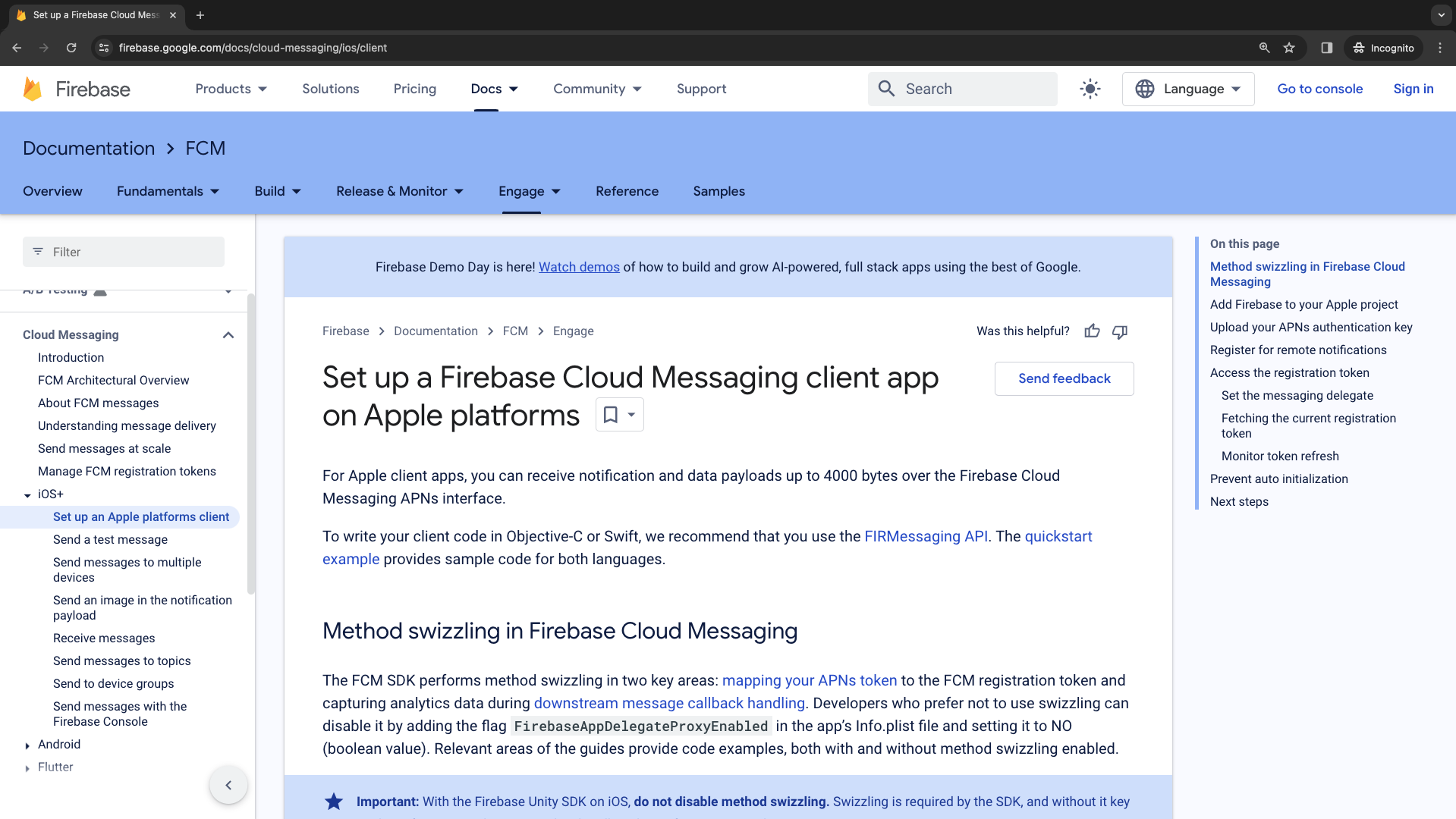 Go to iOS+ and click on the `Set up an Apple platforms client` section.
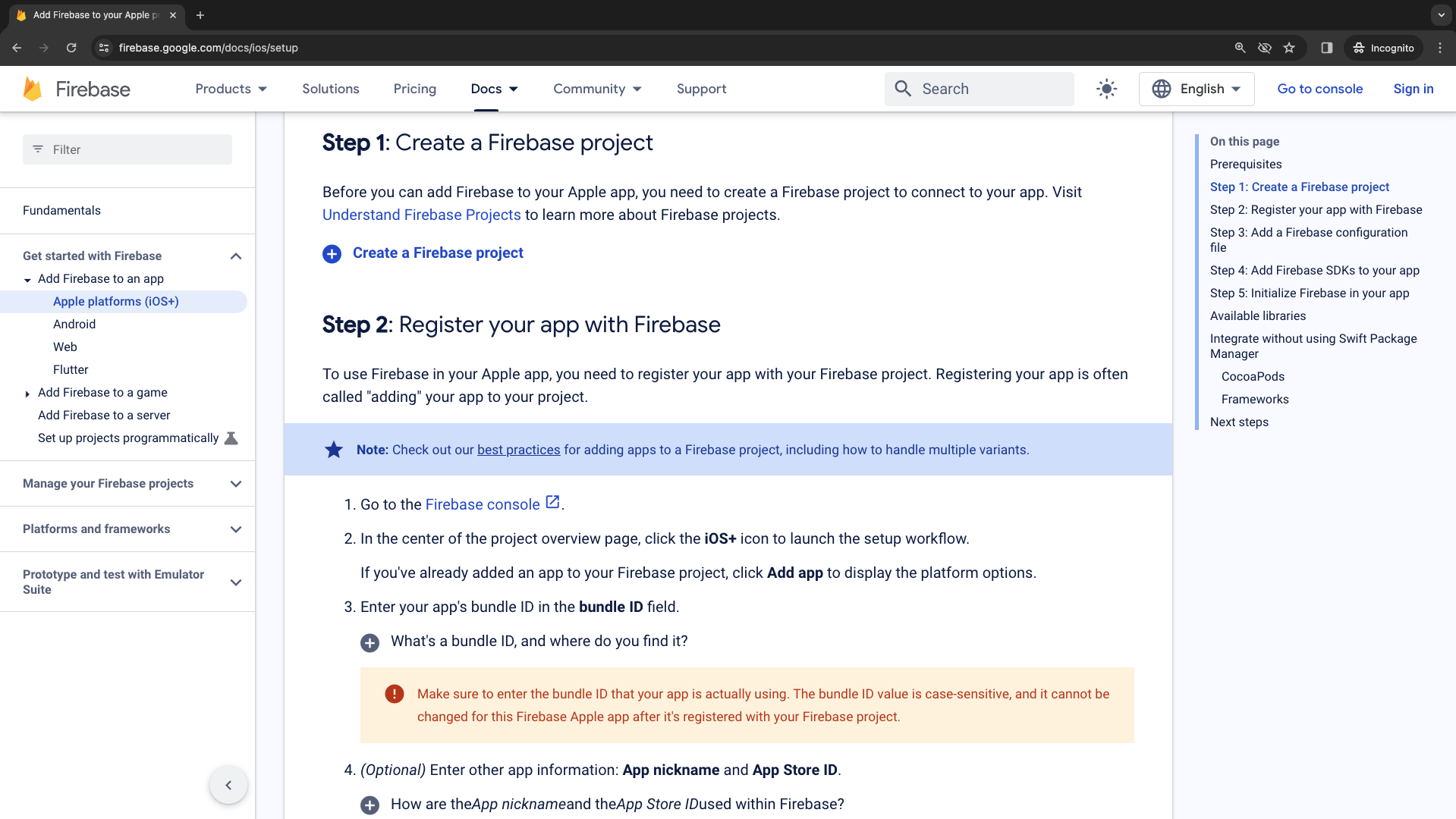
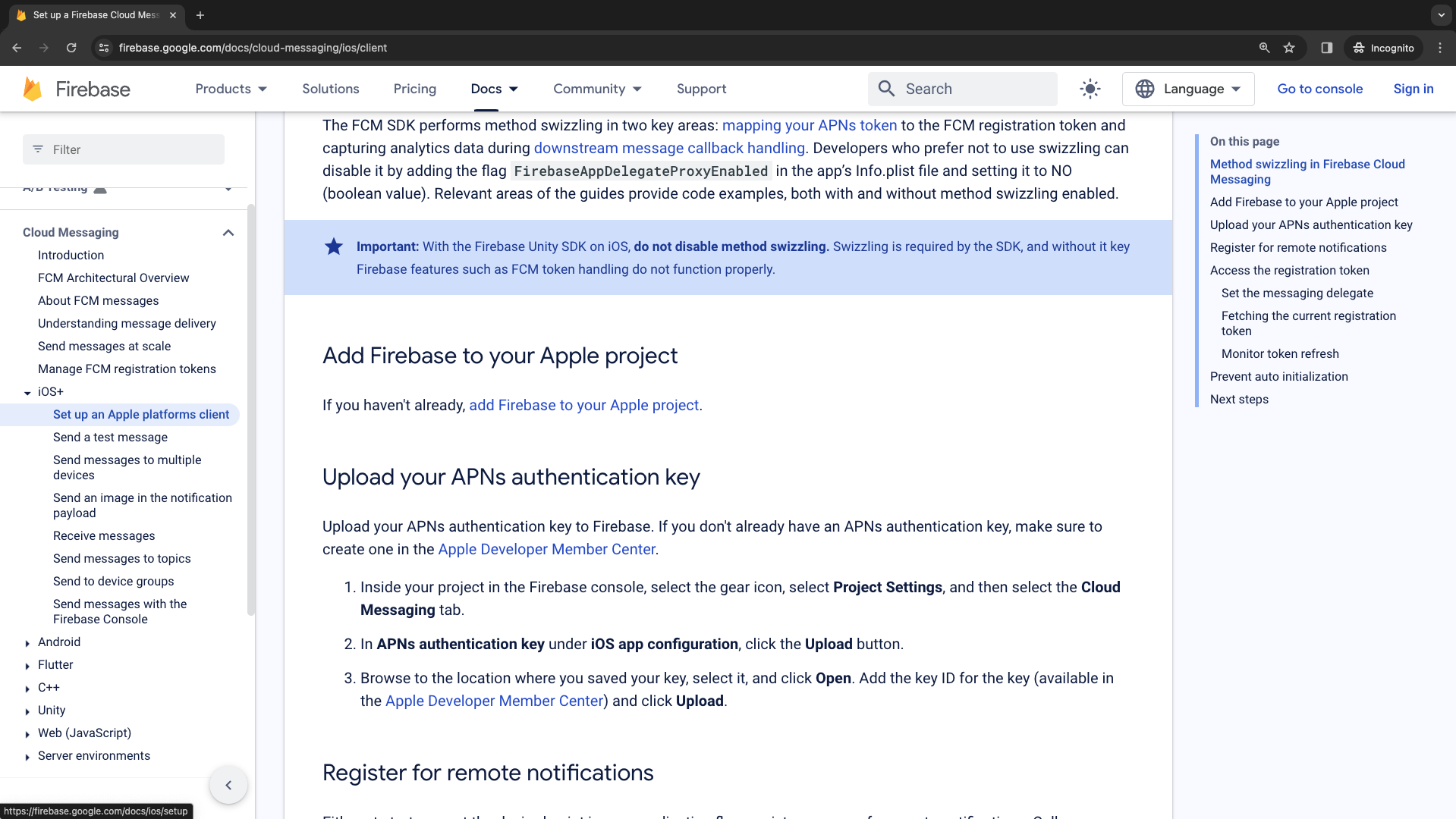 The first thing that we need to do is add Firebase to our iOS app.
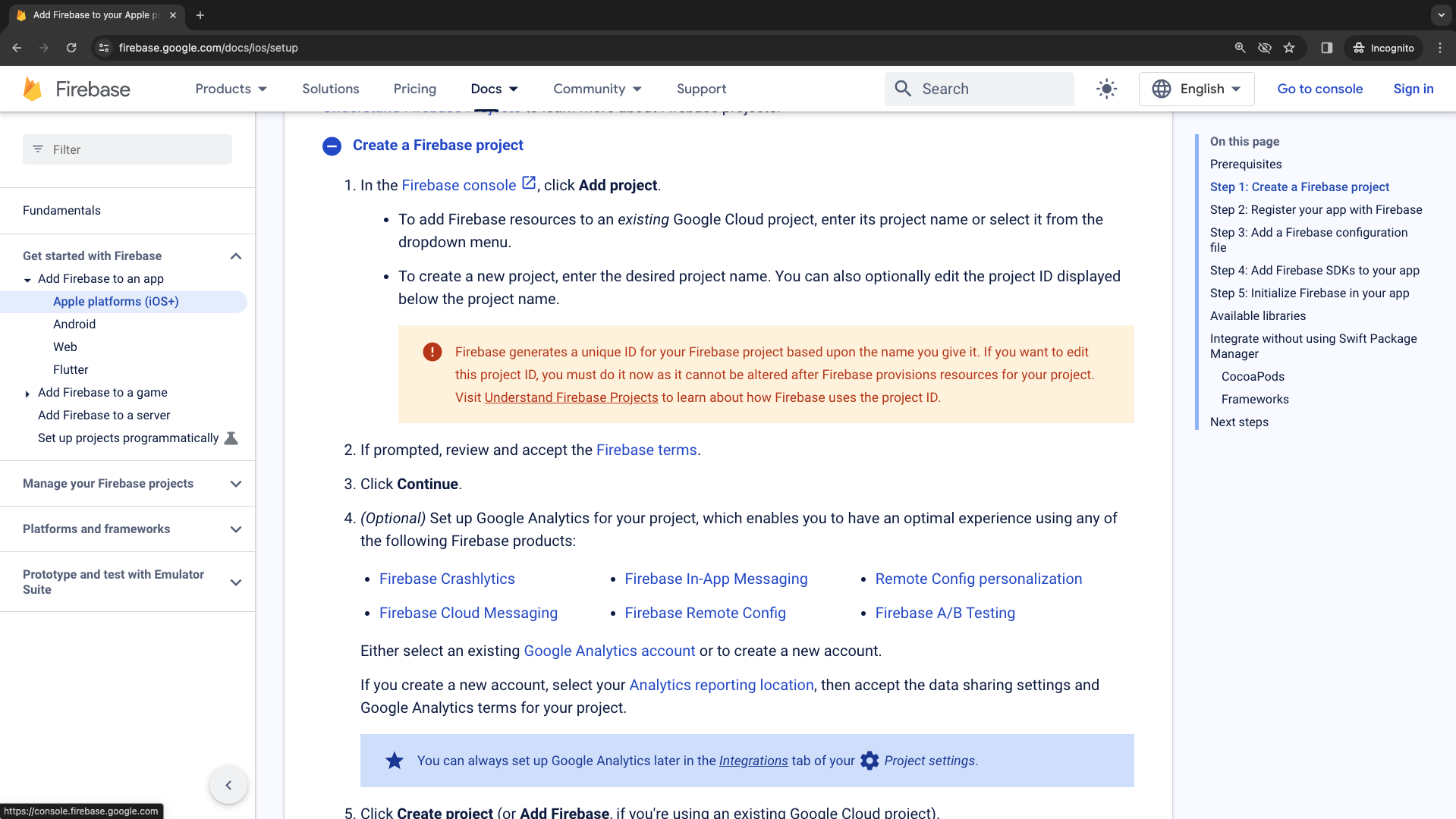
Let's create a new Firebase project inside of the console.
The first thing that we need to do is add Firebase to our iOS app.
Let's create a new Firebase project inside of the console.
 ## Create a Firebase project
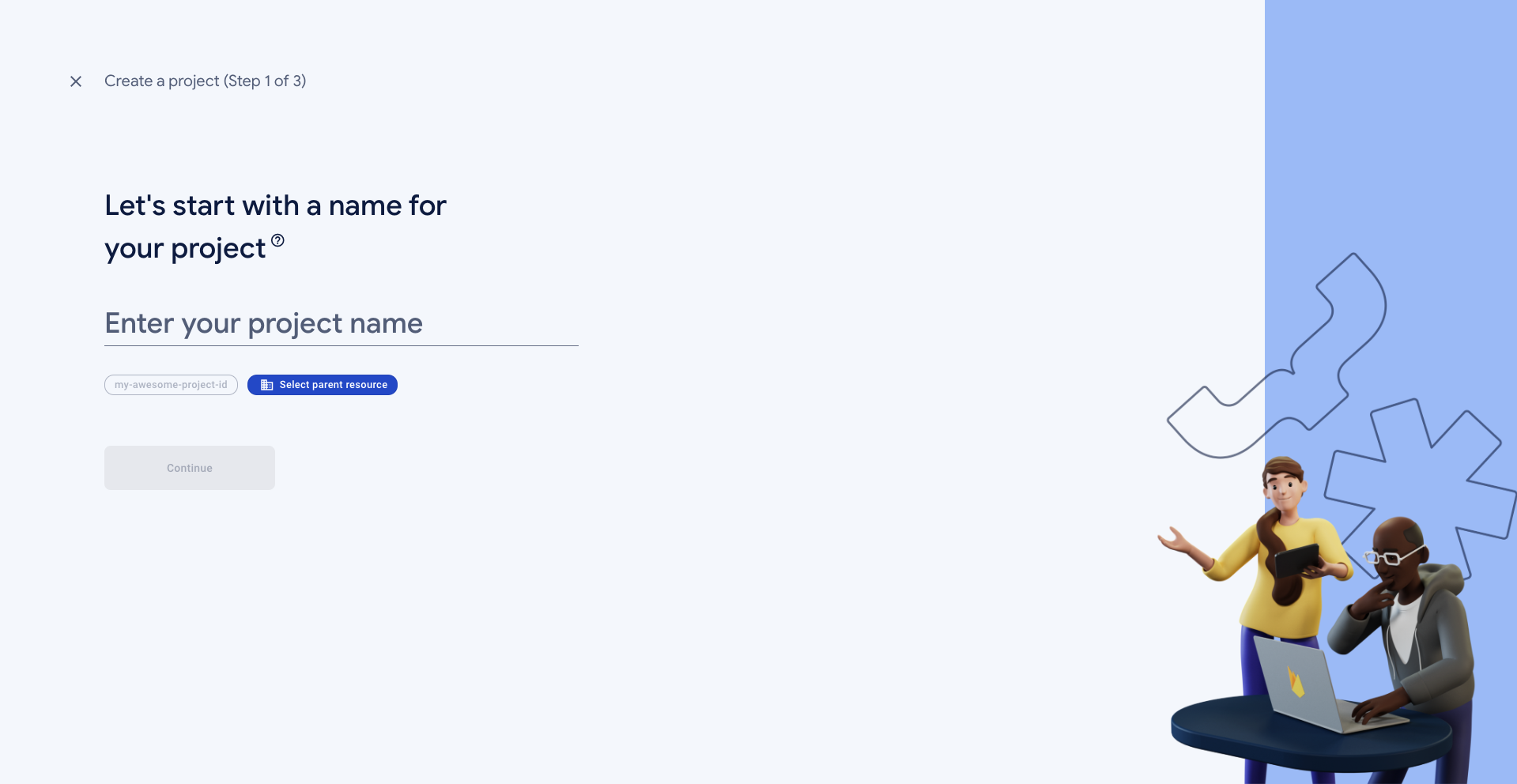
Select a name for your project.
## Create a Firebase project
Select a name for your project.
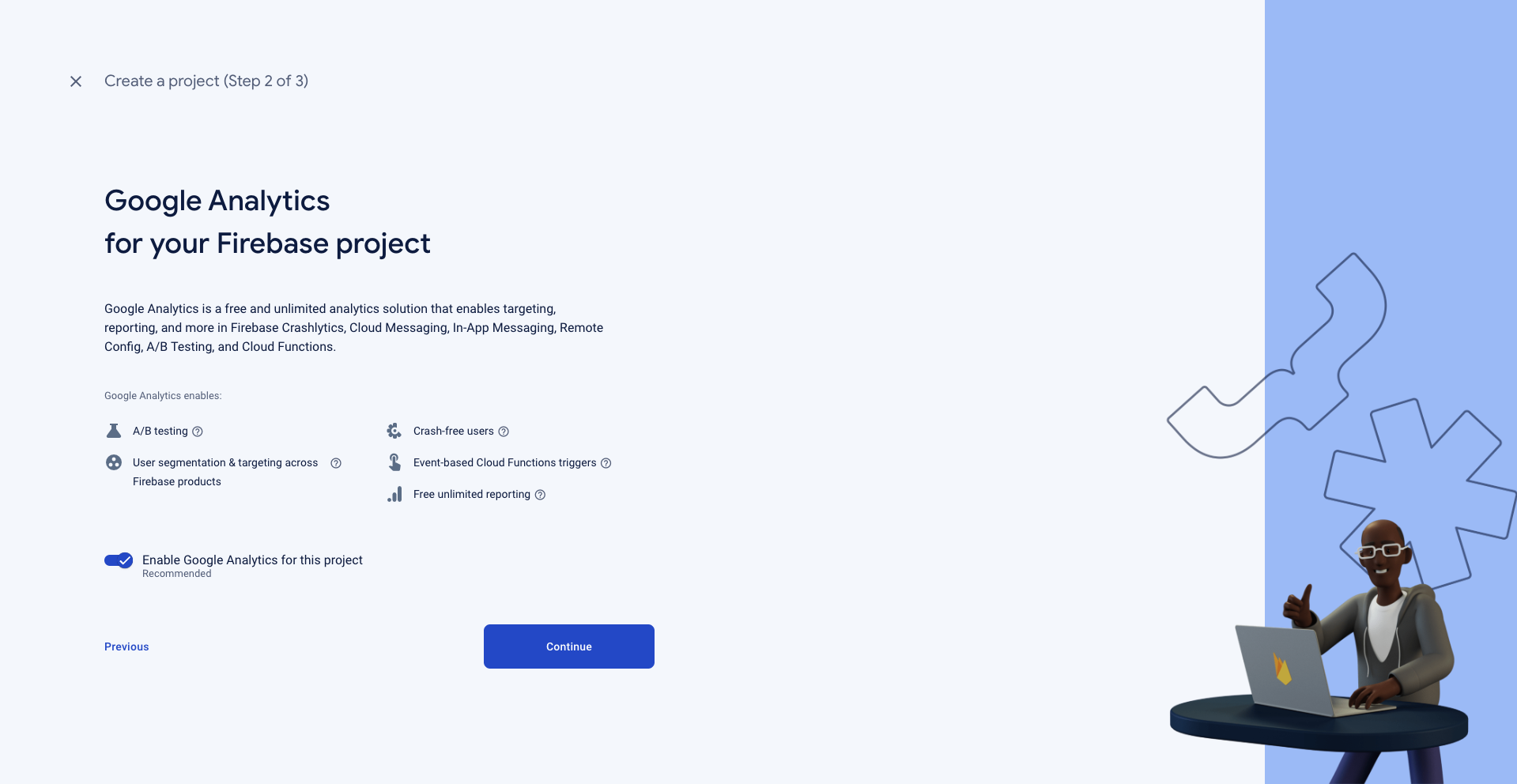
 Then, add Google Analytics to the Firebase project.
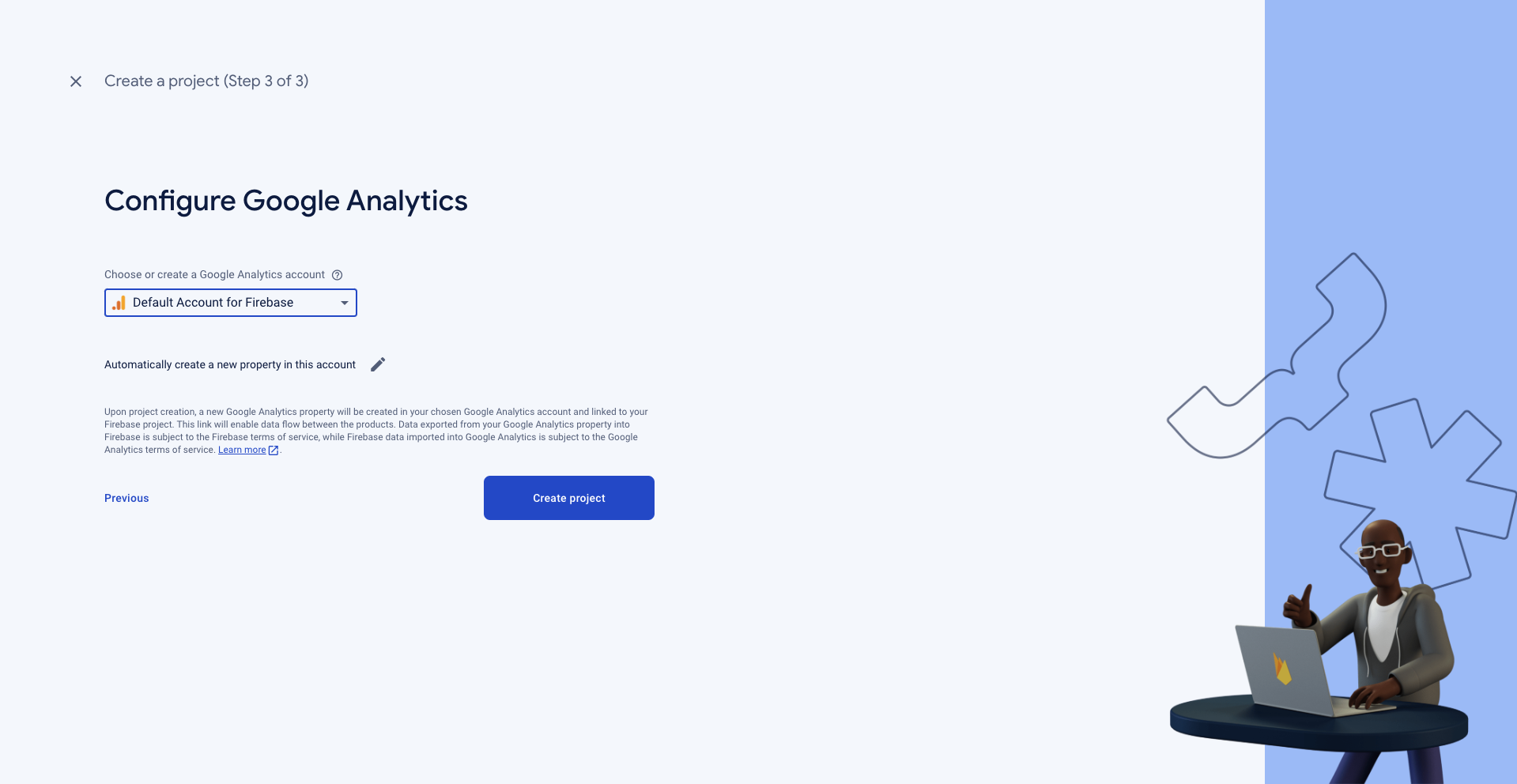
 Here, you can select your Google account.
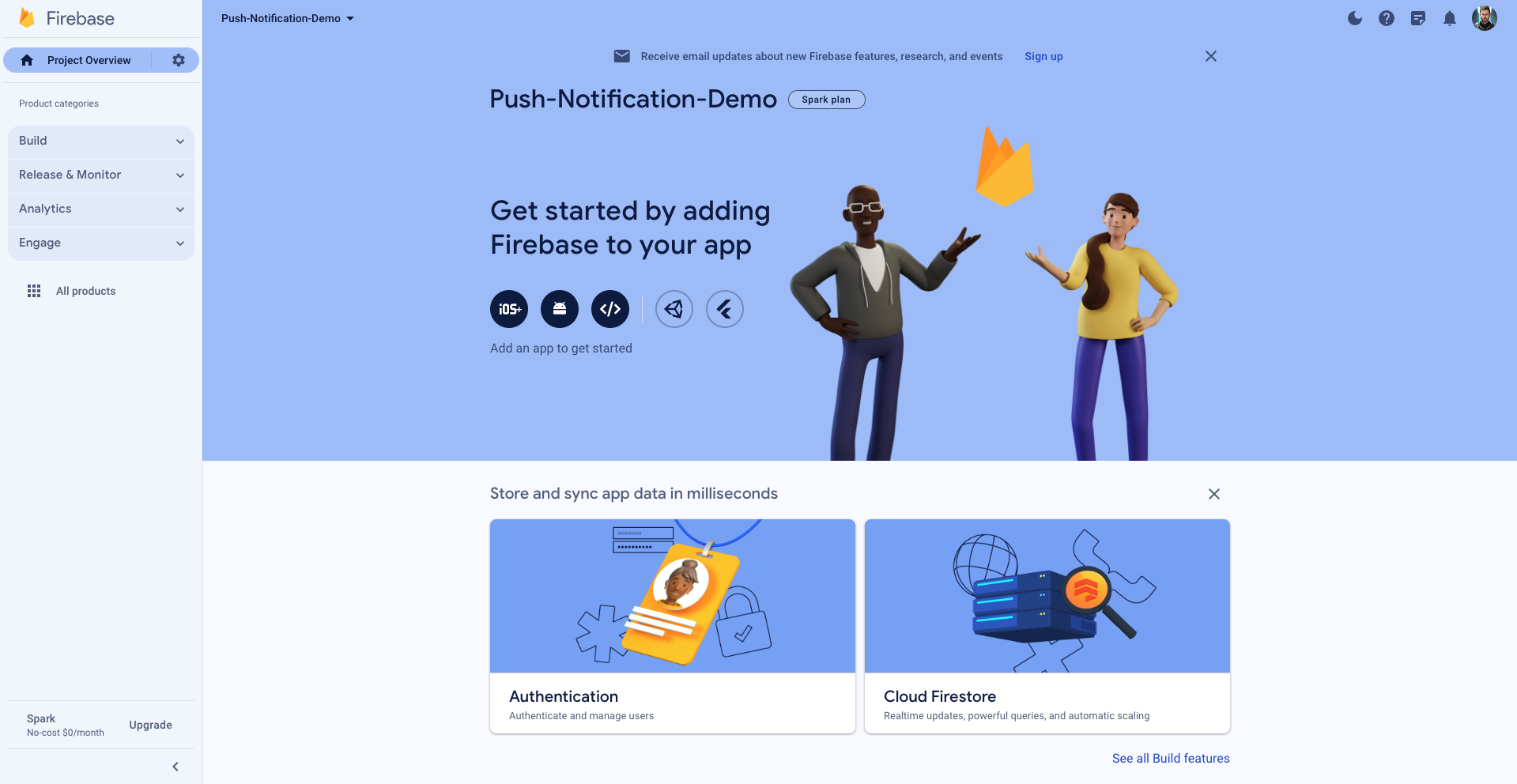
 We will click on Add Firebase to your iOS app.
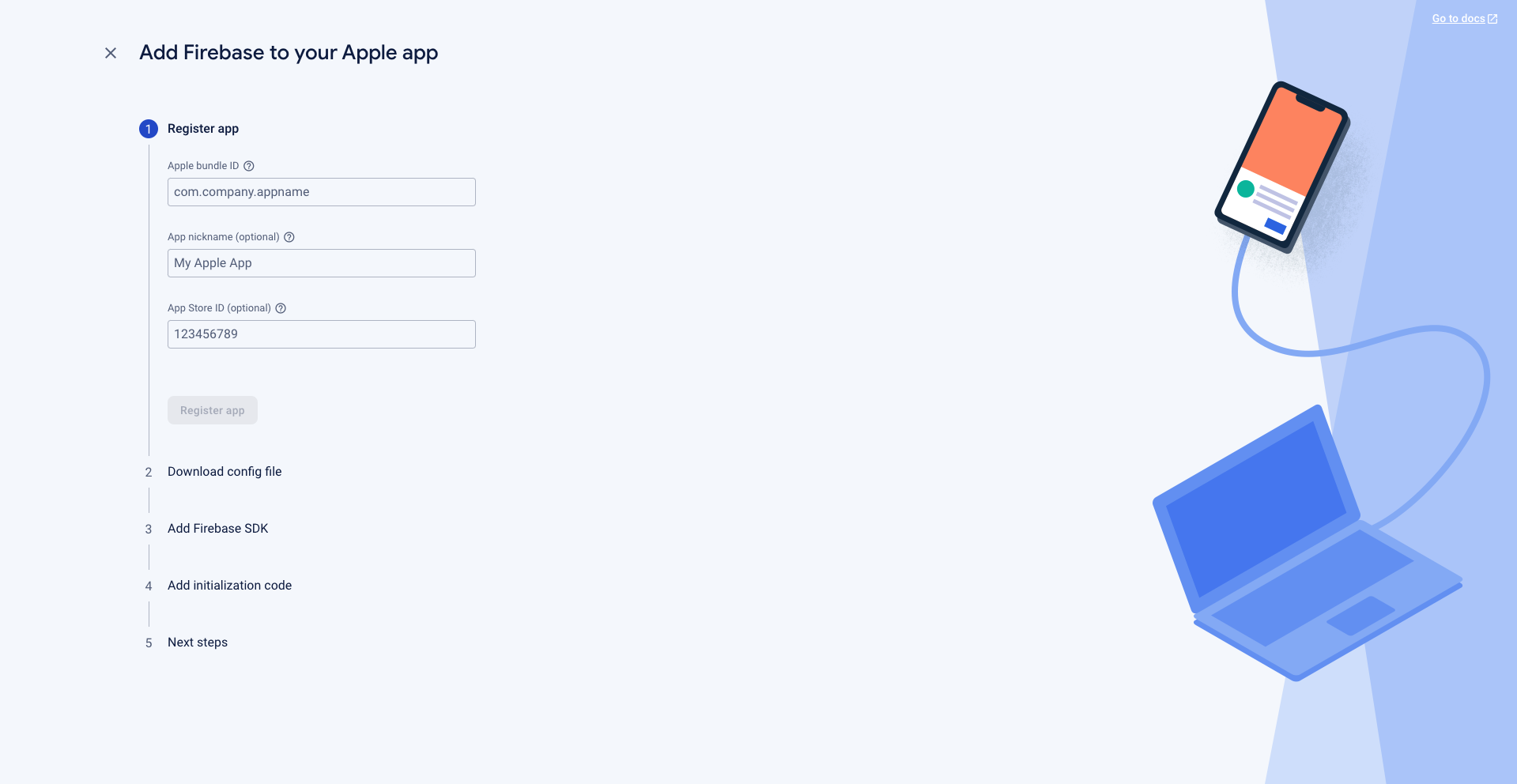
 We first need to add the bundle name, so go to your iOS Xcode project and copy and paste the bundle name.
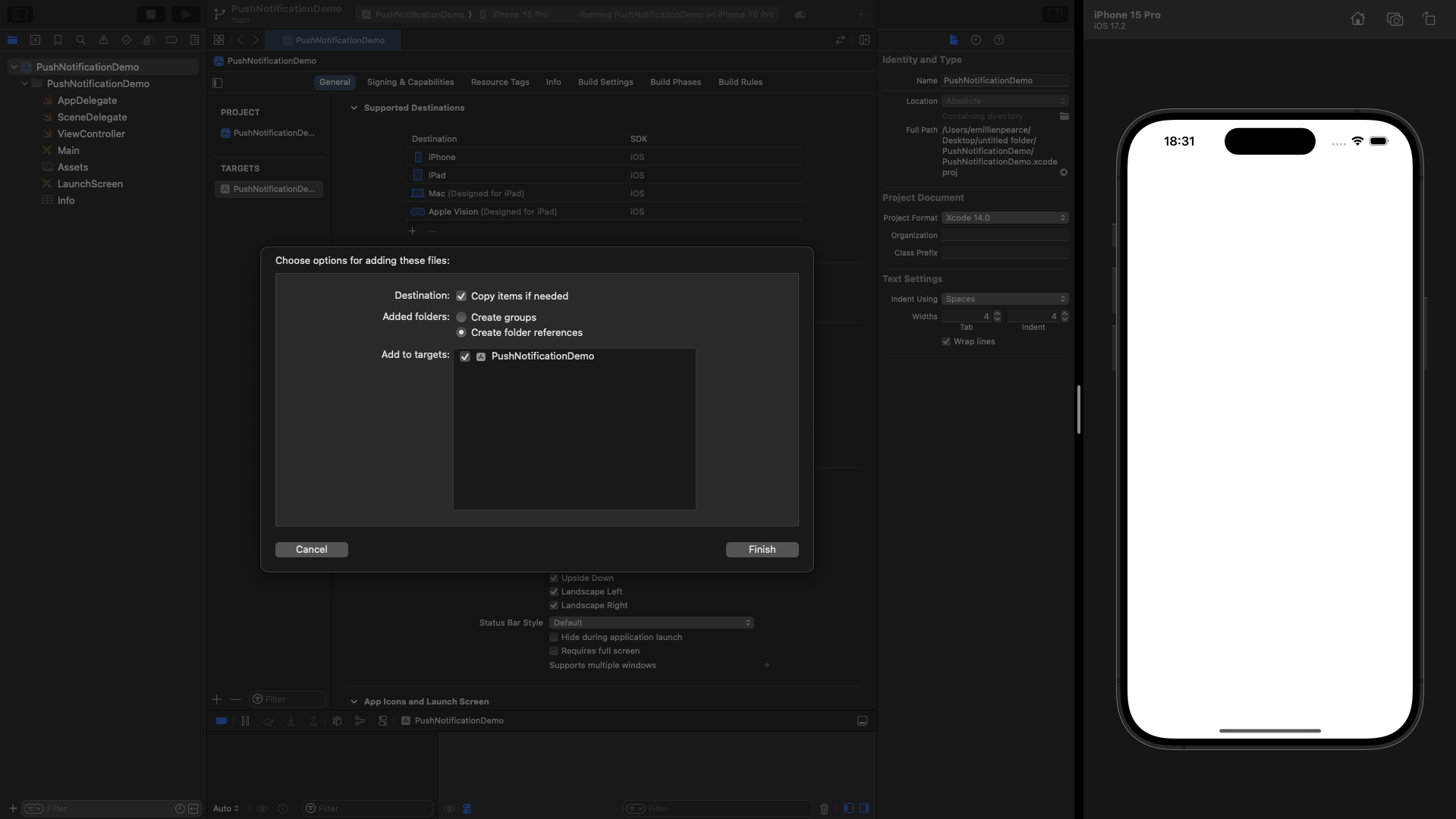
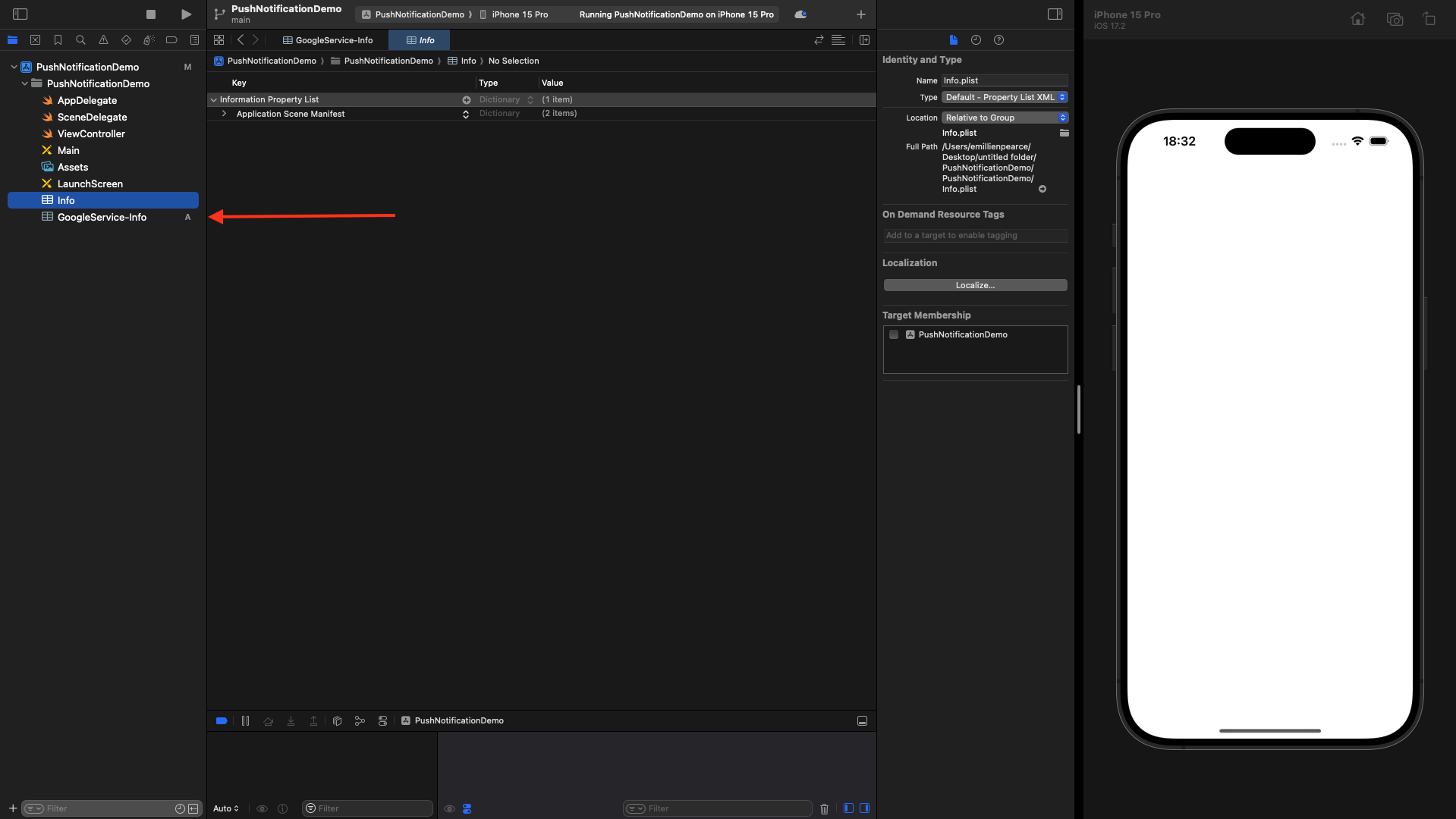
 Download the `.plist` file and put it in the root of your project.
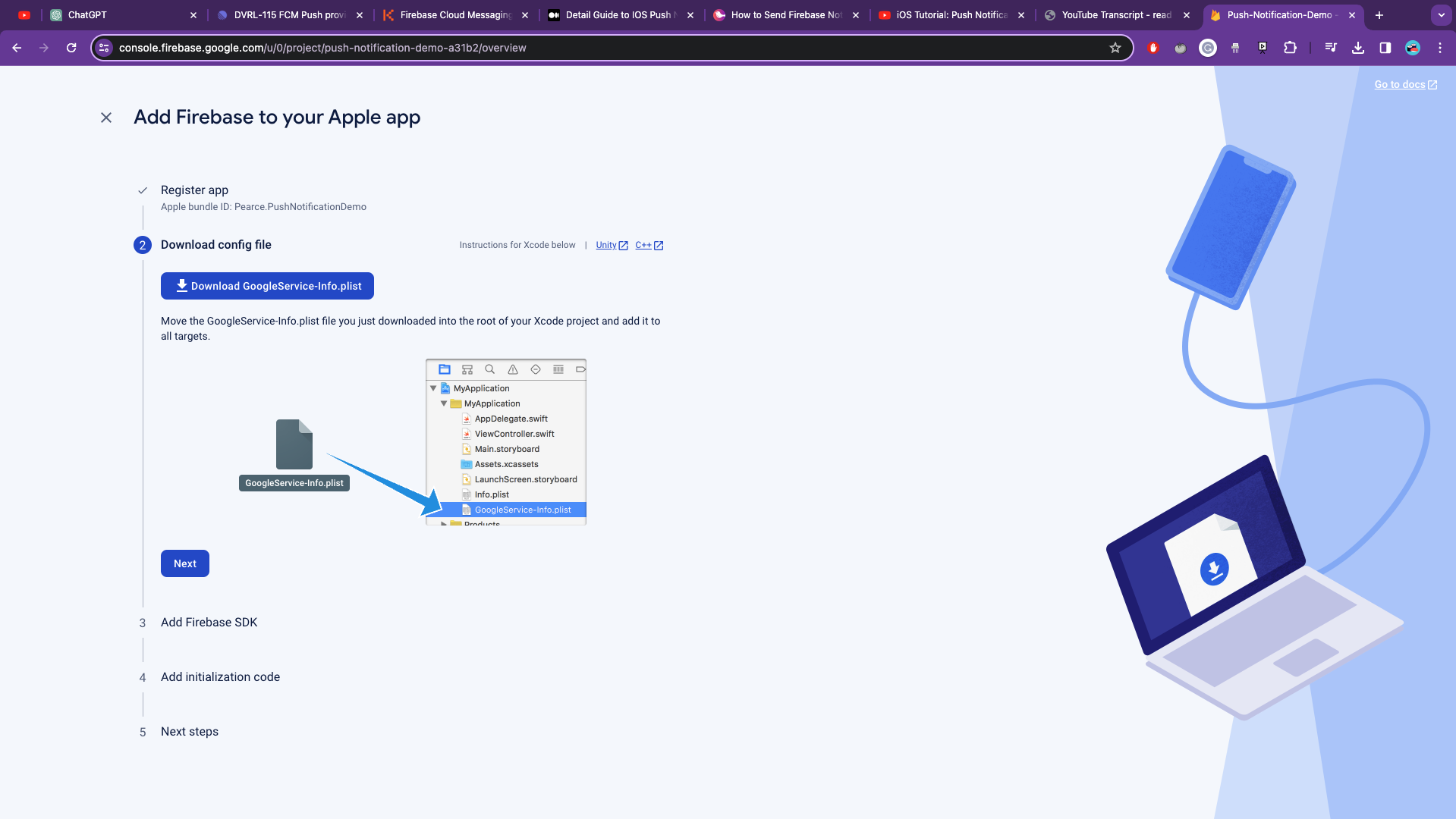
 You can put it right under `info.plist` file.
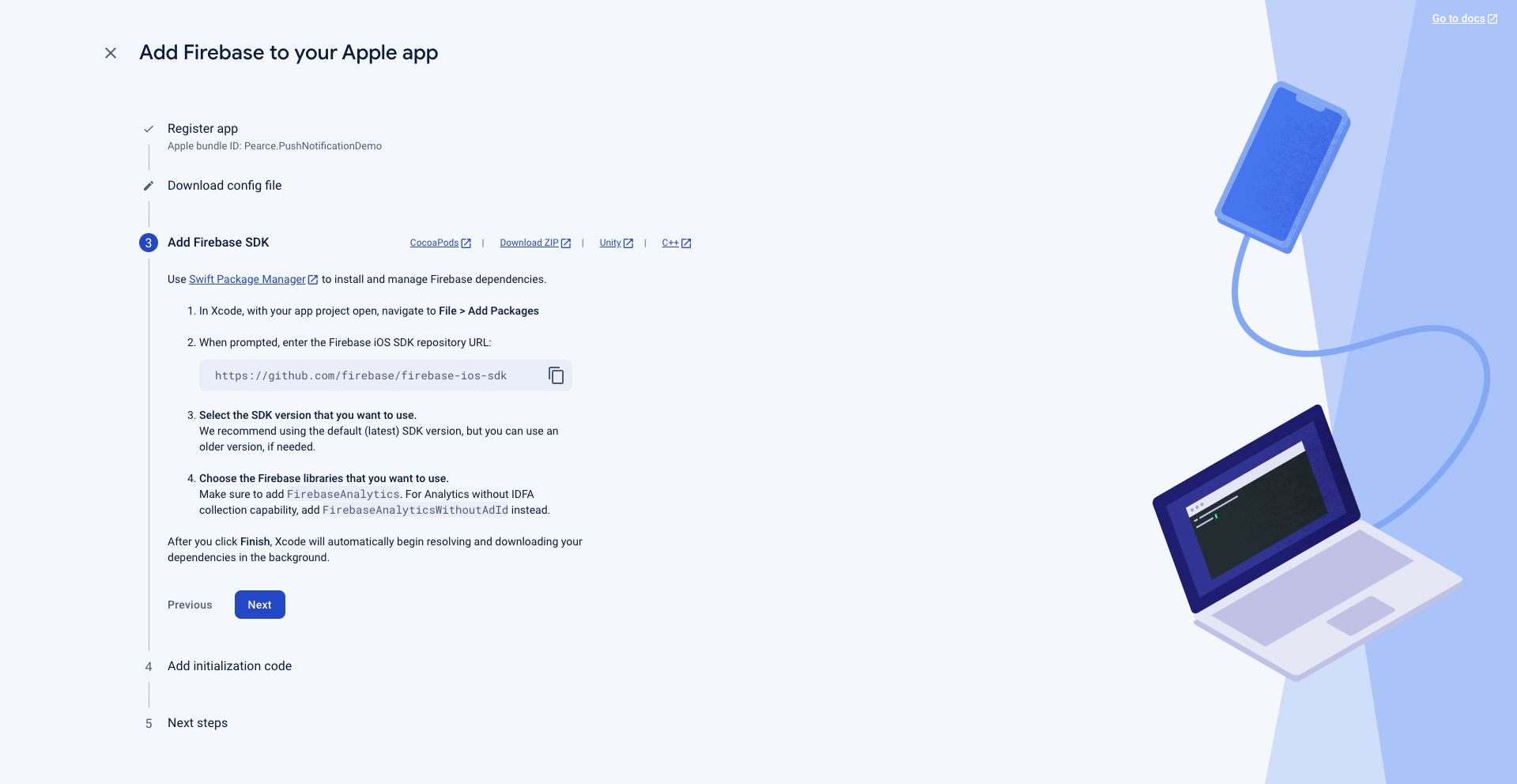
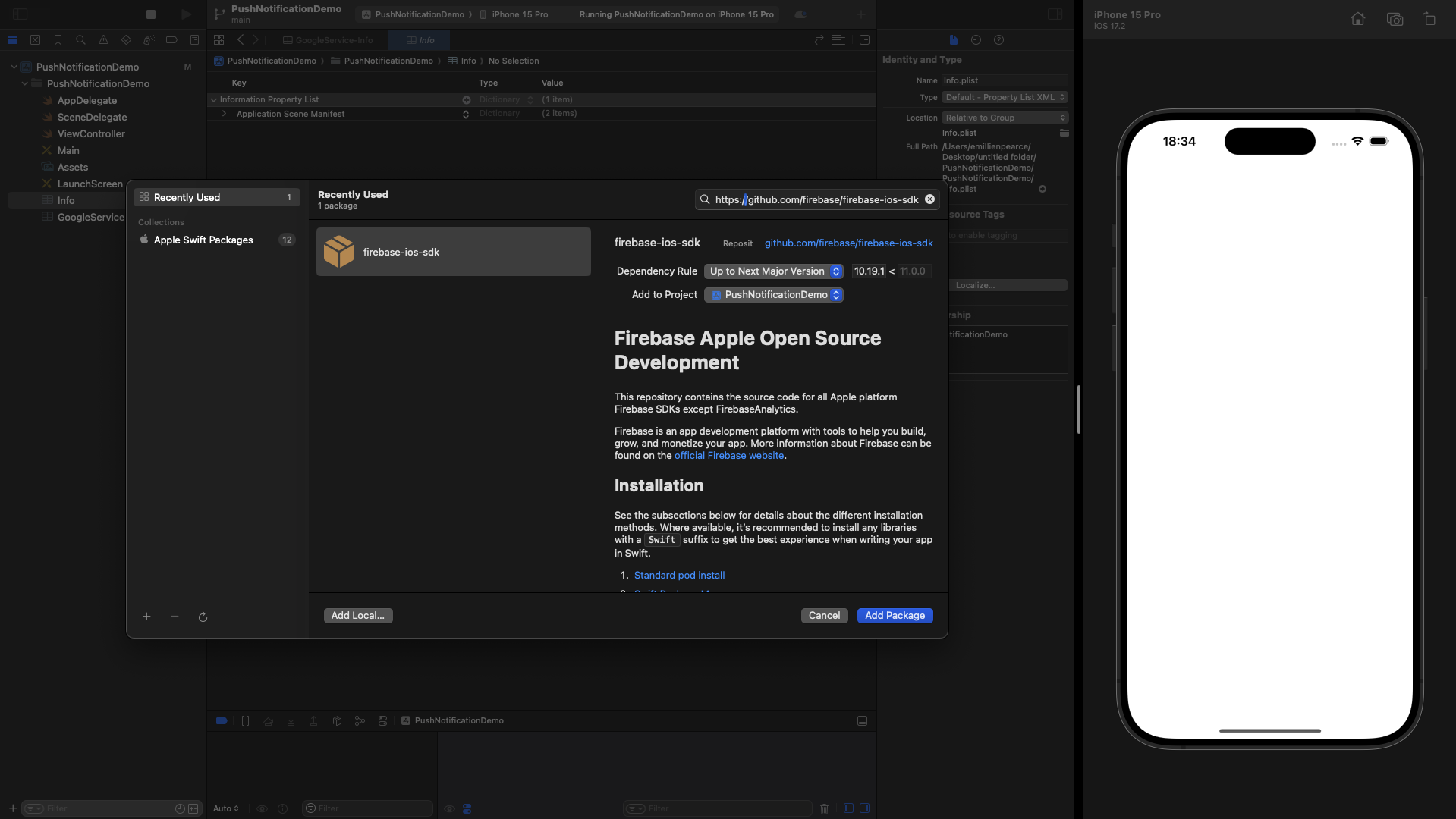
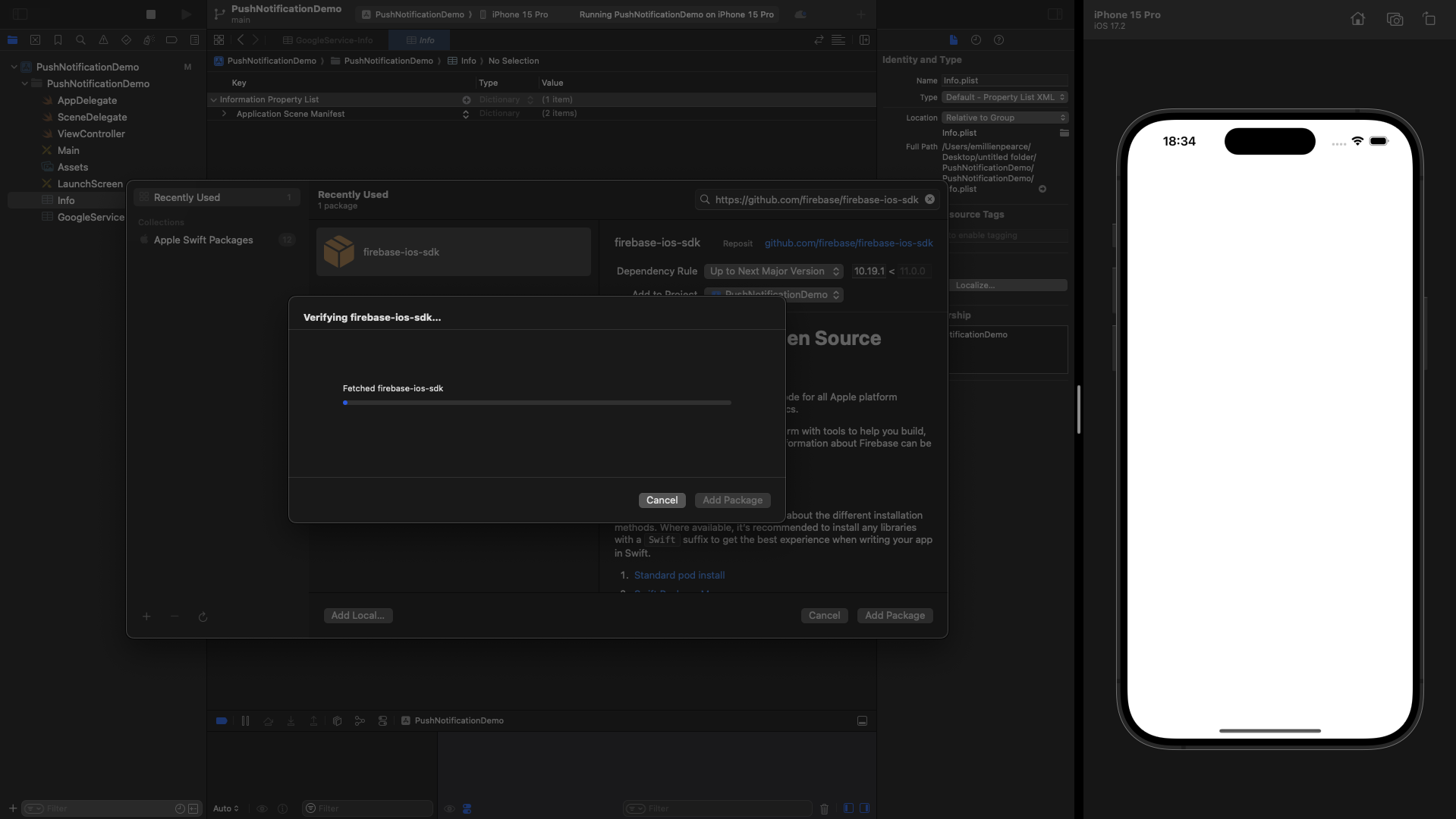
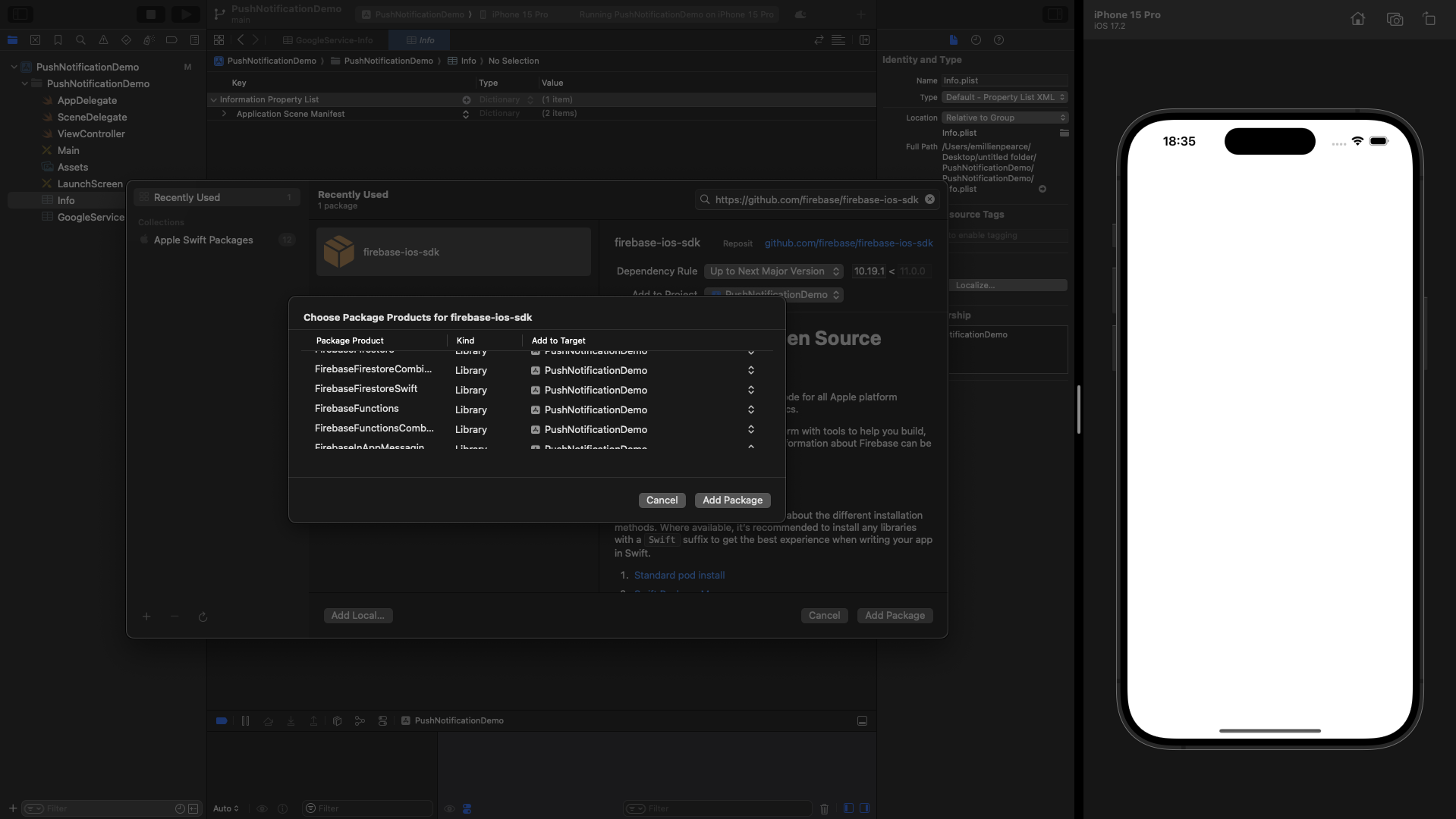
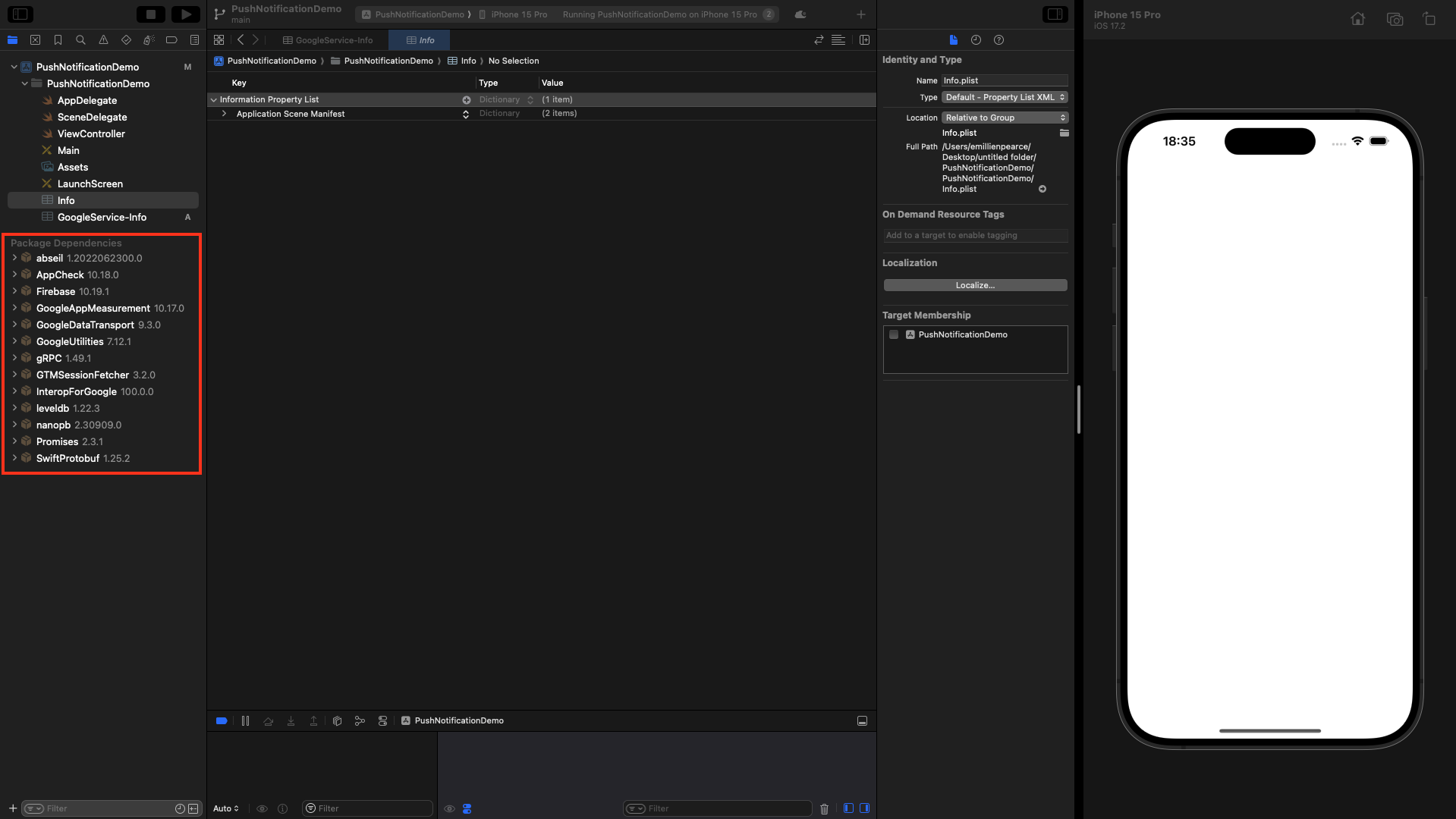
 We need to add the Firebase SDK using the Swift package manager.
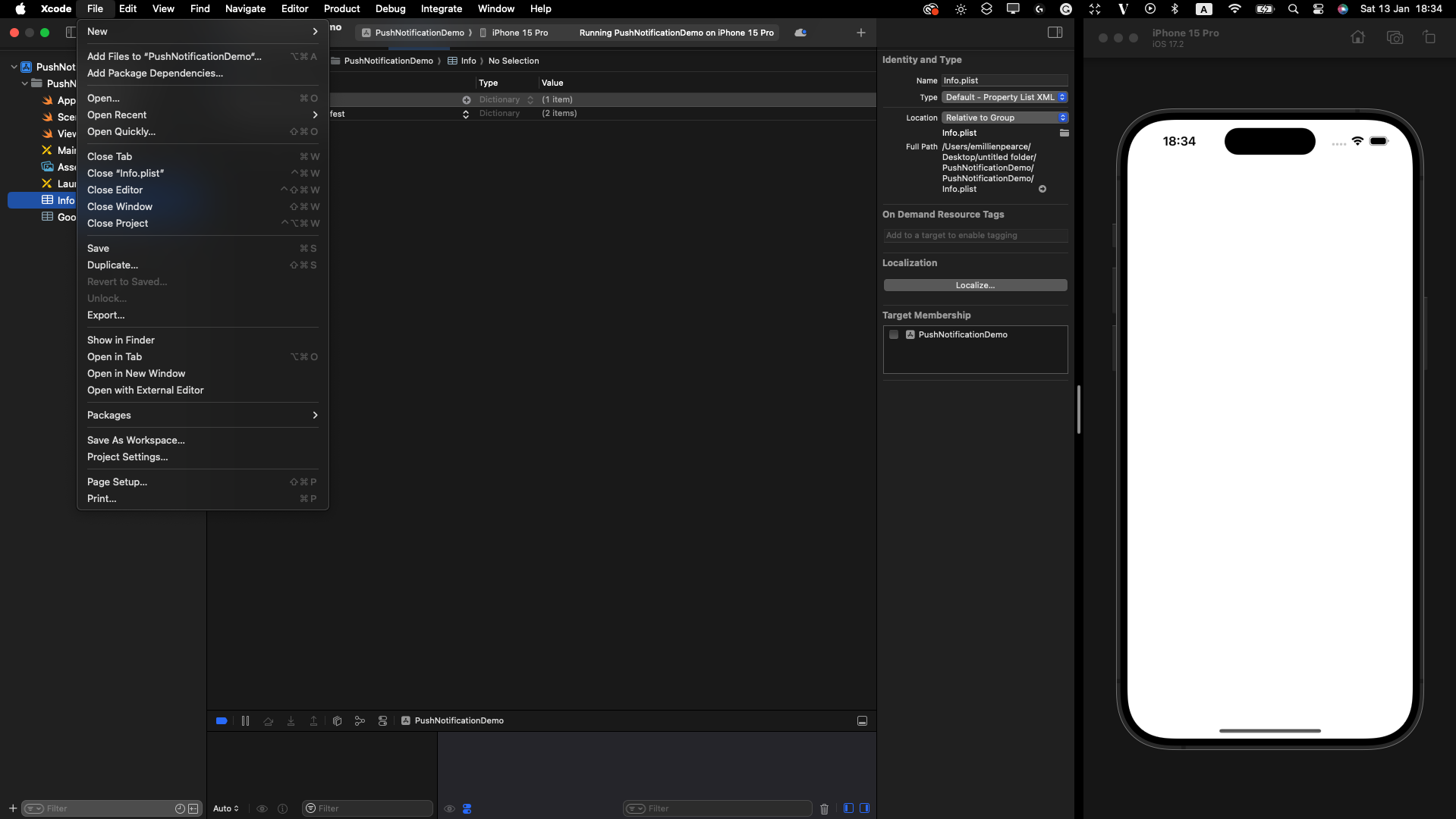
Copy this [https://github.com/firebase/firebase-ios-sdk](https://github.com/firebase/firebase-ios-sdk) URL and then go to 'File`->`Add Package Dependencies...\`.
Paste that URL in the top right.
We need to add the Firebase SDK using the Swift package manager.
Copy this [https://github.com/firebase/firebase-ios-sdk](https://github.com/firebase/firebase-ios-sdk) URL and then go to 'File`->`Add Package Dependencies...\`.
Paste that URL in the top right.
 We must add the initialization code to the `AppDelegates.swift` file.
Let's import the "FirebaseCore" dependency by adding `import FirebaseCore` to the beginning of the file.
Then, we will copy `firebaseapp.configure()` and place it in `didFinishLaunchingWithOptions` method.
We must add the initialization code to the `AppDelegates.swift` file.
Let's import the "FirebaseCore" dependency by adding `import FirebaseCore` to the beginning of the file.
Then, we will copy `firebaseapp.configure()` and place it in `didFinishLaunchingWithOptions` method.
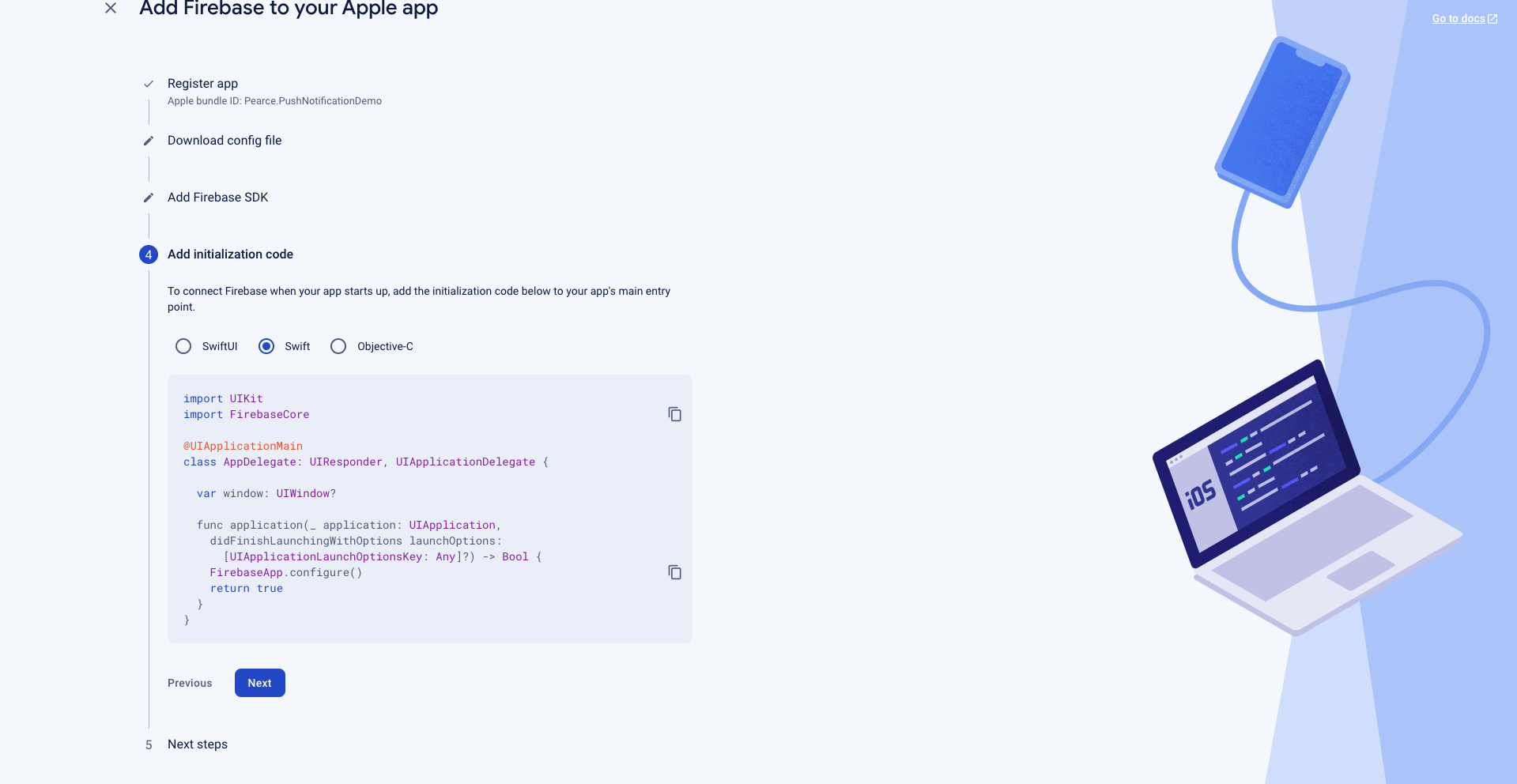 ```Swift theme={null}
//
// AppDelegate.swift
// PushNotificationDemo
//
// Created by Emillien Pearce.
//
import UIKit
import FirebaseCore //Here
@main
class AppDelegate: UIResponder, UIApplicationDelegate {
func application(_ application: UIApplication, didFinishLaunchingWithOptions launchOptions: [UIApplication.LaunchOptionsKey: Any]?) -> Bool {
// Override point for customization after application launch.
FirebaseApp.configure() //Here
FirebaseConfiguration.shared.setLoggerLevel(.min)
return true
}
// MARK: UISceneSession Lifecycle
func application(_ application: UIApplication, configurationForConnecting connectingSceneSession: UISceneSession, options: UIScene.ConnectionOptions) -> UISceneConfiguration {
// Called when a new scene session is being created.
// Use this method to select a configuration to create the new scene with.
return UISceneConfiguration(name: "Default Configuration", sessionRole: connectingSceneSession.role)
}
func application(_ application: UIApplication, didDiscardSceneSessions sceneSessions: Set) {
// Called when the user discards a scene session.
// If any sessions were discarded while the application was not running, this will be called shortly after application:didFinishLaunchingWithOptions.
// Use this method to release any resources that were specific to the discarded scenes, as they will not return.
}
}
```
Click 'Next' and continue to the console.
```Swift theme={null}
//
// AppDelegate.swift
// PushNotificationDemo
//
// Created by Emillien Pearce.
//
import UIKit
import FirebaseCore //Here
@main
class AppDelegate: UIResponder, UIApplicationDelegate {
func application(_ application: UIApplication, didFinishLaunchingWithOptions launchOptions: [UIApplication.LaunchOptionsKey: Any]?) -> Bool {
// Override point for customization after application launch.
FirebaseApp.configure() //Here
FirebaseConfiguration.shared.setLoggerLevel(.min)
return true
}
// MARK: UISceneSession Lifecycle
func application(_ application: UIApplication, configurationForConnecting connectingSceneSession: UISceneSession, options: UIScene.ConnectionOptions) -> UISceneConfiguration {
// Called when a new scene session is being created.
// Use this method to select a configuration to create the new scene with.
return UISceneConfiguration(name: "Default Configuration", sessionRole: connectingSceneSession.role)
}
func application(_ application: UIApplication, didDiscardSceneSessions sceneSessions: Set) {
// Called when the user discards a scene session.
// If any sessions were discarded while the application was not running, this will be called shortly after application:didFinishLaunchingWithOptions.
// Use this method to release any resources that were specific to the discarded scenes, as they will not return.
}
}
```
Click 'Next' and continue to the console.
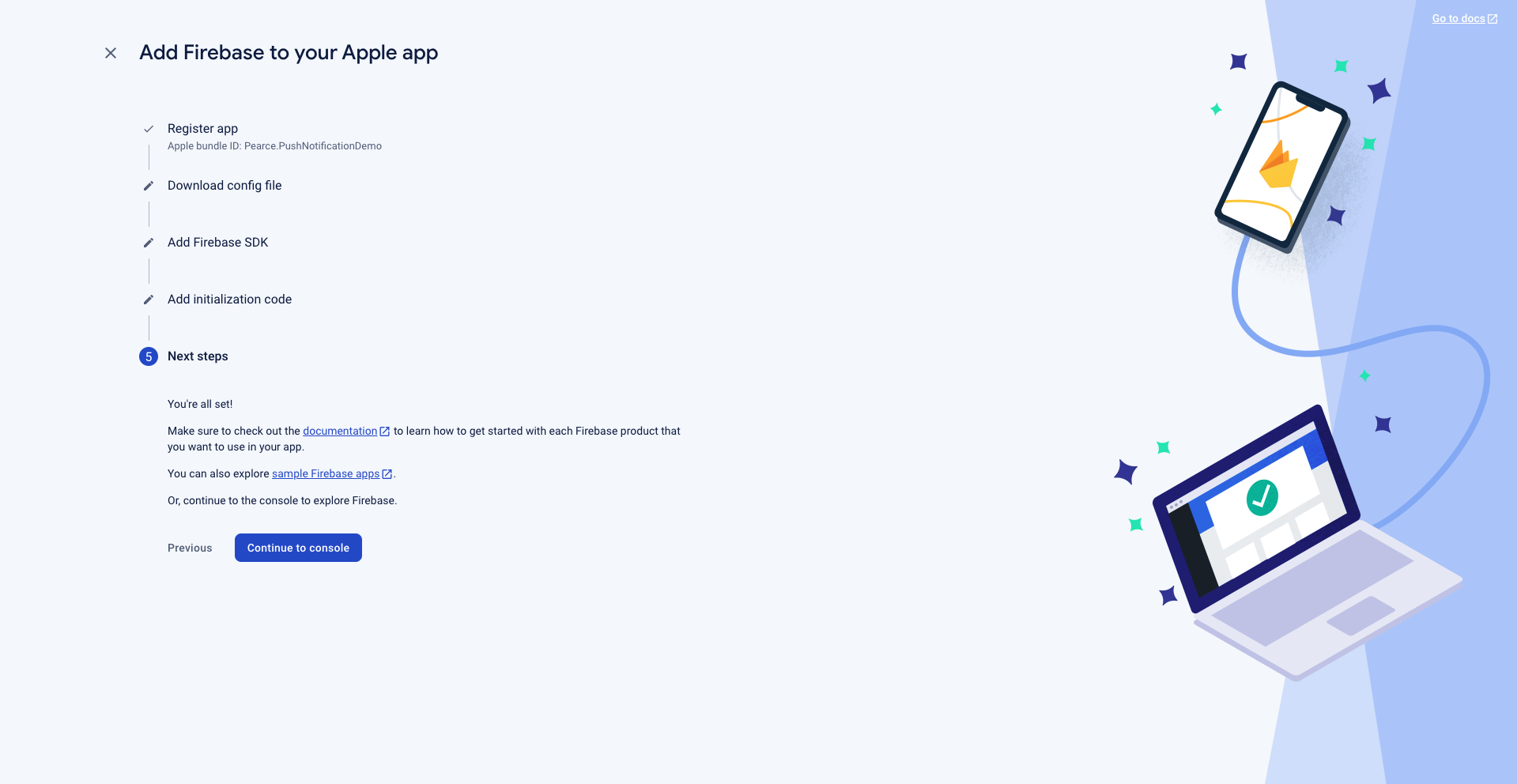
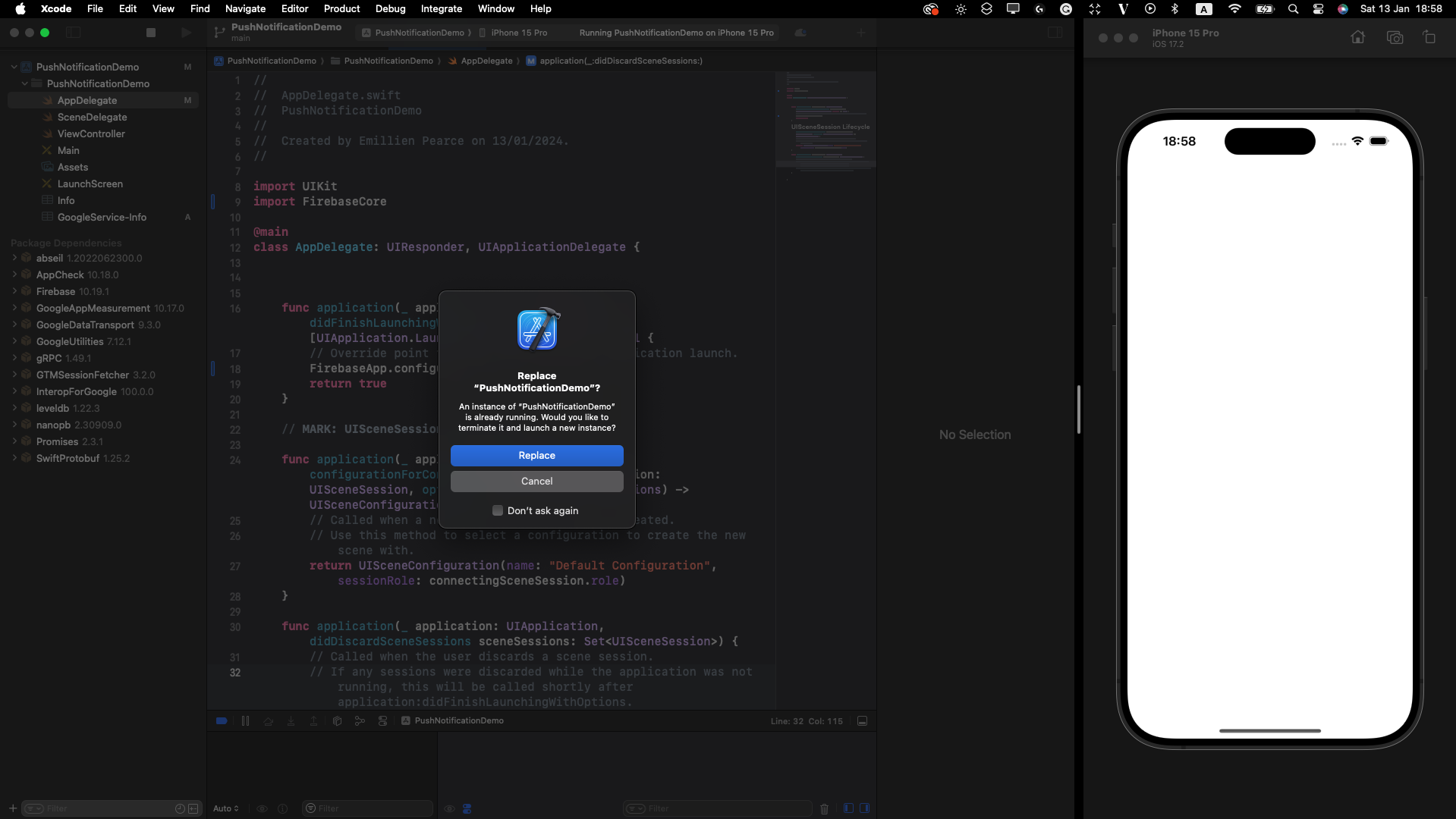
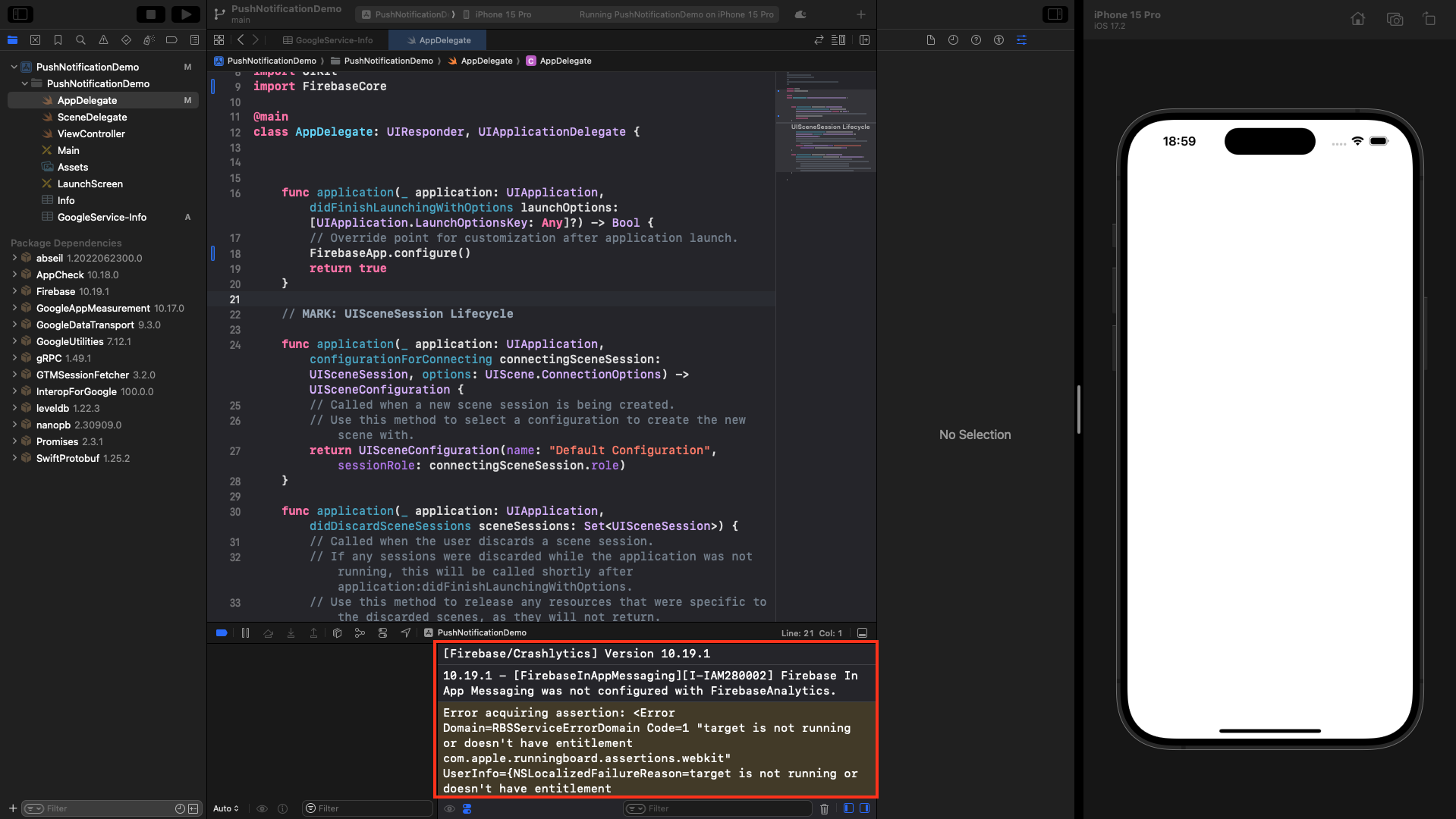
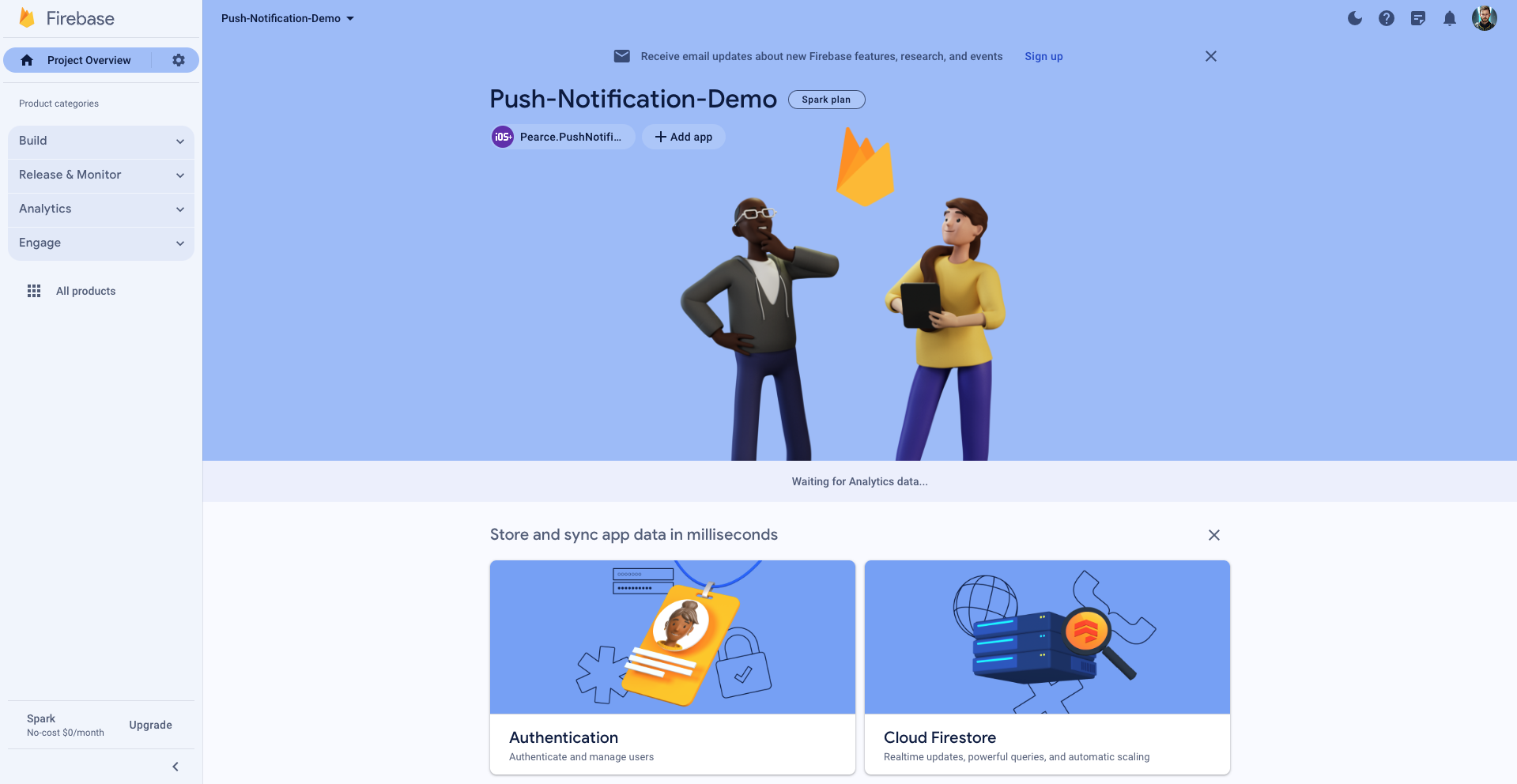 Let's build and run our project and see if we get Firebase log messages in the console.
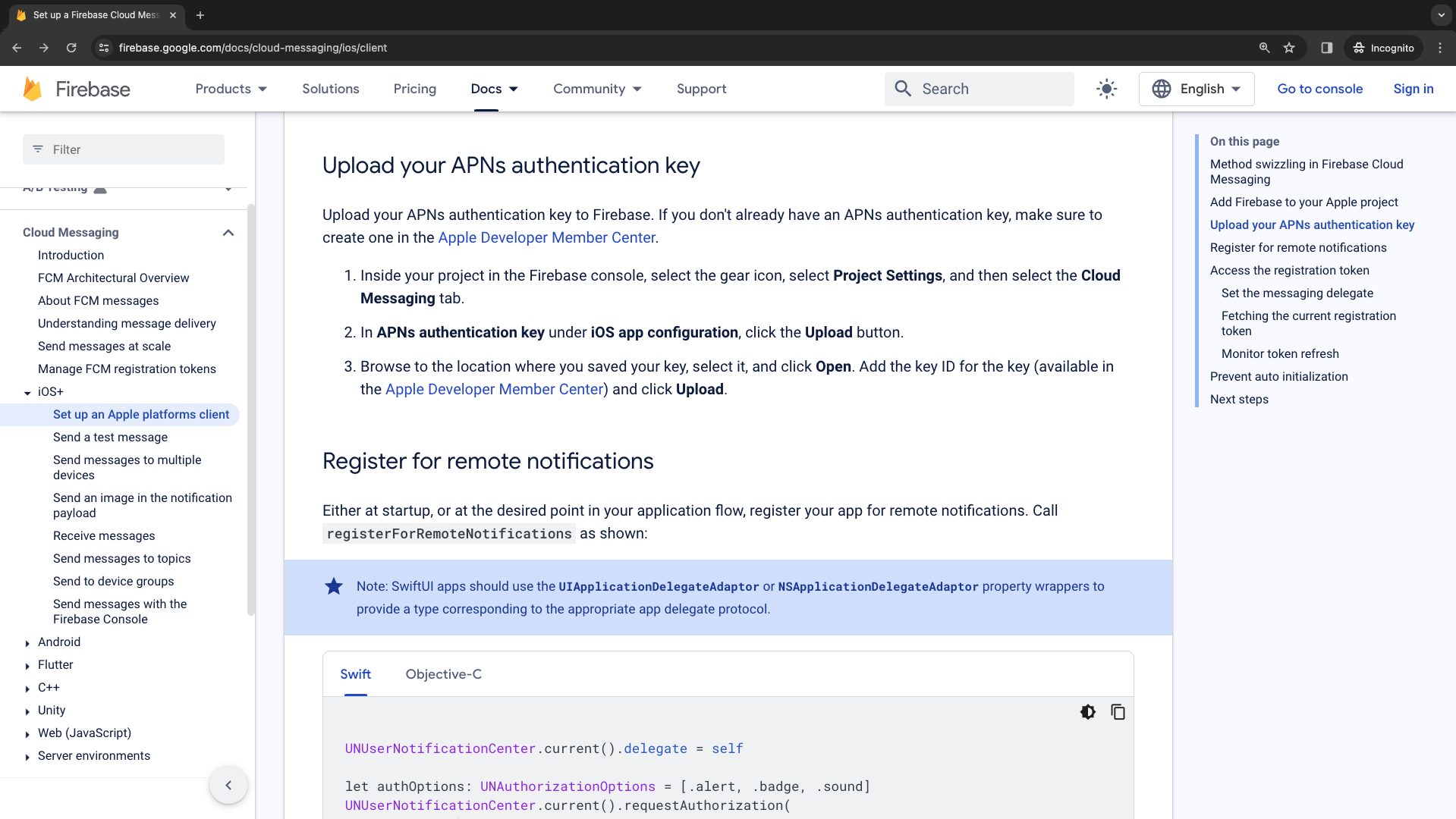
 ## Create and upload our APNs authentication key
We will create and upload our APNs authentication key to the Firebase project settings.
## Create and upload our APNs authentication key
We will create and upload our APNs authentication key to the Firebase project settings.
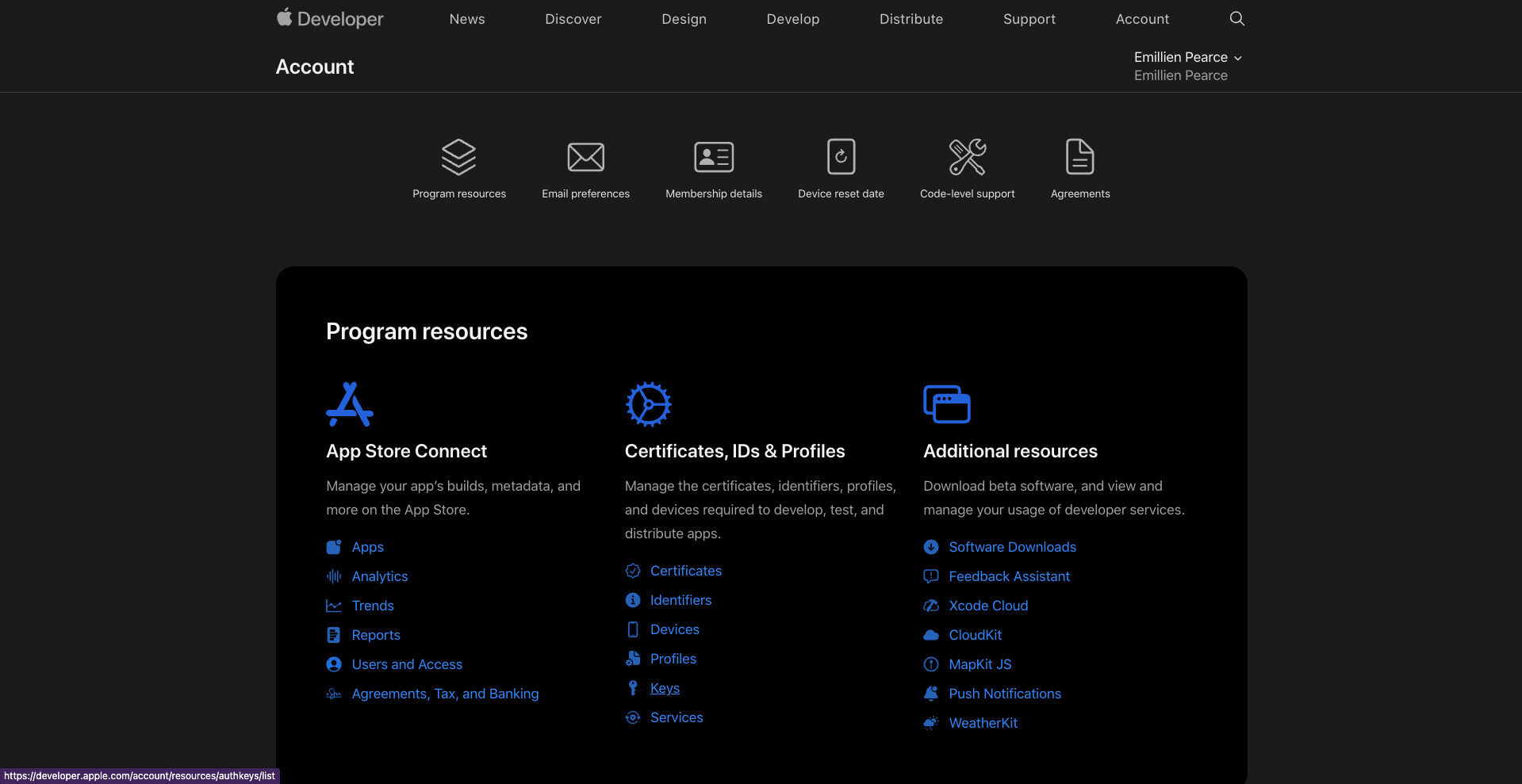
 Navigate to [Apple Developer Member Center](https://developer.apple.com/account).
Head to the "Keys" section under "Certificates, IDs & Profiles".
Navigate to [Apple Developer Member Center](https://developer.apple.com/account).
Head to the "Keys" section under "Certificates, IDs & Profiles".
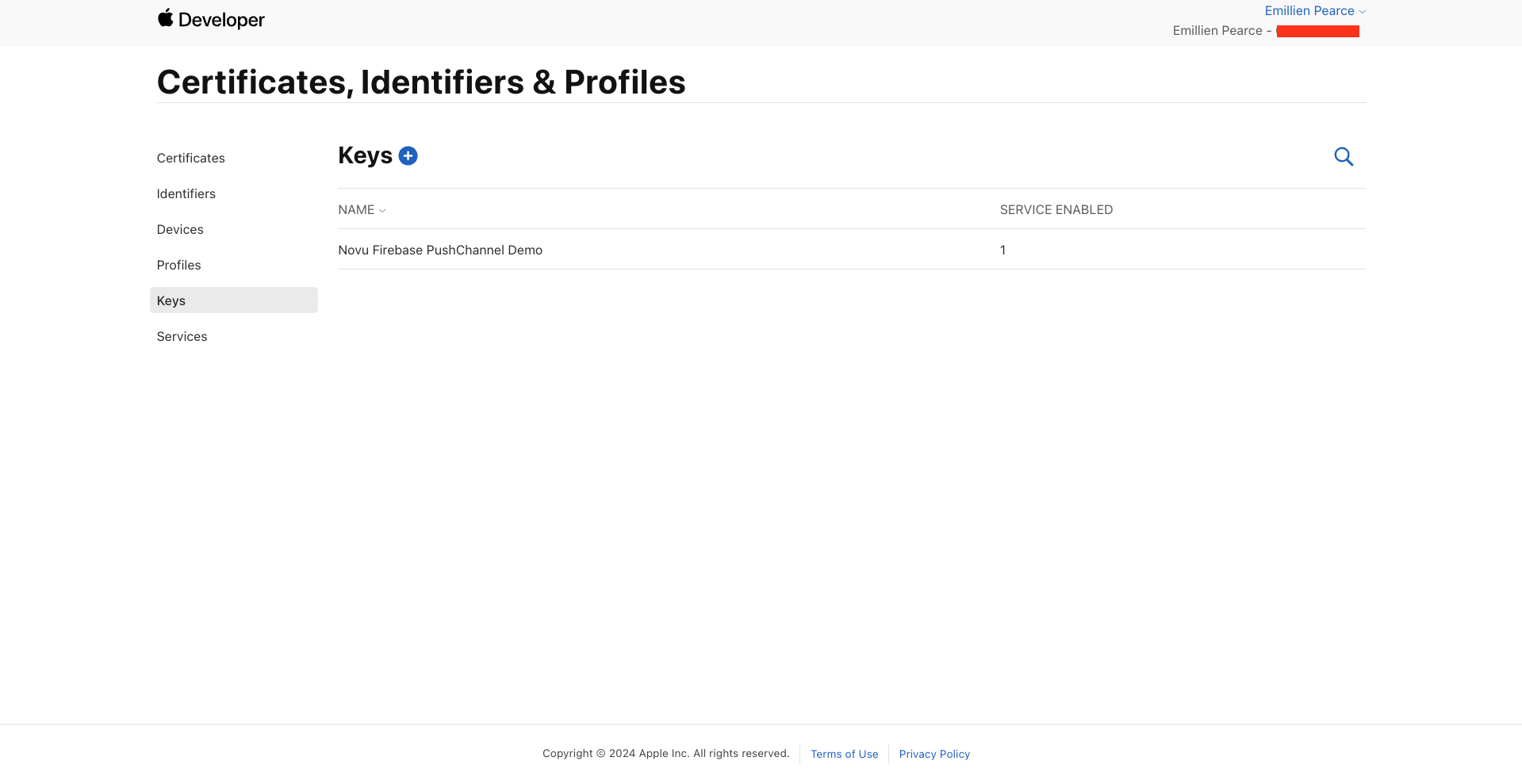
 Create a new key.
 Select "Apple Push Notification Service".
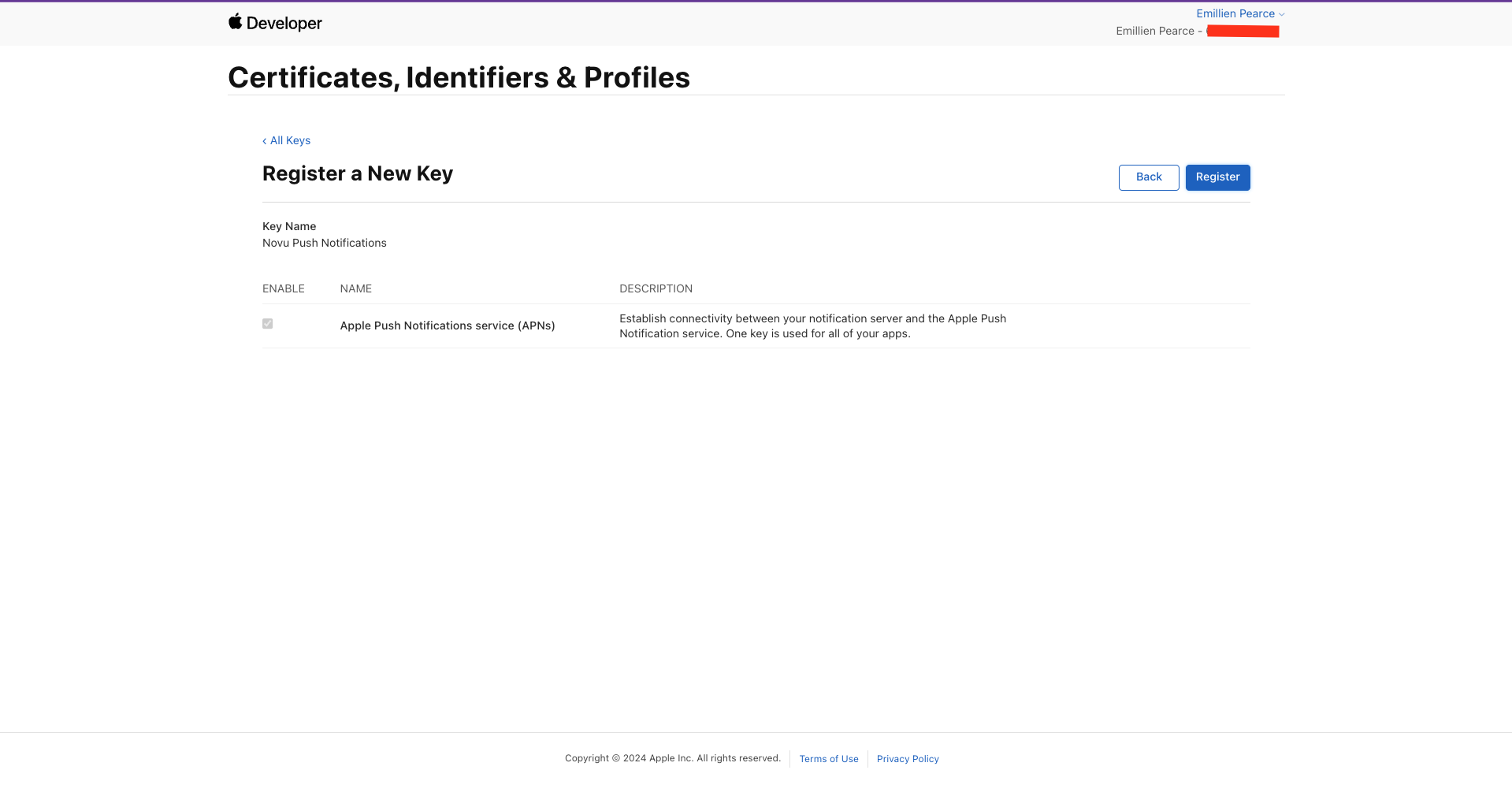
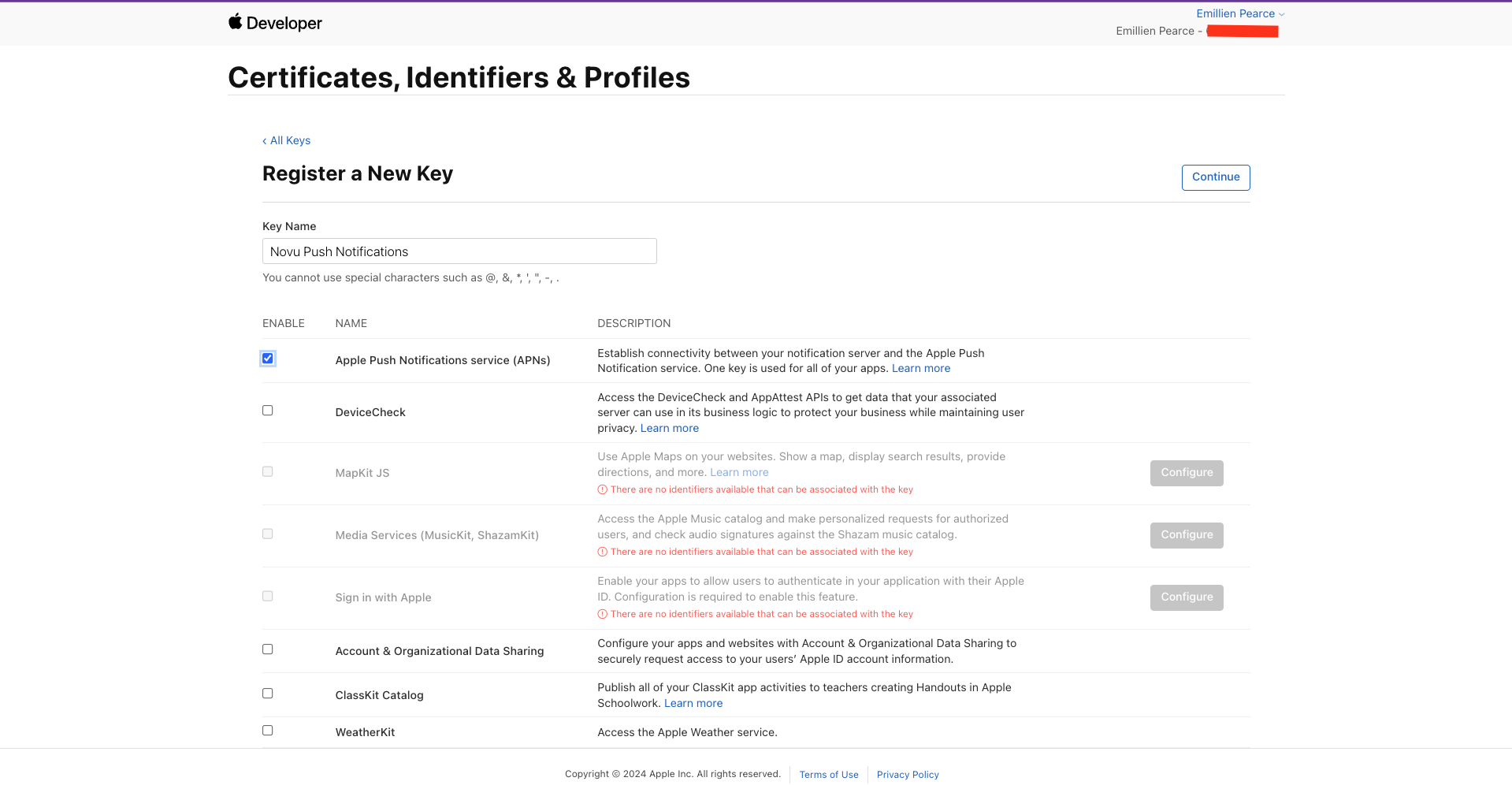 Click "Register".
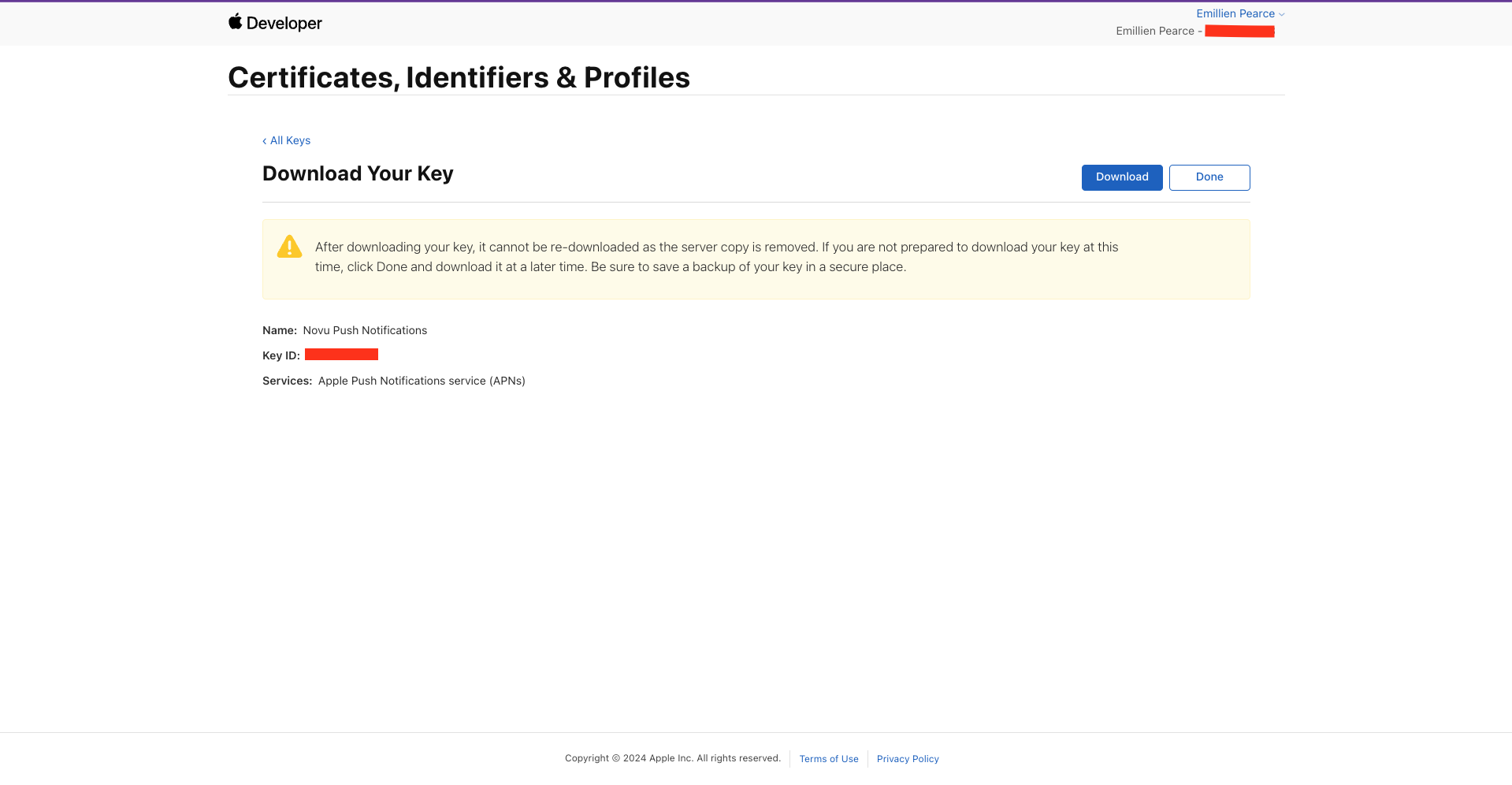
 We have to download this key and upload it into Firebase.
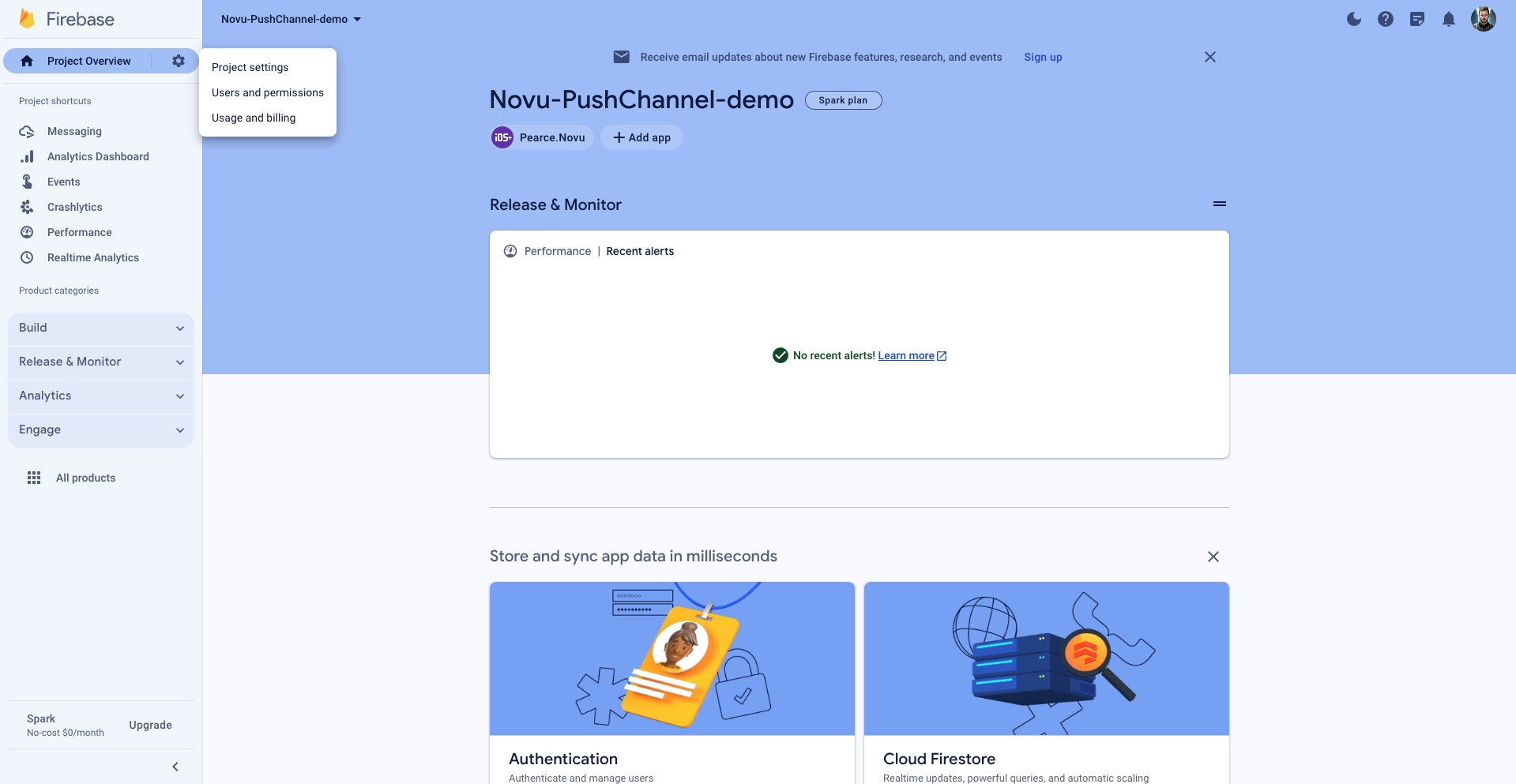
 Head to "Project Settings".
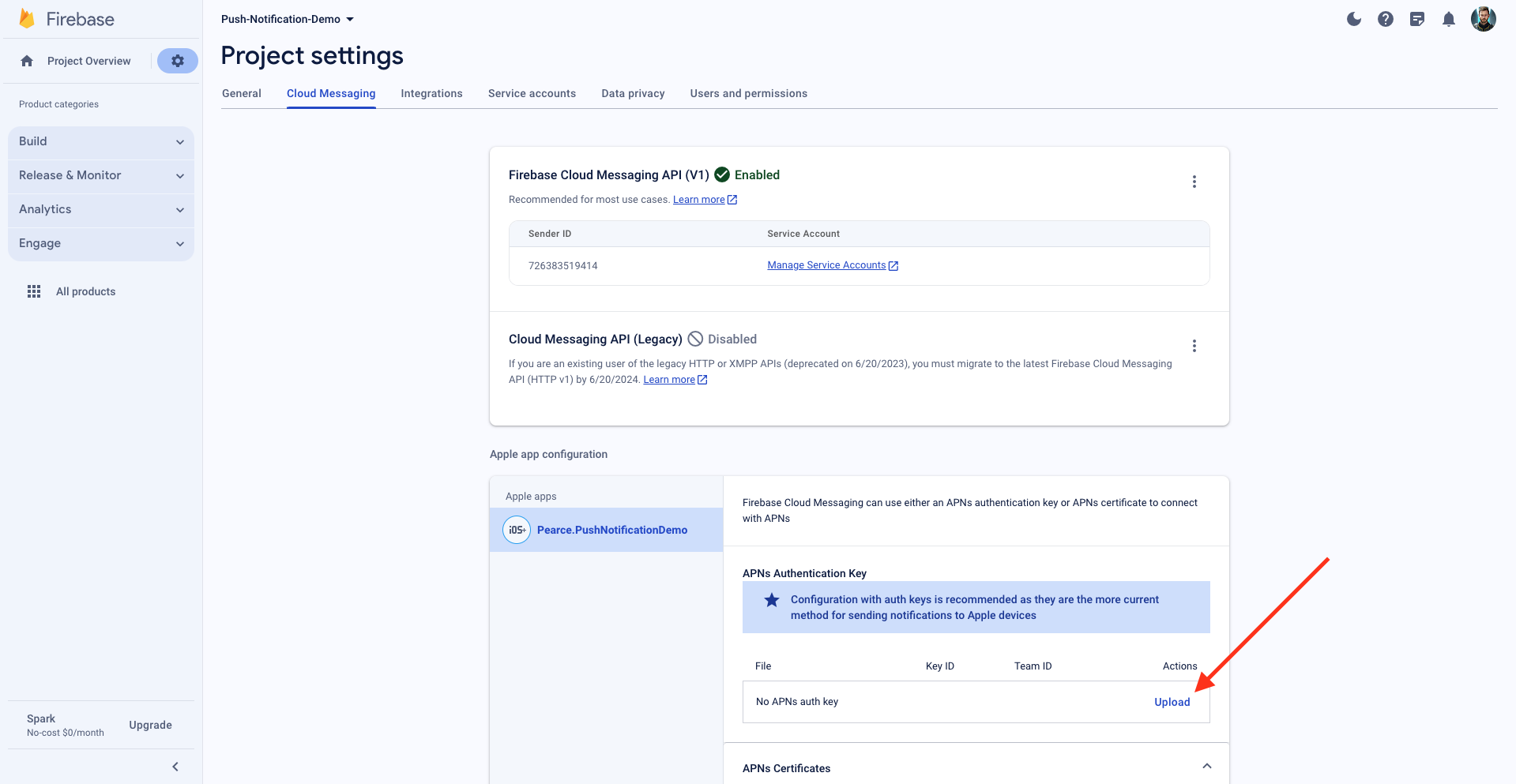
 Click on Cloud Messaging, then click "Upload APNs Authentication Key".
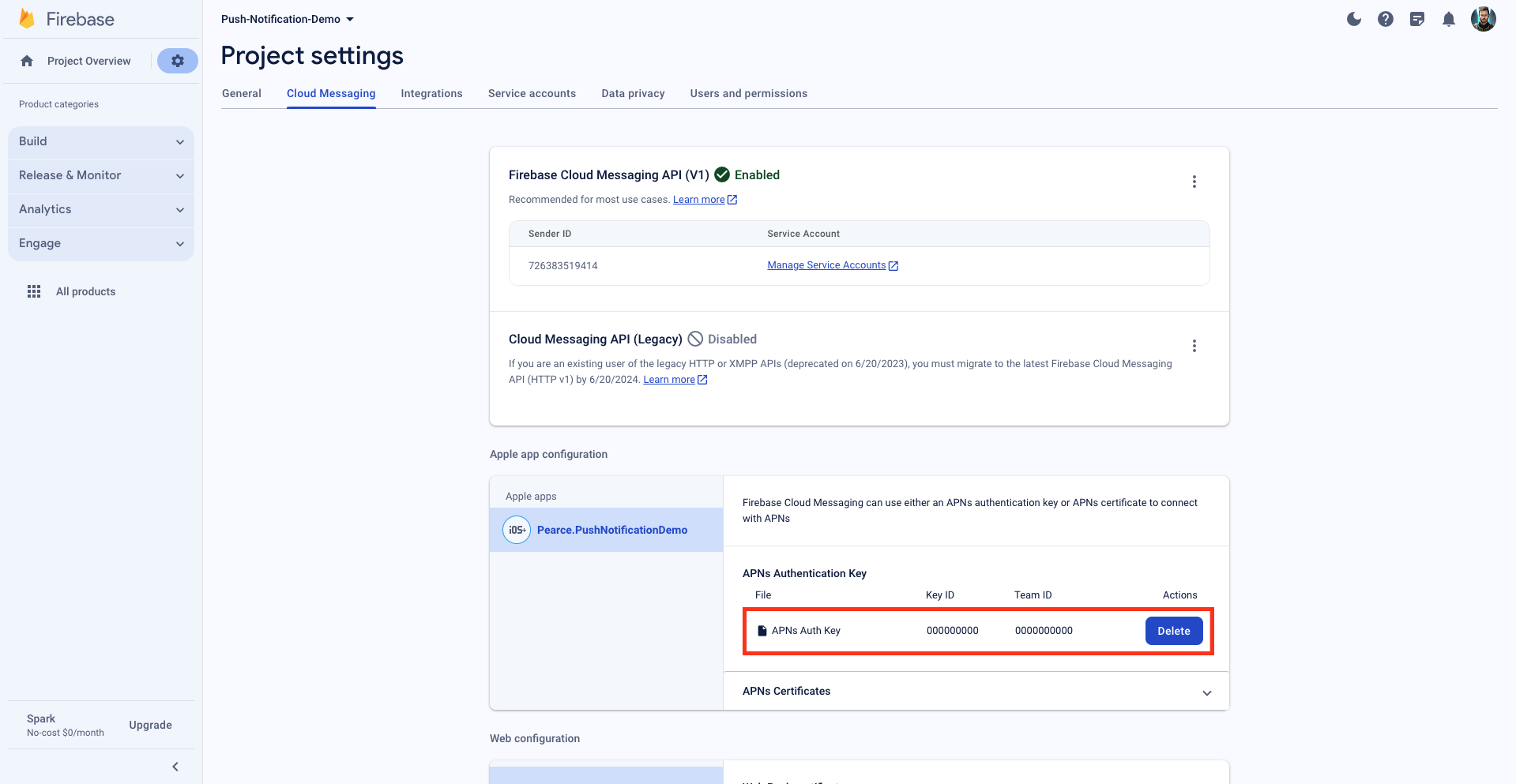
 Now we can upload the dots p8 file.
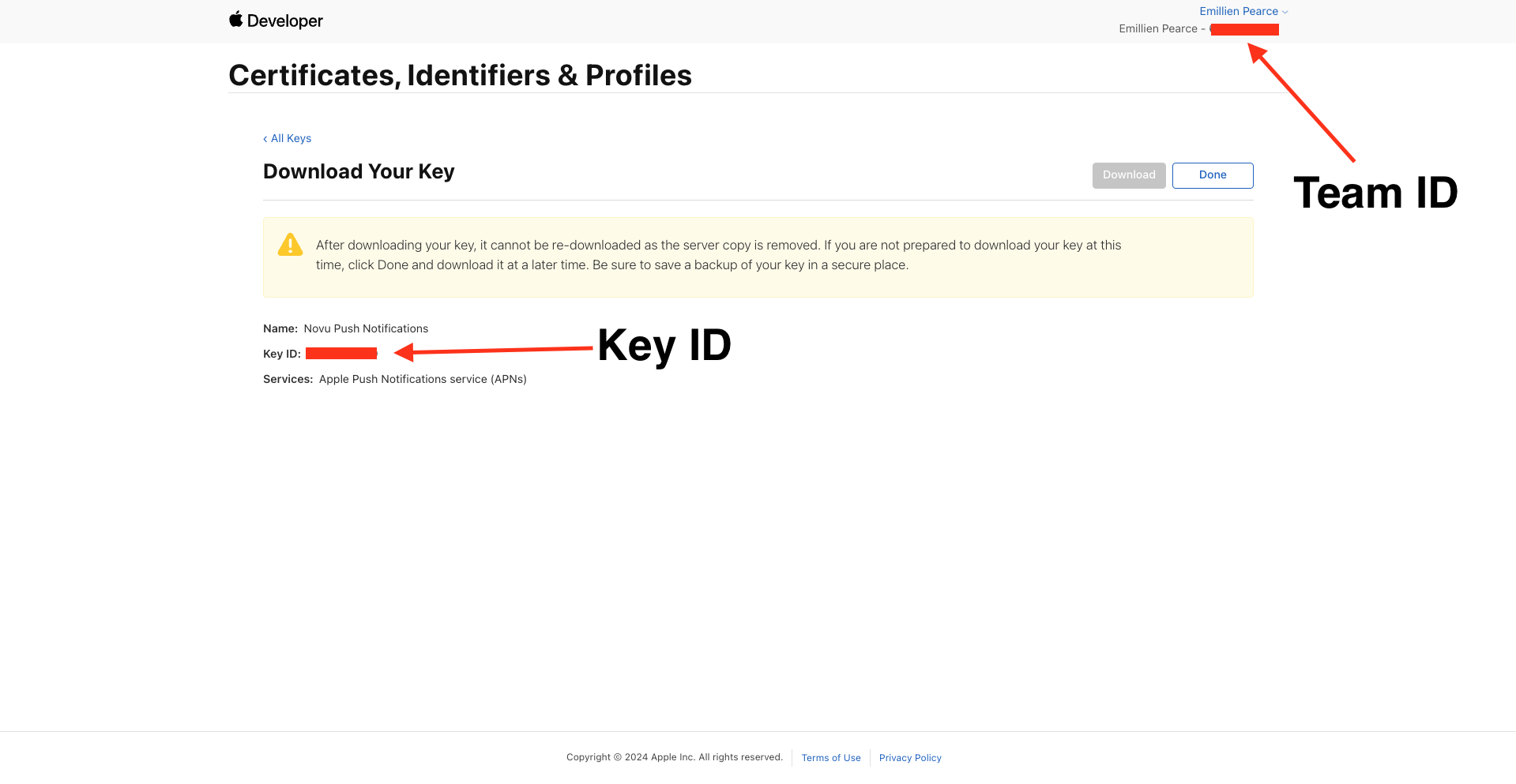
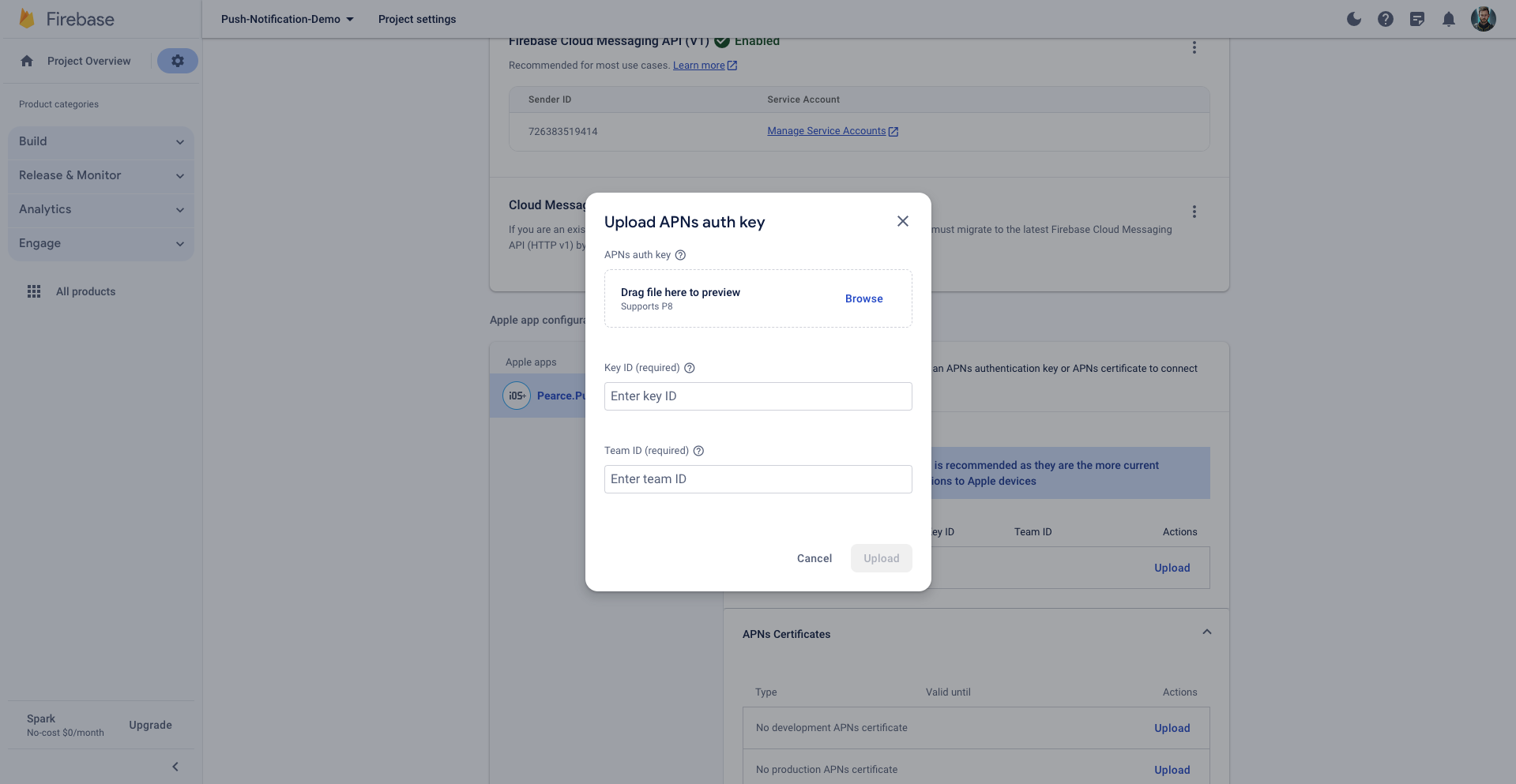 You must enter your `Key ID` and `Team ID`, which you can find in the top right corner.
 ## Register for Remote Notifications
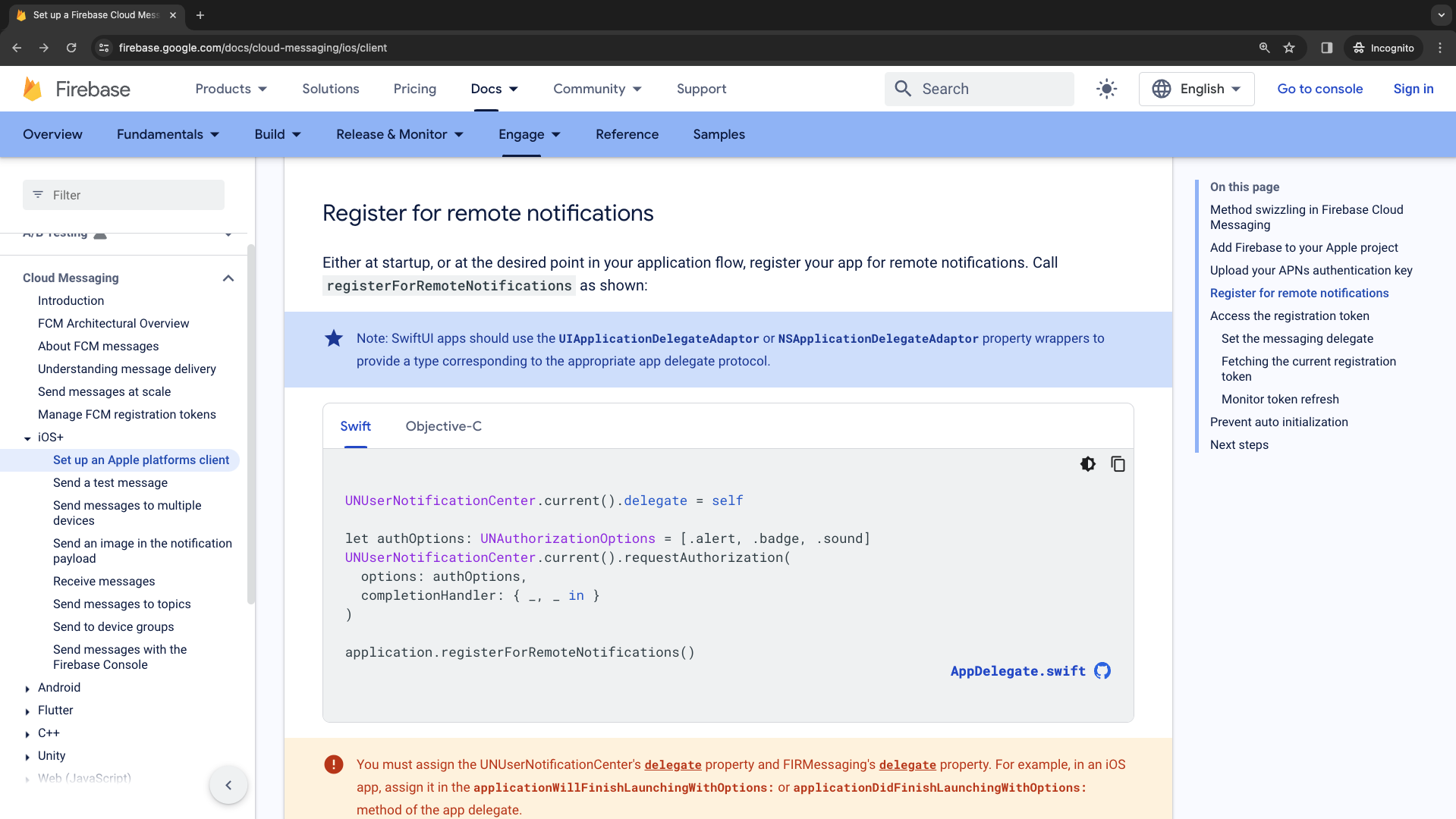 1. Copy this code block and place it inside the `AppDelegate.swift` file using the `didFinishLaunchingWithOptions` method.
We paste this code block under `firebaseApp.configure()`.
2. We need to conform to this delegate, so we will also create an `AppDelegate` extension at the bottom for `UNUserNotificationCenterDelegate`.
3. Add `import FirebaseMessaging` to the file.
```Swift theme={null}
//
// AppDelegate.swift
// PushNotificationDemo
//
// Created by Emillien Pearce.
//
import UIKit
import FirebaseCore
import FirebaseMessaging
@main
class AppDelegate: UIResponder, UIApplicationDelegate {
func application(_ application: UIApplication, didFinishLaunchingWithOptions launchOptions: [UIApplication.LaunchOptionsKey: Any]?) -> Bool {
// Override point for customization after application launch.
FirebaseApp.configure()
// Register for Remote Notitifcations
UNUserNotificationCenter.current().delegate = self
let authOptions: UNAuthorizationOptions = [.alert, .badge, .sound]
UNUserNotificationCenter.current().requestAuthorization(
options: authOptions,
completionHandler: { _, _ in }
)
application.registerForRemoteNotifications()
return true
}
// MARK: UISceneSession Lifecycle
func application(_ application: UIApplication, configurationForConnecting connectingSceneSession: UISceneSession, options: UIScene.ConnectionOptions) -> UISceneConfiguration {
// Called when a new scene session is being created.
// Use this method to select a configuration to create the new scene with.
return UISceneConfiguration(name: "Default Configuration", sessionRole: connectingSceneSession.role)
}
func application(_ application: UIApplication, didDiscardSceneSessions sceneSessions: Set) {
// Called when the user discards a scene session.
// If any sessions were discarded while the application was not running, this will be called shortly after application:didFinishLaunchingWithOptions.
// Use this method to release any resources that were specific to the discarded scenes, as they will not return.
}
}
extension AppDelegate: UNUserNotificationCenterDelegate {
}
```
## Access the Registration Token
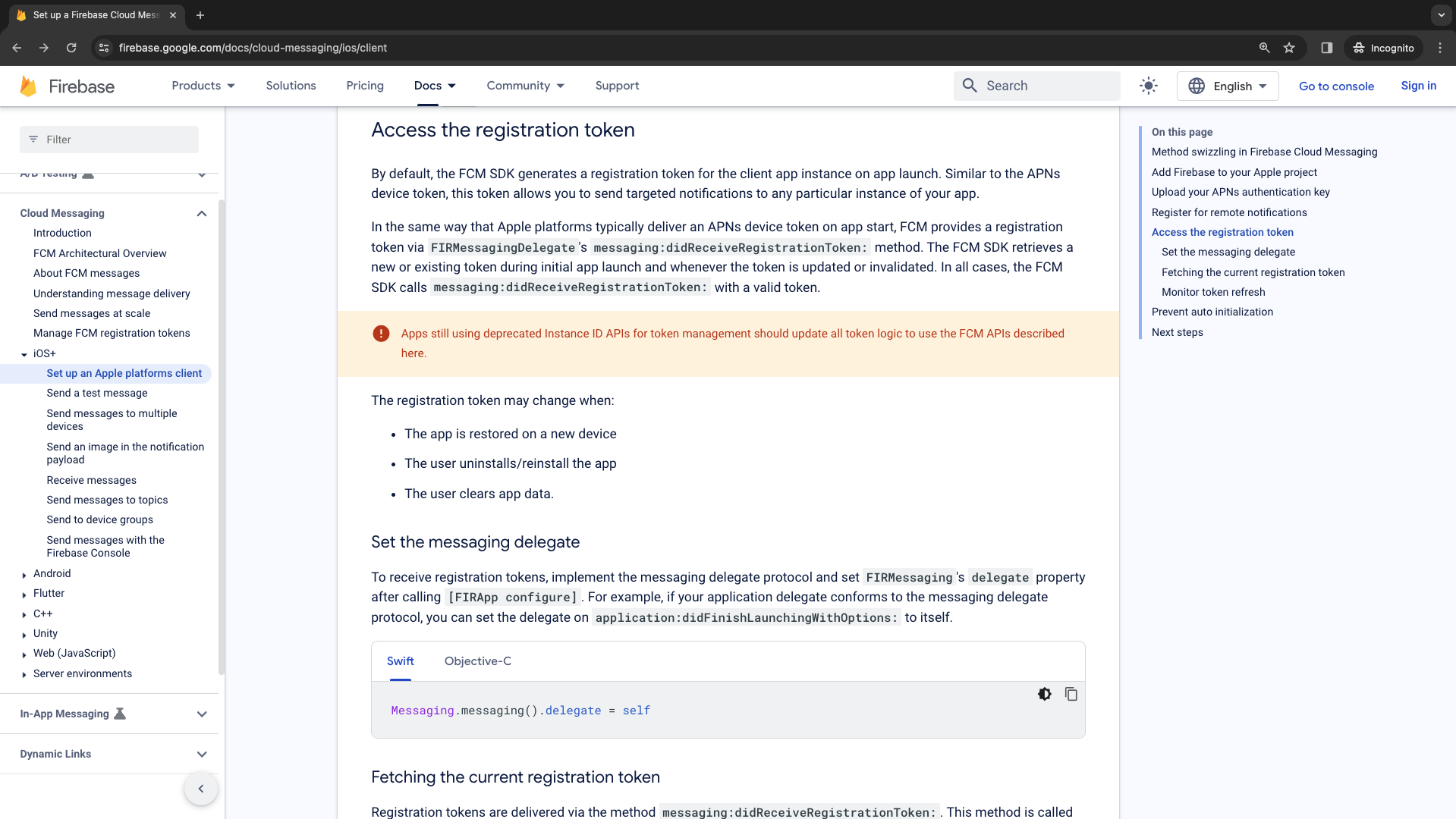
To do this, we must first set the `Messaging.messaging().delegate = self` inside the `didFinishLaunchingWithOptions` method.
1. Copy this code block and place it inside the `AppDelegate.swift` file using the `didFinishLaunchingWithOptions` method.
We paste this code block under `firebaseApp.configure()`.
2. We need to conform to this delegate, so we will also create an `AppDelegate` extension at the bottom for `UNUserNotificationCenterDelegate`.
3. Add `import FirebaseMessaging` to the file.
```Swift theme={null}
//
// AppDelegate.swift
// PushNotificationDemo
//
// Created by Emillien Pearce.
//
import UIKit
import FirebaseCore
import FirebaseMessaging
@main
class AppDelegate: UIResponder, UIApplicationDelegate {
func application(_ application: UIApplication, didFinishLaunchingWithOptions launchOptions: [UIApplication.LaunchOptionsKey: Any]?) -> Bool {
// Override point for customization after application launch.
FirebaseApp.configure()
// Register for Remote Notitifcations
UNUserNotificationCenter.current().delegate = self
let authOptions: UNAuthorizationOptions = [.alert, .badge, .sound]
UNUserNotificationCenter.current().requestAuthorization(
options: authOptions,
completionHandler: { _, _ in }
)
application.registerForRemoteNotifications()
return true
}
// MARK: UISceneSession Lifecycle
func application(_ application: UIApplication, configurationForConnecting connectingSceneSession: UISceneSession, options: UIScene.ConnectionOptions) -> UISceneConfiguration {
// Called when a new scene session is being created.
// Use this method to select a configuration to create the new scene with.
return UISceneConfiguration(name: "Default Configuration", sessionRole: connectingSceneSession.role)
}
func application(_ application: UIApplication, didDiscardSceneSessions sceneSessions: Set) {
// Called when the user discards a scene session.
// If any sessions were discarded while the application was not running, this will be called shortly after application:didFinishLaunchingWithOptions.
// Use this method to release any resources that were specific to the discarded scenes, as they will not return.
}
}
extension AppDelegate: UNUserNotificationCenterDelegate {
}
```
## Access the Registration Token
To do this, we must first set the `Messaging.messaging().delegate = self` inside the `didFinishLaunchingWithOptions` method.
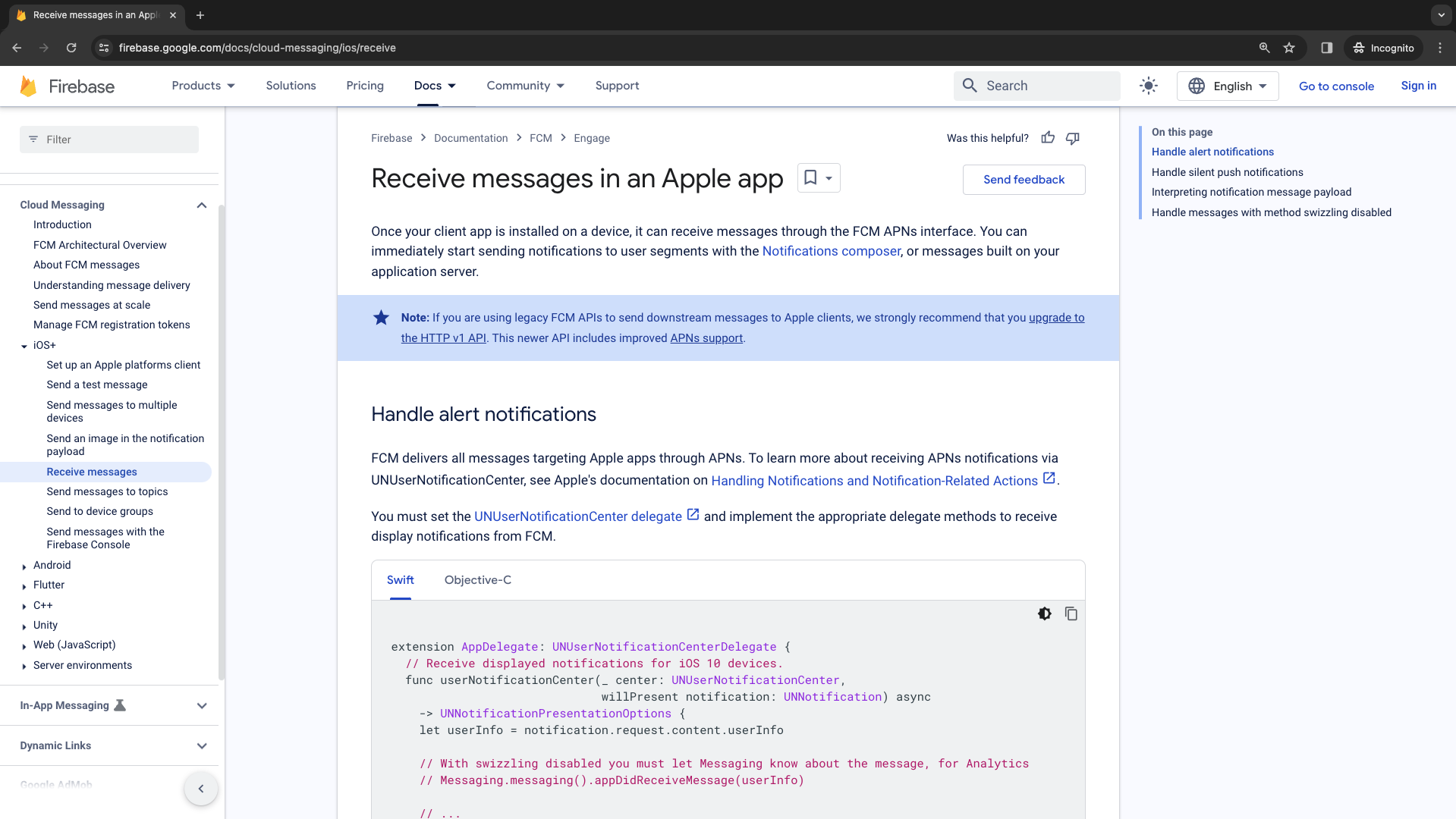 We will now add a 'Messaging' delegate extension to `AppDelegate.swift` file.
 ```Swift theme={null}
//
// AppDelegate.swift
// PushNotificationDemo
//
// Created by Emillien Pearce on 13/01/2024.
//
import UIKit
import FirebaseCore
import FirebaseMessaging
@main
class AppDelegate: UIResponder, UIApplicationDelegate {
func application(_ application: UIApplication, didFinishLaunchingWithOptions launchOptions: [UIApplication.LaunchOptionsKey: Any]?) -> Bool {
// Override point for customization after application launch.
FirebaseApp.configure()
FirebaseConfiguration.shared.setLoggerLevel(.min)
// Register for Remote Notitifcations
UNUserNotificationCenter.current().delegate = self
let authOptions: UNAuthorizationOptions = [.alert, .badge, .sound]
UNUserNotificationCenter.current().requestAuthorization(
options: authOptions,
completionHandler: { _, _ in }
)
application.registerForRemoteNotifications()
// Messaging Delegate
Messaging.messaging().delegate = self
return true
}
// MARK: UISceneSession Lifecycle
func application(_ application: UIApplication, configurationForConnecting connectingSceneSession: UISceneSession, options: UIScene.ConnectionOptions) -> UISceneConfiguration {
// Called when a new scene session is being created.
// Use this method to select a configuration to create the new scene with.
return UISceneConfiguration(name: "Default Configuration", sessionRole: connectingSceneSession.role)
}
func application(_ application: UIApplication, didDiscardSceneSessions sceneSessions: Set) {
// Called when the user discards a scene session.
// If any sessions were discarded while the application was not running, this will be called shortly after application:didFinishLaunchingWithOptions.
// Use this method to release any resources that were specific to the discarded scenes, as they will not return.
}
}
extension AppDelegate: UNUserNotificationCenterDelegate {
// Receive displayed notifications for iOS 10 devices.
func userNotificationCenter(_ center: UNUserNotificationCenter,
willPresent notification: UNNotification) async
-> UNNotificationPresentationOptions {
let userInfo = notification.request.content.userInfo
// With swizzling disabled you must let Messaging know about the message, for Analytics
// Messaging.messaging().appDidReceiveMessage(userInfo)
// ...
// Print full message.
print(userInfo)
// Change this to your preferred presentation option
return [[.alert, .sound]]
}
func userNotificationCenter(_ center: UNUserNotificationCenter,
didReceive response: UNNotificationResponse) async {
let userInfo = response.notification.request.content.userInfo
// ...
// With swizzling disabled you must let Messaging know about the message, for Analytics
// Messaging.messaging().appDidReceiveMessage(userInfo)
// Print full message.
print(userInfo)
}
}
extension AppDelegate: MessagingDelegate {
func messaging(_ messaging: Messaging, didReceiveRegistrationToken fcmToken: String?) {
print("Firebase registration token: \(String(describing: fcmToken))")
let dataDict: [String: String] = ["token": fcmToken ?? ""]
NotificationCenter.default.post(
name: Notification.Name("FCMToken"),
object: nil,
userInfo: dataDict
)
// TODO: If necessary send token to application server.
// Note: This callback is fired at each app startup and whenever a new token is generated.
}
}
```
## Receive messages in an Apple App
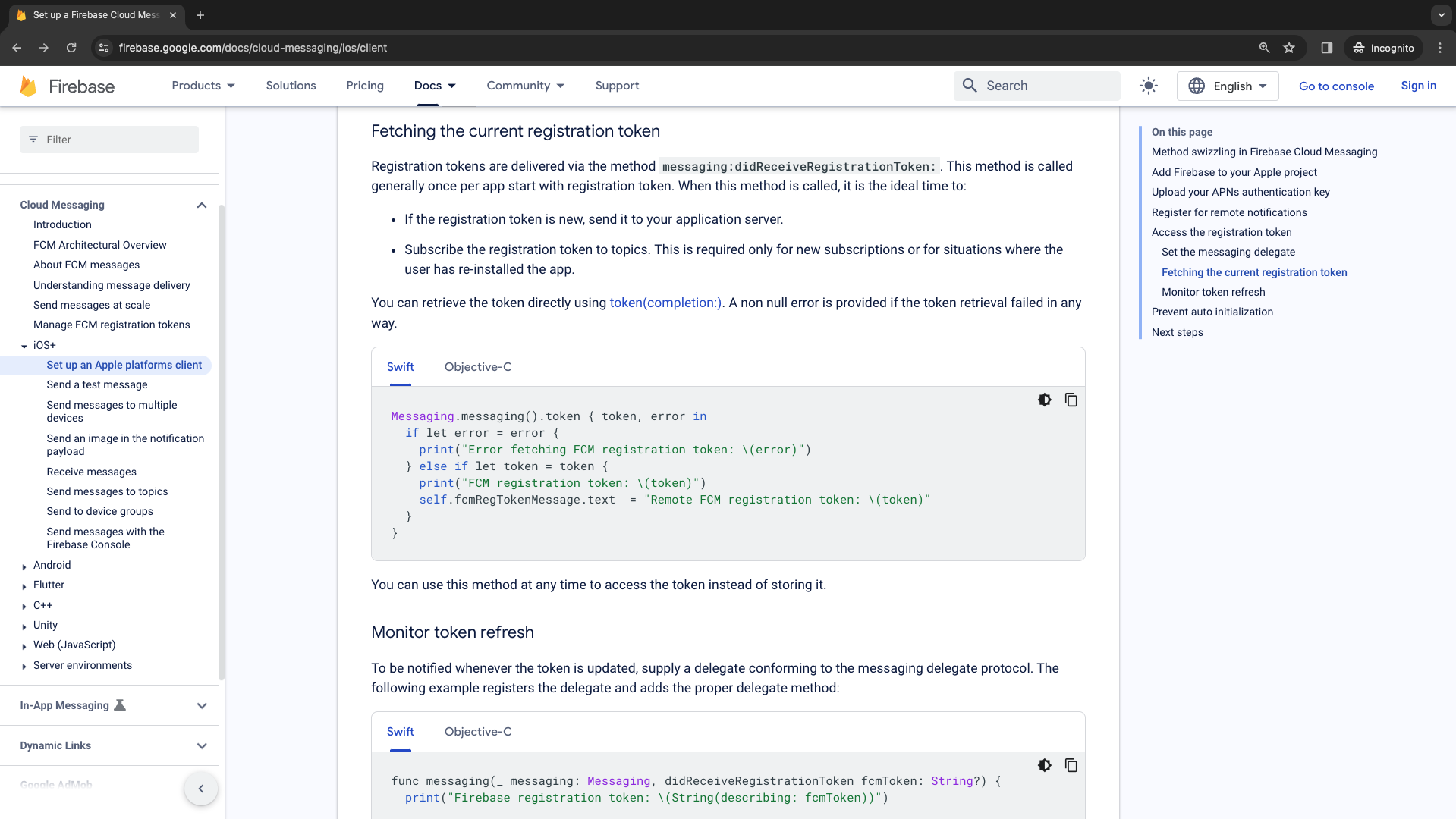
1. Copy this code block and place it in `UNUserNotificationCenterDelegate` extension.
2. Add the `didReceiveRemoteNotification`.
3. We must declare a `gcmMessageIDKey` inside of `AppDelegate`. We can define this as a `string` variable.
```Swift theme={null}
//
// AppDelegate.swift
// PushNotificationDemo
//
// Created by Emillien Pearce on 13/01/2024.
//
import UIKit
import FirebaseCore
import FirebaseMessaging
@main
class AppDelegate: UIResponder, UIApplicationDelegate {
func application(_ application: UIApplication, didFinishLaunchingWithOptions launchOptions: [UIApplication.LaunchOptionsKey: Any]?) -> Bool {
// Override point for customization after application launch.
FirebaseApp.configure()
FirebaseConfiguration.shared.setLoggerLevel(.min)
// Register for Remote Notitifcations
UNUserNotificationCenter.current().delegate = self
let authOptions: UNAuthorizationOptions = [.alert, .badge, .sound]
UNUserNotificationCenter.current().requestAuthorization(
options: authOptions,
completionHandler: { _, _ in }
)
application.registerForRemoteNotifications()
// Messaging Delegate
Messaging.messaging().delegate = self
return true
}
// MARK: UISceneSession Lifecycle
func application(_ application: UIApplication, configurationForConnecting connectingSceneSession: UISceneSession, options: UIScene.ConnectionOptions) -> UISceneConfiguration {
// Called when a new scene session is being created.
// Use this method to select a configuration to create the new scene with.
return UISceneConfiguration(name: "Default Configuration", sessionRole: connectingSceneSession.role)
}
func application(_ application: UIApplication, didDiscardSceneSessions sceneSessions: Set) {
// Called when the user discards a scene session.
// If any sessions were discarded while the application was not running, this will be called shortly after application:didFinishLaunchingWithOptions.
// Use this method to release any resources that were specific to the discarded scenes, as they will not return.
}
}
extension AppDelegate: UNUserNotificationCenterDelegate {
// Receive displayed notifications for iOS 10 devices.
func userNotificationCenter(_ center: UNUserNotificationCenter,
willPresent notification: UNNotification) async
-> UNNotificationPresentationOptions {
let userInfo = notification.request.content.userInfo
// With swizzling disabled you must let Messaging know about the message, for Analytics
// Messaging.messaging().appDidReceiveMessage(userInfo)
// ...
// Print full message.
print(userInfo)
// Change this to your preferred presentation option
return [[.alert, .sound]]
}
func userNotificationCenter(_ center: UNUserNotificationCenter,
didReceive response: UNNotificationResponse) async {
let userInfo = response.notification.request.content.userInfo
// ...
// With swizzling disabled you must let Messaging know about the message, for Analytics
// Messaging.messaging().appDidReceiveMessage(userInfo)
// Print full message.
print(userInfo)
}
}
extension AppDelegate: MessagingDelegate {
func messaging(_ messaging: Messaging, didReceiveRegistrationToken fcmToken: String?) {
print("Firebase registration token: \(String(describing: fcmToken))")
let dataDict: [String: String] = ["token": fcmToken ?? ""]
NotificationCenter.default.post(
name: Notification.Name("FCMToken"),
object: nil,
userInfo: dataDict
)
// TODO: If necessary send token to application server.
// Note: This callback is fired at each app startup and whenever a new token is generated.
}
}
```
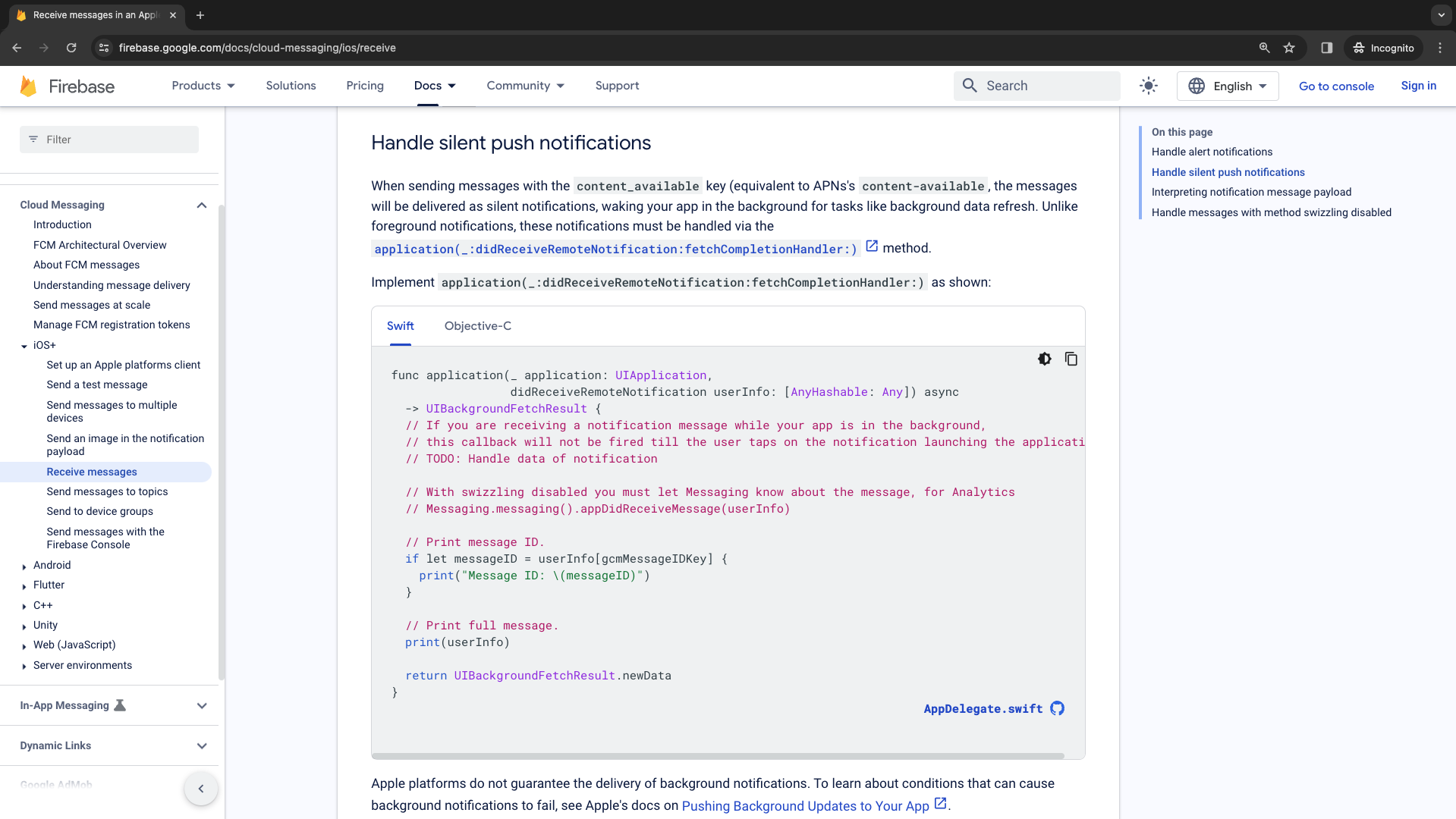
## Receive messages in an Apple App
1. Copy this code block and place it in `UNUserNotificationCenterDelegate` extension.
2. Add the `didReceiveRemoteNotification`.
3. We must declare a `gcmMessageIDKey` inside of `AppDelegate`. We can define this as a `string` variable.
 ```Swift theme={null}
//
// AppDelegate.swift
// PushNotificationDemo
//
// Created by Emillien Pearce.
//
import UIKit
import FirebaseCore
import FirebaseMessaging
@main
class AppDelegate: UIResponder, UIApplicationDelegate {
let gcmMessageIDKey = "gcm.Message_ID"
func application(_ application: UIApplication, didFinishLaunchingWithOptions launchOptions: [UIApplication.LaunchOptionsKey: Any]?) -> Bool {
// Override point for customization after application launch.
FirebaseApp.configure()
FirebaseConfiguration.shared.setLoggerLevel(.min)
// Register for Remote Notitifcations
UNUserNotificationCenter.current().delegate = self
let authOptions: UNAuthorizationOptions = [.alert, .badge, .sound]
UNUserNotificationCenter.current().requestAuthorization(
options: authOptions,
completionHandler: { _, _ in }
)
application.registerForRemoteNotifications()
// Messaging Delegate
Messaging.messaging().delegate = self
return true
}
// MARK: UISceneSession Lifecycle
func application(_ application: UIApplication, configurationForConnecting connectingSceneSession: UISceneSession, options: UIScene.ConnectionOptions) -> UISceneConfiguration {
// Called when a new scene session is being created.
// Use this method to select a configuration to create the new scene with.
return UISceneConfiguration(name: "Default Configuration", sessionRole: connectingSceneSession.role)
}
func application(_ application: UIApplication, didDiscardSceneSessions sceneSessions: Set) {
// Called when the user discards a scene session.
// If any sessions were discarded while the application was not running, this will be called shortly after application:didFinishLaunchingWithOptions.
// Use this method to release any resources that were specific to the discarded scenes, as they will not return.
}
}
extension AppDelegate: UNUserNotificationCenterDelegate {
// Receive displayed notifications for iOS 10 devices.
func userNotificationCenter(_ center: UNUserNotificationCenter,
willPresent notification: UNNotification) async
-> UNNotificationPresentationOptions {
let userInfo = notification.request.content.userInfo
// With swizzling disabled you must let Messaging know about the message, for Analytics
// Messaging.messaging().appDidReceiveMessage(userInfo)
// ...
// Print full message.
print(userInfo)
// Change this to your preferred presentation option
return [[.alert, .sound]]
}
func userNotificationCenter(_ center: UNUserNotificationCenter,
didReceive response: UNNotificationResponse) async {
let userInfo = response.notification.request.content.userInfo
// ...
// With swizzling disabled you must let Messaging know about the message, for Analytics
// Messaging.messaging().appDidReceiveMessage(userInfo)
// Print full message.
print(userInfo)
}
func application(_ application: UIApplication,
didReceiveRemoteNotification userInfo: [AnyHashable: Any]) async
-> UIBackgroundFetchResult {
// If you are receiving a notification message while your app is in the background,
// this callback will not be fired till the user taps on the notification launching the application.
// TODO: Handle data of notification
// With swizzling disabled you must let Messaging know about the message, for Analytics
// Messaging.messaging().appDidReceiveMessage(userInfo)
// Print message ID.
if let messageID = userInfo[gcmMessageIDKey] {
print("Message ID: \(messageID)")
}
// Print full message.
print(userInfo)
return UIBackgroundFetchResult.newData
}
}
extension AppDelegate: MessagingDelegate {
func messaging(_ messaging: Messaging, didReceiveRegistrationToken fcmToken: String?) {
print("Firebase registration token: \(String(describing: fcmToken))")
let dataDict: [String: String] = ["token": fcmToken ?? ""]
NotificationCenter.default.post(
name: Notification.Name("FCMToken"),
object: nil,
userInfo: dataDict
)
// TODO: If necessary send token to application server.
// Note: This callback is fired at each app startup and whenever a new token is generated.
}
}
```
## Adding app capabilities
```Swift theme={null}
//
// AppDelegate.swift
// PushNotificationDemo
//
// Created by Emillien Pearce.
//
import UIKit
import FirebaseCore
import FirebaseMessaging
@main
class AppDelegate: UIResponder, UIApplicationDelegate {
let gcmMessageIDKey = "gcm.Message_ID"
func application(_ application: UIApplication, didFinishLaunchingWithOptions launchOptions: [UIApplication.LaunchOptionsKey: Any]?) -> Bool {
// Override point for customization after application launch.
FirebaseApp.configure()
FirebaseConfiguration.shared.setLoggerLevel(.min)
// Register for Remote Notitifcations
UNUserNotificationCenter.current().delegate = self
let authOptions: UNAuthorizationOptions = [.alert, .badge, .sound]
UNUserNotificationCenter.current().requestAuthorization(
options: authOptions,
completionHandler: { _, _ in }
)
application.registerForRemoteNotifications()
// Messaging Delegate
Messaging.messaging().delegate = self
return true
}
// MARK: UISceneSession Lifecycle
func application(_ application: UIApplication, configurationForConnecting connectingSceneSession: UISceneSession, options: UIScene.ConnectionOptions) -> UISceneConfiguration {
// Called when a new scene session is being created.
// Use this method to select a configuration to create the new scene with.
return UISceneConfiguration(name: "Default Configuration", sessionRole: connectingSceneSession.role)
}
func application(_ application: UIApplication, didDiscardSceneSessions sceneSessions: Set) {
// Called when the user discards a scene session.
// If any sessions were discarded while the application was not running, this will be called shortly after application:didFinishLaunchingWithOptions.
// Use this method to release any resources that were specific to the discarded scenes, as they will not return.
}
}
extension AppDelegate: UNUserNotificationCenterDelegate {
// Receive displayed notifications for iOS 10 devices.
func userNotificationCenter(_ center: UNUserNotificationCenter,
willPresent notification: UNNotification) async
-> UNNotificationPresentationOptions {
let userInfo = notification.request.content.userInfo
// With swizzling disabled you must let Messaging know about the message, for Analytics
// Messaging.messaging().appDidReceiveMessage(userInfo)
// ...
// Print full message.
print(userInfo)
// Change this to your preferred presentation option
return [[.alert, .sound]]
}
func userNotificationCenter(_ center: UNUserNotificationCenter,
didReceive response: UNNotificationResponse) async {
let userInfo = response.notification.request.content.userInfo
// ...
// With swizzling disabled you must let Messaging know about the message, for Analytics
// Messaging.messaging().appDidReceiveMessage(userInfo)
// Print full message.
print(userInfo)
}
func application(_ application: UIApplication,
didReceiveRemoteNotification userInfo: [AnyHashable: Any]) async
-> UIBackgroundFetchResult {
// If you are receiving a notification message while your app is in the background,
// this callback will not be fired till the user taps on the notification launching the application.
// TODO: Handle data of notification
// With swizzling disabled you must let Messaging know about the message, for Analytics
// Messaging.messaging().appDidReceiveMessage(userInfo)
// Print message ID.
if let messageID = userInfo[gcmMessageIDKey] {
print("Message ID: \(messageID)")
}
// Print full message.
print(userInfo)
return UIBackgroundFetchResult.newData
}
}
extension AppDelegate: MessagingDelegate {
func messaging(_ messaging: Messaging, didReceiveRegistrationToken fcmToken: String?) {
print("Firebase registration token: \(String(describing: fcmToken))")
let dataDict: [String: String] = ["token": fcmToken ?? ""]
NotificationCenter.default.post(
name: Notification.Name("FCMToken"),
object: nil,
userInfo: dataDict
)
// TODO: If necessary send token to application server.
// Note: This callback is fired at each app startup and whenever a new token is generated.
}
}
```
## Adding app capabilities
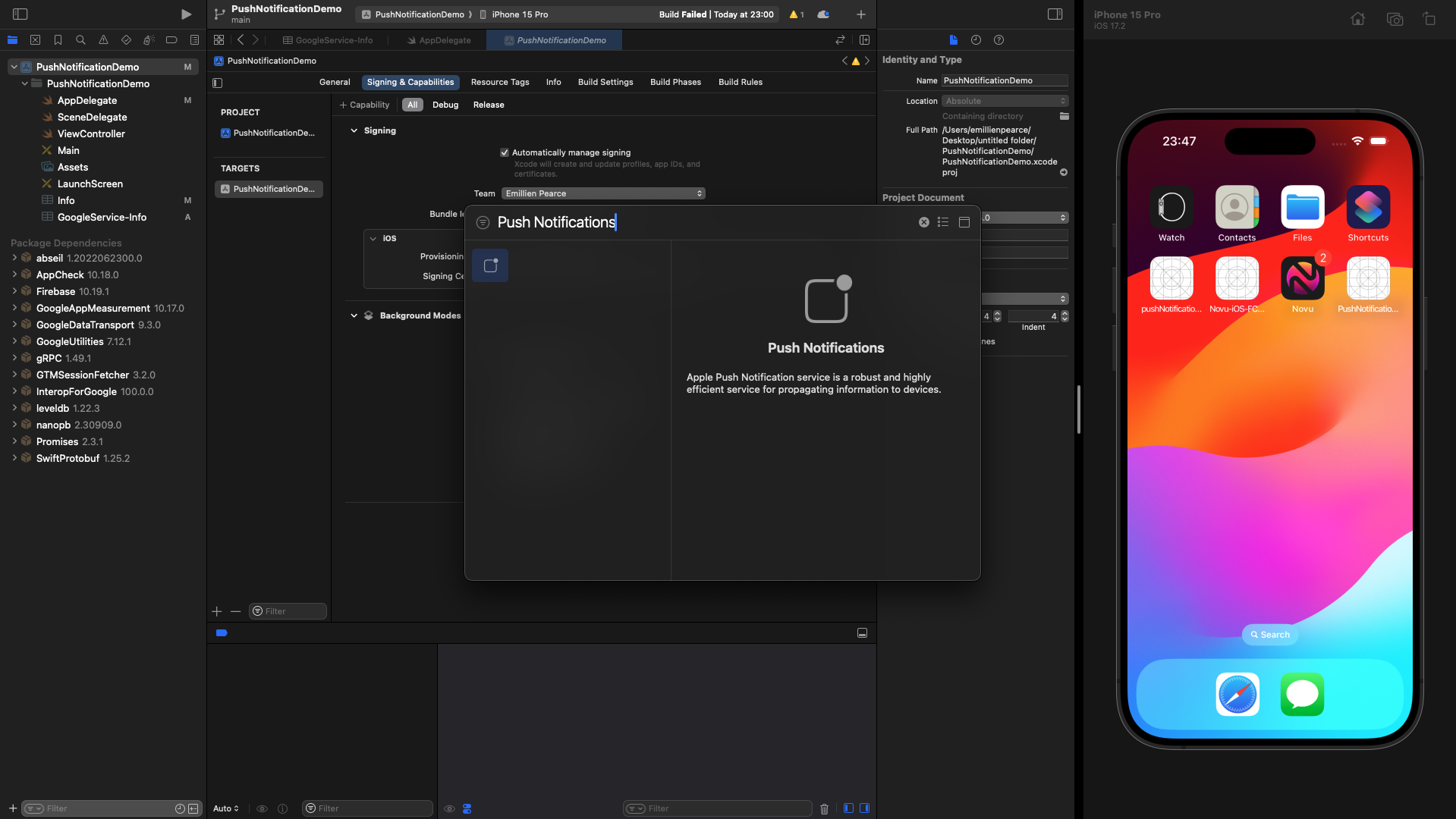
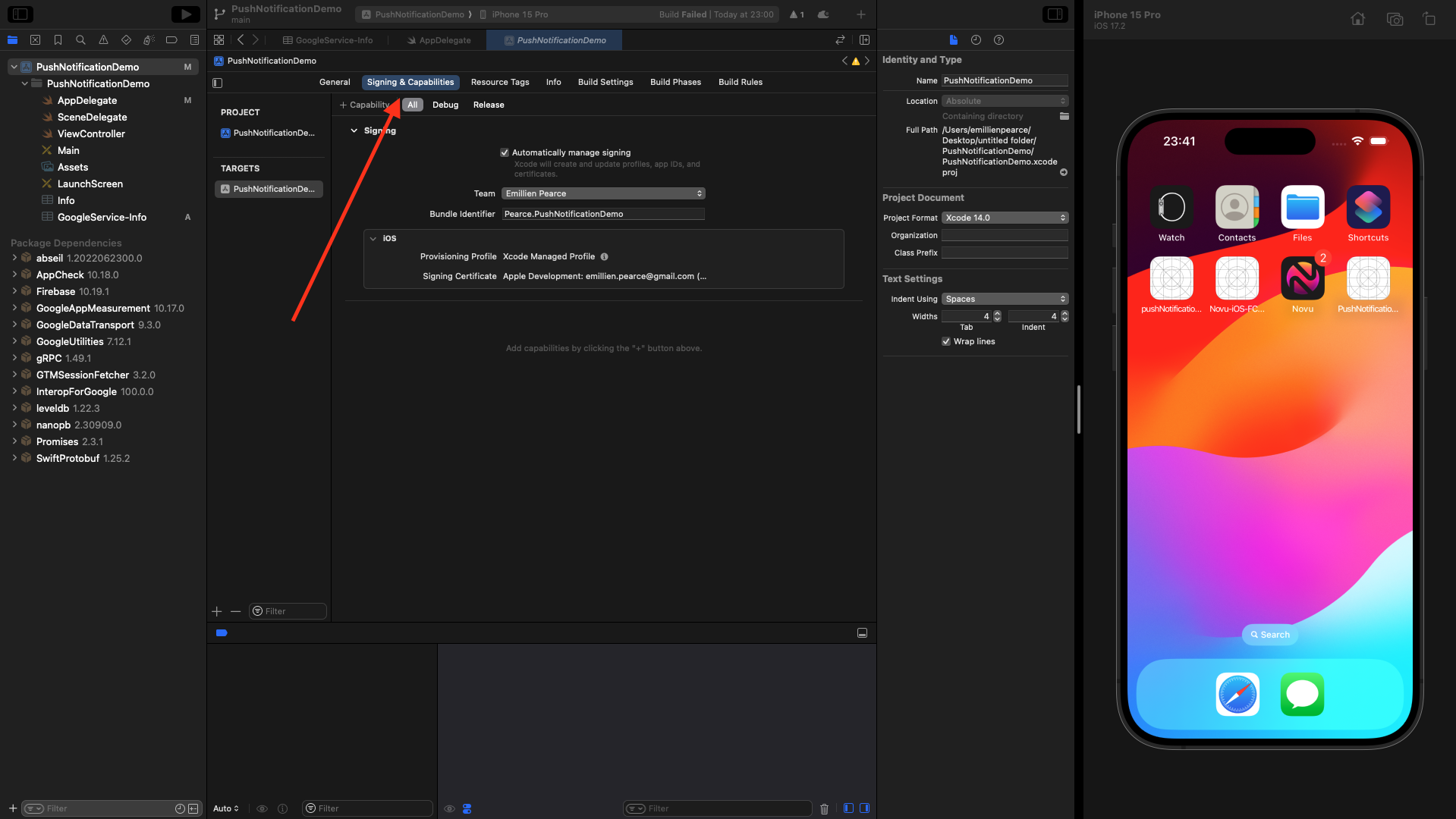 Click on the plus sign (+) and select `Background Modes`.
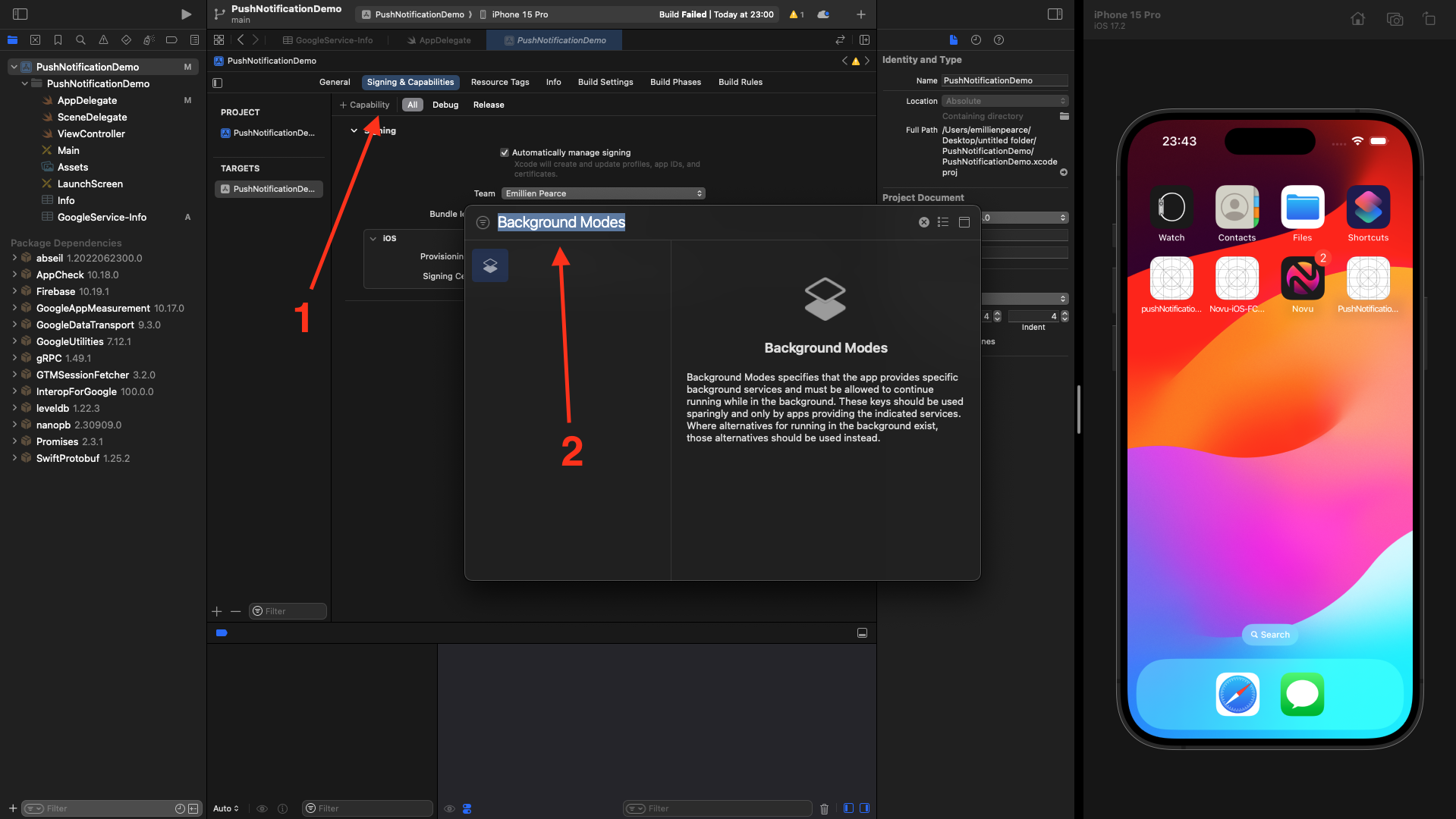 **Select the following options:**
* Background Fetch
* Remote Notifications
* Background Processing
**Select the following options:**
* Background Fetch
* Remote Notifications
* Background Processing
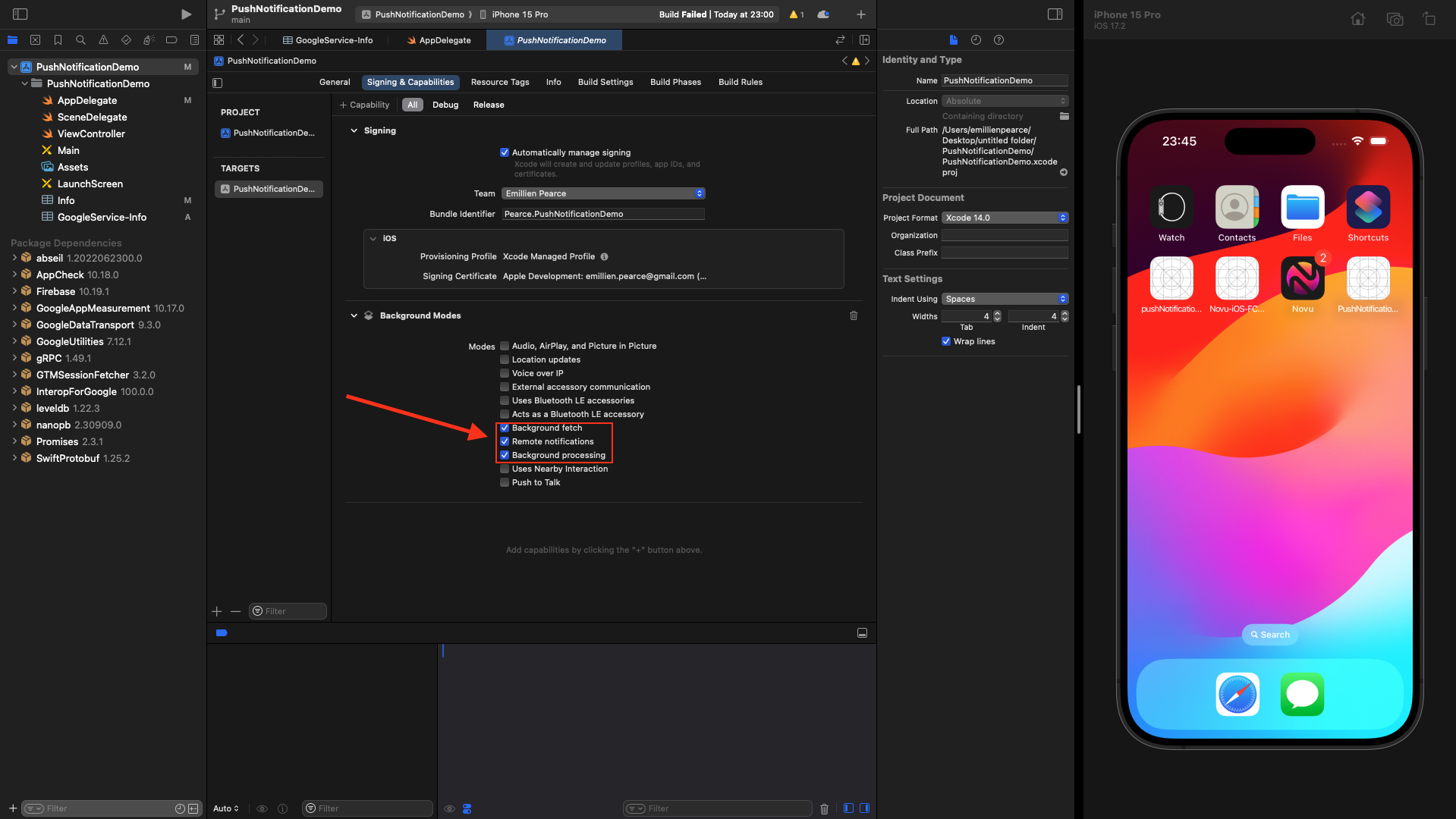 Add `Push Notifications` capabilities.
 ## App Build
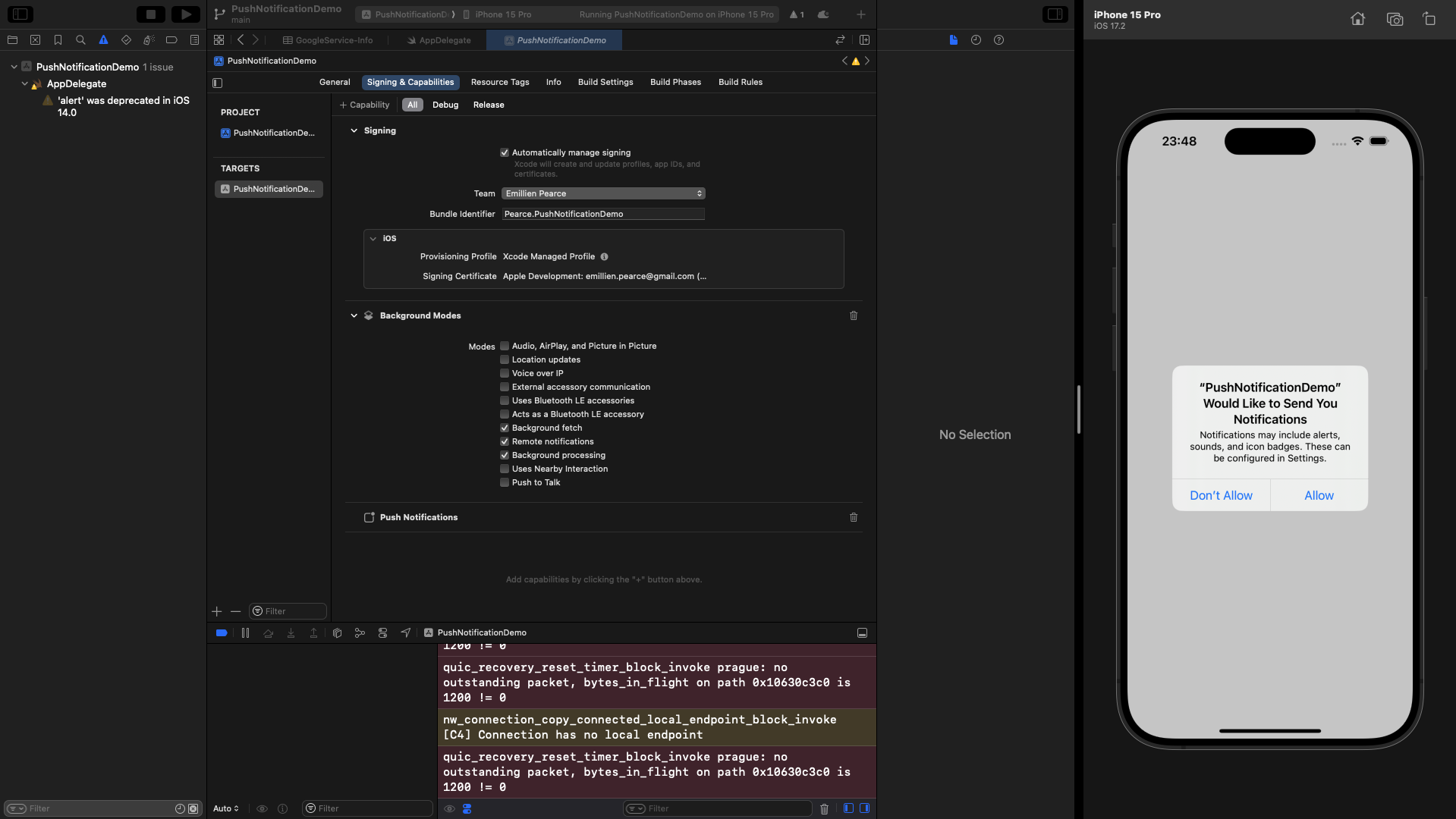
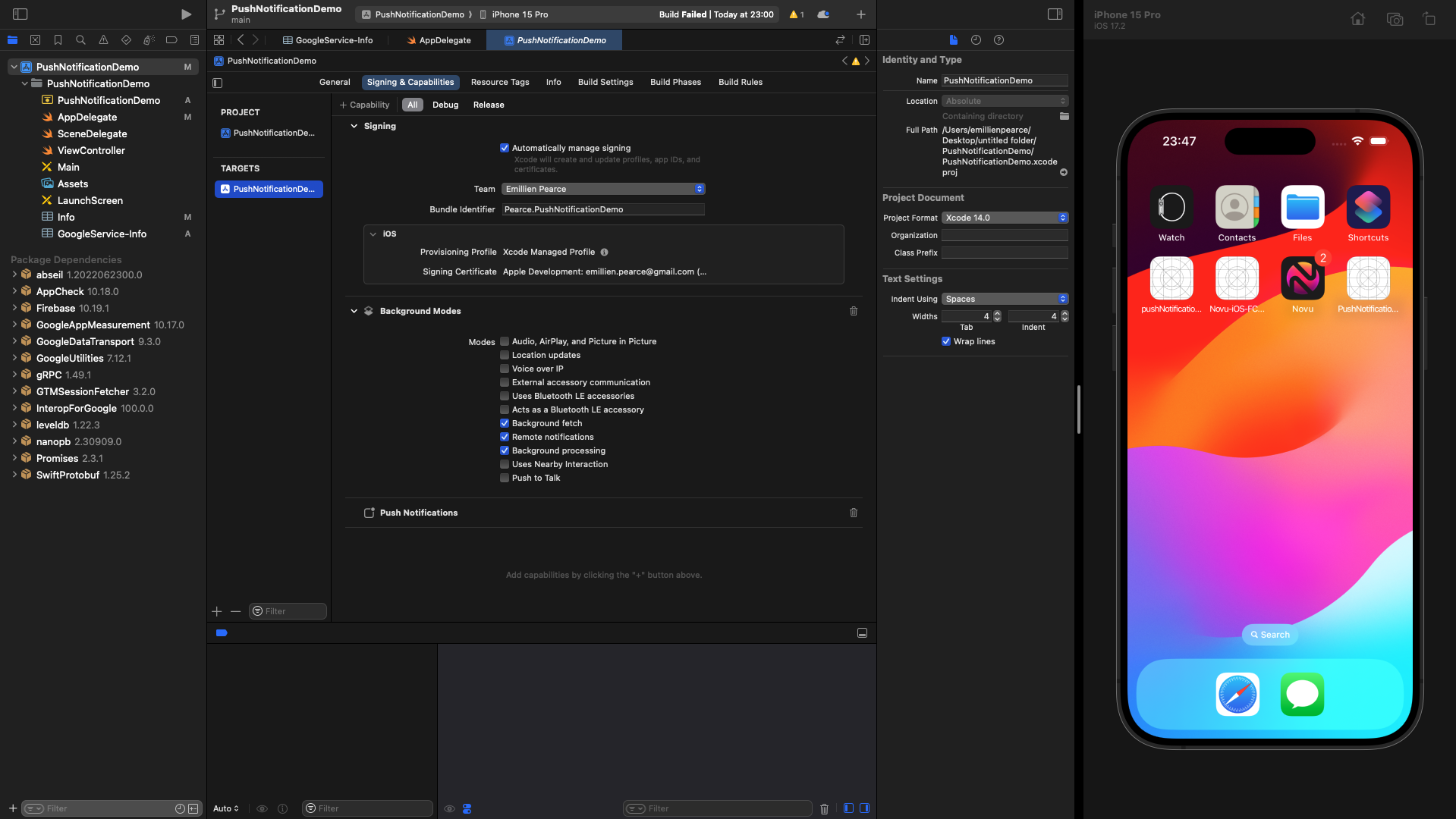 It will ask if you want to receive notifications, and we will allow it.
 ## Cloud Message Test
In your Firebase project, navigate to 'engage' section and click on 'messaging'.
## Cloud Message Test
In your Firebase project, navigate to 'engage' section and click on 'messaging'.
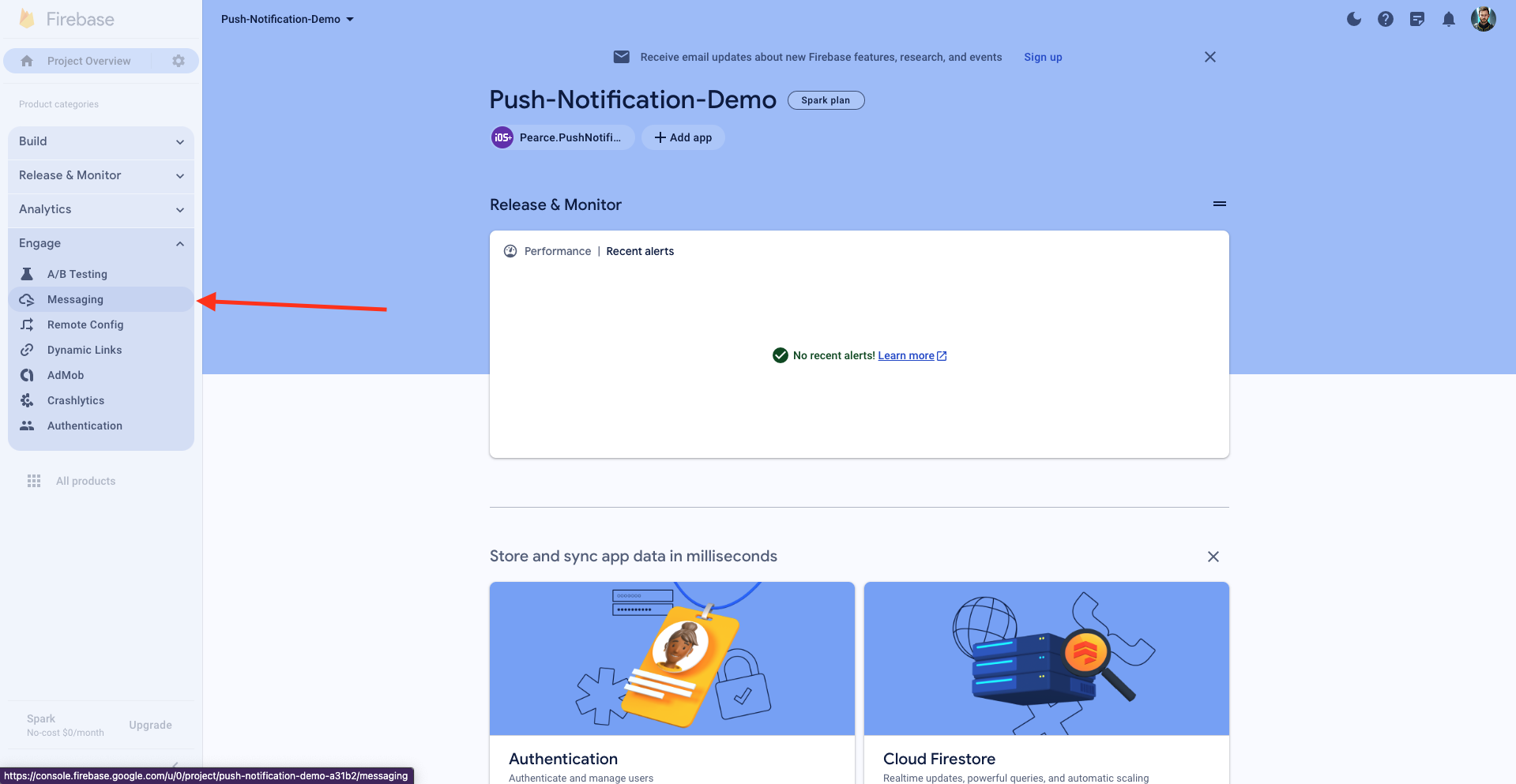 Click on "Send your first message".
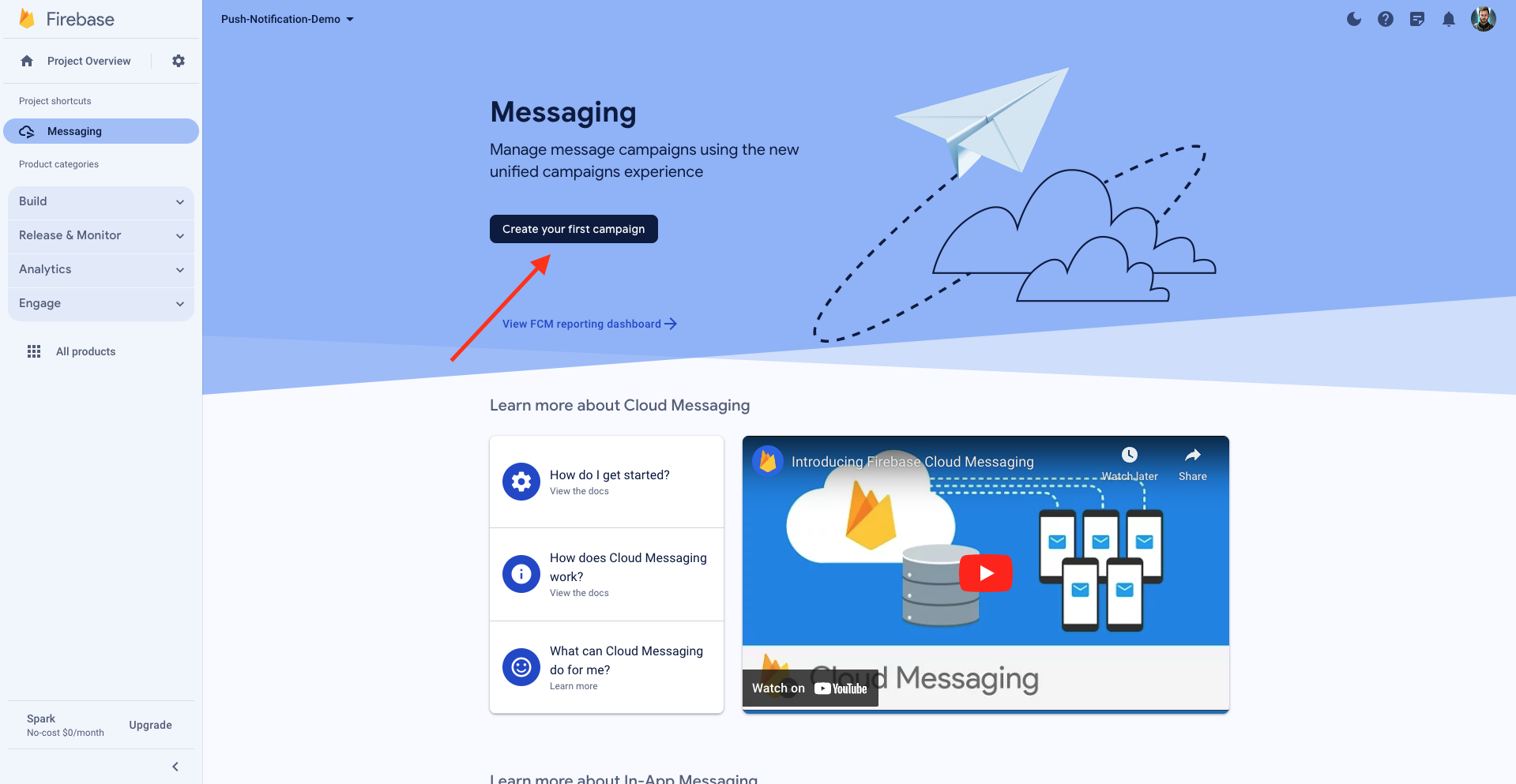
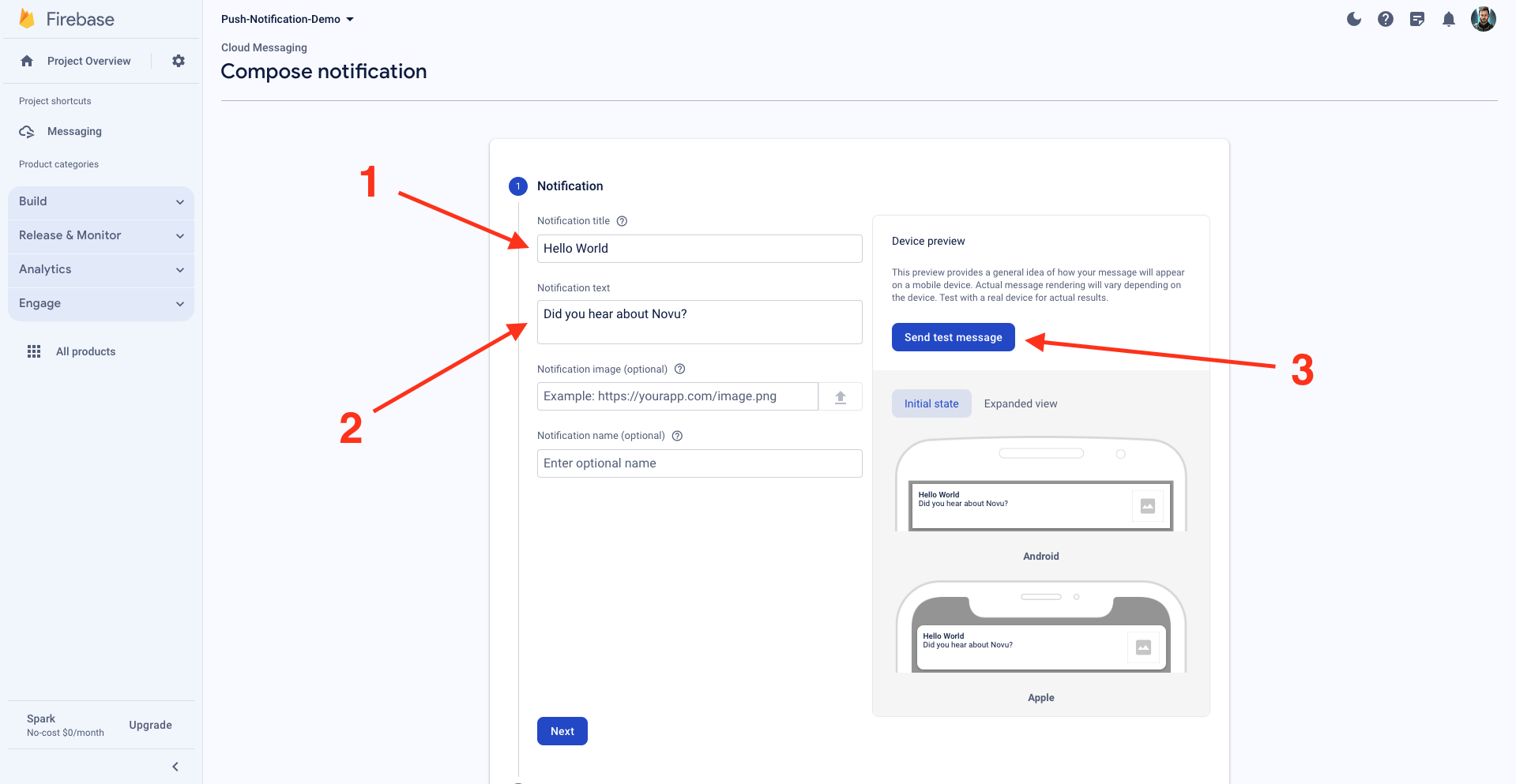
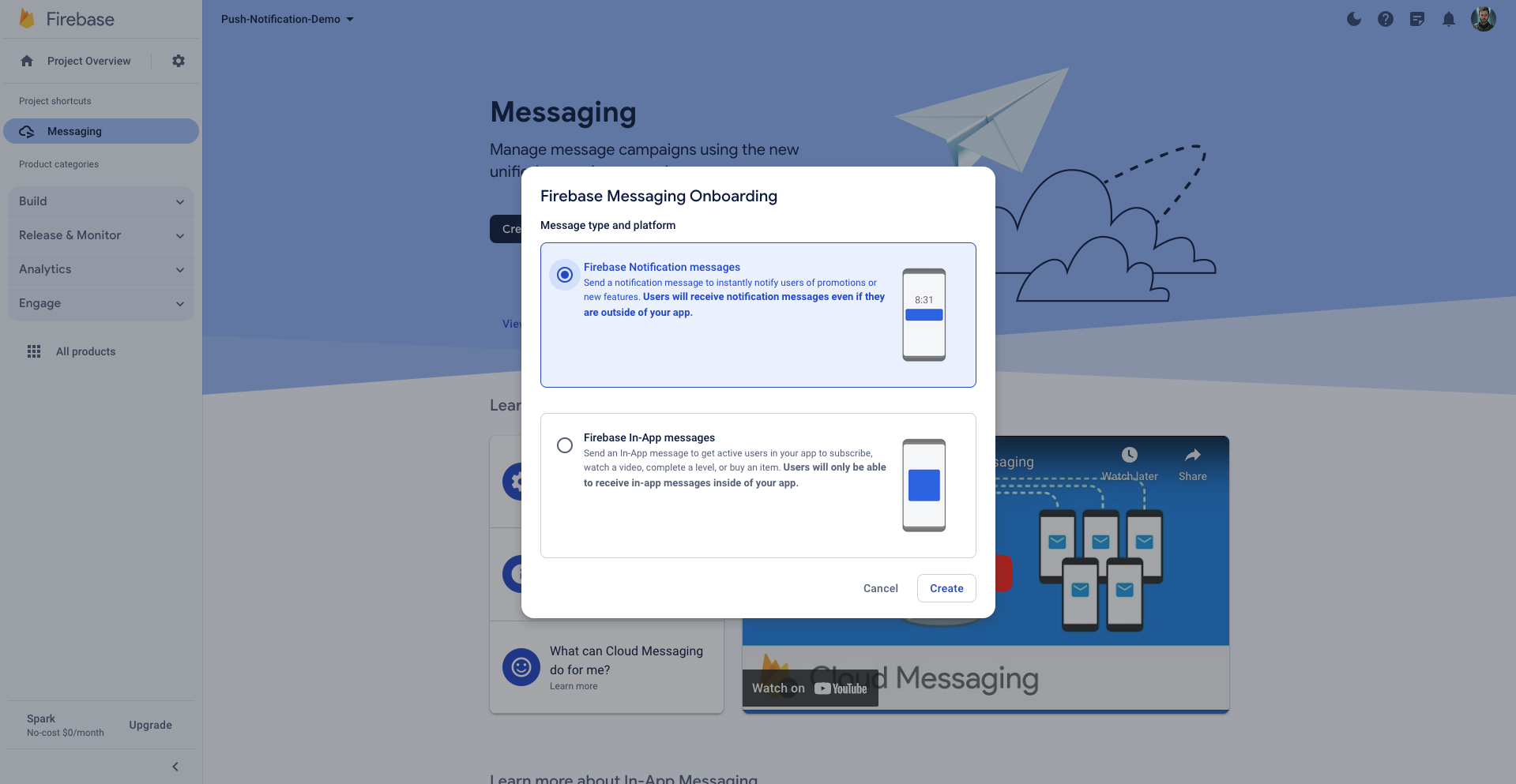 We're going to enter the `notification title` and the `notification text`, then we're going to send the test message.
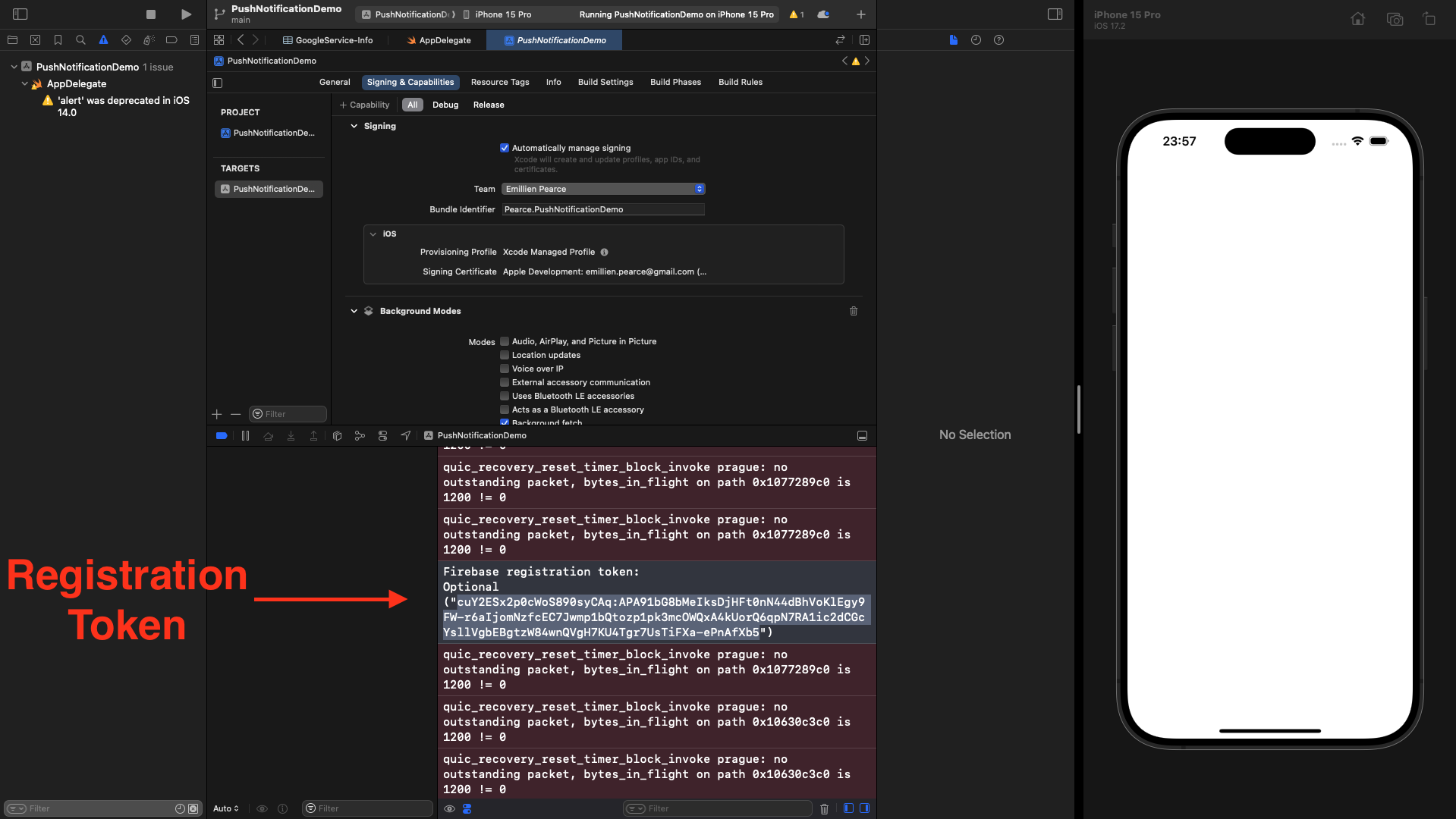
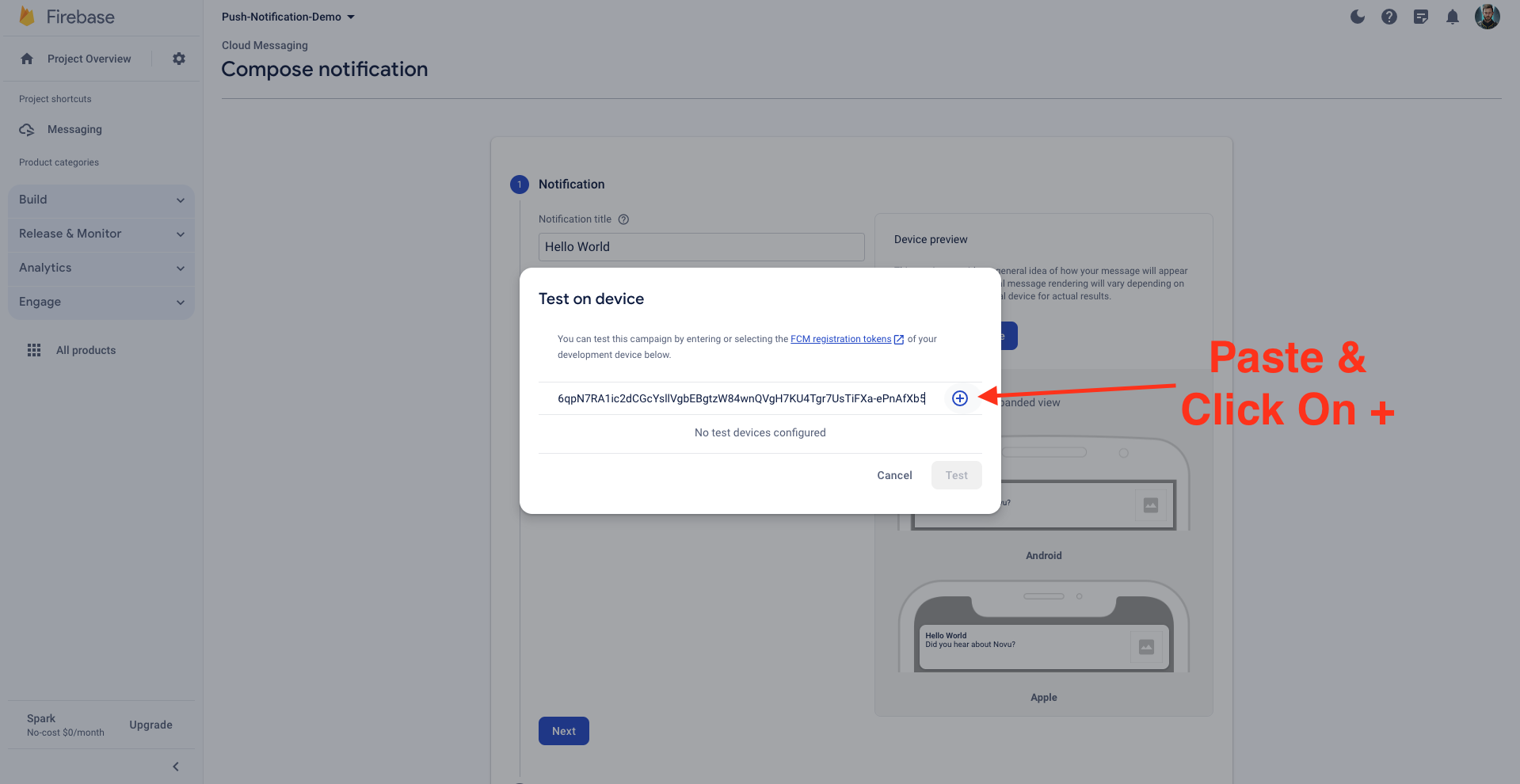
 We must copy and paste this FCM registration token to confirm our device (A physical or a simulator). You can find it in your Xcode console.
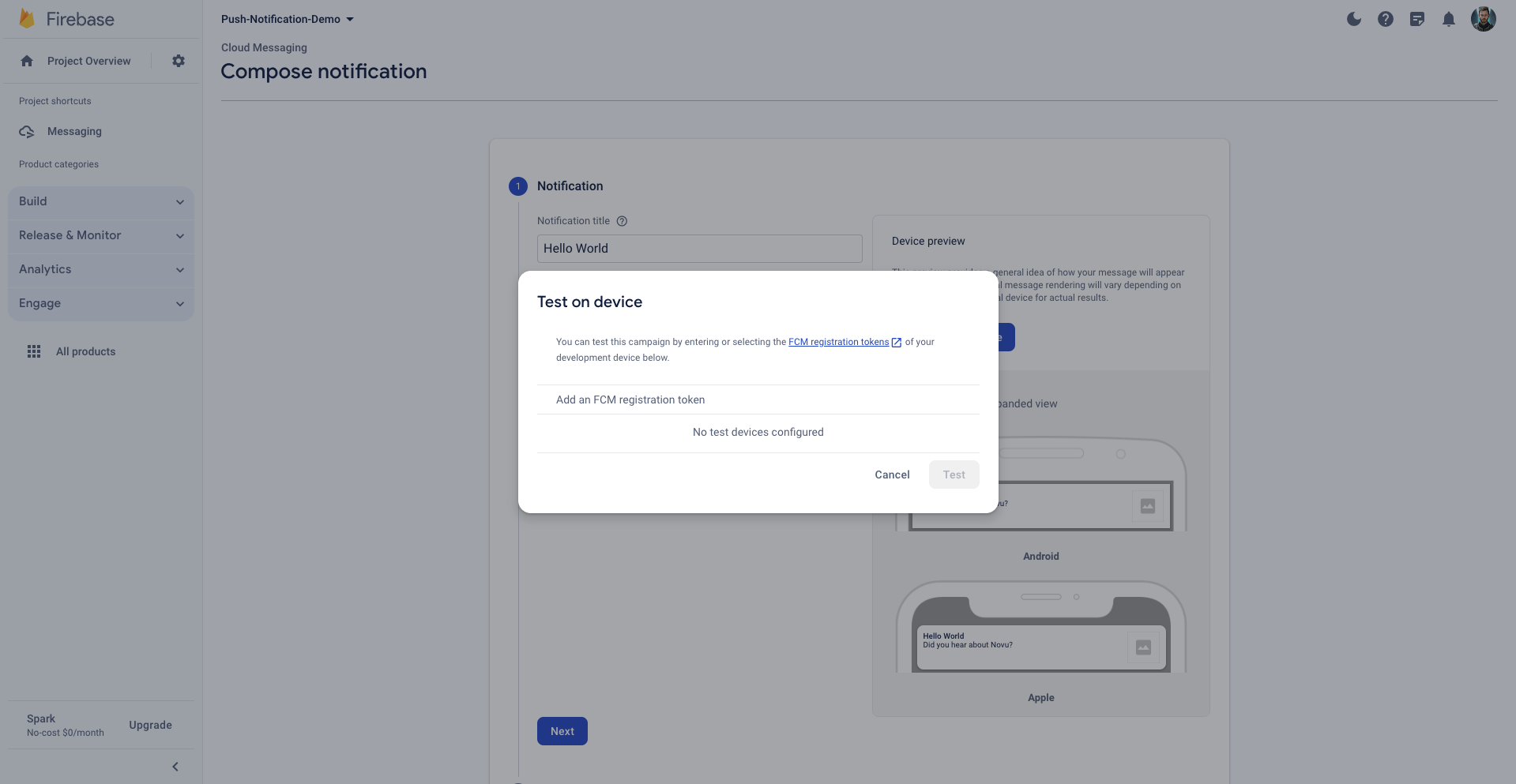
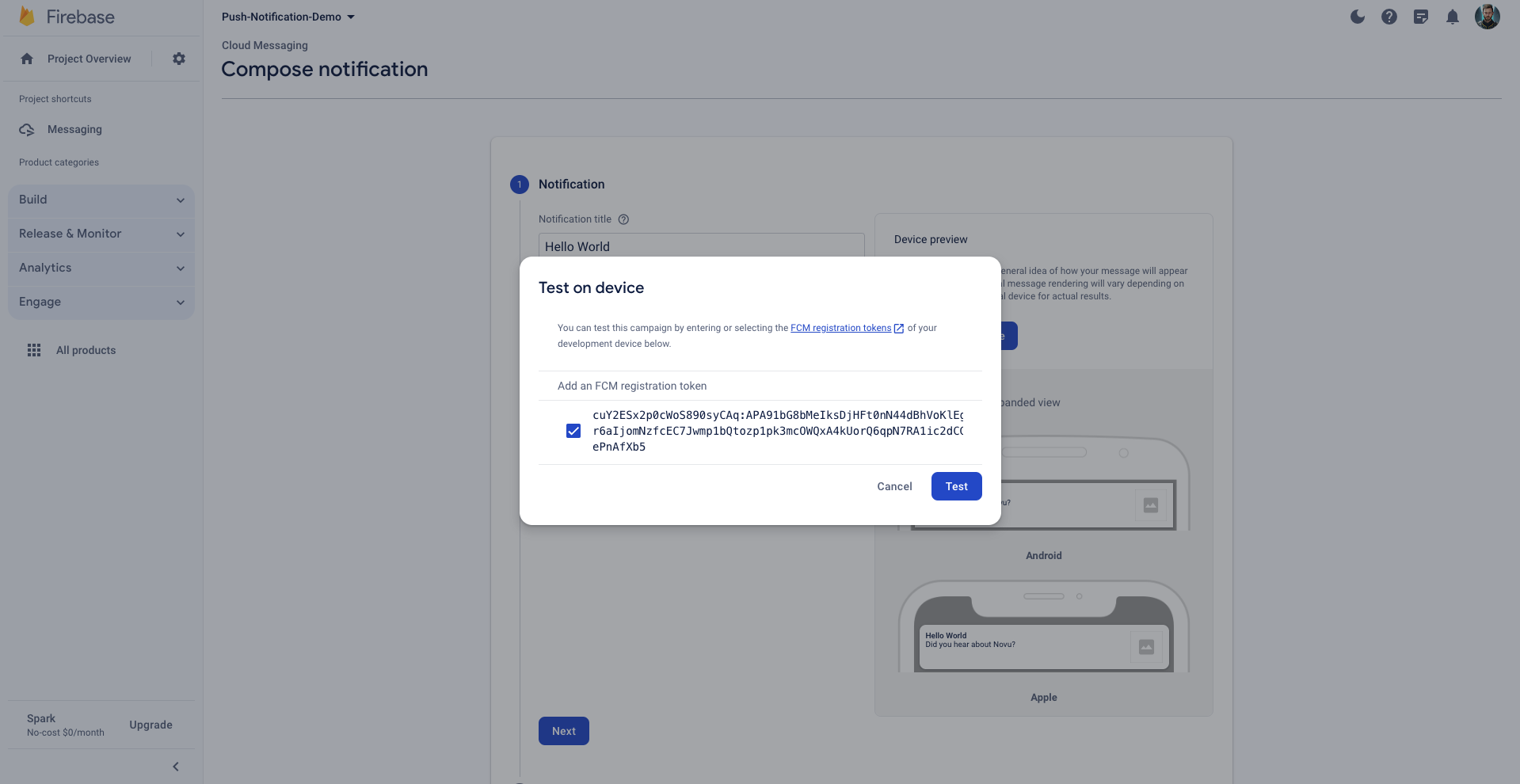
 Click on 'Test'.
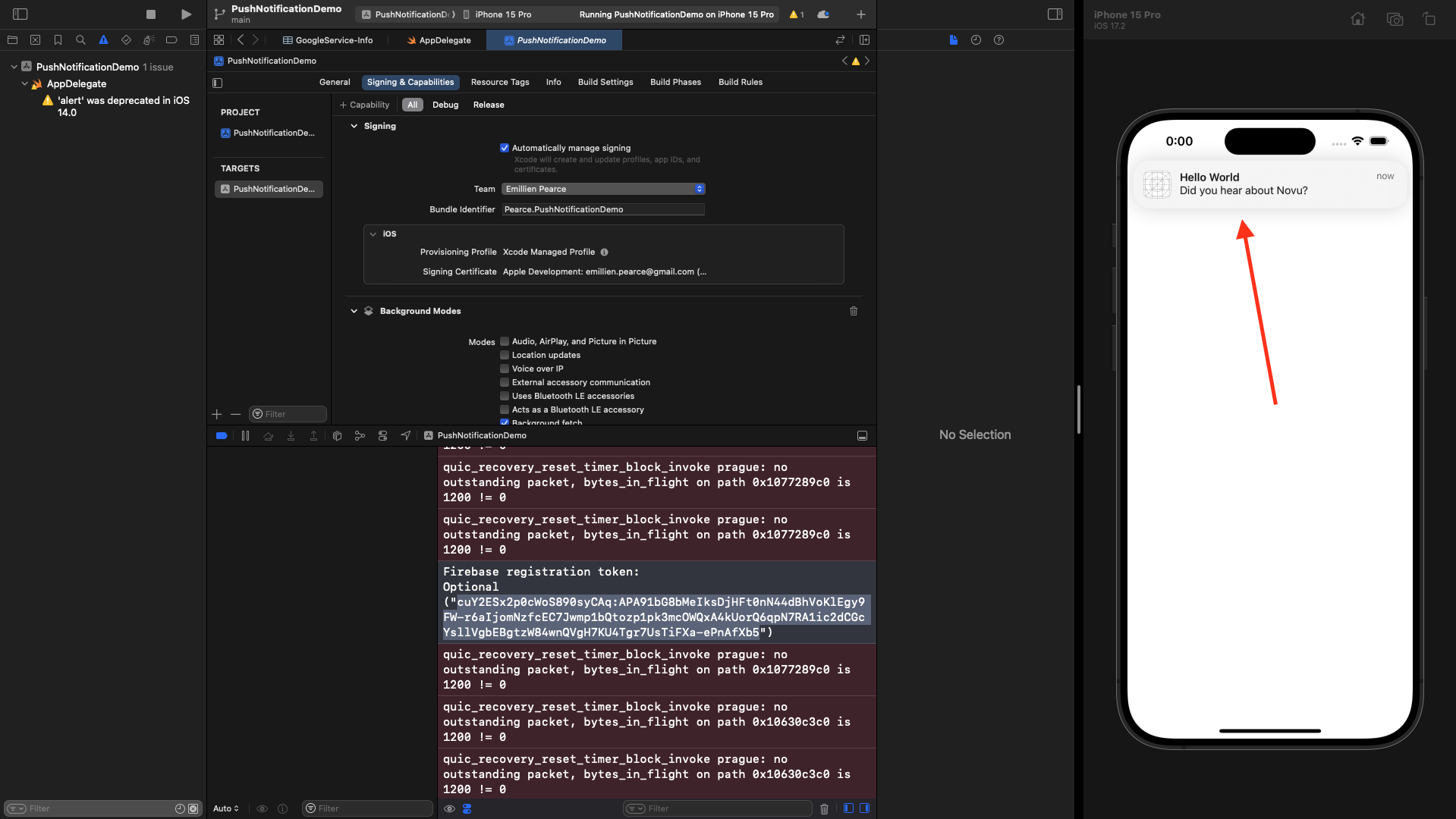
 You should see the notification on your device!
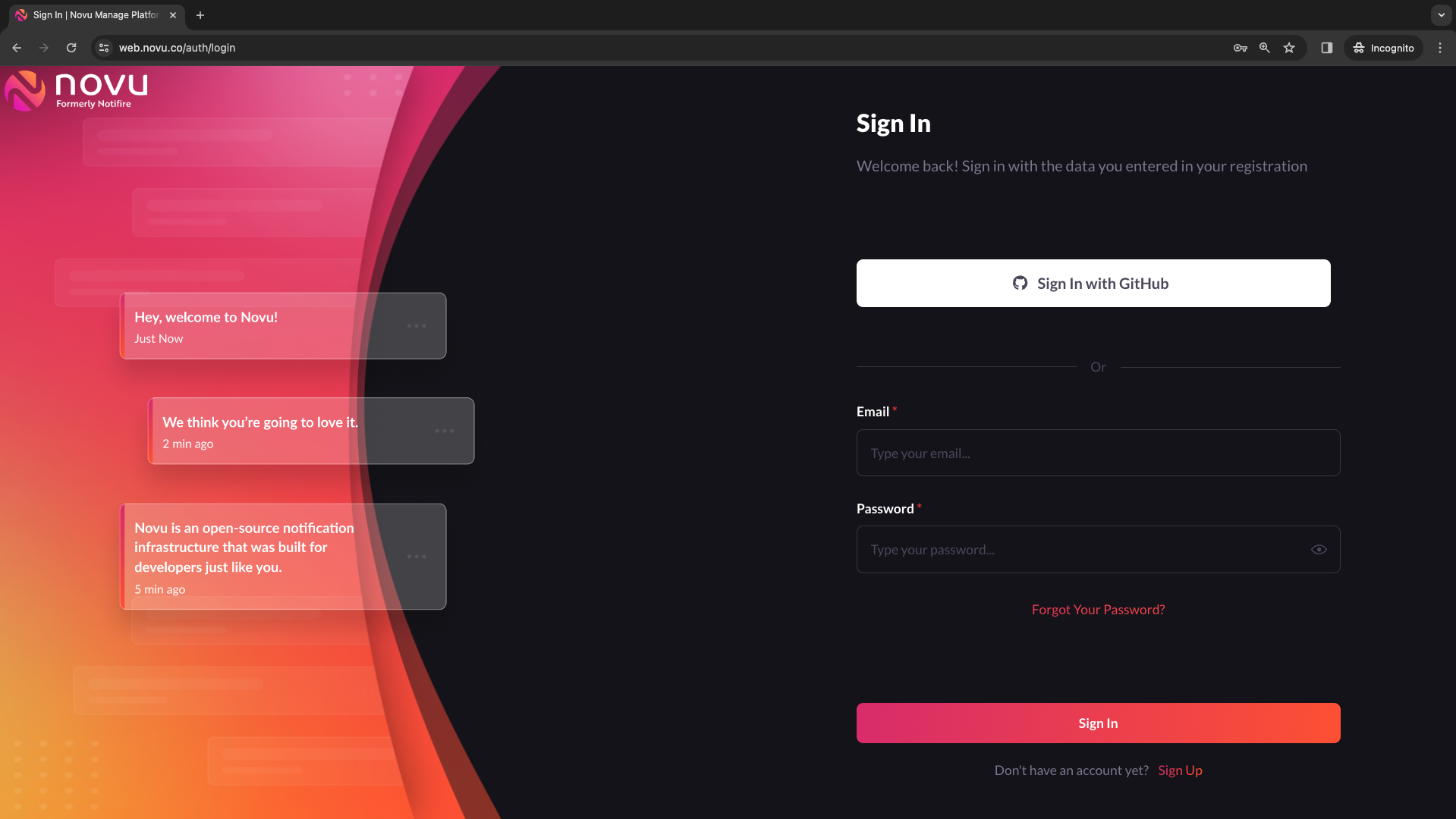
 ## Novu account creation
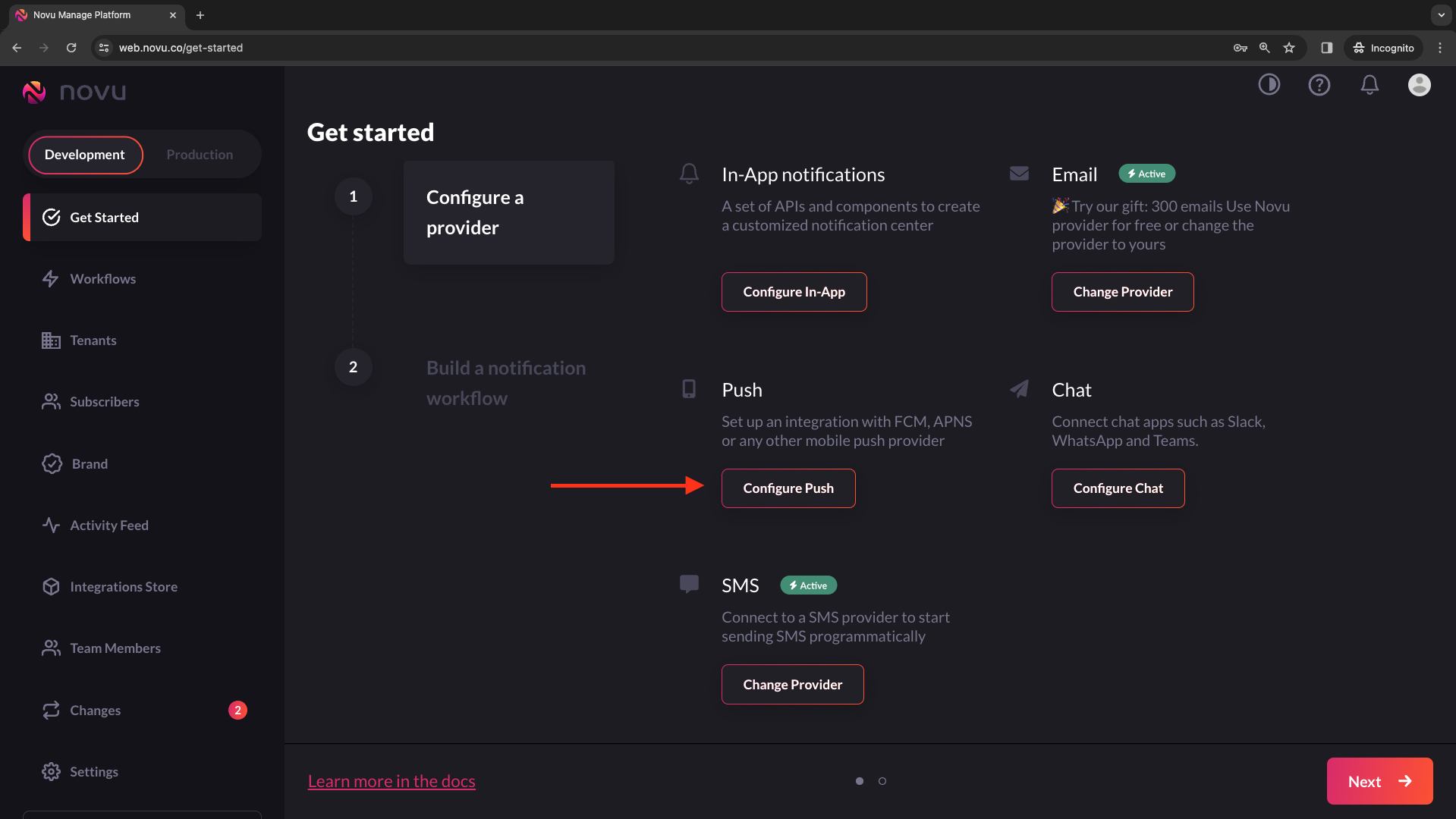
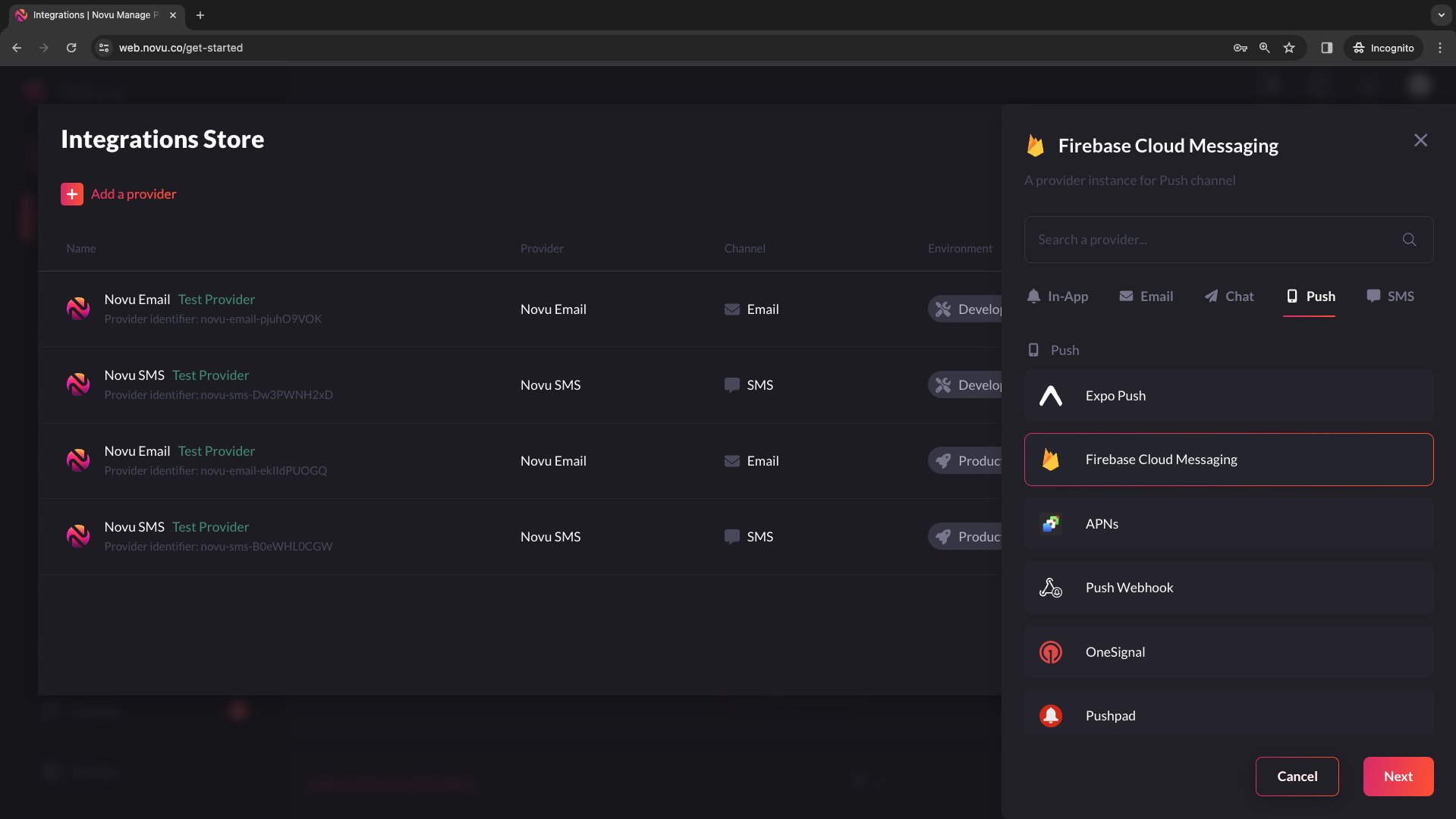
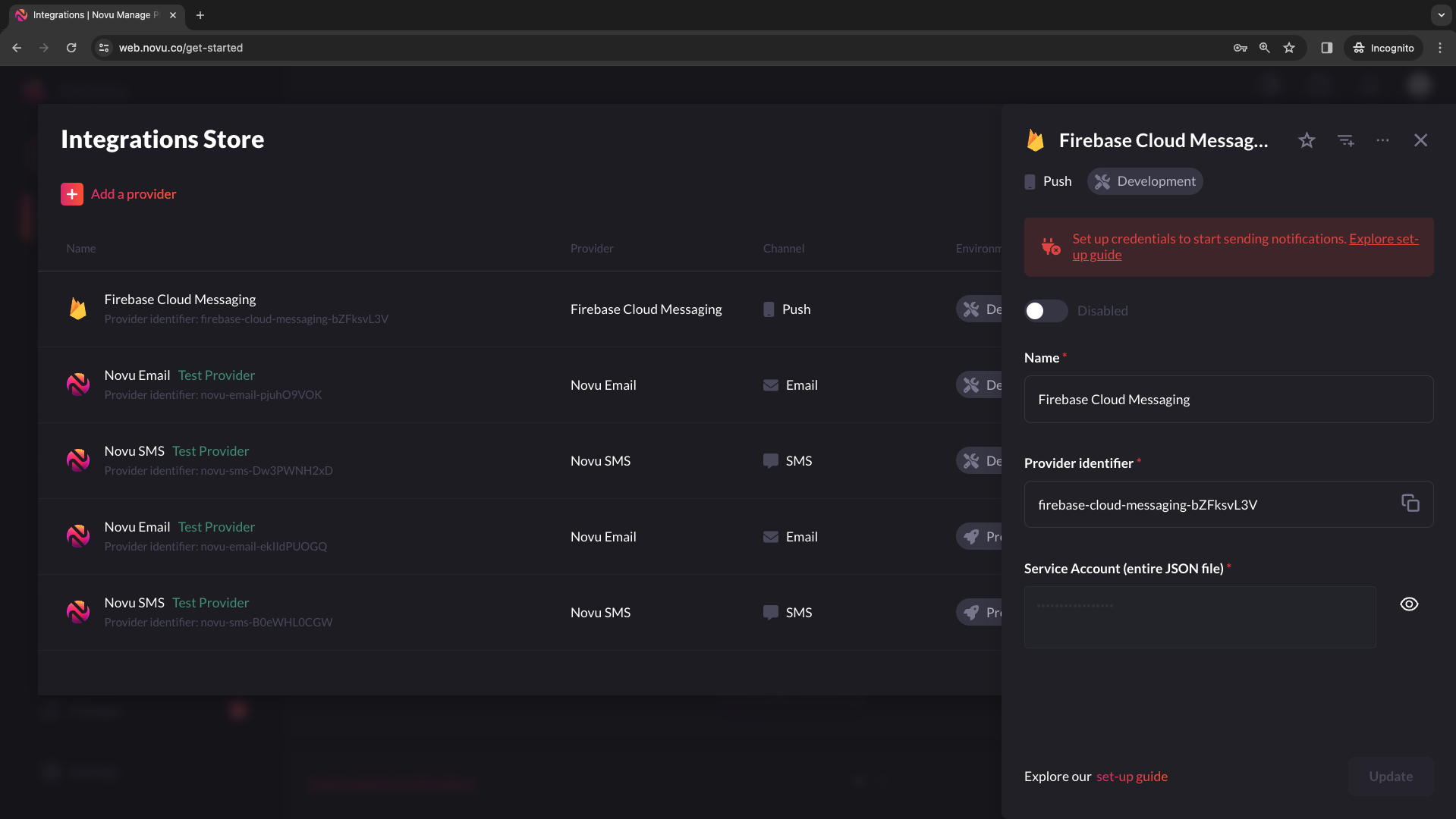
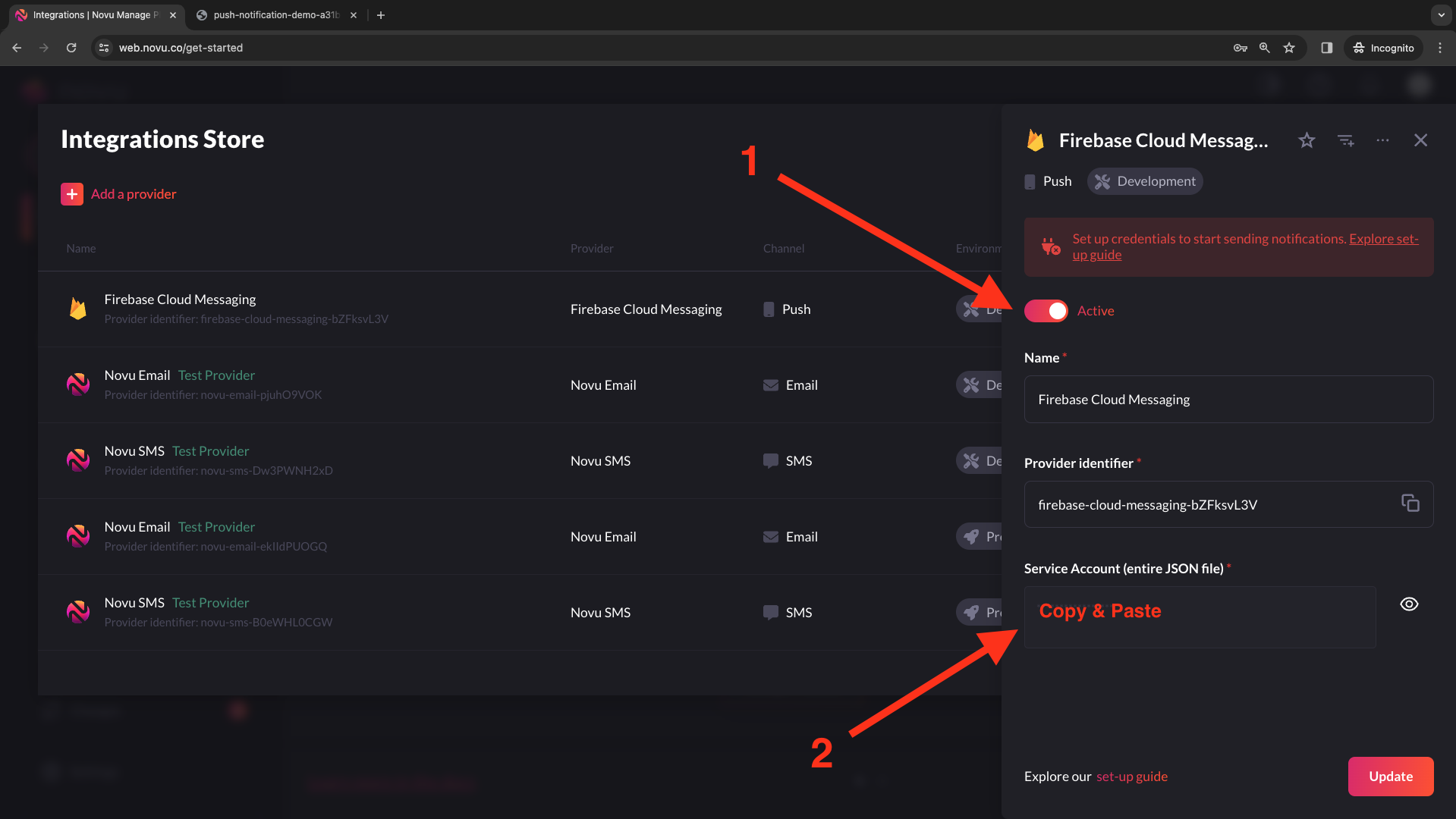
 You can immediately configure FCM as a Push channel provider or navigate to the Integration Store.
 ## Connecting FCM as a provider
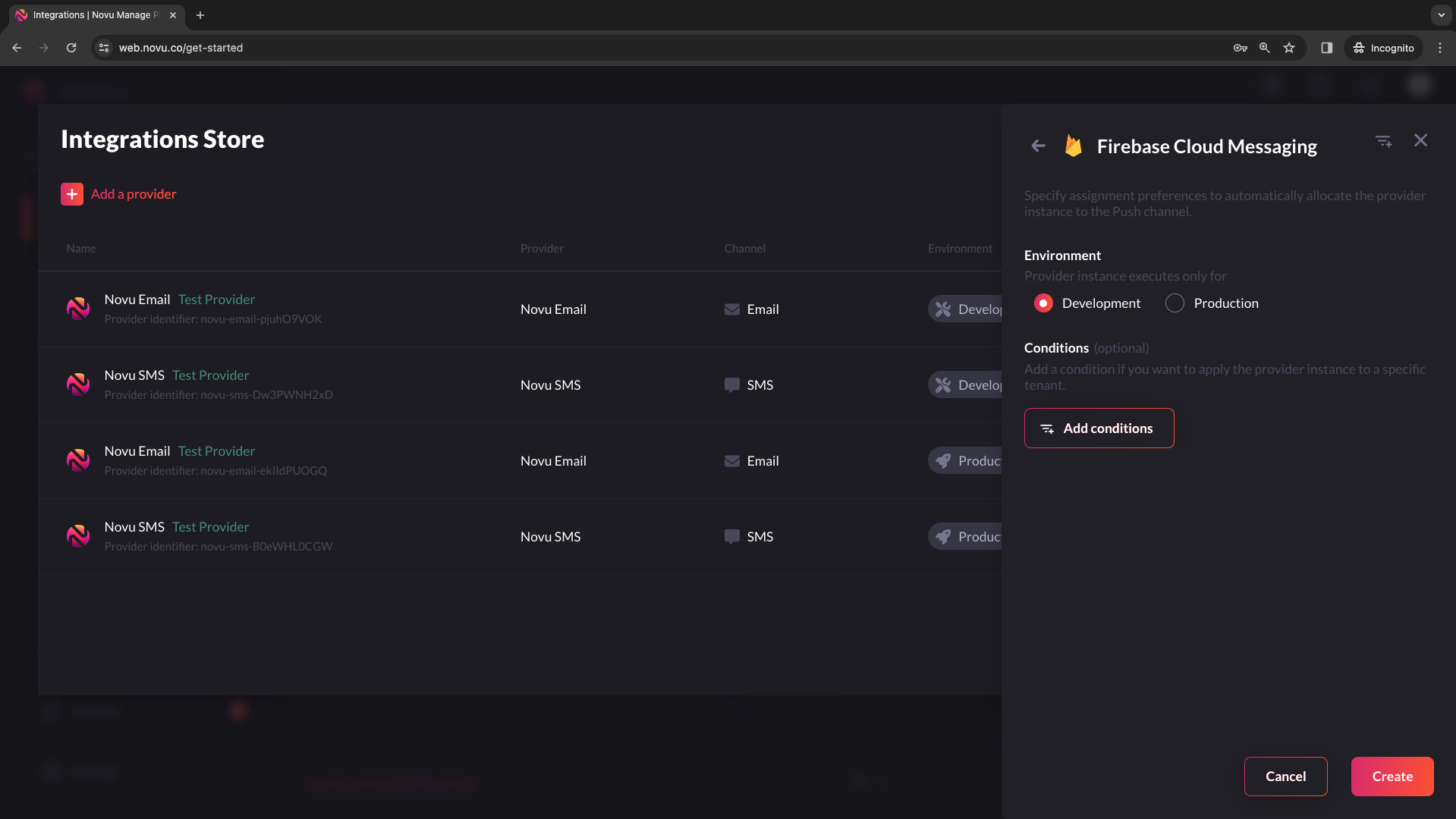 You only need to configure FCM with Novu with the Firebase Service Accounts private key.
To acquire the account key JSON file for your service account, follow this instructions:
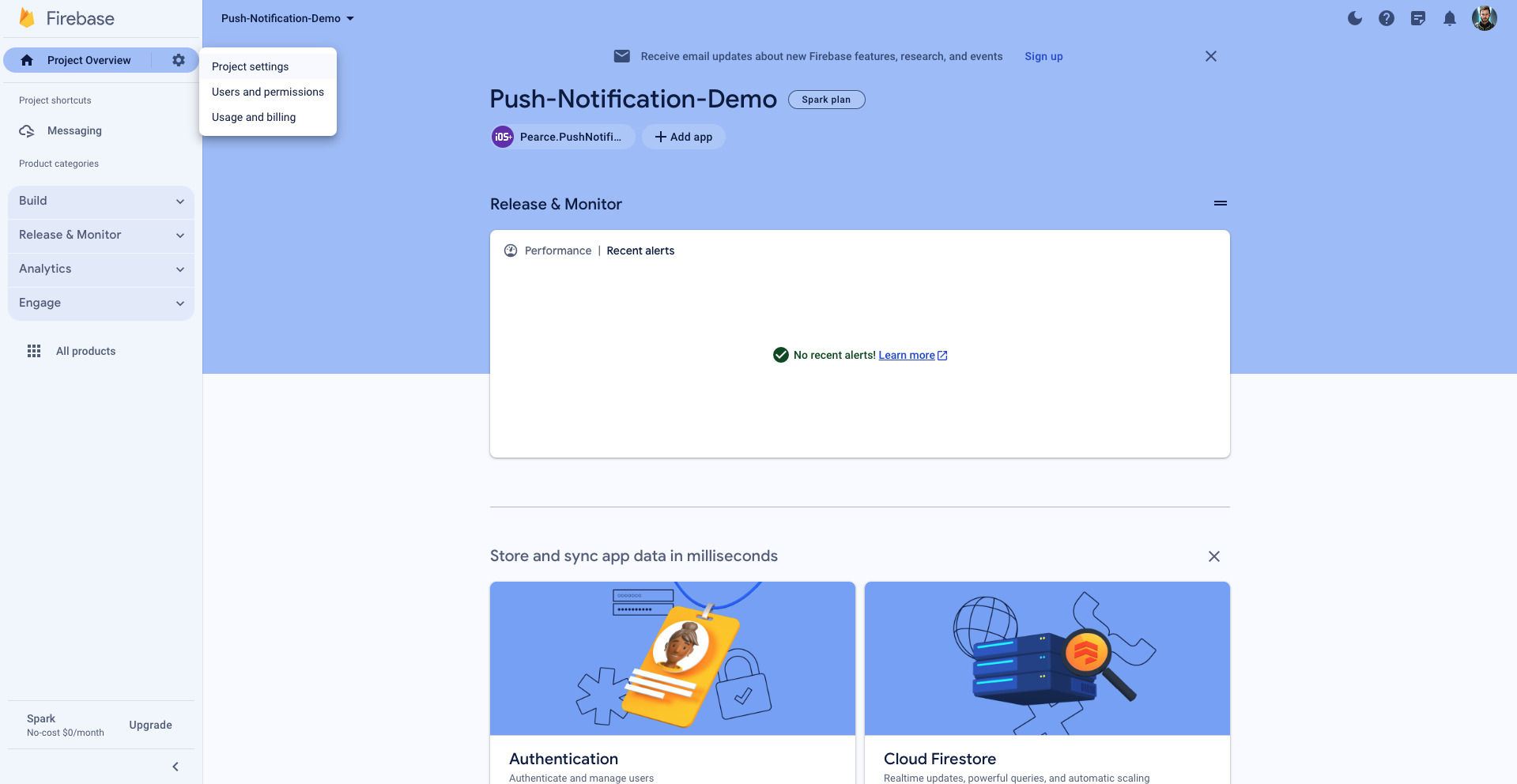
1. Select your project. Click the gear icon on the top of the sidebar.
2. Head to project settings.
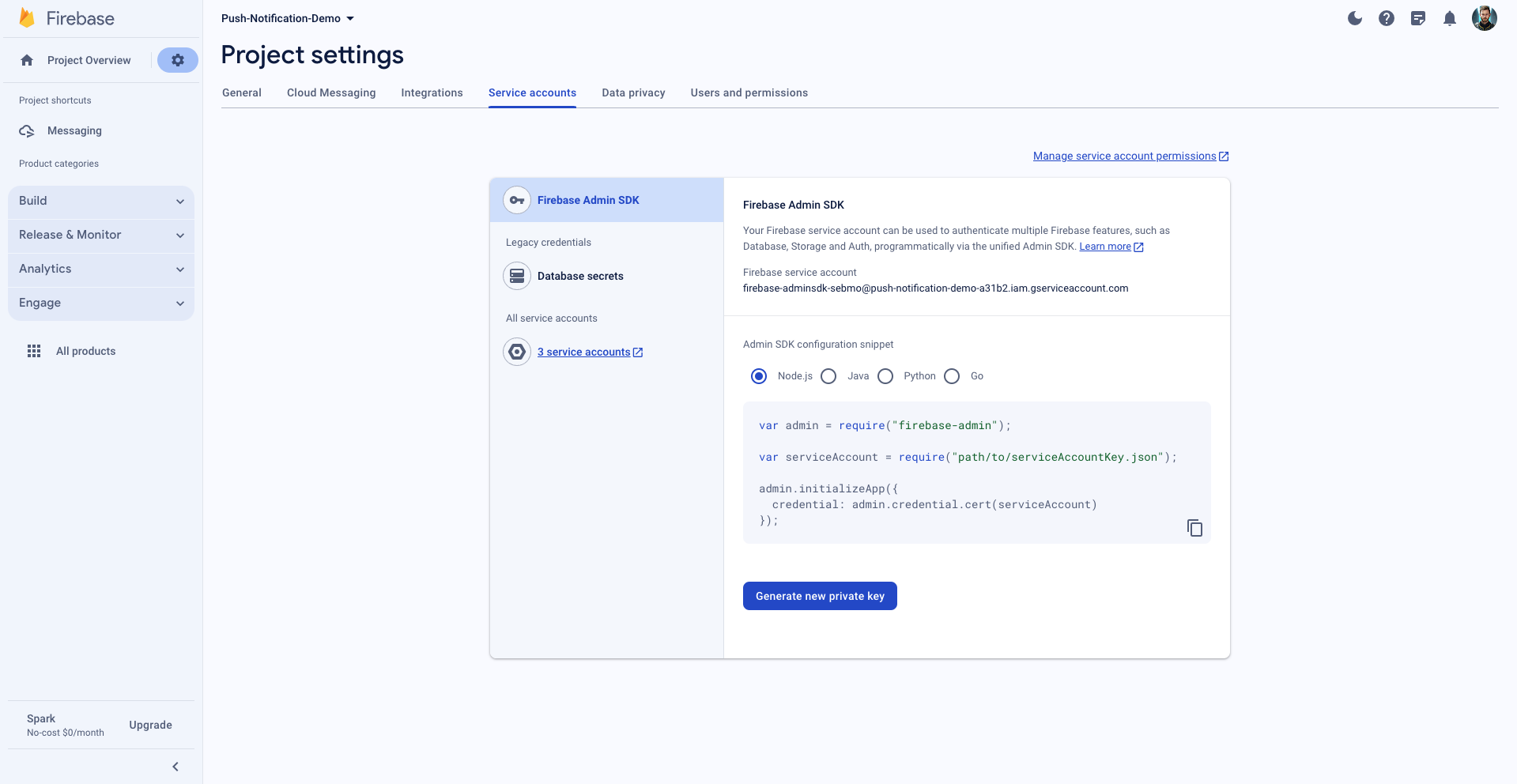
3. Navigate to the service account tab.
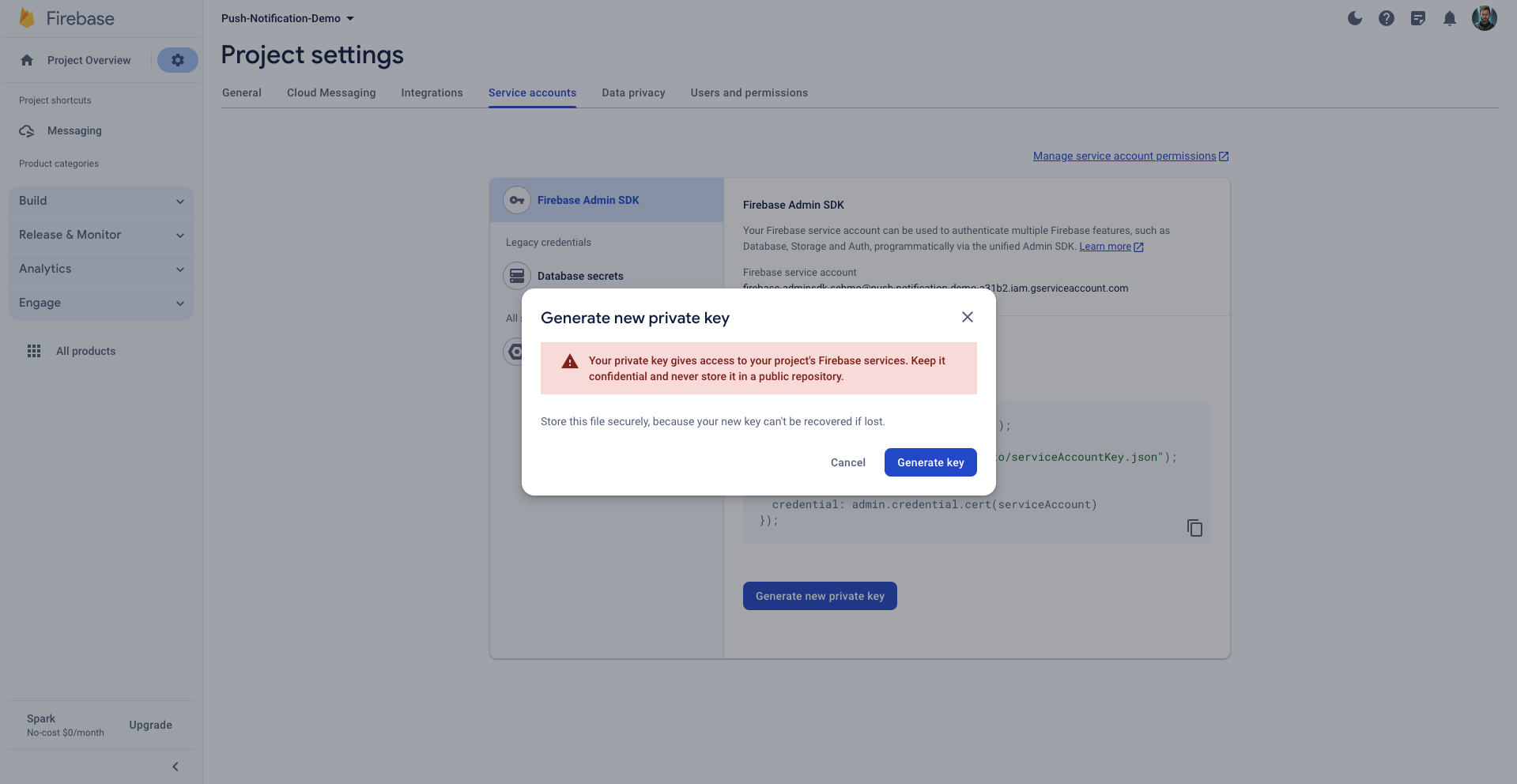
4. Click "Generate New Private Key", then confirm by clicking "Generate Key".
5. Clicking Generate Key will download the JSON file.
6. Once the file is on your machine, paste the entire JSON file content in the Service Account field of the FCM provider in the integration store on Novu’s web dashboard.
Make sure your service account key JSON content contains these fields:
```JSON theme={null}
{
"type": "service_account",
"project_id": "PROJECT_ID",
"private_key_id": "PRIVATE_KEY_ID",
"private_key": "PRIVATE_KEY",
"client_email": "FIREBASE_ADMIN_SDK_EMAIL",
"client_id": "CLIENT_ID",
"auth_uri": "https://accounts.google.com/o/oauth2/auth",
"token_uri": "https://oauth2.googleapis.com/token",
"auth_provider_x509_cert_url": "https://www.googleapis.com/oauth2/v1/certs",
"client_x509_cert_url": "CLIENT_X509_CERT_URL"
}
```
You only need to configure FCM with Novu with the Firebase Service Accounts private key.
To acquire the account key JSON file for your service account, follow this instructions:
1. Select your project. Click the gear icon on the top of the sidebar.
2. Head to project settings.
3. Navigate to the service account tab.
4. Click "Generate New Private Key", then confirm by clicking "Generate Key".
5. Clicking Generate Key will download the JSON file.
6. Once the file is on your machine, paste the entire JSON file content in the Service Account field of the FCM provider in the integration store on Novu’s web dashboard.
Make sure your service account key JSON content contains these fields:
```JSON theme={null}
{
"type": "service_account",
"project_id": "PROJECT_ID",
"private_key_id": "PRIVATE_KEY_ID",
"private_key": "PRIVATE_KEY",
"client_email": "FIREBASE_ADMIN_SDK_EMAIL",
"client_id": "CLIENT_ID",
"auth_uri": "https://accounts.google.com/o/oauth2/auth",
"token_uri": "https://oauth2.googleapis.com/token",
"auth_provider_x509_cert_url": "https://www.googleapis.com/oauth2/v1/certs",
"client_x509_cert_url": "CLIENT_X509_CERT_URL"
}
```
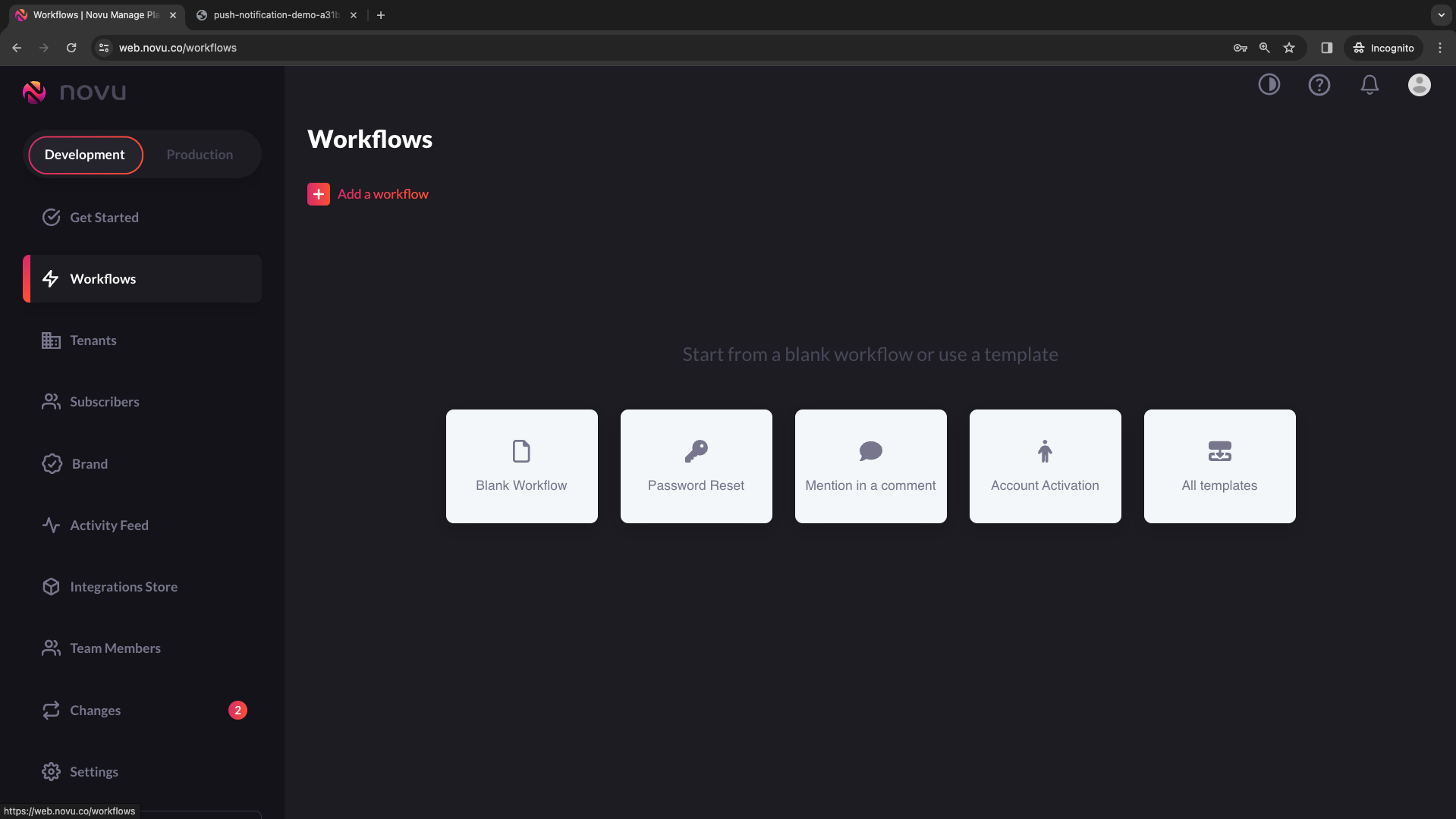
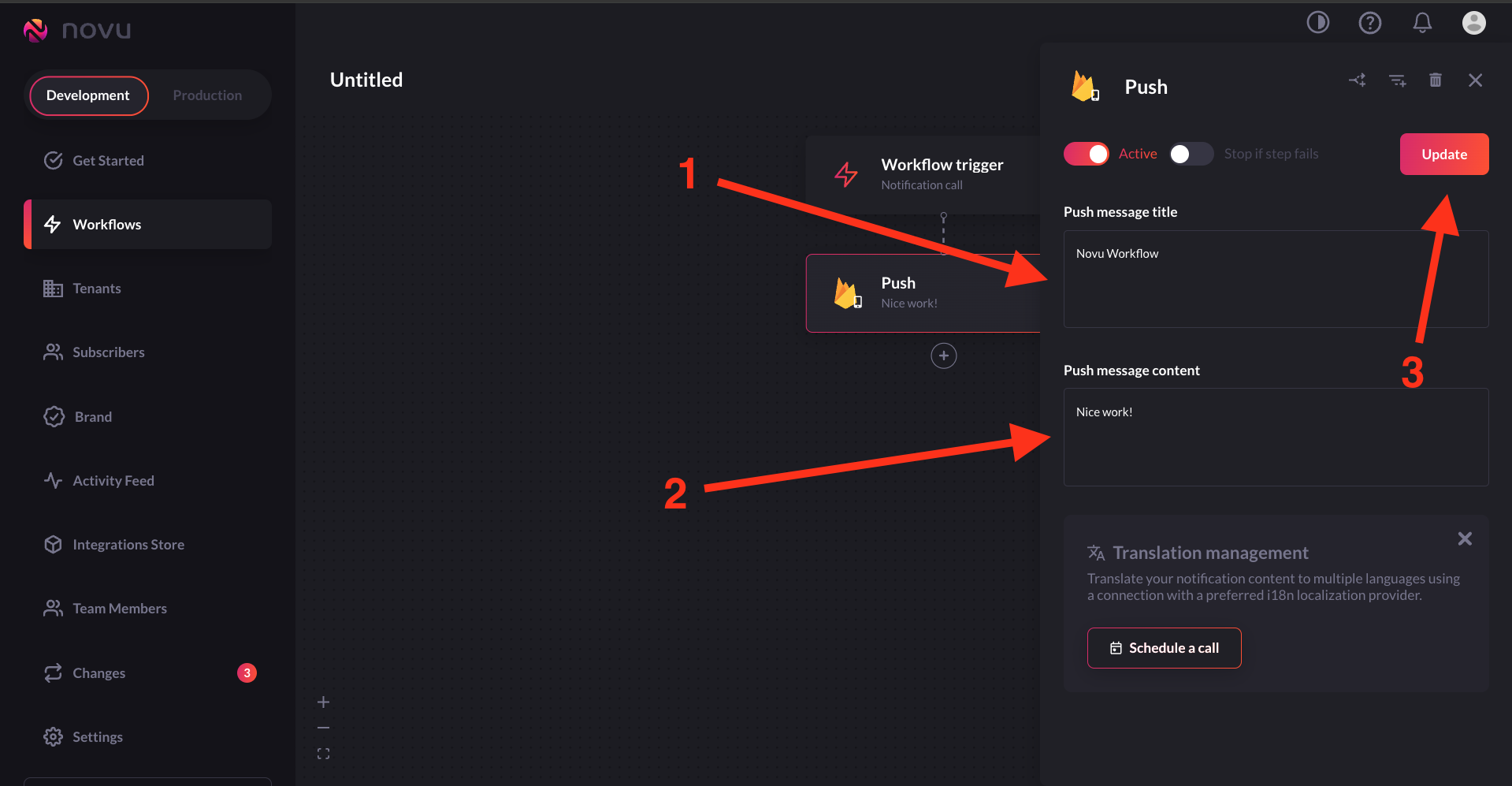
 ## Creating a workflow
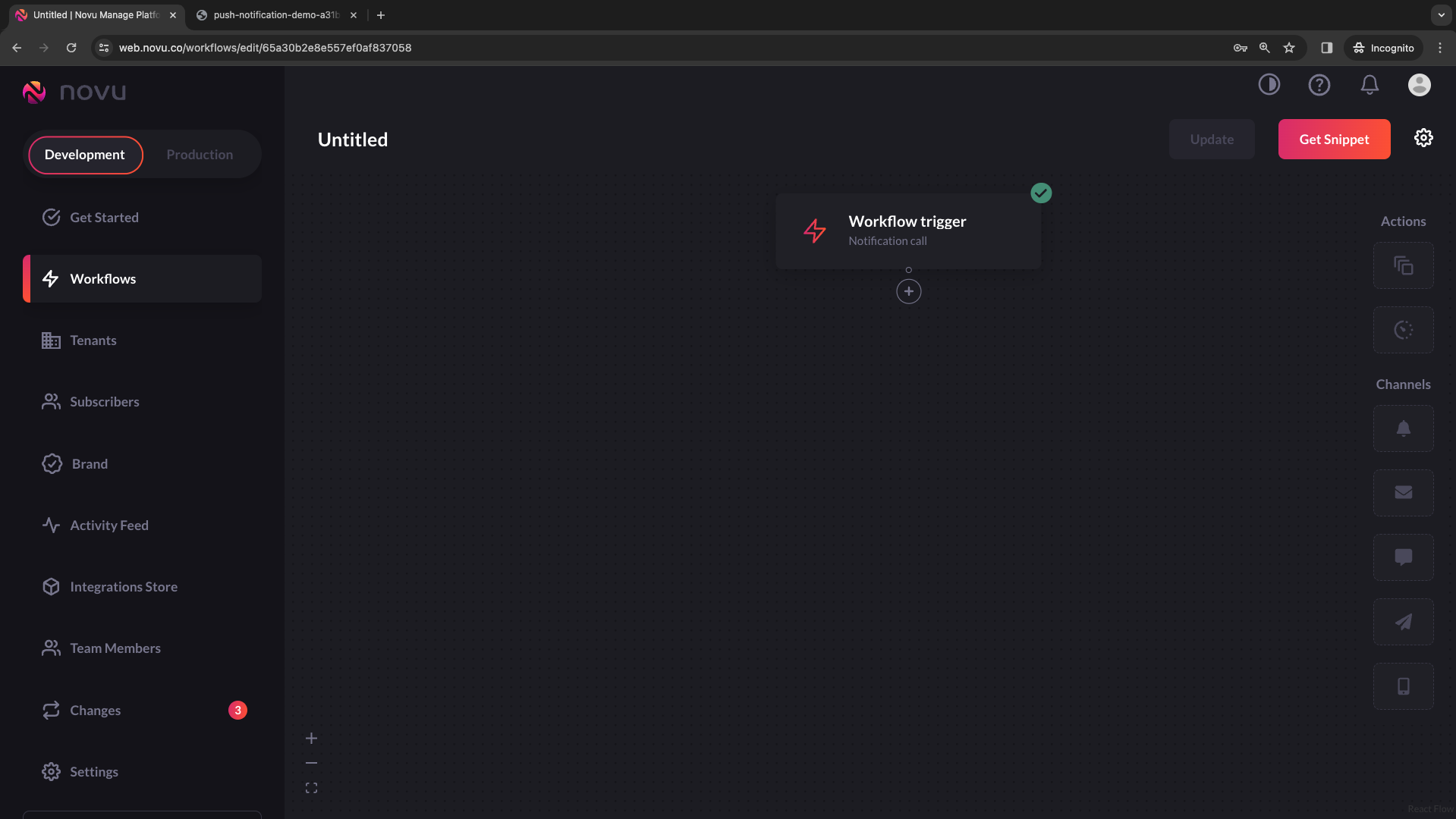
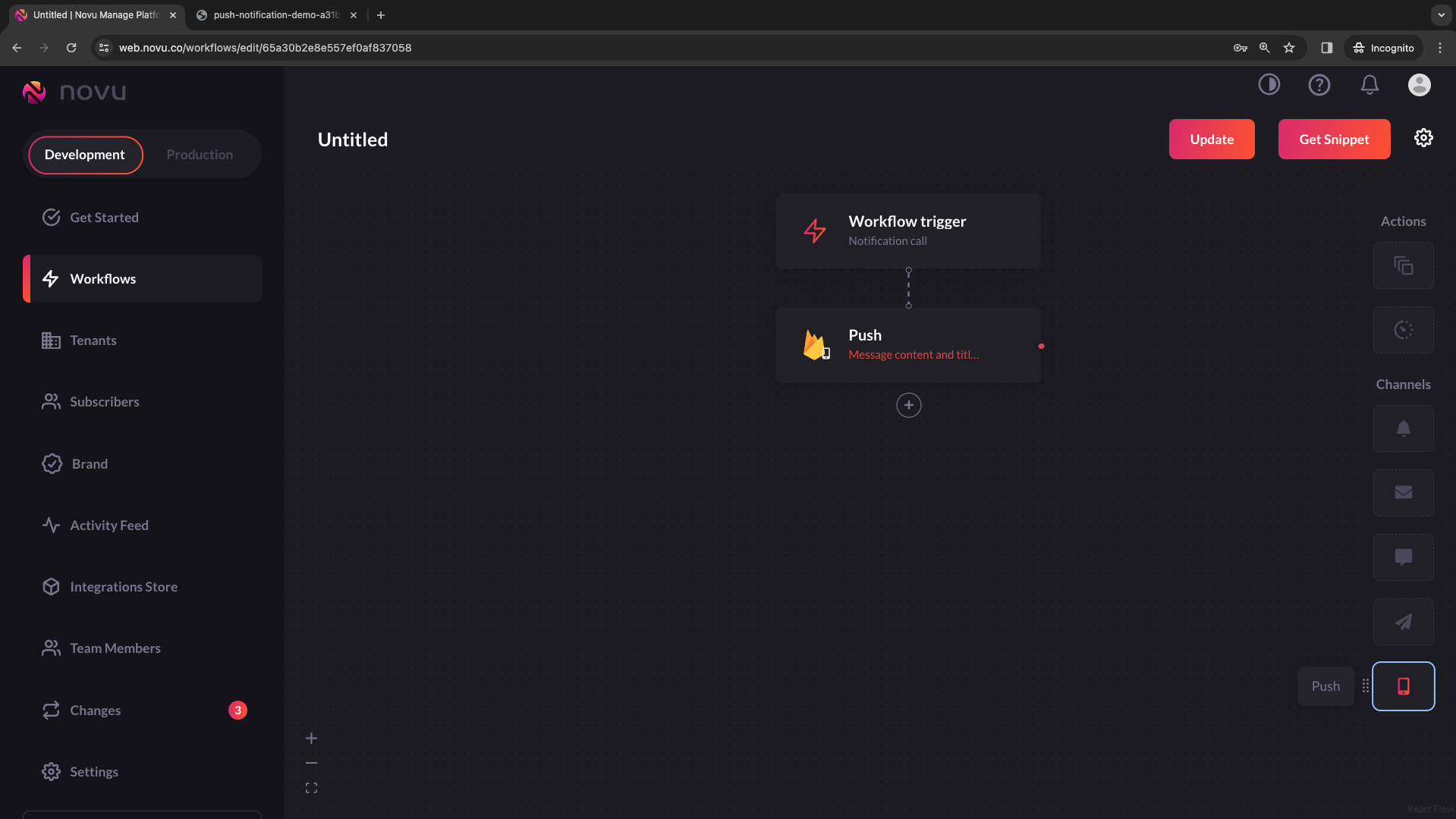
In Novu, creating a workflow means establishing a blueprint for sending notifications within your app. This unified structure ties together email, in-app messages, SMS, push notifications, and chat into **one entity**.
Each workflow has a unique name and identifier and includes customized content for various channels, using `{{handlebars}}` variables for personalization.
This ensures consistent platform notifications and allows dynamic adjustments for individual subscribers, scenarios, and use cases.
Workflow creation is for streamlining automated notifications, enabling teams to communicate effectively without extensive technical expertise.
## Creating a workflow
In Novu, creating a workflow means establishing a blueprint for sending notifications within your app. This unified structure ties together email, in-app messages, SMS, push notifications, and chat into **one entity**.
Each workflow has a unique name and identifier and includes customized content for various channels, using `{{handlebars}}` variables for personalization.
This ensures consistent platform notifications and allows dynamic adjustments for individual subscribers, scenarios, and use cases.
Workflow creation is for streamlining automated notifications, enabling teams to communicate effectively without extensive technical expertise.
 ## Creating a subscriber
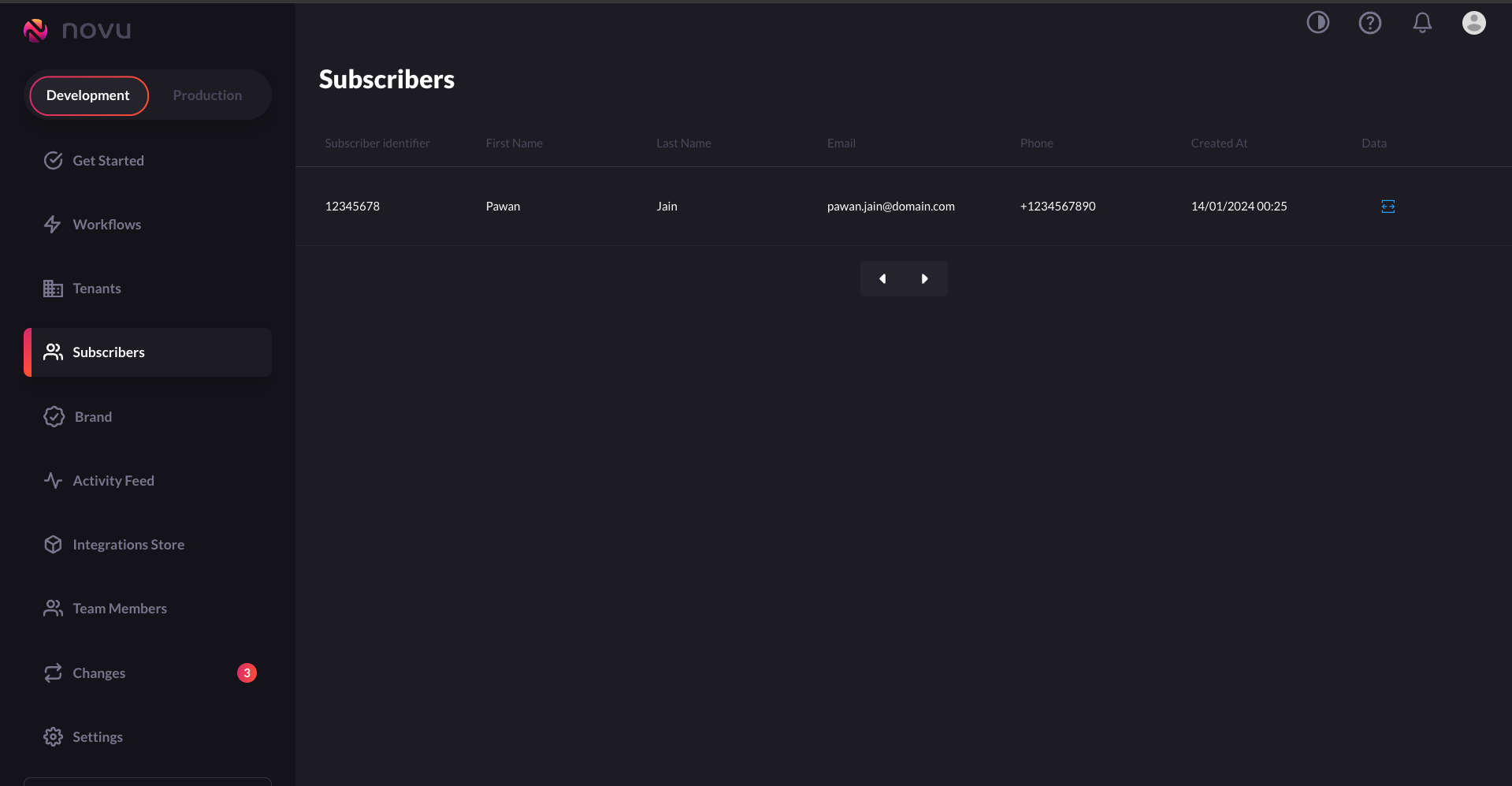
Creating a subscriber in Novu refers to the process of establishing a subscriber entity within the Novu platform. A subscriber is essentially the recipient of the notifications sent through Novu's system. When you create a subscriber, you're setting up the necessary information for Novu to send targeted notifications to that individual.
## Creating a subscriber
Creating a subscriber in Novu refers to the process of establishing a subscriber entity within the Novu platform. A subscriber is essentially the recipient of the notifications sent through Novu's system. When you create a subscriber, you're setting up the necessary information for Novu to send targeted notifications to that individual.
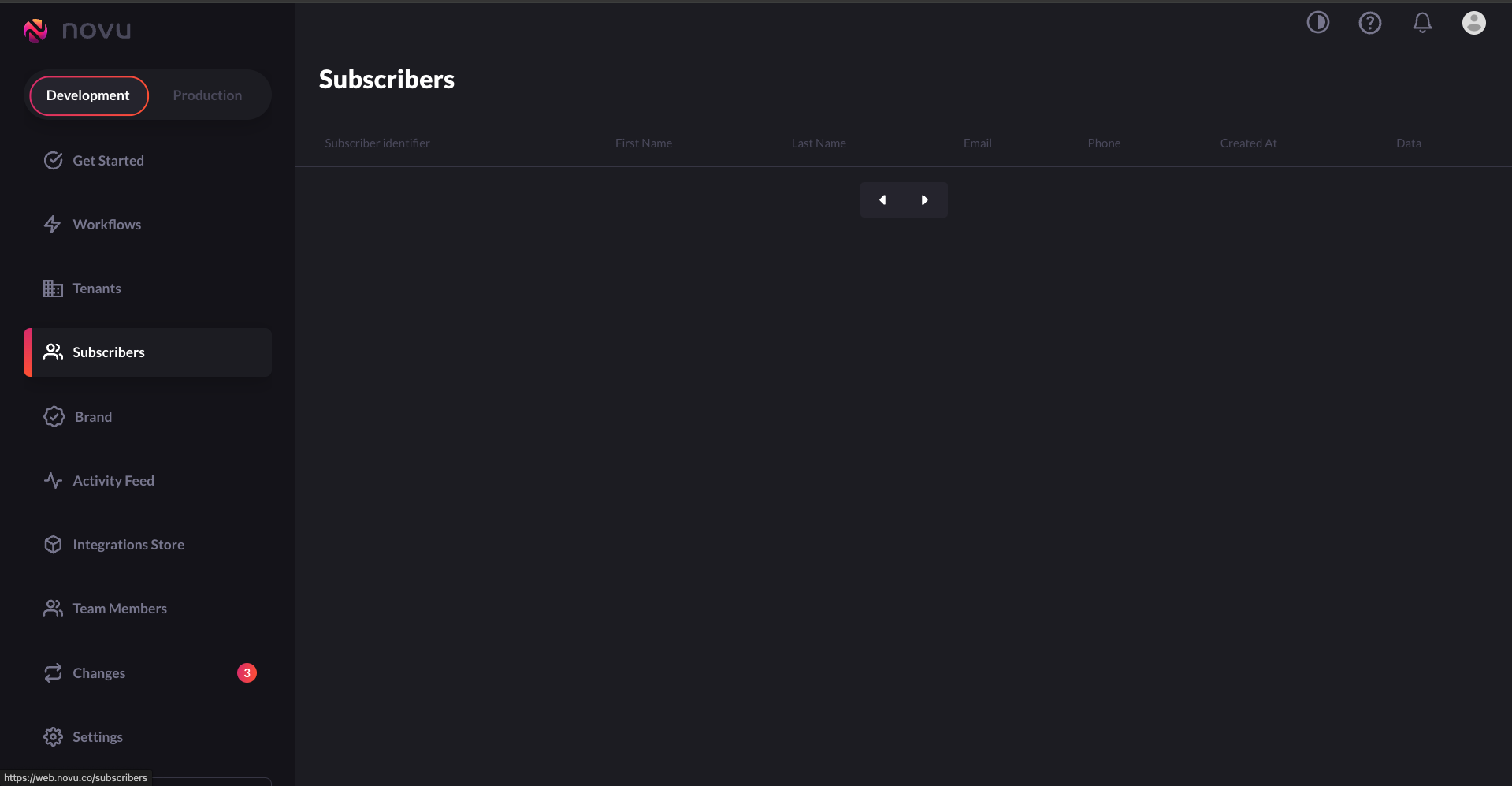 ```JSON theme={null}
curl --location 'https://api.novu.co/v1/subscribers' \
--header 'Content-Type: application/json' \
--header 'Accept: application/json' \
--header 'Authorization: ApiKey ' \
--data-raw '{
"subscriberId": "12345678",
"firstName": "Pawan",
"lastName": "Jain",
"email": "pawan.jain@domain.com",
"phone": "+1234567890",
"avatar": "avatar-url",
"locale": "en-US",
"data": {
"isDeveloper": true,
"customKey": "customValue"
}
}'
```
```JSON theme={null}
curl --location 'https://api.novu.co/v1/subscribers' \
--header 'Content-Type: application/json' \
--header 'Accept: application/json' \
--header 'Authorization: ApiKey ' \
--data-raw '{
"subscriberId": "12345678",
"firstName": "Pawan",
"lastName": "Jain",
"email": "pawan.jain@domain.com",
"phone": "+1234567890",
"avatar": "avatar-url",
"locale": "en-US",
"data": {
"isDeveloper": true,
"customKey": "customValue"
}
}'
```
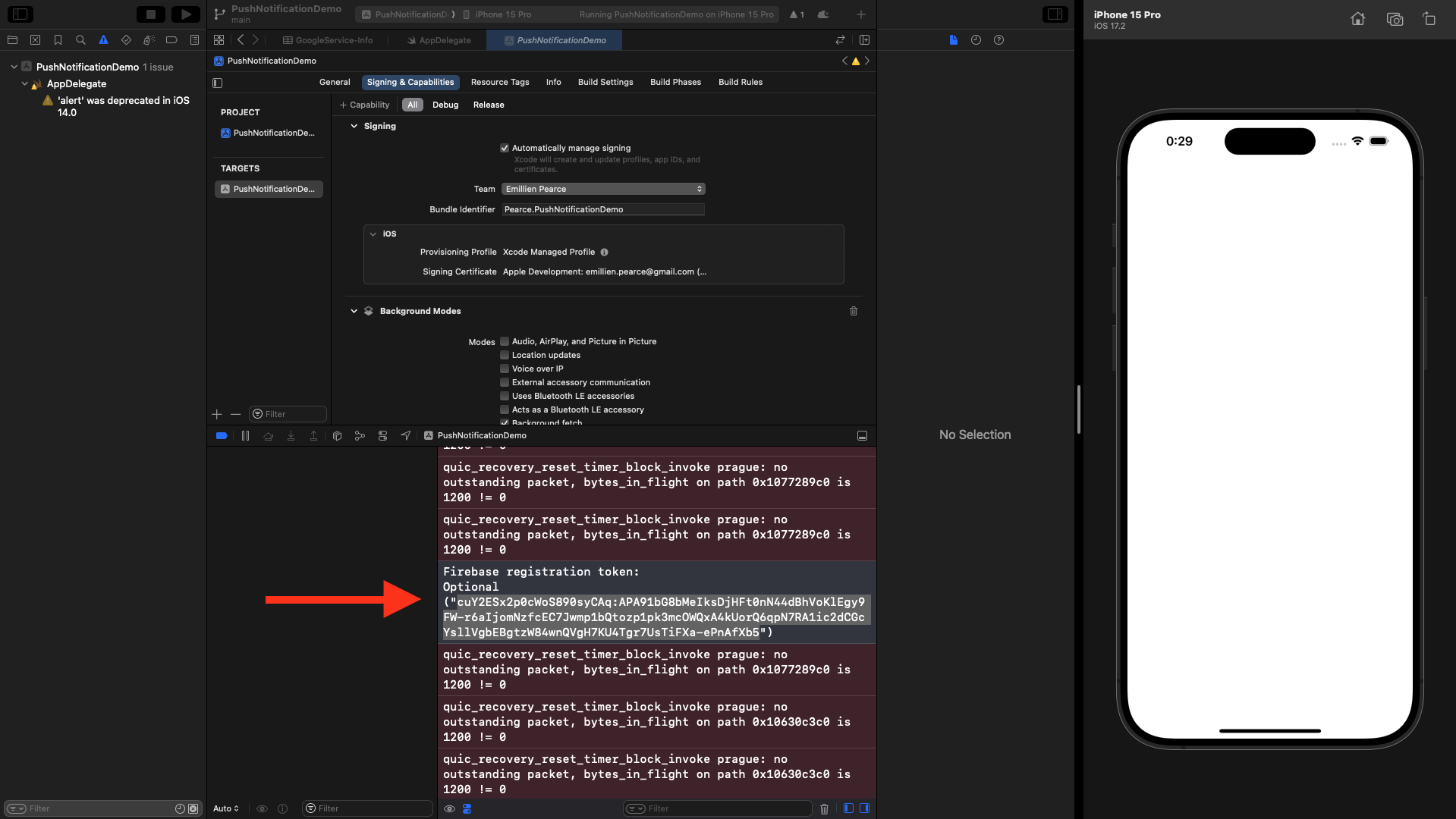 Subscriber can have multiple device tokens
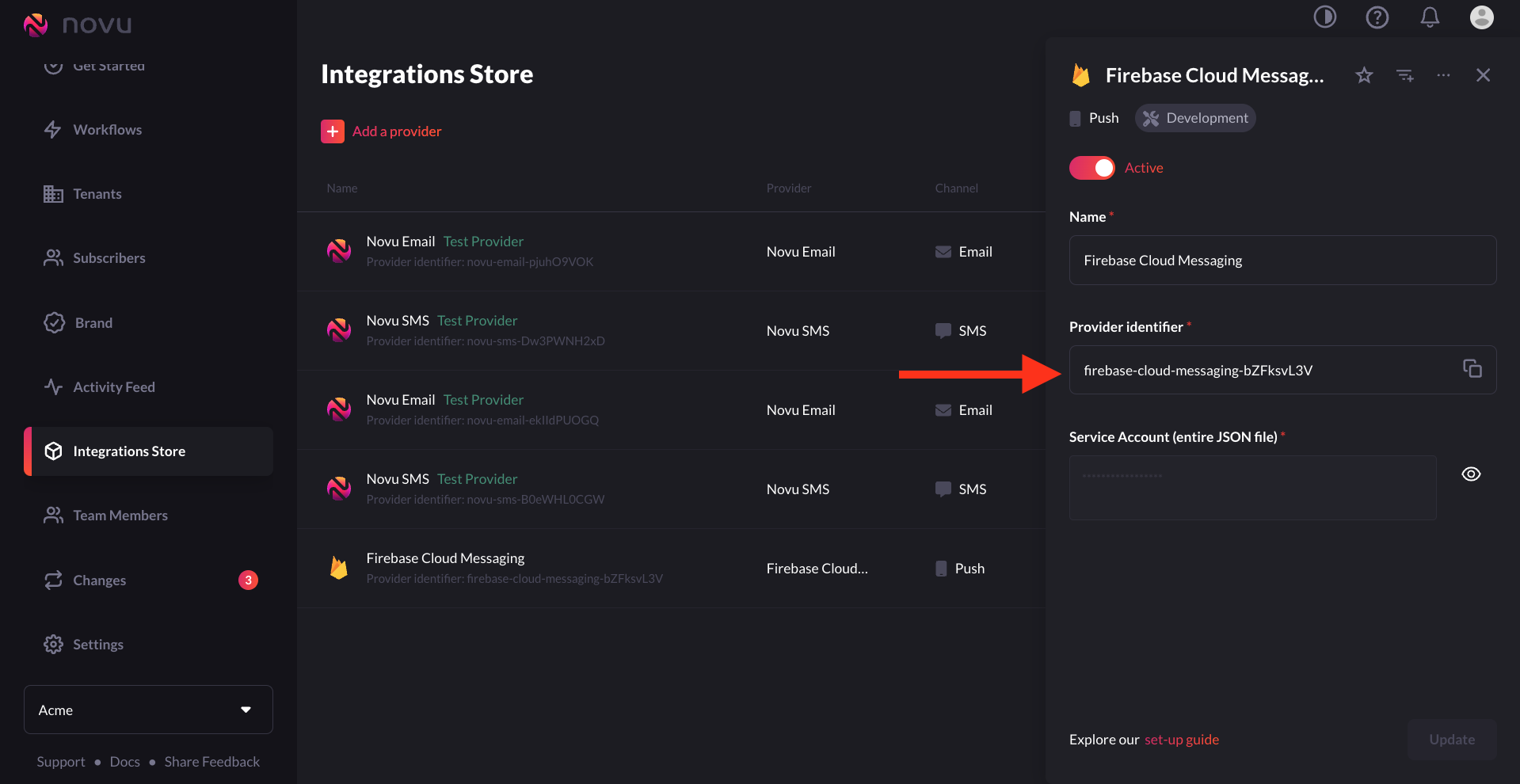
Here, you can locate the Provider\_Identifier.
Subscriber can have multiple device tokens
Here, you can locate the Provider\_Identifier.
 ```JSON theme={null}
curl --request PUT \
--url https://api.novu.co/v1/subscribers/{subscriber_id}/credentials \
--header 'Content-Type: application/json' \
--header 'Authorization: ApiKey ' \
--data '{
"credentials":{
"deviceTokens": ["token1", "token2"]
},
"integrationIdentifier":"",
"providerId":"fcm"
}'
```
## Sending a notification to iOS device with Novu
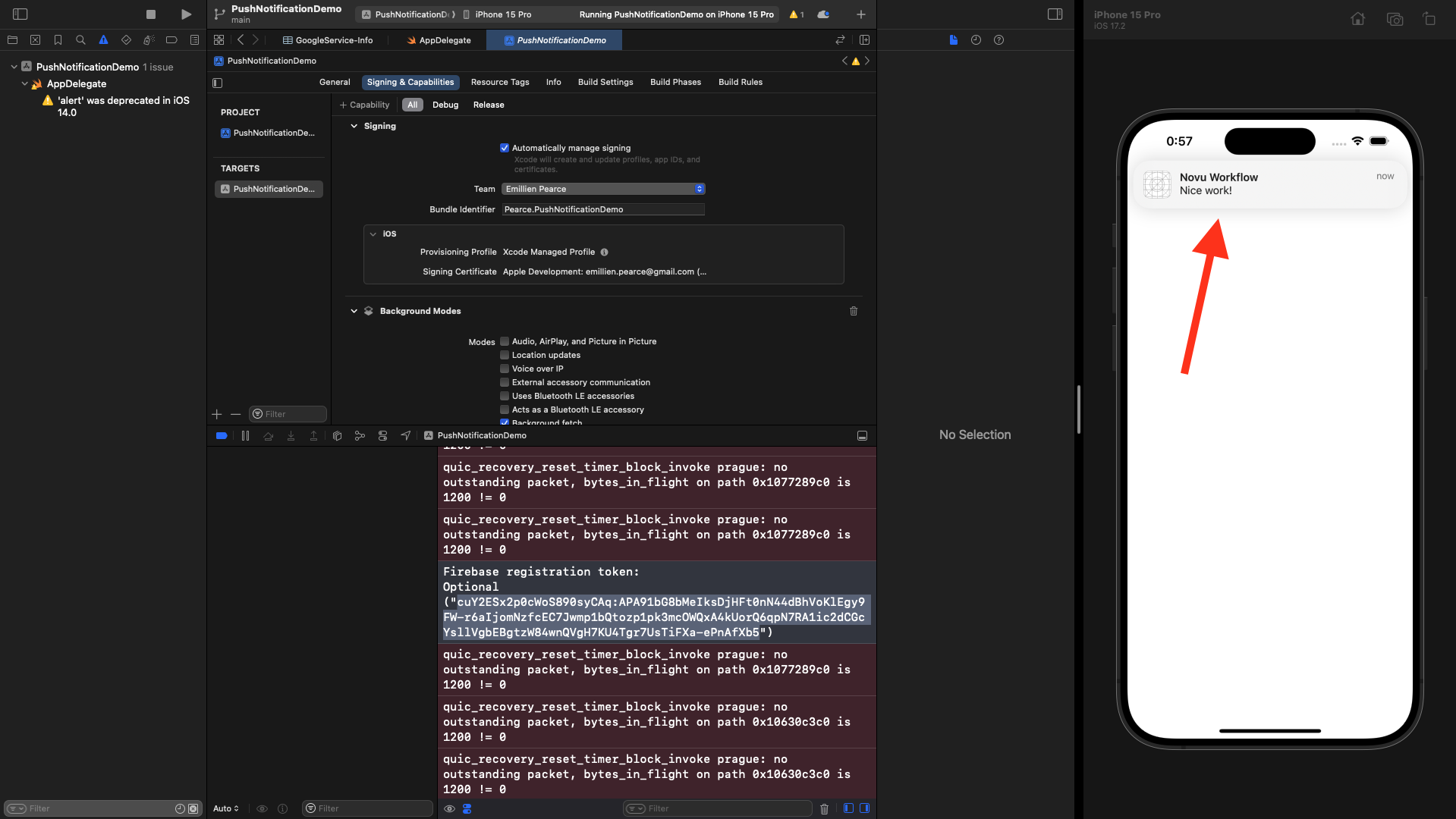
To send a notification with Novu, you are actually triggering a notification workflow.
You have the ability to test the trigger using the user interface or by calling Novu's API.
**Trigger a workflow via the API**
```JSON theme={null}
curl --location --request POST 'https://api.novu.co/v1/events/trigger' \
--header 'Authorization: ApiKey ' \
--header 'Content-Type: application/json' \
--data-raw '{
"name": "untitled",
"to": {
"subscriberId": ""
},
"payload": {}
}'
```
```JSON theme={null}
curl --request PUT \
--url https://api.novu.co/v1/subscribers/{subscriber_id}/credentials \
--header 'Content-Type: application/json' \
--header 'Authorization: ApiKey ' \
--data '{
"credentials":{
"deviceTokens": ["token1", "token2"]
},
"integrationIdentifier":"",
"providerId":"fcm"
}'
```
## Sending a notification to iOS device with Novu
To send a notification with Novu, you are actually triggering a notification workflow.
You have the ability to test the trigger using the user interface or by calling Novu's API.
**Trigger a workflow via the API**
```JSON theme={null}
curl --location --request POST 'https://api.novu.co/v1/events/trigger' \
--header 'Authorization: ApiKey ' \
--header 'Content-Type: application/json' \
--data-raw '{
"name": "untitled",
"to": {
"subscriberId": ""
},
"payload": {}
}'
```
 ## Dynamic Content
When we were creating the first workflow, we "Hardcoded" the content of the notification.
Now, we will determine the content when calling the API.
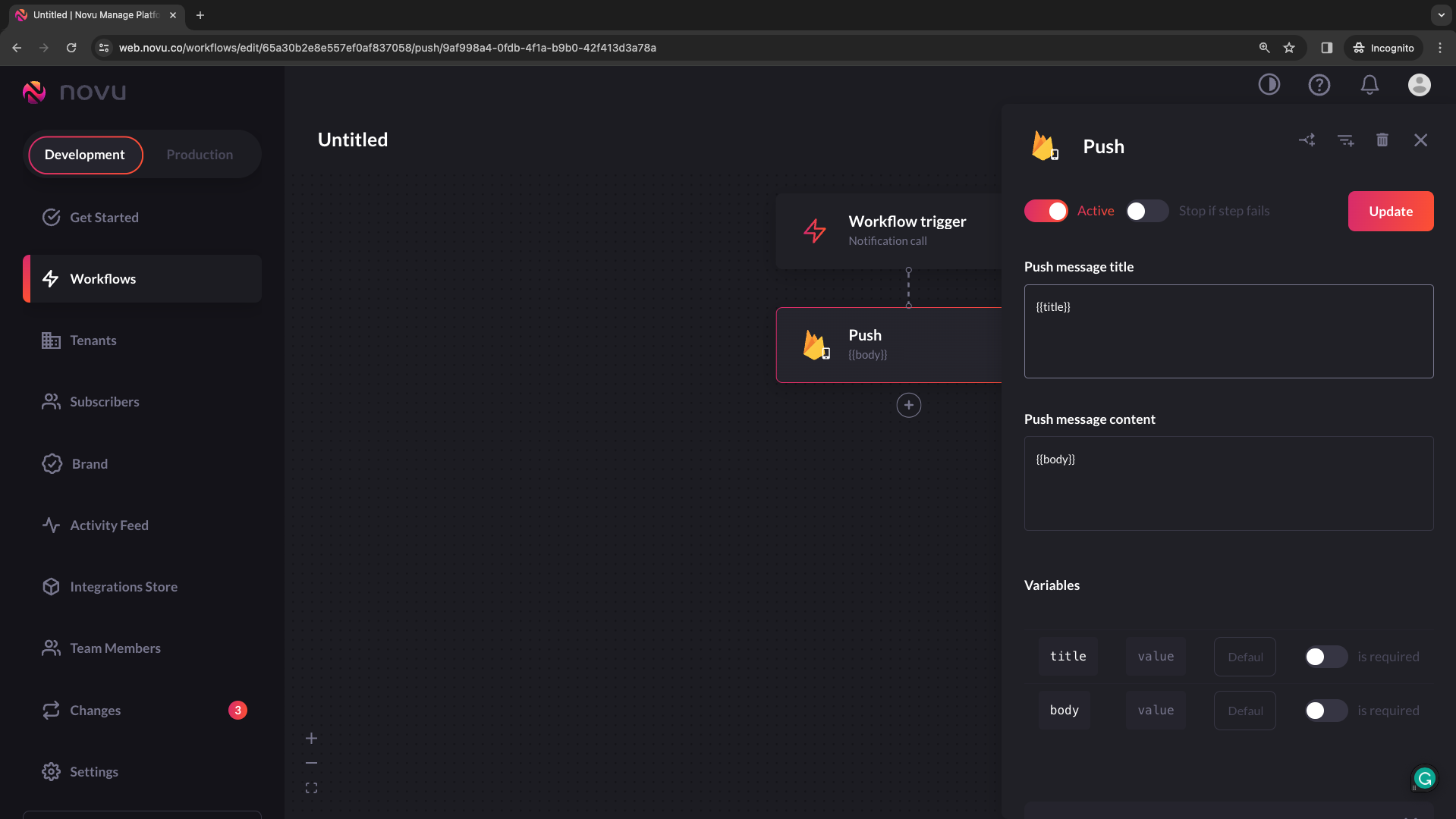
1. In the workflow, we should change the values of the `title` and the `body` to `{{title}}` and `{{body}}`.
That way, we could insert values through the payload of the API call.
## Dynamic Content
When we were creating the first workflow, we "Hardcoded" the content of the notification.
Now, we will determine the content when calling the API.
1. In the workflow, we should change the values of the `title` and the `body` to `{{title}}` and `{{body}}`.
That way, we could insert values through the payload of the API call.
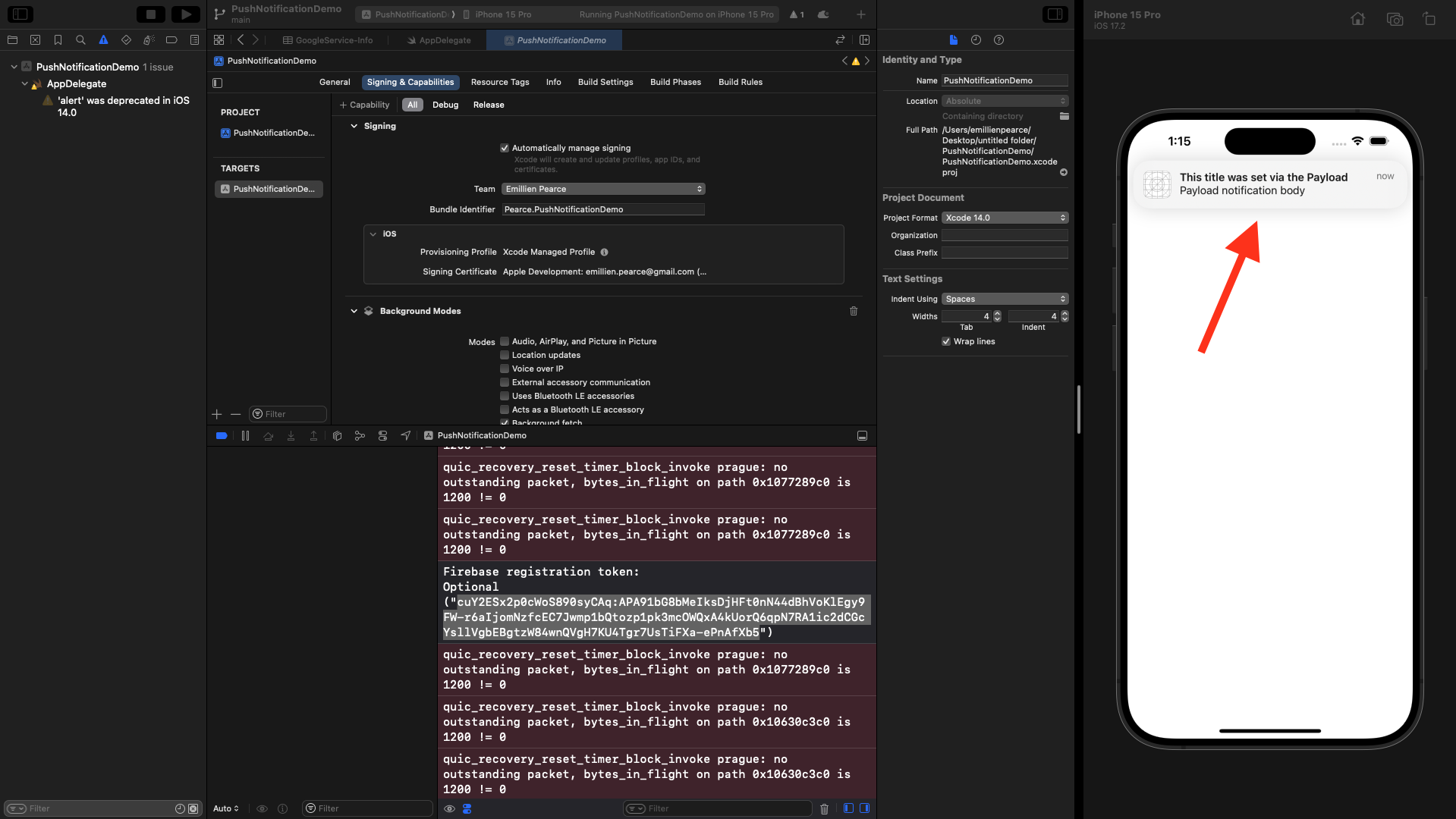
 2. Add a 'payload' object to the API call.
```JSON theme={null}
curl --location --request POST 'https://api.novu.co/v1/events/trigger' \
--header 'Authorization: ApiKey ' \
--header 'Content-Type: application/json' \
--data-raw '{
"name": "untitled",
"to": {
"subscriberId": "12345678"
},
"payload": {
"title": "This title was set via the Payload",
"body": "Payload notification body"
},
}'
```
2. Add a 'payload' object to the API call.
```JSON theme={null}
curl --location --request POST 'https://api.novu.co/v1/events/trigger' \
--header 'Authorization: ApiKey ' \
--header 'Content-Type: application/json' \
--data-raw '{
"name": "untitled",
"to": {
"subscriberId": "12345678"
},
"payload": {
"title": "This title was set via the Payload",
"body": "Payload notification body"
},
}'
```
 ## Sound of a notification
The name of a sound file in your app's main bundle or in the Library/Sounds folder of your app's container directory.
Specify the string "default" to play the system sound.
Use this key for regular notifications. For critical alerts, use the sound dictionary instead.
```JSON theme={null}
curl --location --request POST 'https://api.novu.co/v1/events/trigger' \
--header 'Authorization: ApiKey ' \
--header 'Content-Type: application/json' \
--data-raw '{
"name": "untitled",
"to": {
"subscriberId": "12345678"
},
"payload": {
"title": "Notification With Sound",
"body": "Hello World from Novu"
},
"overrides": {
"fcm": {
"apns": {
"payload": {
"aps": {
"sound": "default" // configure sound to the notification
}
}
}
}
}
}'
```
## Priority for notification
If you omit this header, APNs set the notification priority to `10`.
Specify `10` to send the notification immediately.
Specify `5` to send the notification based on power considerations on the user’s device.
Specify `1` to prioritize the device’s power considerations over all other factors for delivery and prevent awakening the device.
```JSON theme={null}
curl --location --request POST 'https://api.novu.co/v1/events/trigger' \
--header 'Authorization: ApiKey ' \
--header 'Content-Type: application/json' \
--data-raw '{
"name": "untitled",
"to": {
"subscriberId": "12345678"
},
"payload": {
"title": "apns-priority: 5",
"body": "Novu's API"
},
"overrides": {
"fcm": {
"apns": {
"headers": {
"apns-priority":"5" //priority for notifications
},
"payload": {
"aps": {}
},
"fcm_options": {}
}
}
}
}'
```
## Sending images
Up to this point, your notifications have all contained only text. But if you’ve received many notifications, you know that notifications can have rich content, such as images. It’d be great if your notifications showed users a nice image related to their content. Once again, Firebase makes this super simple.
To show an image in push notifications, you’ll need to create a ***Notification Service Extension***. This is a separate target in your app that runs in the background when your user receives a push notification. The service extension can receive a notification and change its contents before iOS shows the notification to the user.
You’ll use Firebase to send an image URL inside a notification.
You’ll then use a content extension to download the image and add it to the notification’s content.
In Xcode, go to File ▸ New ▸ Target…. Search for Notification Service Extension and select Next. Set a name and configure it to add to your main project.
## Sound of a notification
The name of a sound file in your app's main bundle or in the Library/Sounds folder of your app's container directory.
Specify the string "default" to play the system sound.
Use this key for regular notifications. For critical alerts, use the sound dictionary instead.
```JSON theme={null}
curl --location --request POST 'https://api.novu.co/v1/events/trigger' \
--header 'Authorization: ApiKey ' \
--header 'Content-Type: application/json' \
--data-raw '{
"name": "untitled",
"to": {
"subscriberId": "12345678"
},
"payload": {
"title": "Notification With Sound",
"body": "Hello World from Novu"
},
"overrides": {
"fcm": {
"apns": {
"payload": {
"aps": {
"sound": "default" // configure sound to the notification
}
}
}
}
}
}'
```
## Priority for notification
If you omit this header, APNs set the notification priority to `10`.
Specify `10` to send the notification immediately.
Specify `5` to send the notification based on power considerations on the user’s device.
Specify `1` to prioritize the device’s power considerations over all other factors for delivery and prevent awakening the device.
```JSON theme={null}
curl --location --request POST 'https://api.novu.co/v1/events/trigger' \
--header 'Authorization: ApiKey ' \
--header 'Content-Type: application/json' \
--data-raw '{
"name": "untitled",
"to": {
"subscriberId": "12345678"
},
"payload": {
"title": "apns-priority: 5",
"body": "Novu's API"
},
"overrides": {
"fcm": {
"apns": {
"headers": {
"apns-priority":"5" //priority for notifications
},
"payload": {
"aps": {}
},
"fcm_options": {}
}
}
}
}'
```
## Sending images
Up to this point, your notifications have all contained only text. But if you’ve received many notifications, you know that notifications can have rich content, such as images. It’d be great if your notifications showed users a nice image related to their content. Once again, Firebase makes this super simple.
To show an image in push notifications, you’ll need to create a ***Notification Service Extension***. This is a separate target in your app that runs in the background when your user receives a push notification. The service extension can receive a notification and change its contents before iOS shows the notification to the user.
You’ll use Firebase to send an image URL inside a notification.
You’ll then use a content extension to download the image and add it to the notification’s content.
In Xcode, go to File ▸ New ▸ Target…. Search for Notification Service Extension and select Next. Set a name and configure it to add to your main project.
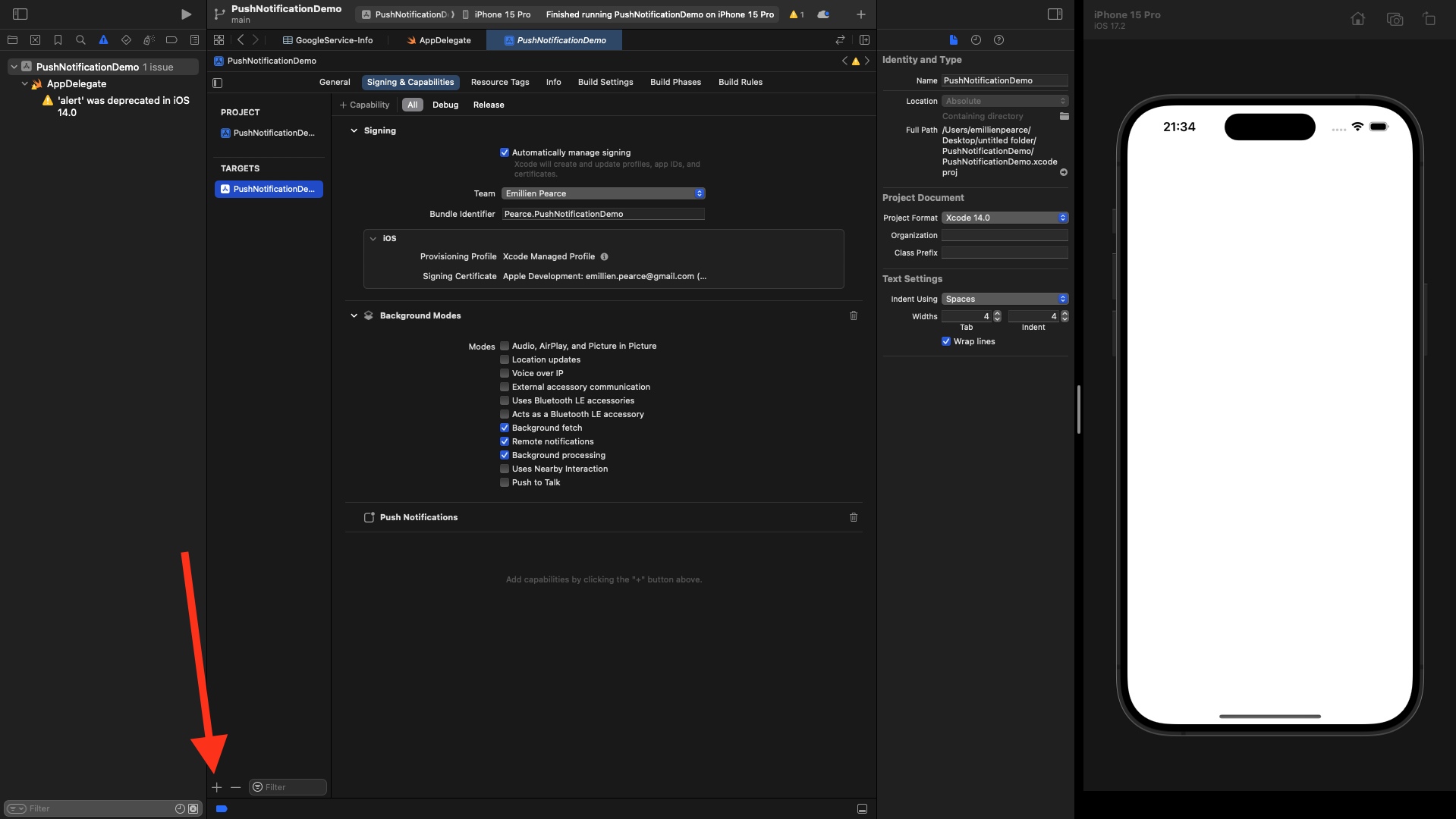
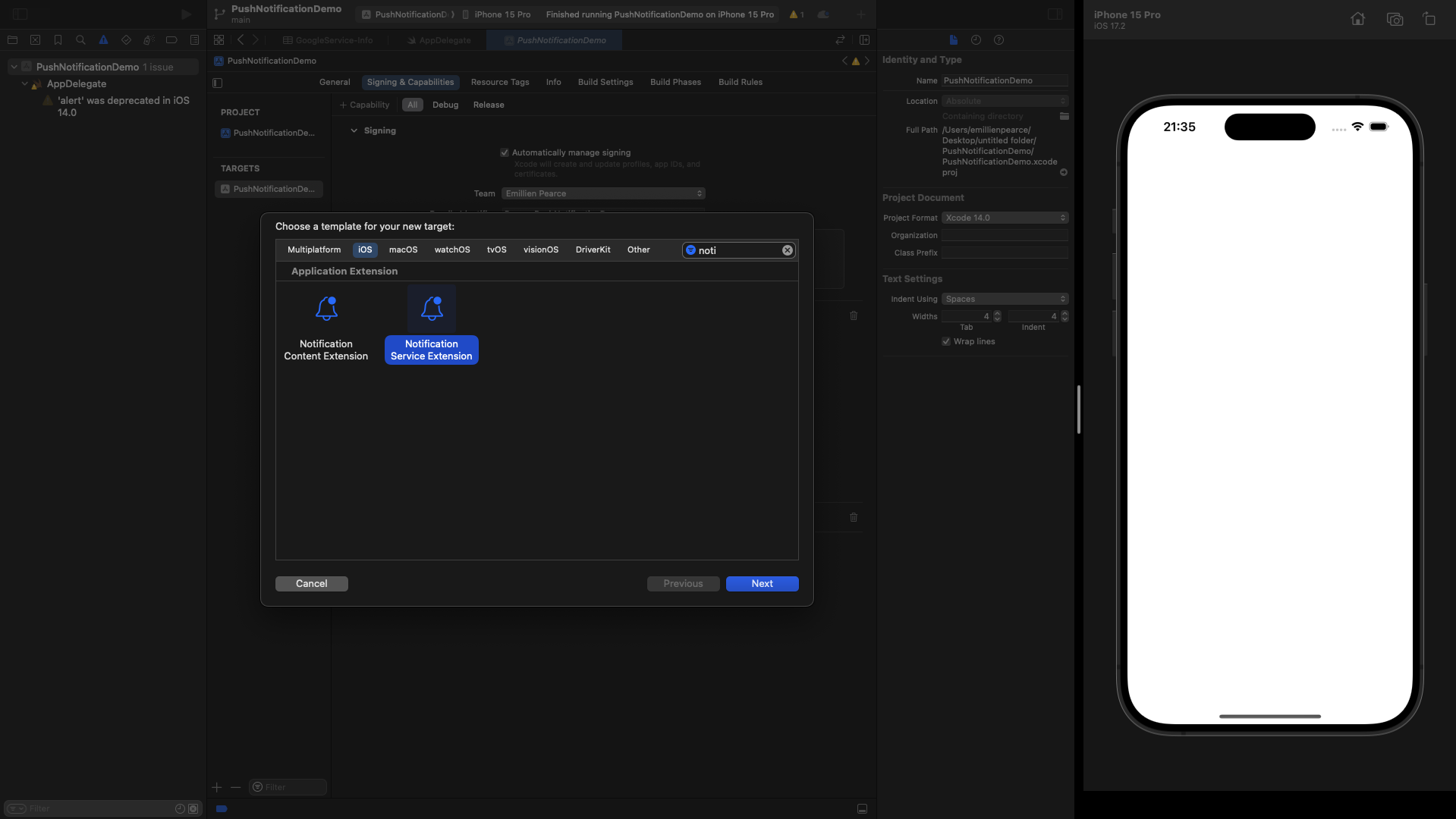
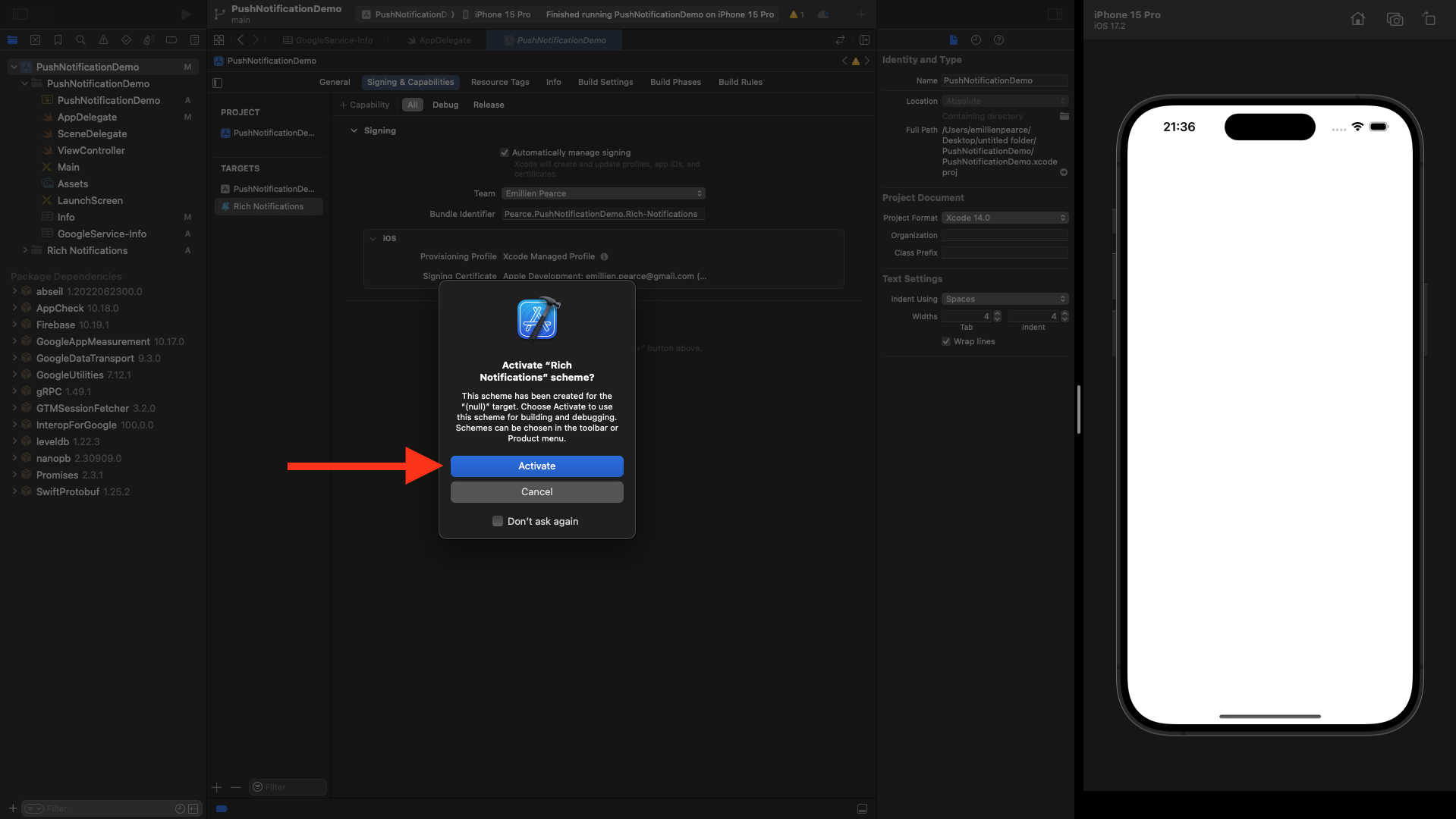
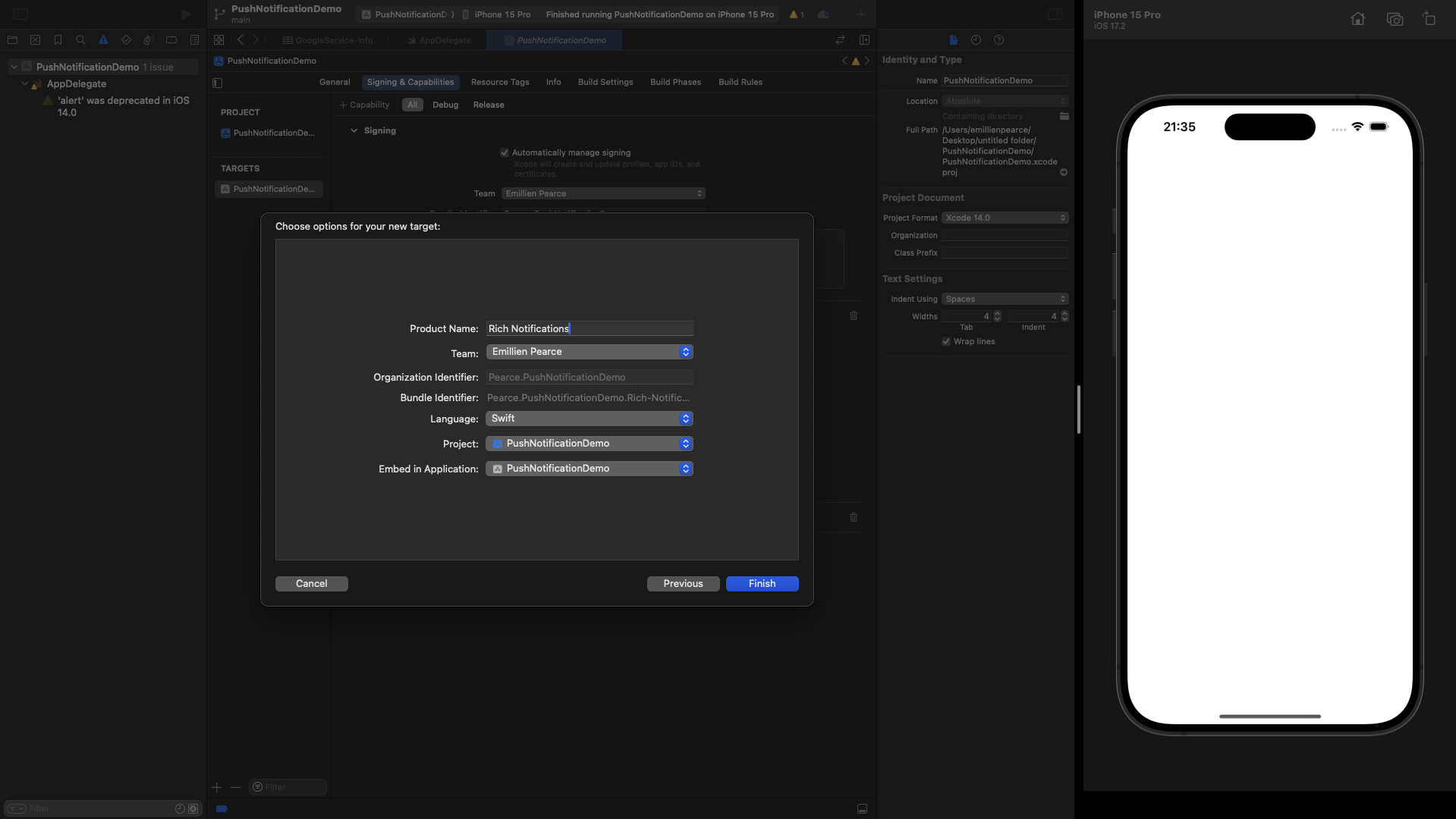 Select **Finish**, and when prompted, select **Activate**.
 When you added the Firebase package to your project, it was only added to the your "main" (In my case it's "PushNotificationDemo") target, so now you need to add the necessary dependency to your new extension.
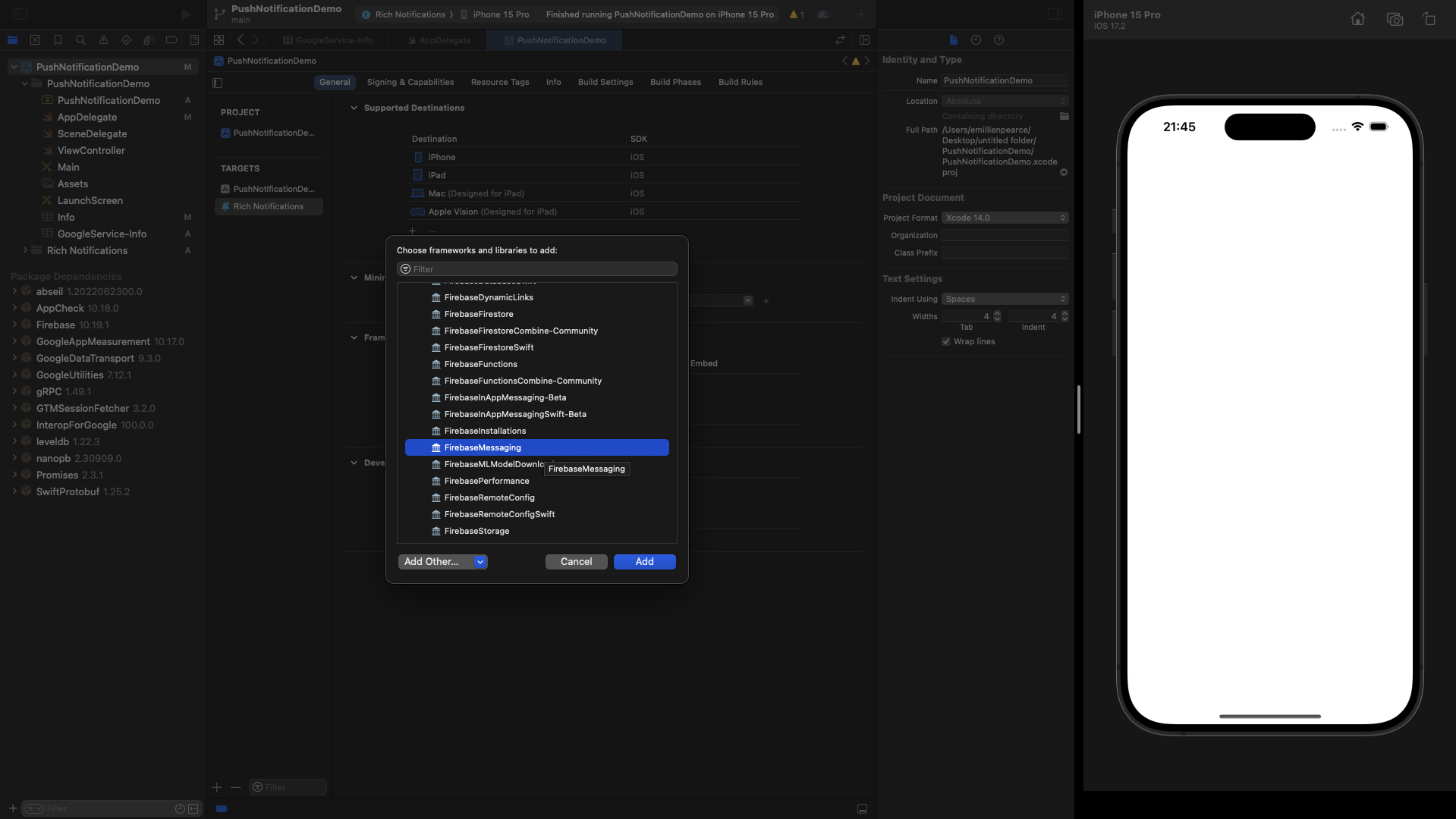
Open your app’s project settings and select the name you picked for the extention under Targets.
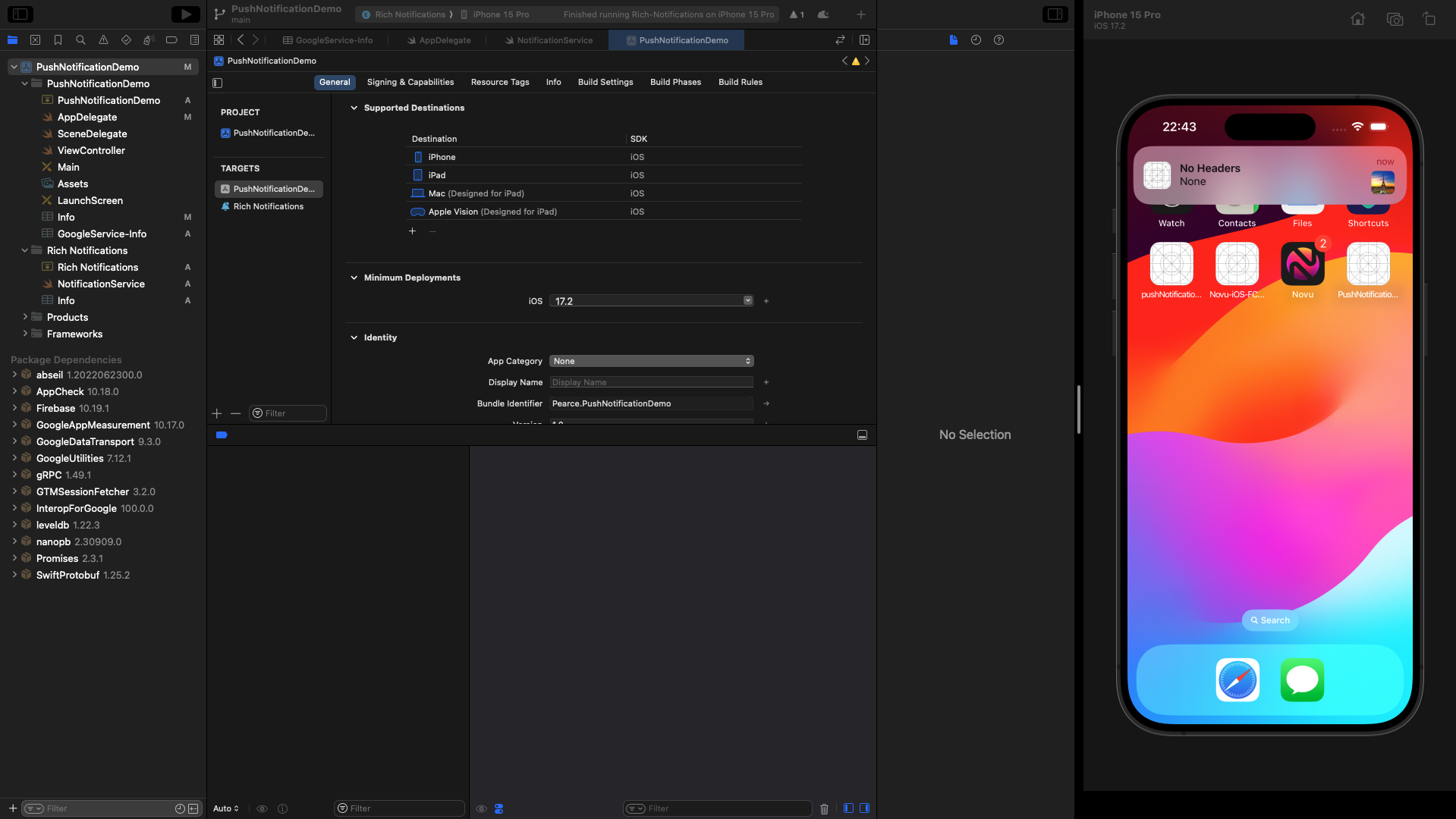
Under Frameworks and Libraries, select the + button, and search for FirebaseMessaging. Then, select Add. Your project should reflect the image below:
When you added the Firebase package to your project, it was only added to the your "main" (In my case it's "PushNotificationDemo") target, so now you need to add the necessary dependency to your new extension.
Open your app’s project settings and select the name you picked for the extention under Targets.
Under Frameworks and Libraries, select the + button, and search for FirebaseMessaging. Then, select Add. Your project should reflect the image below:
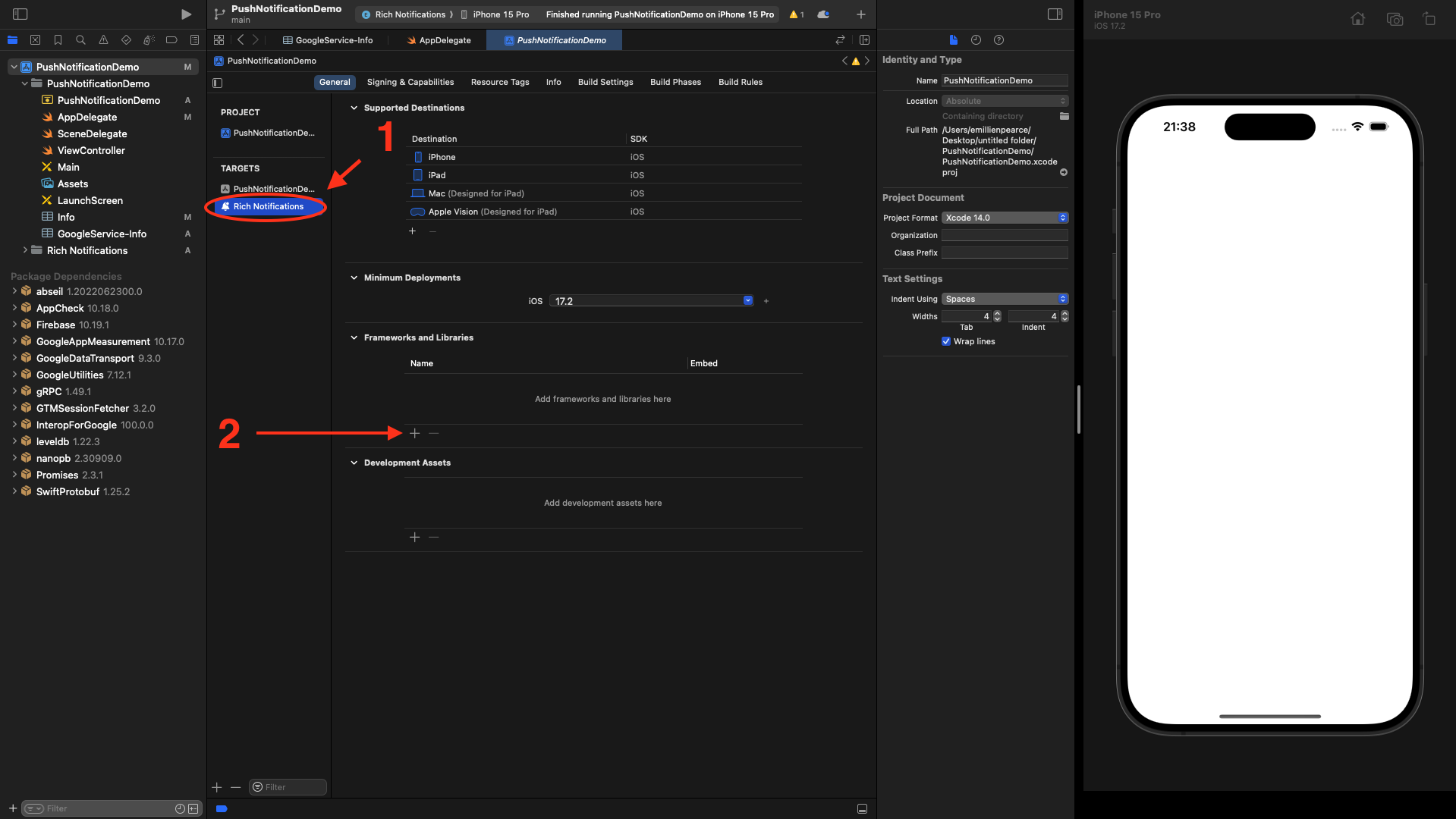 Select the + button, and search for FirebaseMessaging. Then, select Add.
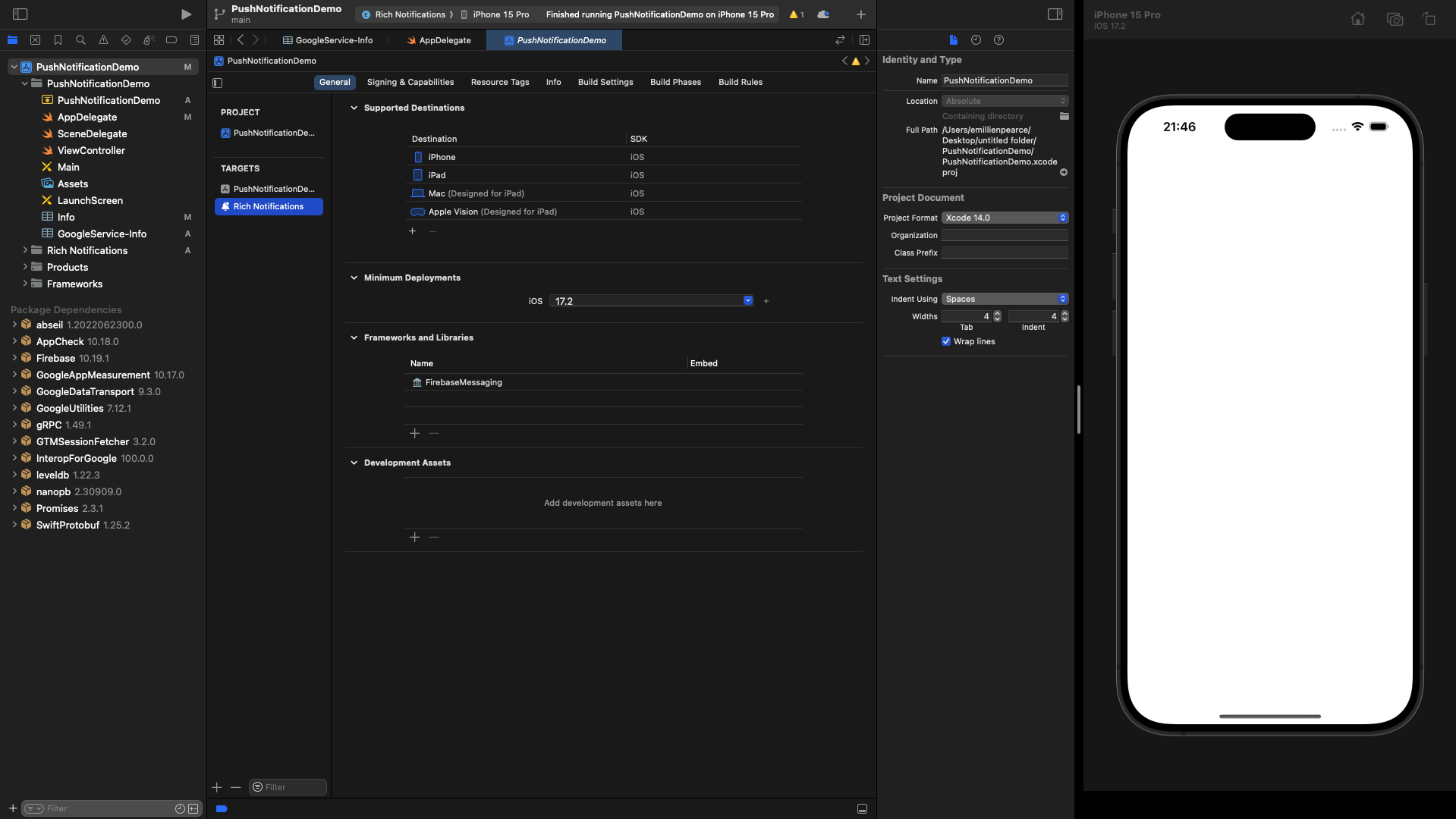 Now, open `NotificationService.swift`. This file is where you can customize notifications before the user sees them.
First, add the following import to the top of the file:
`import FirebaseMessaging`
Next, replace the contents of `didReceive(_:withContentHandler:)` with the following:
```Swift theme={null}
self.contentHandler = contentHandler
bestAttemptContent = (request.content.mutableCopy() as? UNMutableNotificationContent)
if let bestAttemptContent = bestAttemptContent {
// Modify the notification content here...
bestAttemptContent.title = "\(bestAttemptContent.title)"
// Call FIRMessaging extension helper API.
if let messagingContentHandler = self.contentHandler {
Messaging.serviceExtension().populateNotificationContent(bestAttemptContent, withContentHandler: messagingContentHandler)
}
}
```
Typically, you’d have to search the field containing the image URL, download the image, and finish the presentation with the picture as an attachment.
Here, you’re using Firebase’s `FIRMessagingExtensionHelper` to perform all that work automatically in a straightforward helper method call.
Remember, iOS only allows you to download your attached image. If the extension’s code takes too long to run, the system will call `serviceExtensionTimeWillExpire()`.
This gives you a chance to gracefully finish up anything you are doing in the extension or to simply present the notification as is, which is the default implementation.
This is the entire `NotificationService.swift` file.
```Swift theme={null}
//
// NotificationService.swift
// Rich Notifications
//
// Created by Emillien Pearce.
//
import UserNotifications
import FirebaseMessaging
class NotificationService: UNNotificationServiceExtension {
var contentHandler: ((UNNotificationContent) -> Void)?
var bestAttemptContent: UNMutableNotificationContent?
override func didReceive(_ request: UNNotificationRequest, withContentHandler contentHandler: @escaping (UNNotificationContent) -> Void) {
self.contentHandler = contentHandler
bestAttemptContent = (request.content.mutableCopy() as? UNMutableNotificationContent)
if let bestAttemptContent = bestAttemptContent {
// Modify the notification content here...
bestAttemptContent.title = "\(bestAttemptContent.title)"
// Call FIRMessaging extension helper API.
if let messagingContentHandler = self.contentHandler {
Messaging.serviceExtension().populateNotificationContent(bestAttemptContent, withContentHandler: messagingContentHandler)
}
}
}
override func serviceExtensionTimeWillExpire() {
// Called just before the extension will be terminated by the system.
// Use this as an opportunity to deliver your "best attempt" at modified content, otherwise the original push payload will be used.
if let contentHandler = contentHandler, let bestAttemptContent = bestAttemptContent {
contentHandler(bestAttemptContent)
}
}
}
```
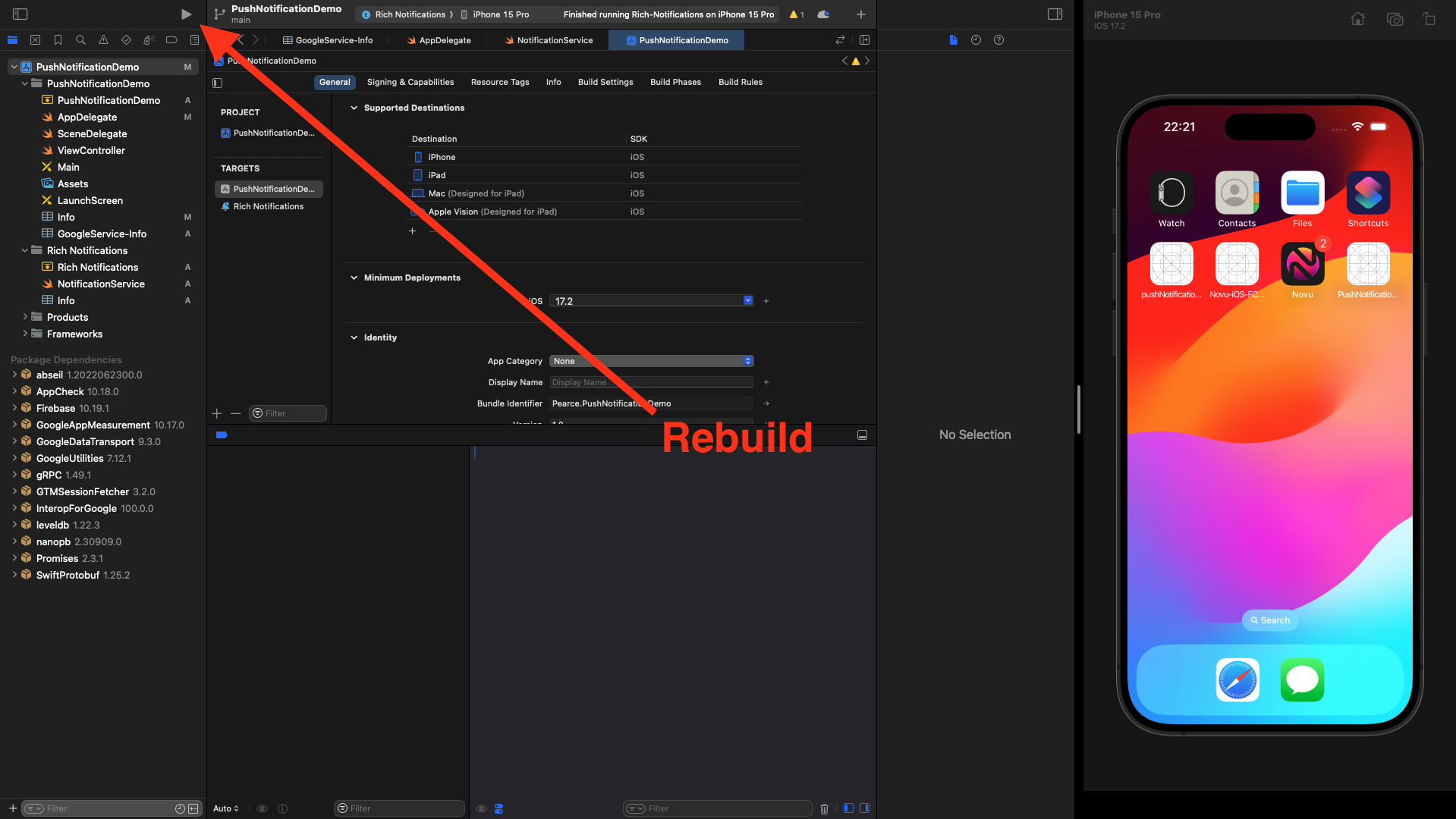
Let's **rebuild** our app again!
Now, open `NotificationService.swift`. This file is where you can customize notifications before the user sees them.
First, add the following import to the top of the file:
`import FirebaseMessaging`
Next, replace the contents of `didReceive(_:withContentHandler:)` with the following:
```Swift theme={null}
self.contentHandler = contentHandler
bestAttemptContent = (request.content.mutableCopy() as? UNMutableNotificationContent)
if let bestAttemptContent = bestAttemptContent {
// Modify the notification content here...
bestAttemptContent.title = "\(bestAttemptContent.title)"
// Call FIRMessaging extension helper API.
if let messagingContentHandler = self.contentHandler {
Messaging.serviceExtension().populateNotificationContent(bestAttemptContent, withContentHandler: messagingContentHandler)
}
}
```
Typically, you’d have to search the field containing the image URL, download the image, and finish the presentation with the picture as an attachment.
Here, you’re using Firebase’s `FIRMessagingExtensionHelper` to perform all that work automatically in a straightforward helper method call.
Remember, iOS only allows you to download your attached image. If the extension’s code takes too long to run, the system will call `serviceExtensionTimeWillExpire()`.
This gives you a chance to gracefully finish up anything you are doing in the extension or to simply present the notification as is, which is the default implementation.
This is the entire `NotificationService.swift` file.
```Swift theme={null}
//
// NotificationService.swift
// Rich Notifications
//
// Created by Emillien Pearce.
//
import UserNotifications
import FirebaseMessaging
class NotificationService: UNNotificationServiceExtension {
var contentHandler: ((UNNotificationContent) -> Void)?
var bestAttemptContent: UNMutableNotificationContent?
override func didReceive(_ request: UNNotificationRequest, withContentHandler contentHandler: @escaping (UNNotificationContent) -> Void) {
self.contentHandler = contentHandler
bestAttemptContent = (request.content.mutableCopy() as? UNMutableNotificationContent)
if let bestAttemptContent = bestAttemptContent {
// Modify the notification content here...
bestAttemptContent.title = "\(bestAttemptContent.title)"
// Call FIRMessaging extension helper API.
if let messagingContentHandler = self.contentHandler {
Messaging.serviceExtension().populateNotificationContent(bestAttemptContent, withContentHandler: messagingContentHandler)
}
}
}
override func serviceExtensionTimeWillExpire() {
// Called just before the extension will be terminated by the system.
// Use this as an opportunity to deliver your "best attempt" at modified content, otherwise the original push payload will be used.
if let contentHandler = contentHandler, let bestAttemptContent = bestAttemptContent {
contentHandler(bestAttemptContent)
}
}
}
```
Let's **rebuild** our app again!
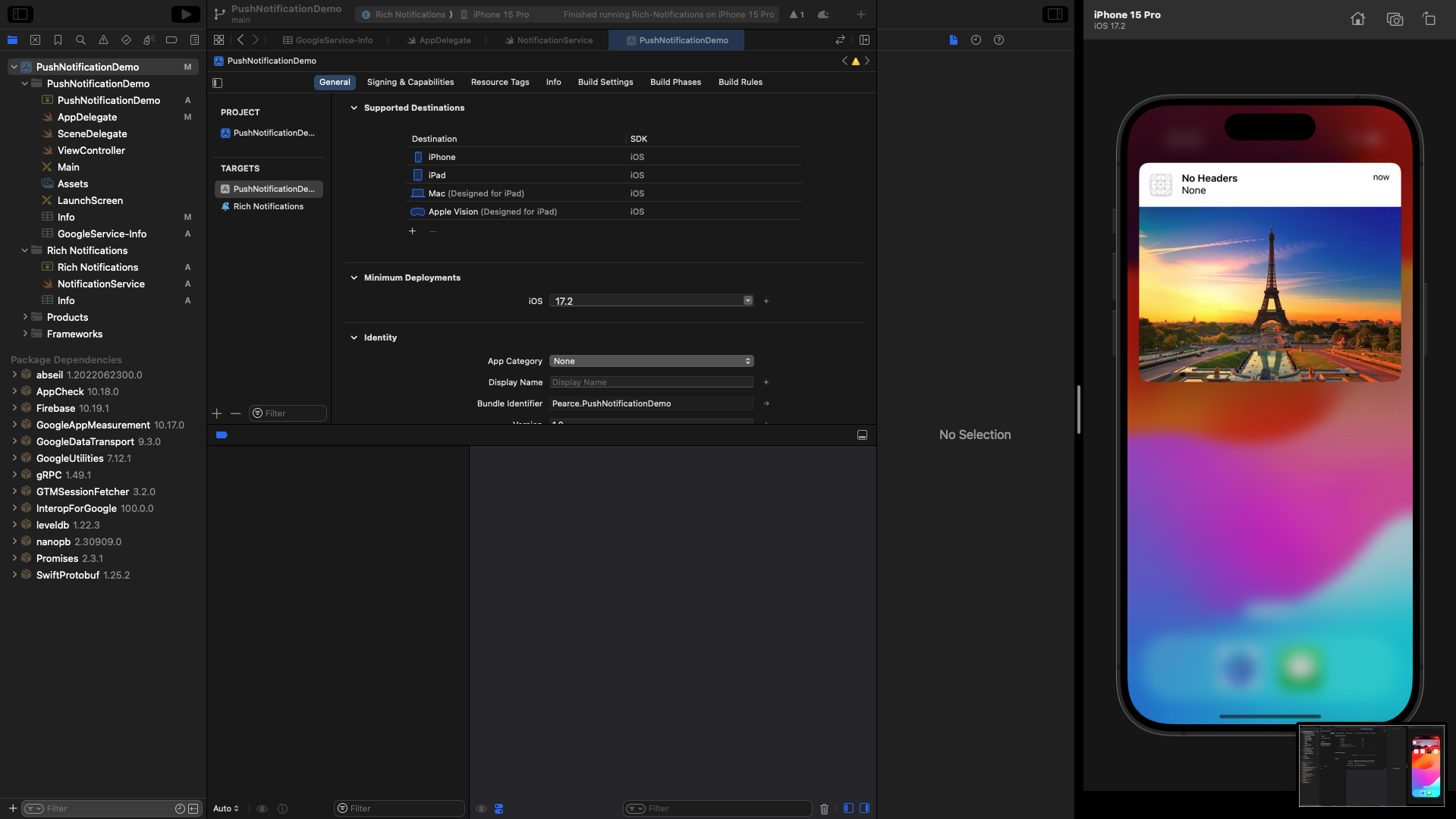
 When making the API call, we should include:
* "mutable-content": 1 inside the "aps" object.
* "image" in "fcm\_options" object,
* URL address of the image.
```JSON theme={null}
curl --location --request POST 'https://api.novu.co/v1/events/trigger' \
--header 'Authorization: ApiKey ' \
--header 'Content-Type: application/json' \
--data-raw '{
"name": "untitled",
"to": {
"subscriberId": "12345678"
},
"payload": {
"title": "This is a notification with an image",
"body": "Check this out"
},
"overrides": {
"fcm": {
"apns": {
"headers": {},
"payload": {
"aps": {
"mutable-content": 1
}
},
"fcm_options": {
"image": "https://www.planetware.com/wpimages/2020/02/france-in-pictures-beautiful-places-to-photograph-eiffel-tower.jpg"
}
}
}
}
}'
```
When making the API call, we should include:
* "mutable-content": 1 inside the "aps" object.
* "image" in "fcm\_options" object,
* URL address of the image.
```JSON theme={null}
curl --location --request POST 'https://api.novu.co/v1/events/trigger' \
--header 'Authorization: ApiKey ' \
--header 'Content-Type: application/json' \
--data-raw '{
"name": "untitled",
"to": {
"subscriberId": "12345678"
},
"payload": {
"title": "This is a notification with an image",
"body": "Check this out"
},
"overrides": {
"fcm": {
"apns": {
"headers": {},
"payload": {
"aps": {
"mutable-content": 1
}
},
"fcm_options": {
"image": "https://www.planetware.com/wpimages/2020/02/france-in-pictures-beautiful-places-to-photograph-eiffel-tower.jpg"
}
}
}
}
}'
```
 ## Sending actionable notifications
1. Define Notification Actions:
In your `AppDelegate.swift` file, you should define the notification actions you want to add.
You can do this by creating a `UNNotificationAction` for each action you want to include.
For example, let's add two actions: "Accept" and "Reject".
```Swift theme={null}
// Add these lines inside your AppDelegate class, preferably below the existing extensions.
extension UNNotificationAction {
static let accept = UNNotificationAction(
identifier: "ACCEPT_ACTION",
title: "Accept",
options: [.foreground]
)
static let reject = UNNotificationAction(
identifier: "REJECT_ACTION",
title: "Reject",
options: [.destructive, .foreground]
)
}
```
2. Register Notification Category:
You need to register the notification category with the actions you defined in your `didFinishLaunchingWithOptions` method:
```
func application(_ application: UIApplication, didFinishLaunchingWithOptions launchOptions: [UIApplication.LaunchOptionsKey: Any]?) -> Bool {
// ... (your existing code)
// Register notification category
let acceptAction = UNNotificationAction.accept
let rejectAction = UNNotificationAction.reject
let messageCategory = UNNotificationCategory(
identifier: "MESSAGE_CATEGORY",
actions: [acceptAction, rejectAction],
intentIdentifiers: [],
options: []
)
UNUserNotificationCenter.current().setNotificationCategories([messageCategory])
return true
```
}
````
3. Handle Action Taps:
Now, you need to handle the action taps in the `userNotificationCenter(_:didReceive response:)` method of your `AppDelegate`.
You can check which action was tapped by inspecting the `response.actionIdentifier` property:
```Swift
func userNotificationCenter(_ center: UNUserNotificationCenter,
didReceive response: UNNotificationResponse) async {
let userInfo = response.notification.request.content.userInfo
if response.actionIdentifier == UNNotificationAction.accept.identifier {
// Handle the "Accept" action
print("User tapped Accept")
// Perform the desired action for "Accept"
} else if response.actionIdentifier == UNNotificationAction.reject.identifier {
// Handle the "Reject" action
print("User tapped Reject")
// Perform the desired action for "Reject"
} else {
// Handle other actions or default behavior
print("User tapped an action with identifier: \(response.actionIdentifier)")
}
}
````
Your full `AppDelegate.swift` file should look like this:
```Swift theme={null}
//
// AppDelegate.swift
// PushNotificationDemo
//
// Created by Emillien Pearce.
//
import UIKit
import FirebaseCore
import FirebaseMessaging
@main
class AppDelegate: UIResponder, UIApplicationDelegate {
let gcmMessageIDKey = "gcm.Message_ID"
func application(_ application: UIApplication, didFinishLaunchingWithOptions launchOptions: [UIApplication.LaunchOptionsKey: Any]?) -> Bool {
// Override point for customization after application launch.
FirebaseApp.configure()
FirebaseConfiguration.shared.setLoggerLevel(.min)
// Register for Remote Notitifcations
UNUserNotificationCenter.current().delegate = self
let authOptions: UNAuthorizationOptions = [.alert, .badge, .sound]
UNUserNotificationCenter.current().requestAuthorization(
options: authOptions,
completionHandler: { _, _ in }
)
application.registerForRemoteNotifications()
// Register notification category
let acceptAction = UNNotificationAction.accept
let rejectAction = UNNotificationAction.reject
let messageCategory = UNNotificationCategory(
identifier: "MESSAGE_CATEGORY",
actions: [acceptAction, rejectAction],
intentIdentifiers: [],
options: []
)
UNUserNotificationCenter.current().setNotificationCategories([messageCategory])
// Messaging Delegate
Messaging.messaging().delegate = self
return true
}
// MARK: UISceneSession Lifecycle
func application(_ application: UIApplication, configurationForConnecting connectingSceneSession: UISceneSession, options: UIScene.ConnectionOptions) -> UISceneConfiguration {
// Called when a new scene session is being created.
// Use this method to select a configuration to create the new scene with.
return UISceneConfiguration(name: "Default Configuration", sessionRole: connectingSceneSession.role)
}
func application(_ application: UIApplication, didDiscardSceneSessions sceneSessions: Set) {
// Called when the user discards a scene session.
// If any sessions were discarded while the application was not running, this will be called shortly after application:didFinishLaunchingWithOptions.
// Use this method to release any resources that were specific to the discarded scenes, as they will not return.
}
}
extension AppDelegate: UNUserNotificationCenterDelegate {
// Receive displayed notifications for iOS 10 devices.
func userNotificationCenter(_ center: UNUserNotificationCenter,
willPresent notification: UNNotification) async
-> UNNotificationPresentationOptions {
let userInfo = notification.request.content.userInfo
// With swizzling disabled you must let Messaging know about the message, for Analytics
// Messaging.messaging().appDidReceiveMessage(userInfo)
// ...
// Print full message.
print(userInfo)
// Change this to your preferred presentation option
return [[.alert, .sound]]
}
func userNotificationCenter(_ center: UNUserNotificationCenter,
didReceive response: UNNotificationResponse) async {
let userInfo = response.notification.request.content.userInfo
if response.actionIdentifier == UNNotificationAction.accept.identifier {
// Handle the "Accept" action
print("User tapped Accept")
// Perform the desired action for "Accept"
} else if response.actionIdentifier == UNNotificationAction.reject.identifier {
// Handle the "Reject" action
print("User tapped Reject")
// Perform the desired action for "Reject"
} else {
// Handle other actions or default behavior
print("User tapped an action with identifier: \(response.actionIdentifier)")
}
// ...
// With swizzling disabled you must let Messaging know about the message, for Analytics
// Messaging.messaging().appDidReceiveMessage(userInfo)
// Print full message.
print(userInfo)
}
func application(_ application: UIApplication,
didReceiveRemoteNotification userInfo: [AnyHashable: Any]) async
-> UIBackgroundFetchResult {
// If you are receiving a notification message while your app is in the background,
// this callback will not be fired till the user taps on the notification launching the application.
// TODO: Handle data of notification
// With swizzling disabled you must let Messaging know about the message, for Analytics
// Messaging.messaging().appDidReceiveMessage(userInfo)
// Print message ID.
if let messageID = userInfo[gcmMessageIDKey] {
print("Message ID: \(messageID)")
}
// Print full message.
print(userInfo)
return UIBackgroundFetchResult.newData
}
}
extension AppDelegate: MessagingDelegate {
func messaging(_ messaging: Messaging, didReceiveRegistrationToken fcmToken: String?) {
print("Firebase registration token: \(String(describing: fcmToken))")
let dataDict: [String: String] = ["token": fcmToken ?? ""]
NotificationCenter.default.post(
name: Notification.Name("FCMToken"),
object: nil,
userInfo: dataDict
)
// TODO: If necessary send token to application server.
// Note: This callback is fired at each app startup and whenever a new token is generated.
}
}
extension UNNotificationAction {
static let accept = UNNotificationAction(
identifier: "ACCEPT_ACTION",
title: "Accept",
options: [.foreground]
)
static let reject = UNNotificationAction(
identifier: "REJECT_ACTION",
title: "Reject",
options: [.destructive, .foreground]
)
}
```
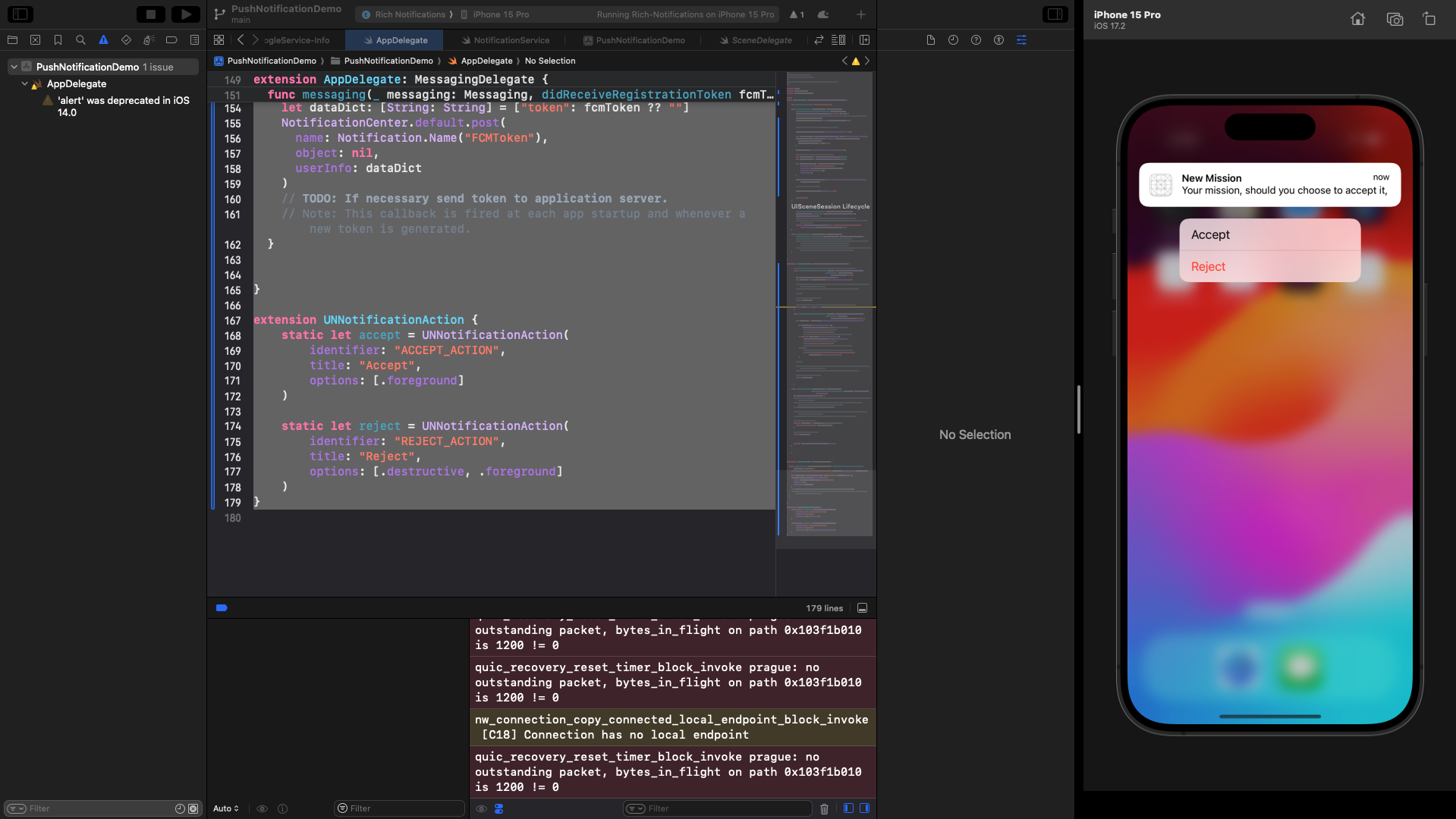
Now, let’s trigger a notification with actionable buttons:
```JSON theme={null}
curl --location --request POST "https://api.novu.co/v1/events/trigger" \
--header "Authorization: ApiKey 4de014990cfb201033014548be2db904" \
--header "Content-Type: application/json" \
--data-raw '{
"name": "untitled",
"to": {
"subscriberId": "12345678"
},
"payload": {
"title": "New Mission",
"body": "Your mission, should you choose to accept it,"
},
"overrides": {
"fcm": {
"apns": {
"payload": {
"aps": {
"category": "MESSAGE_CATEGORY"
}
}
}
}
}
}'
```
## Sending actionable notifications
1. Define Notification Actions:
In your `AppDelegate.swift` file, you should define the notification actions you want to add.
You can do this by creating a `UNNotificationAction` for each action you want to include.
For example, let's add two actions: "Accept" and "Reject".
```Swift theme={null}
// Add these lines inside your AppDelegate class, preferably below the existing extensions.
extension UNNotificationAction {
static let accept = UNNotificationAction(
identifier: "ACCEPT_ACTION",
title: "Accept",
options: [.foreground]
)
static let reject = UNNotificationAction(
identifier: "REJECT_ACTION",
title: "Reject",
options: [.destructive, .foreground]
)
}
```
2. Register Notification Category:
You need to register the notification category with the actions you defined in your `didFinishLaunchingWithOptions` method:
```
func application(_ application: UIApplication, didFinishLaunchingWithOptions launchOptions: [UIApplication.LaunchOptionsKey: Any]?) -> Bool {
// ... (your existing code)
// Register notification category
let acceptAction = UNNotificationAction.accept
let rejectAction = UNNotificationAction.reject
let messageCategory = UNNotificationCategory(
identifier: "MESSAGE_CATEGORY",
actions: [acceptAction, rejectAction],
intentIdentifiers: [],
options: []
)
UNUserNotificationCenter.current().setNotificationCategories([messageCategory])
return true
```
}
````
3. Handle Action Taps:
Now, you need to handle the action taps in the `userNotificationCenter(_:didReceive response:)` method of your `AppDelegate`.
You can check which action was tapped by inspecting the `response.actionIdentifier` property:
```Swift
func userNotificationCenter(_ center: UNUserNotificationCenter,
didReceive response: UNNotificationResponse) async {
let userInfo = response.notification.request.content.userInfo
if response.actionIdentifier == UNNotificationAction.accept.identifier {
// Handle the "Accept" action
print("User tapped Accept")
// Perform the desired action for "Accept"
} else if response.actionIdentifier == UNNotificationAction.reject.identifier {
// Handle the "Reject" action
print("User tapped Reject")
// Perform the desired action for "Reject"
} else {
// Handle other actions or default behavior
print("User tapped an action with identifier: \(response.actionIdentifier)")
}
}
````
Your full `AppDelegate.swift` file should look like this:
```Swift theme={null}
//
// AppDelegate.swift
// PushNotificationDemo
//
// Created by Emillien Pearce.
//
import UIKit
import FirebaseCore
import FirebaseMessaging
@main
class AppDelegate: UIResponder, UIApplicationDelegate {
let gcmMessageIDKey = "gcm.Message_ID"
func application(_ application: UIApplication, didFinishLaunchingWithOptions launchOptions: [UIApplication.LaunchOptionsKey: Any]?) -> Bool {
// Override point for customization after application launch.
FirebaseApp.configure()
FirebaseConfiguration.shared.setLoggerLevel(.min)
// Register for Remote Notitifcations
UNUserNotificationCenter.current().delegate = self
let authOptions: UNAuthorizationOptions = [.alert, .badge, .sound]
UNUserNotificationCenter.current().requestAuthorization(
options: authOptions,
completionHandler: { _, _ in }
)
application.registerForRemoteNotifications()
// Register notification category
let acceptAction = UNNotificationAction.accept
let rejectAction = UNNotificationAction.reject
let messageCategory = UNNotificationCategory(
identifier: "MESSAGE_CATEGORY",
actions: [acceptAction, rejectAction],
intentIdentifiers: [],
options: []
)
UNUserNotificationCenter.current().setNotificationCategories([messageCategory])
// Messaging Delegate
Messaging.messaging().delegate = self
return true
}
// MARK: UISceneSession Lifecycle
func application(_ application: UIApplication, configurationForConnecting connectingSceneSession: UISceneSession, options: UIScene.ConnectionOptions) -> UISceneConfiguration {
// Called when a new scene session is being created.
// Use this method to select a configuration to create the new scene with.
return UISceneConfiguration(name: "Default Configuration", sessionRole: connectingSceneSession.role)
}
func application(_ application: UIApplication, didDiscardSceneSessions sceneSessions: Set) {
// Called when the user discards a scene session.
// If any sessions were discarded while the application was not running, this will be called shortly after application:didFinishLaunchingWithOptions.
// Use this method to release any resources that were specific to the discarded scenes, as they will not return.
}
}
extension AppDelegate: UNUserNotificationCenterDelegate {
// Receive displayed notifications for iOS 10 devices.
func userNotificationCenter(_ center: UNUserNotificationCenter,
willPresent notification: UNNotification) async
-> UNNotificationPresentationOptions {
let userInfo = notification.request.content.userInfo
// With swizzling disabled you must let Messaging know about the message, for Analytics
// Messaging.messaging().appDidReceiveMessage(userInfo)
// ...
// Print full message.
print(userInfo)
// Change this to your preferred presentation option
return [[.alert, .sound]]
}
func userNotificationCenter(_ center: UNUserNotificationCenter,
didReceive response: UNNotificationResponse) async {
let userInfo = response.notification.request.content.userInfo
if response.actionIdentifier == UNNotificationAction.accept.identifier {
// Handle the "Accept" action
print("User tapped Accept")
// Perform the desired action for "Accept"
} else if response.actionIdentifier == UNNotificationAction.reject.identifier {
// Handle the "Reject" action
print("User tapped Reject")
// Perform the desired action for "Reject"
} else {
// Handle other actions or default behavior
print("User tapped an action with identifier: \(response.actionIdentifier)")
}
// ...
// With swizzling disabled you must let Messaging know about the message, for Analytics
// Messaging.messaging().appDidReceiveMessage(userInfo)
// Print full message.
print(userInfo)
}
func application(_ application: UIApplication,
didReceiveRemoteNotification userInfo: [AnyHashable: Any]) async
-> UIBackgroundFetchResult {
// If you are receiving a notification message while your app is in the background,
// this callback will not be fired till the user taps on the notification launching the application.
// TODO: Handle data of notification
// With swizzling disabled you must let Messaging know about the message, for Analytics
// Messaging.messaging().appDidReceiveMessage(userInfo)
// Print message ID.
if let messageID = userInfo[gcmMessageIDKey] {
print("Message ID: \(messageID)")
}
// Print full message.
print(userInfo)
return UIBackgroundFetchResult.newData
}
}
extension AppDelegate: MessagingDelegate {
func messaging(_ messaging: Messaging, didReceiveRegistrationToken fcmToken: String?) {
print("Firebase registration token: \(String(describing: fcmToken))")
let dataDict: [String: String] = ["token": fcmToken ?? ""]
NotificationCenter.default.post(
name: Notification.Name("FCMToken"),
object: nil,
userInfo: dataDict
)
// TODO: If necessary send token to application server.
// Note: This callback is fired at each app startup and whenever a new token is generated.
}
}
extension UNNotificationAction {
static let accept = UNNotificationAction(
identifier: "ACCEPT_ACTION",
title: "Accept",
options: [.foreground]
)
static let reject = UNNotificationAction(
identifier: "REJECT_ACTION",
title: "Reject",
options: [.destructive, .foreground]
)
}
```
Now, let’s trigger a notification with actionable buttons:
```JSON theme={null}
curl --location --request POST "https://api.novu.co/v1/events/trigger" \
--header "Authorization: ApiKey 4de014990cfb201033014548be2db904" \
--header "Content-Type: application/json" \
--data-raw '{
"name": "untitled",
"to": {
"subscriberId": "12345678"
},
"payload": {
"title": "New Mission",
"body": "Your mission, should you choose to accept it,"
},
"overrides": {
"fcm": {
"apns": {
"payload": {
"aps": {
"category": "MESSAGE_CATEGORY"
}
}
}
}
}
}'
```
 ## Additional resources
* [Generating a remote notification by Apple](https://developer.apple.com/documentation/usernotifications/setting_up_a_remote_notification_server/generating_a_remote_notification)
* [Sending notification requests to APNs](https://developer.apple.com/documentation/usernotifications/setting_up_a_remote_notification_server/sending_notification_requests_to_apns)
## Additional resources
* [Generating a remote notification by Apple](https://developer.apple.com/documentation/usernotifications/setting_up_a_remote_notification_server/generating_a_remote_notification)
* [Sending notification requests to APNs](https://developer.apple.com/documentation/usernotifications/setting_up_a_remote_notification_server/sending_notification_requests_to_apns)