> ## Documentation Index
> Fetch the complete documentation index at: https://v0.x-docs.novu.co/llms.txt
> Use this file to discover all available pages before exploring further.

# How to use Headless Notification Center

> Use the headless version of the notification center

## Introduction

In this guide, you'll learn about how to use the headless version of our notification center. The headless version is useful for scenarios in which a lightweight solution for integrating notification functionality into a web app that is completely unstyled (so that you can style it as per your wish) is required.

<br />

You can find the entire code ( front-end as well as back-end ) of this app [here.](https://github.com/novuhq/novu-headless-demo-app)

## What is the headless notification center

The headless version of Novu's notification library package provides users with a lightweight solution for integrating notification functionality into their web applications.

<br />

With just the essential API methods, users can easily incorporate our notification system into any framework or vanilla JavaScript project, without being constrained by our default UI or dependencies.

This gives the users of the headless notification center greater flexibility and control over what the end-users of a product see and experience.

## How to use the headless notification center

To get started with this you need:

1. A Novu account. [Sign up for free](http://web.novu.co/?utm_campaign=docs-gs-guides-headless) if you don’t have one yet.
2. A working dev environment in the framework of your choice (or vanilla JS). Here, we'll use a React environment

## Workflow set up in Novu

Once, you have signed up for Novu and have a dev environment, follow the steps below:

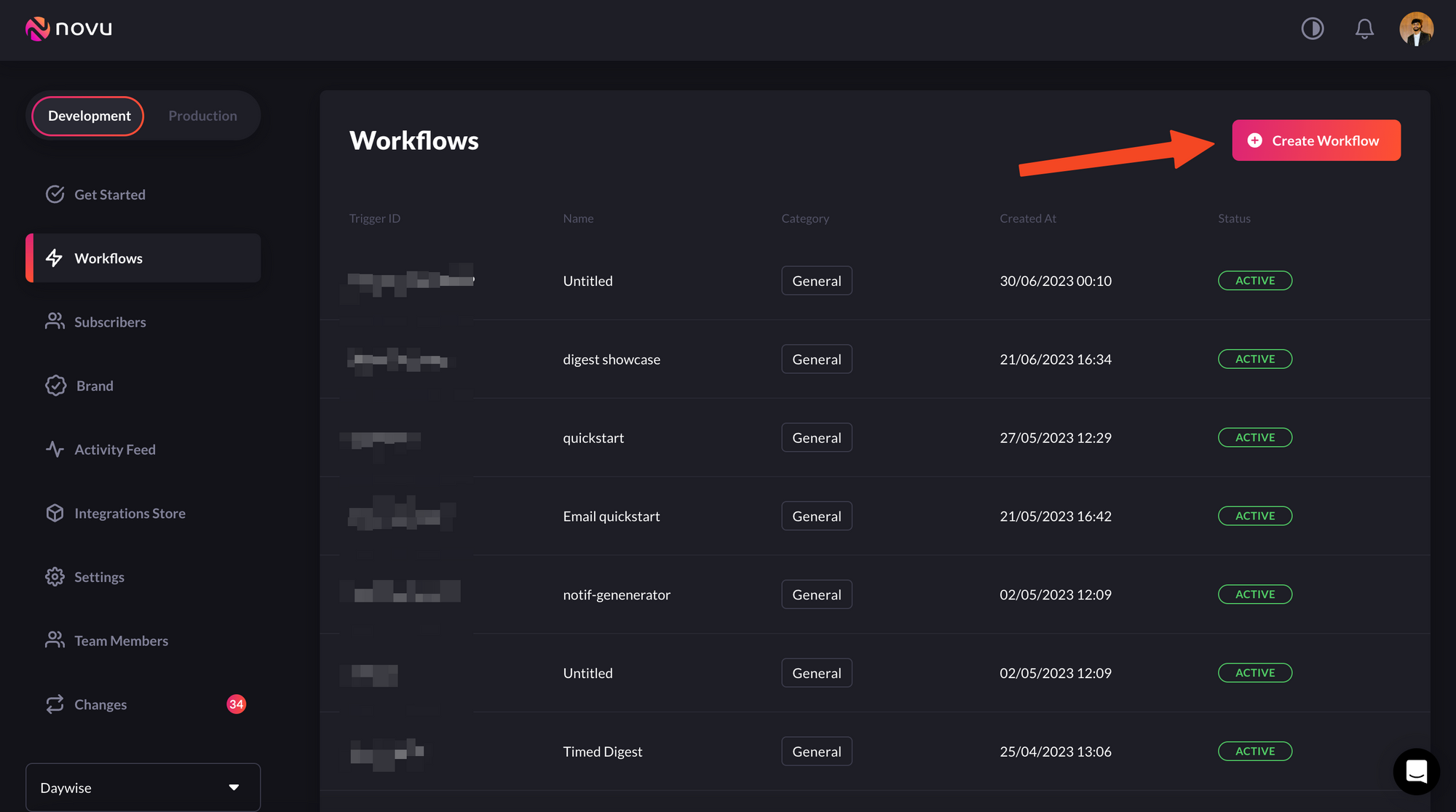
1. Head over to the Novu Dashboard.
2. Click `Workflows` on the left sidebar of your Novu dashboard.
3. Click the `Create Workflow` button on the top right:

<Frame caption="Creating workflows is simple">
  <img src="https://mintcdn.com/novu-v2-docs/RjdbijoFZs-J-RVM/images/create-workflow.png?fit=max&auto=format&n=RjdbijoFZs-J-RVM&q=85&s=663dd42c6c345d9a2fde9dd9f9b1b2c1" width="2000" height="1116" data-path="images/create-workflow.png" />
</Frame>

Once you click the `create workflow` button, you’ll see a dropdown. Select `blank workflow` from the dropdown:
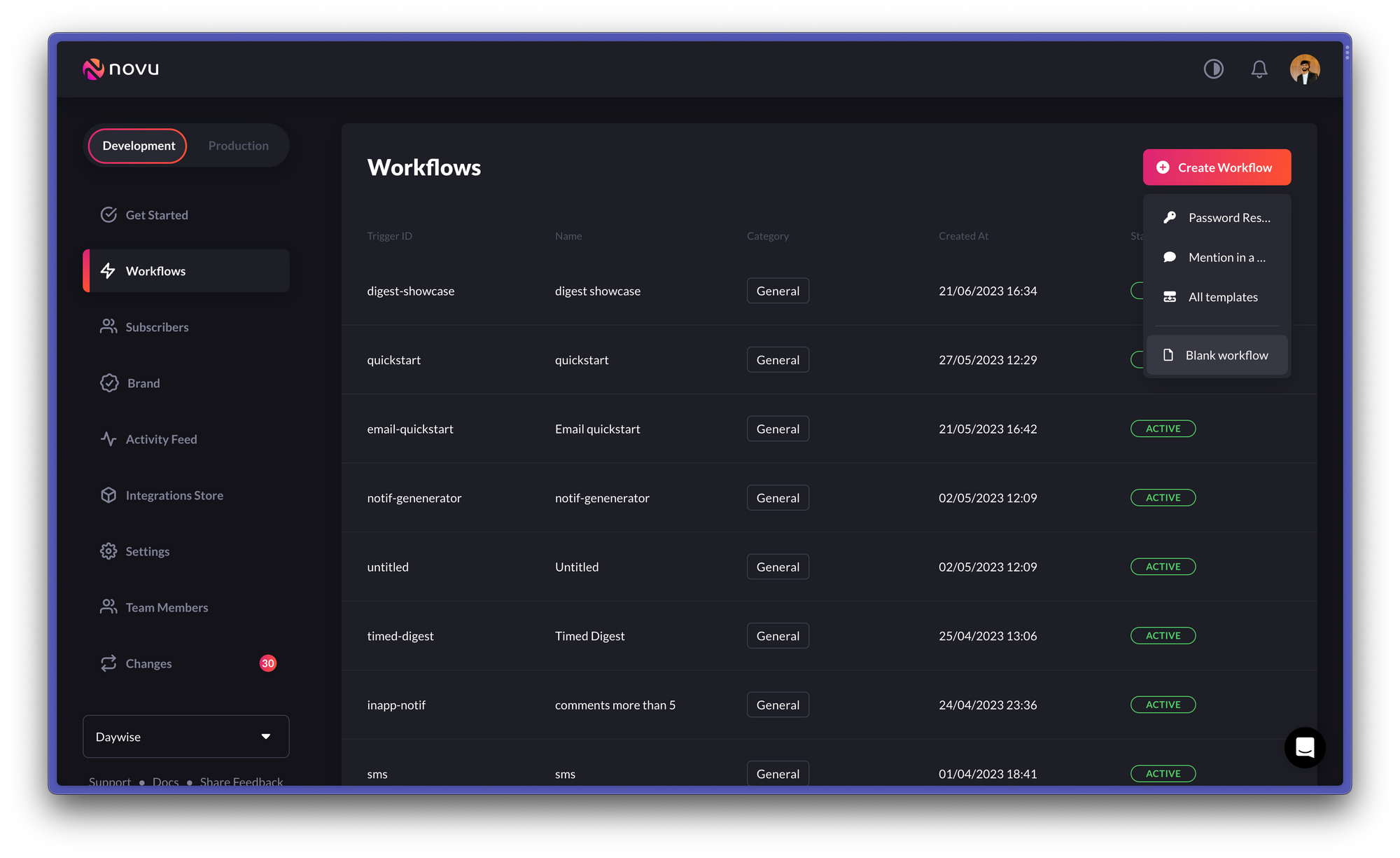
<Frame caption="Select `blank workflow` from the dropdown">
  <img src="https://mintcdn.com/novu-v2-docs/sGuc2UrECiU5eWcY/images/blank-workflow.png?fit=max&auto=format&n=sGuc2UrECiU5eWcY&q=85&s=2beb4a85d83d8ce5acc51d2353c5d3f6" width="2000" height="1225" data-path="images/blank-workflow.png" />
</Frame>

You’ll now be taken to the workflow editor:
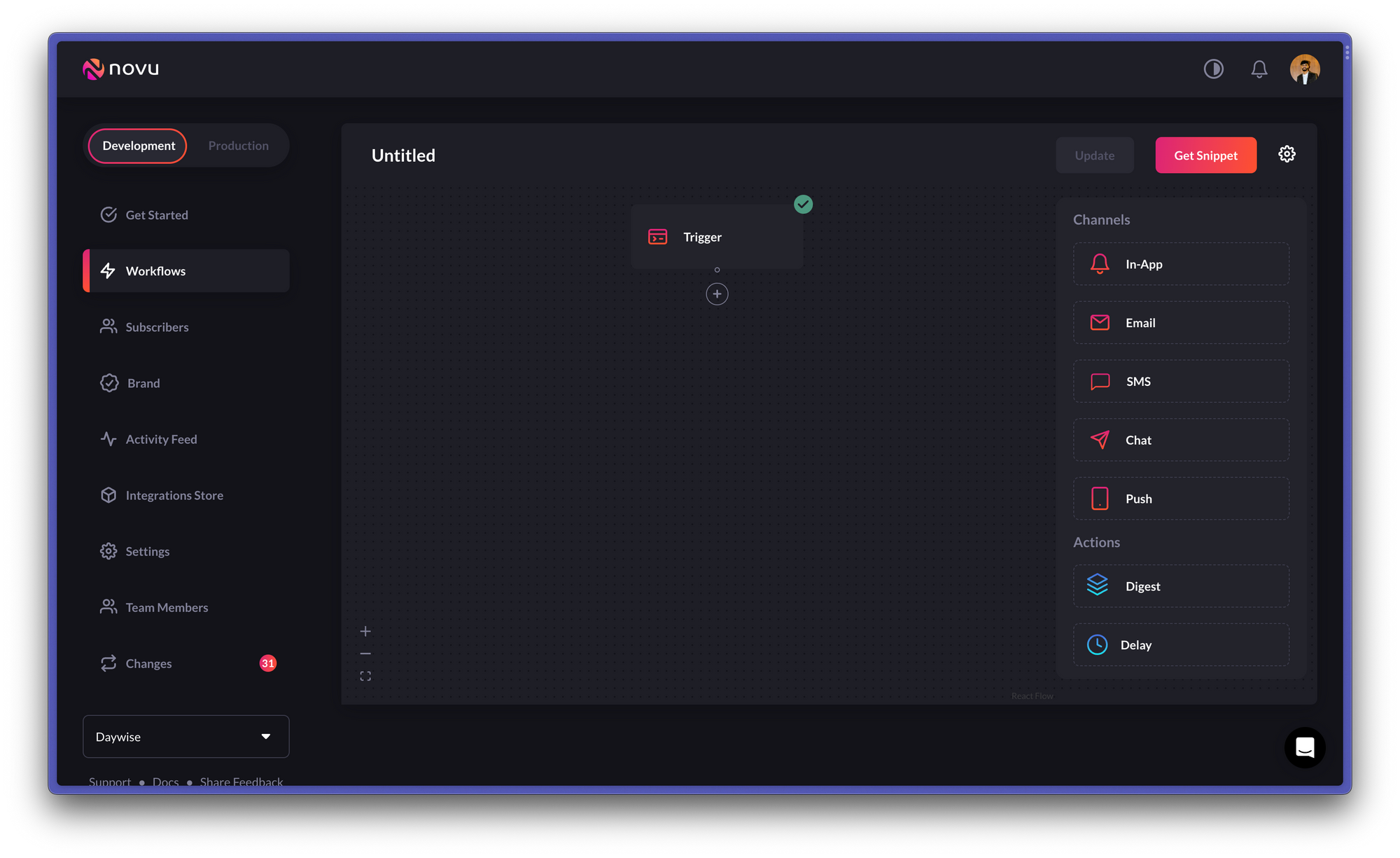
<Frame caption="Workflow editor allows you to create and edit workflows">
  <img src="https://mintcdn.com/novu-v2-docs/NV5X8JGFK6ip1oRy/images/workflow-editor.png?fit=max&auto=format&n=NV5X8JGFK6ip1oRy&q=85&s=85eef9f0a7b8356b4336606bb4f360ab" width="2000" height="1225" data-path="images/workflow-editor.png" />
</Frame>

Once here, you can add the channels you want to use for sending notifications and configure them. For this guide, we’ll use the `In-App` channel.
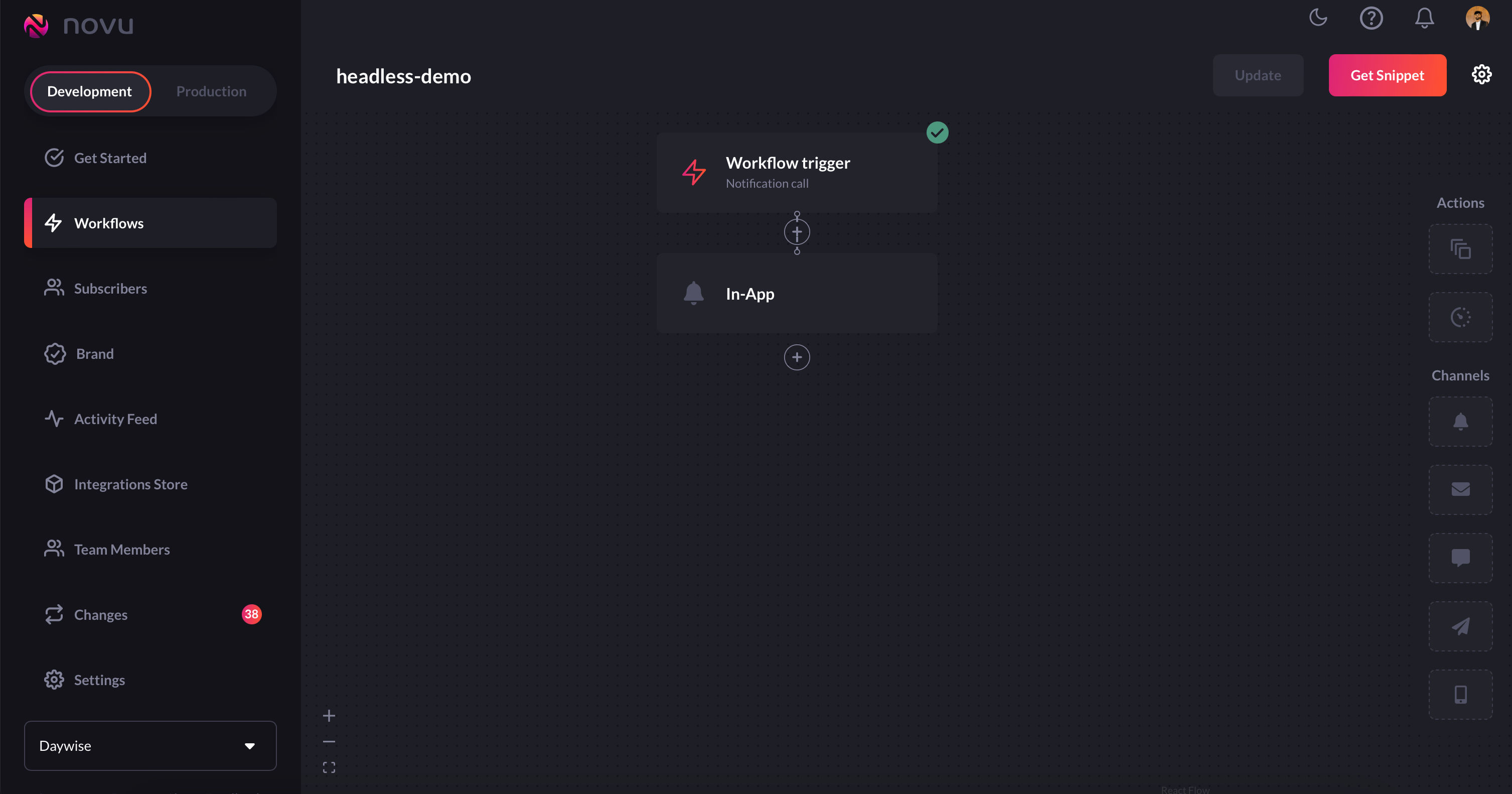
<Frame caption="The headless demo workflow that we'll be using">
  <img src="https://mintcdn.com/novu-v2-docs/sGuc2UrECiU5eWcY/images/SCR-20230825-pigg.png?fit=max&auto=format&n=sGuc2UrECiU5eWcY&q=85&s=7282d2fbe8aa15f11e43d67055109b9b" width="3014" height="1582" data-path="images/SCR-20230825-pigg.png" />
</Frame>

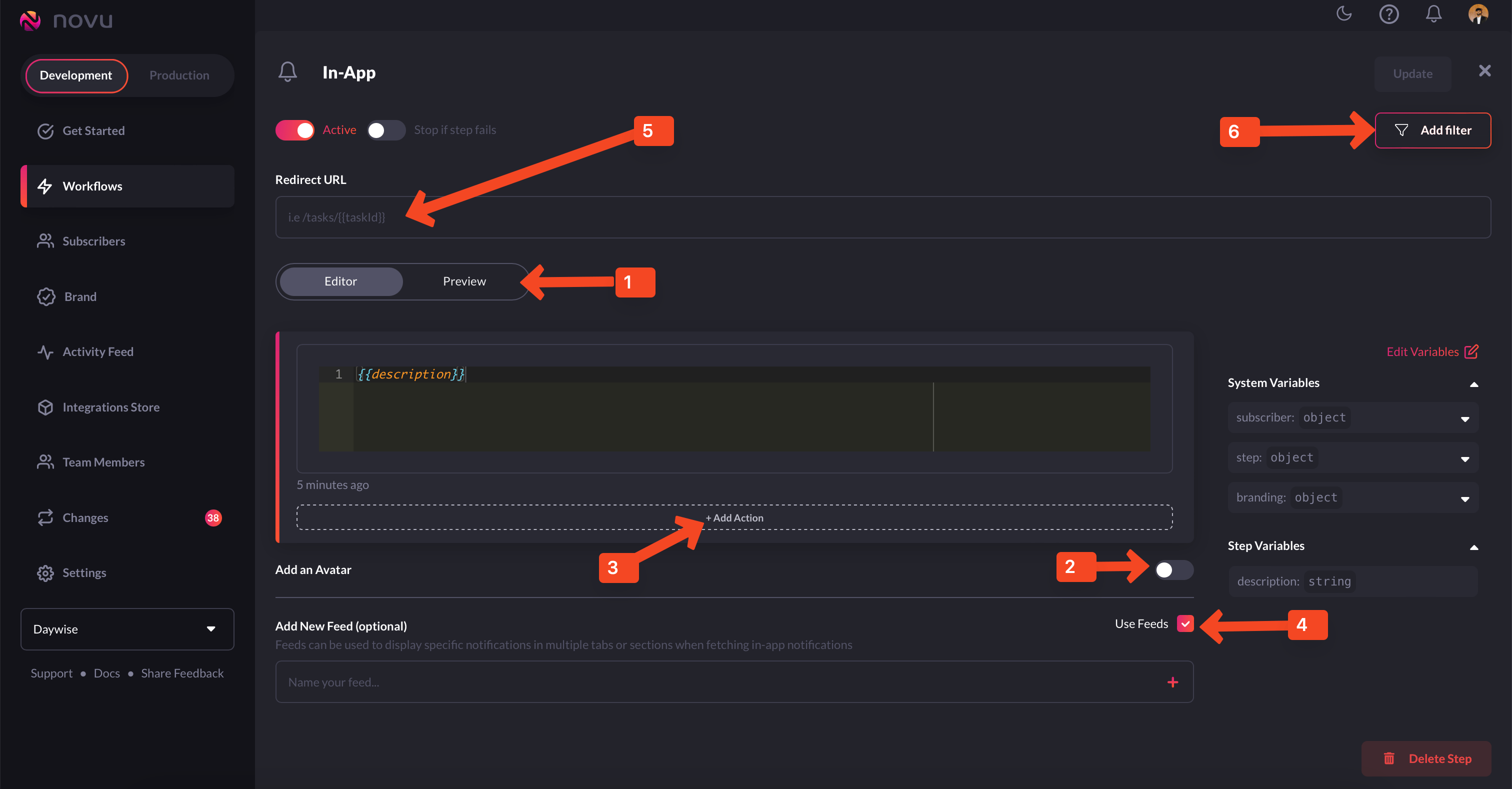
The `In-app` node allows you to further customize the notifications that will get sent, as per your need. In our case, it is a simple `description`, which will contain the text that will be entered from the front end. Here's the `in-app` node for your reference:
<Frame caption="The in-app node can be customized as per the need">
  <img src="https://mintcdn.com/novu-v2-docs/sGuc2UrECiU5eWcY/images/SCR-20230825-pkxt.png?fit=max&auto=format&n=sGuc2UrECiU5eWcY&q=85&s=e70880c23460728871777ef544598a2c" width="3024" height="1578" data-path="images/SCR-20230825-pkxt.png" />
</Frame>

Here's a brief overview of all the options:

* **1-Preview**: This shows you a glimpse of what each notification item will look like in the Notification Center UI.
* **2-Avatar:** If turned on, each notification item will show the avatar of the subscriber.
* **3-Action:** With this, you can add a primary and secondary call to action button to each notification item.
* **4-Notification Feeds:** This displays a stream of specific notifications. You can have multiple feeds to show specific notifications in multiple tabs.
* **5-Redirect URL** - This is the URL to which a subscriber can be directed when they click on a notification item.
* **6-Filter** - This feature allows you to configure the criteria for delivering notifications. For instance, you can apply a filter based on a subscriber's online status to send them an email if they were online within the last hour.

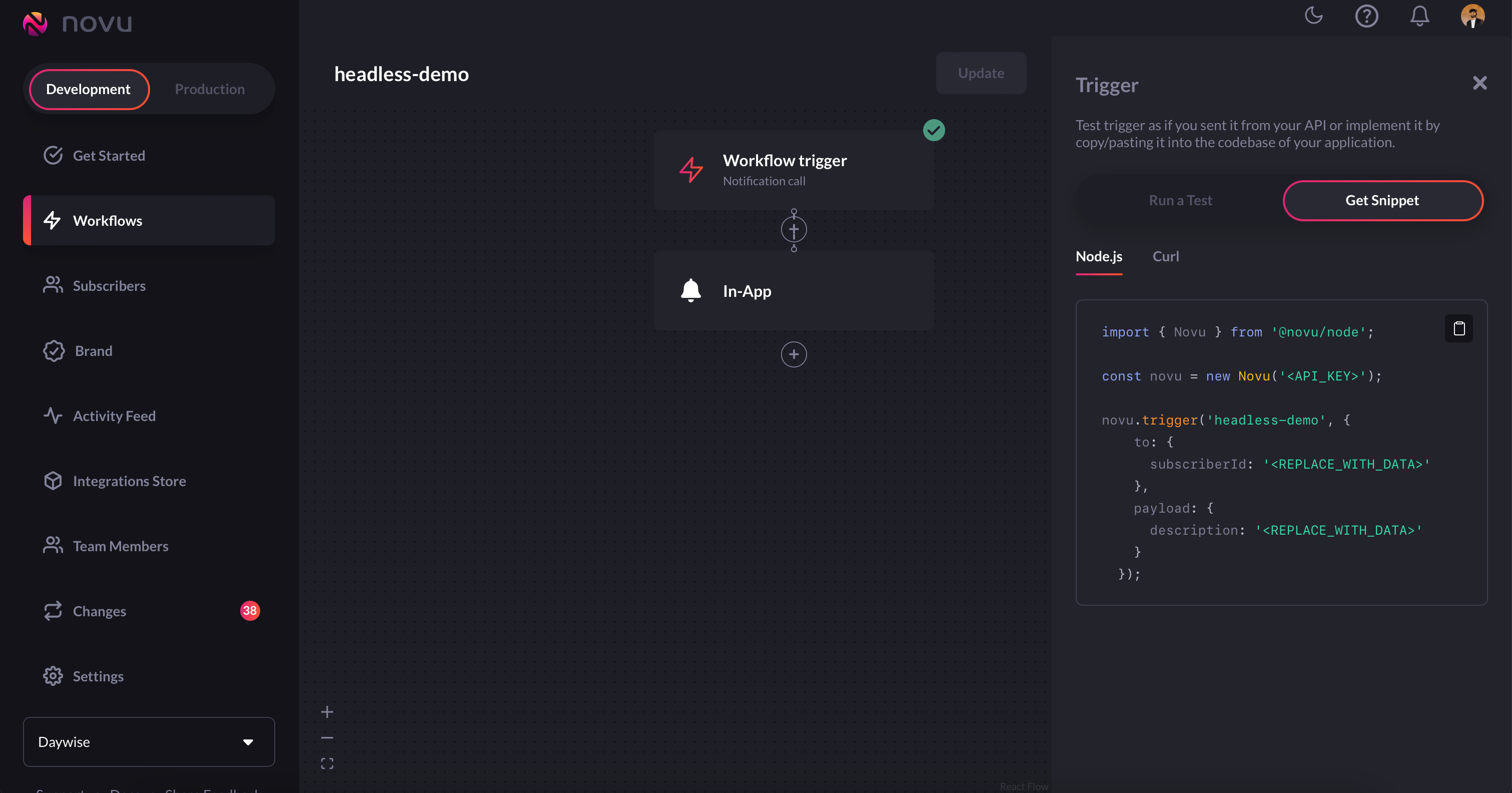
Once you’re done configuring this to your liking, click on the `update` button on the top right. It'll automatically create a trigger code that you can use in your app. To get it, click on the `get snippet` button on the top right and copy it:
<Frame caption="Click on the `get snippet` button on the top right and copy it">
  <img src="https://mintcdn.com/novu-v2-docs/sGuc2UrECiU5eWcY/images/SCR-20230825-pmtt.png?fit=max&auto=format&n=sGuc2UrECiU5eWcY&q=85&s=8949e91218f3780935d93759c6047858" width="3022" height="1584" data-path="images/SCR-20230825-pmtt.png" />
</Frame>

<br />

Let's now see how to add it to our app!

## Pre-requisites:

To be able to use the headless notification center, you'll first need the following:

1. `applicationIdentifier`: You can find this from the `settings` menu in the [Novu web dashboard.](https://web.novu.co/settings?utm_campaign=docs-guides-headless)
2. `subscriberID`: In most real-world apps, you'll get this from a database. It is used to uniquely identify the entity to whom a notification will be delivered. In our case, we're assuming the `subscriberID` to be `12345`.

## Setting up the back end:

For our demo app, we're setting up the back end as follows:

1. Install the Novu package. Open your terminal and run the following command:

```bash theme={null}
npm install @novu/node
```

Once installed, you can import Novu into your app and initialize it using your Novu account credentials. This step establishes a connection between your app and the Novu notification service.

```bash theme={null}
import { Novu } from '@novu/node';
const novu = new Novu('<NOVU_API_KEY>');
```

<Note>
  Replace the `<NOVU_API_KEY>` value with the authentic key from the API Key section of your [Novu Dashboard.](http://web.novu.co/?utm_campaign=docs-guides-headless)
</Note>

<Note>
  🔑 Please do not hardcode your credentials in a file in production. Use environment variables instead.
</Note>

Using the above info, we'll write a function that will help us interact with Novu's notification system:

```javascript theme={null}
import { Novu } from '@novu/node';

export const notification = async (description) => {
    const novu = new Novu("<NOVU_API_KEY>");
    await novu.subscribers.identify(process.env.SUSBSCRIBER_ID, {
        firstName: 'newSubForHeadless',
    });

// code snippet copied when creating the workflow
    await novu.trigger('headless-demo', {
        to: {
            subscriberId: process.env.SUSBSCRIBER_ID
        },
        payload: {
            description: description
        }
    });

}
```

After this, we'll set up a simple controller function for handling notifications:

```javascript theme={null}
import { notification } from "../novu/novu.js";

export const notifController = async (req,res) => {
    const{description} = req.body;
    try {
        await notification(description)
        res.status(201).json({message:"Subscriber created successfully"});
    } catch (error) {
        console.log("notifController error:",error);
        res.status(500).json({message: error.message})
    }
}
```

And finally, we'll need to establish routes that we'll hit from the front end:

```javascript theme={null}
import express from "express";
import { notifController } from "../controller/notif.js";

const router = express.Router();

router.post("/create-sub",notifController);

export default router;
```

Now, we'll move to the front end because that's where all the magic happens!

## Setting up the front end:

In the front end, install the headless package:

```bash theme={null}
npm install @novu/headless
```

Then, import it and initialize the headless service:

```javascript theme={null}
import { HeadlessService, FetchResult, ISession } from '@novu/headless';

 useEffect(() => {

        const headlessService = new HeadlessService({
            applicationIdentifier: 'SWMw97ec1ZNA',
            subscriberId: '12345',
        });

        headlessService.initializeSession({
            listener: (res) => {
            },
            onSuccess: (session) => {
                headlessServiceRef.current = headlessService;
                fetchNotifications();
            },
            onError: (error) => {
                console.log("headlessSice error:", error);
            },
        })

    }, [fetchNotifications])
```

We've added the `fetchNotifications` function inside a useEffect because we want the effect to run whenever the `fetchNotifications` executes. Here's the `fetchNotifications` function for reference:

```javascript theme={null}
const fetchNotifications = useCallback(() => {
        const headlessService = headlessServiceRef.current;
        if (headlessService) {
            headlessService.fetchNotifications({
                listener: ({ data, error, isError, isFetching, isLoading, status }) => {
                    // Handle the state of the fetching process and errors here.
                },
                onSuccess: (response) => {

                    // Handle the fetched notifications here.
                    setNotifications(response.data); // Store notifications in the state
                },
                page: pageNum, // page number to be fetched
            });
        }
    }, [pageNum])
```

Here, we've memoized the `fetchNotifications` to optimize performance and passed `pageNum` in a dependency array so that it reruns when the page number changes.

<br />

You can refer to the entire context [here](https://github.com/novuhq/novu-headless-demo-app/blob/main/frontend/src/context/NotificationContext.js) for a better understanding.

We've also used several methods related to the Headless Notification Center package. You can find the complete list [here.](/notification-center/client/headless/api-reference)

The methods that we've used in our app are `markNotificationsAsRead`, `deleteNotification`, and `markAllMessagesAsRead`. They are as follows:

```javascript theme={null}

    const markNotificationsAsRead = (messageIds) => {
        if (!Array.isArray(messageIds)) {
            messageIds = [messageIds];
        }

        const headlessService = headlessServiceRef.current;

        if (headlessService) {
            headlessService.markNotificationsAsRead({
                messageId: messageIds,
                listener: (result) => {
                },
                onError: (error) => {
                    console.error('Error marking notifications as read:', error);
                },
            });
        }

    };


const deleteNotification = (messageId) => {
        const headlessService = headlessServiceRef.current;
        if (headlessService) {
            headlessService.removeNotification({
                messageId: messageId,
                listener: function (result) {
                },
                onSuccess: function (message) {
                },
                onError: function (error) {
                    console.error(error);
                },
                messageIds: 'messageOne',
            });

        }
    }

    const markAllMessagesAsRead = (feedId) => {
        const headlessService = headlessServiceRef.current;

        headlessService.markAllMessagesAsRead({
            listener: (result) => {
                console.log(result);
                // Handle the result of marking all messages as read
                // You can update the state or perform other actions here
            },
            onError: (error) => {
                console.error('Error marking all messages as read:', error);
                // Implement error handling if needed
            },
            feedId: feedId, // Pass the feed ID here, it can be an array or a single ID
        });
    };
```

<Note>
  You can view the entire API reference [here](/notification-center/client/headless/api-reference) and pick up the methods that you'd like to use for your specific requirements.
</Note>

### Coding the UI up:

On the UI front, we have a simple form with a submit handler function and a couple of components:

```javascript theme={null}
const Body = () => {

    const [description, setDescription] = useState('');
    const { active, setActive } = useNotification();
    const onSubmitHandler = async e => {
        e.preventDefault()
        await axios.post('https://headless-backend-qx89.onrender.com/api/v1/create-sub', { description })

        setDescription('')
        setActive(true)
    }
    const onChangeHandler = e => {
        setDescription(e.target.value);
    }
    return (
        <div className='body-container'>
            <p>Enter notification text</p>
            <form onSubmit={onSubmitHandler} className="input-form">
                <input className="input" value={description} onChange={onChangeHandler} placeholder="Enter notification text" />
                <button className="form-btn">Send</button>
            </form>
        </div>
    )
}
```

The first component is the `appBar` component which includes a bell icon, which can show notifications in a modal when clicked. The modal is displayed when showModal is true, and the modal can be closed by clicking outside of it. The component interacts with the notification-related functionalities provided by the useNotification hook:

```javascript theme={null}
const AppBar = () => {
    const [showModal, setShowModal] = useState(false);
    const modalRef = useRef(null);

    const { fetchNotifications, setActive, active } = useNotification();

    const handleShowNotification = async (e) => {
        e.stopPropagation();
        setShowModal((prev) => !prev);
        await fetchNotifications();
        setActive(false);
    };
    const handleCloseModal = () => {
        setShowModal(false);
    }
    useEffect(() => {
        const handleDocumentClick = e => {
            if (modalRef.current && !modalRef.current.contains(e.target)) {
                handleCloseModal();
            }
        }
        if (showModal) {
            document.addEventListener('click', handleDocumentClick);
        }
        return () => {
            document.removeEventListener('click', handleDocumentClick)
        }
    }, [showModal])

    return (
        <div>
            <div className='app-bar-container'>
                <span onClick={handleShowNotification} className='bell-icon'>
                    <BsBell />
                    <div className={`${active ? `active` : ''}`}>
                        <div className='dot'></div>
                    </div>
                </span>
            </div>
            <div className={`modal-div ${showModal ? 'modal-show' : ''}`} ref={modalRef}>
                {showModal && (<NotificationModal />)}
            </div>
        </div>
    );
};

export default AppBar;
```

And the second component is the `NotificationModal` which is what gets displayed when the user clicks on the bell icon.

<Note>
  The beauty of using the headless version of the notification center is that you can customise exactly how it looks and which functionalities you need in it.
</Note>

Our `NotificationModal` component is as follows:

```javascript theme={null}
const NotificationModal = () => {

    const { notifications, markNotificationsAsRead, markAllMessagesAsRead, deleteNotification, setPageNum, pageNum, fetchNotifications } = useNotification();

    const handleNotificationRead = (notificationId) => {
        markNotificationsAsRead(notificationId);
    }

    const handleNotificationDelete = (notificationId) => {
        let newClass = document.getElementById(`${notificationId}`);
        newClass.style.display = 'none';
        deleteNotification(notificationId);
    }

    const handleMarkAllAsRead = () => {
        markAllMessagesAsRead();
    }
    const onPrvHandler = () => {
        setPageNum((prv) => prv - 1)

    }
    const onNxtHandler = () => {
        setPageNum((prv) => prv + 1)

    }


    useEffect(() => {
        fetchNotifications();
    }, [pageNum, fetchNotifications])
    return (
        <div className='bell-container'>
            <div className='heading'>
                <div className='title'>
                    <h2>
                        Notifications
                    </h2>
                </div>
                <div className='control-btn'>
                    <button className='modal-btn all-read title-btn' onClick={handleMarkAllAsRead}>Mark all as read</button>
                    <button className={` ${pageNum === 0 ? '' : 'modal-btn title-btn'}`} onClick={onPrvHandler} disabled={pageNum === 0 ? true : false}>Previous</button>
                    <button className={` ${notifications.length < 10 ? '' : 'modal-btn title-btn'}`} onClick={onNxtHandler} disabled={notifications.length < 10 ? true : false}>Next</button>
                </div>
            </div>
            <div>
                {notifications.map(not => (
                    <div key={not.id} className={`individual-notif`} id={`${not.id}`}>
                        <>
                            <span className={`bell-notif ${not.read ? 'read' : ''}`}>
                                {not?.payload?.description}
                            </span>
                            <div className='btn-container'>
                                {!not?.read && (
                                    <button onClick={() => handleNotificationRead(not?.id)} className='read-btn classic-btn'>Read</button>
                                )}
                                <button onClick={() => handleNotificationDelete(not?.id)} className='delete-btn classic-btn'>Delete</button>
                            </div>
                        </>
                    </div>
                ))
                }
            </div>
        </div>
    )
}
```

Finally, we've used some css to style the app to our liking. You can see that [here.](https://github.com/novuhq/novu-headless-demo-app/tree/main/frontend/src/styles).

## Conclusion

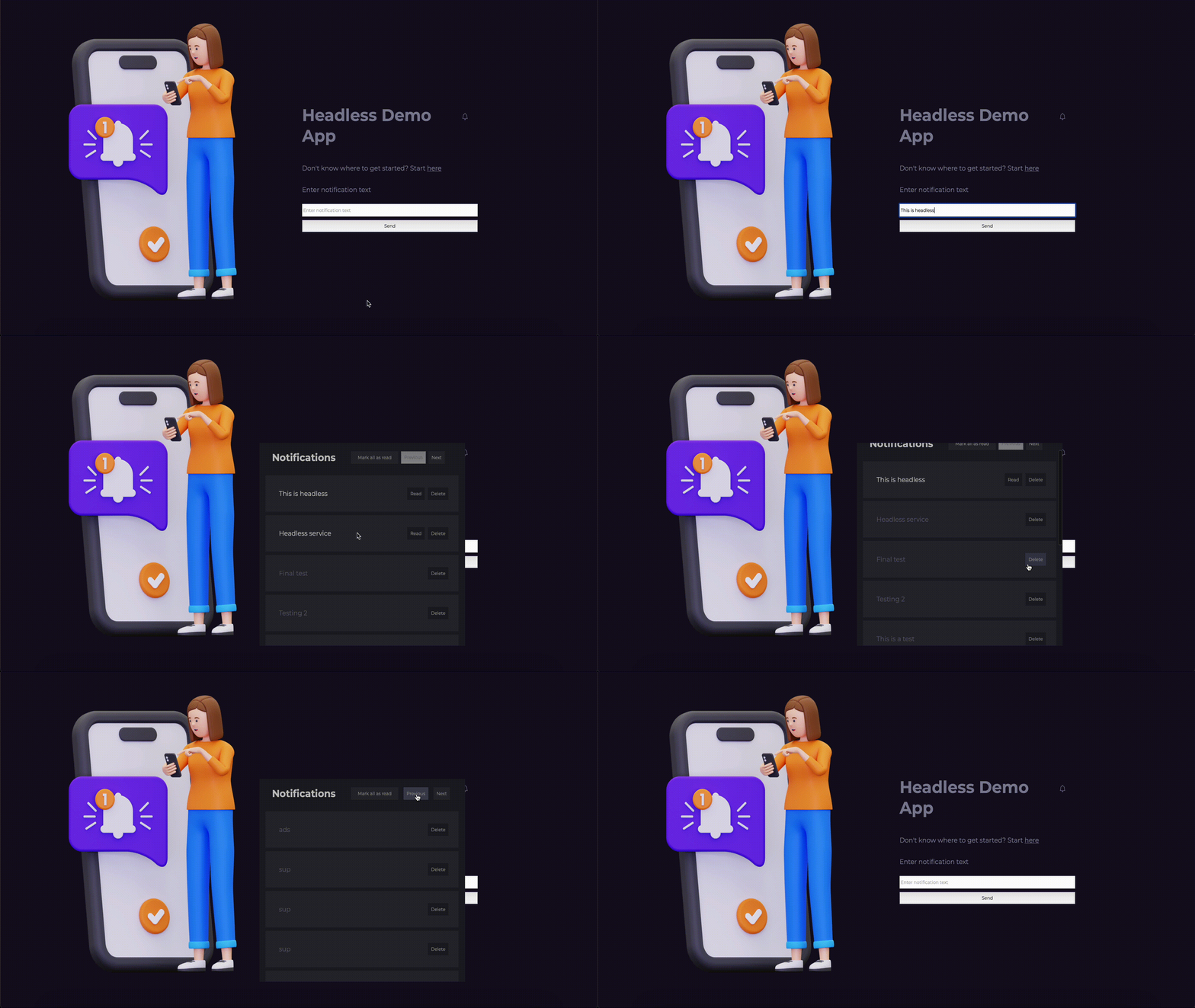
If you've followed everything till here, you'll end up with an app like the following:

<Frame caption="The headless app in action">
  <img src="https://mintcdn.com/novu-v2-docs/iBMuKOgzYB_2VB7w/images/headless.gif?s=f1df3cd8a41591b52646082142857168" width="1920" height="1080" data-path="images/headless.gif" />
</Frame>

Again, don't forget that you can view the entire code [here](https://github.com/novuhq/novu-headless-demo-app/tree/main) and if you've any questions, either related to this headless app or something else, feel free to ping use [here.](https://discord.gg/novu)
Also, we've several demo apps for you to check out [here.](/demos/introduction)
Thanks for reading!