> ## Documentation Index
> Fetch the complete documentation index at: https://v0.x-docs.novu.co/llms.txt
> Use this file to discover all available pages before exploring further.
# How to use Novu to send notifications to a Slack channel
> Learn to send Slack notifications swiftly with Novu (manually managed)
# Introduction
In this guide, you'll learn how to use Novu to send notifications directly to a Slack channel. But before coding anything up, we first need to go through a setup process.
The corresponding docs for this guide are available on our [docs](https://docs.novu.co/channels-and-providers/chat/slack).
The entire code of this app (frontend as well as backend) can be found [here](https://github.com/novuhq/slack-app).
So let's begin!
# Create a Slack App
Creating a Slack app is fairly simple. Follow these steps to create your app:
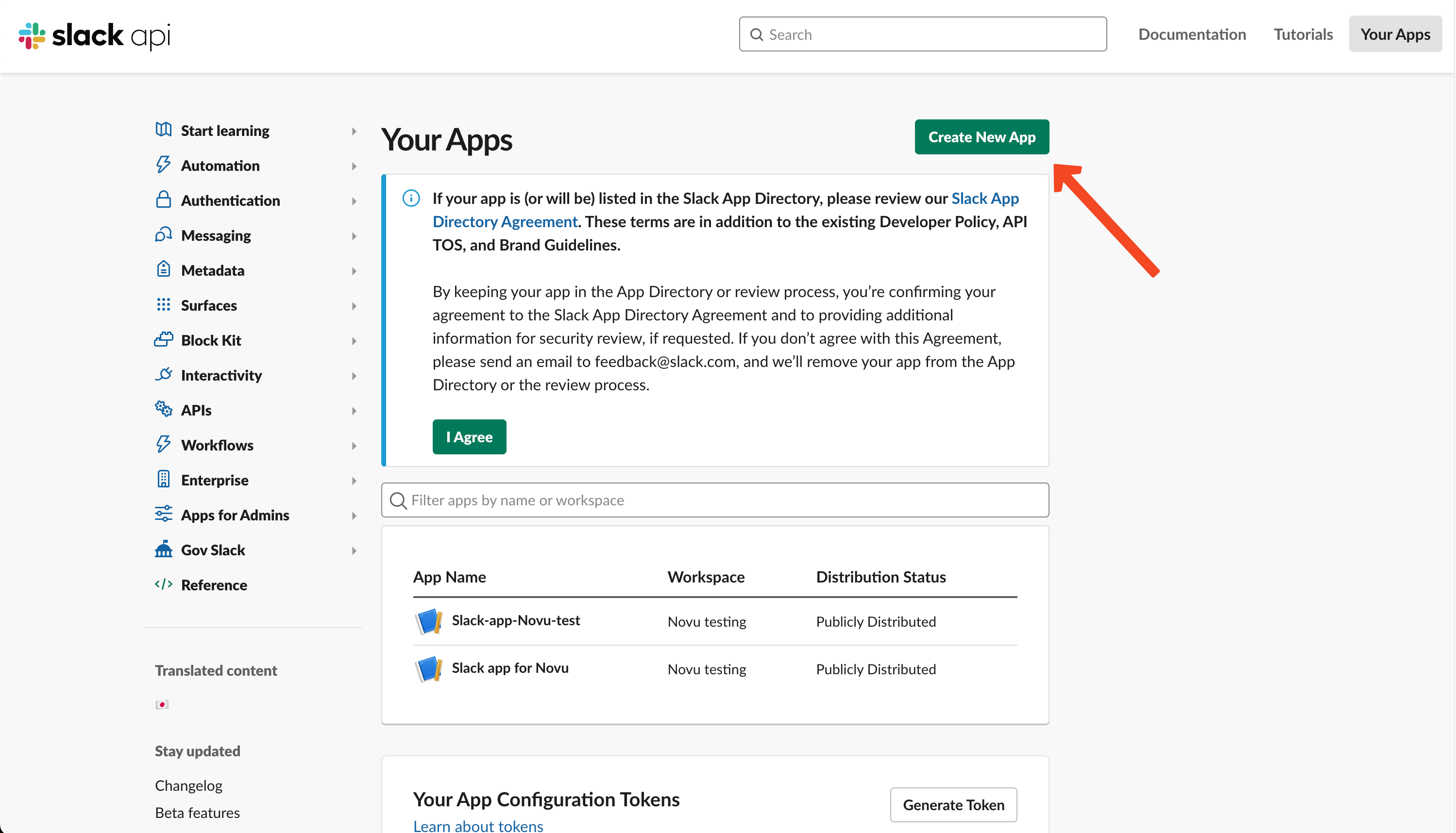
1. Go to [Slack's app dashboard](https://api.slack.com/apps) and click on the 'Create new App' button, as shown in the image:
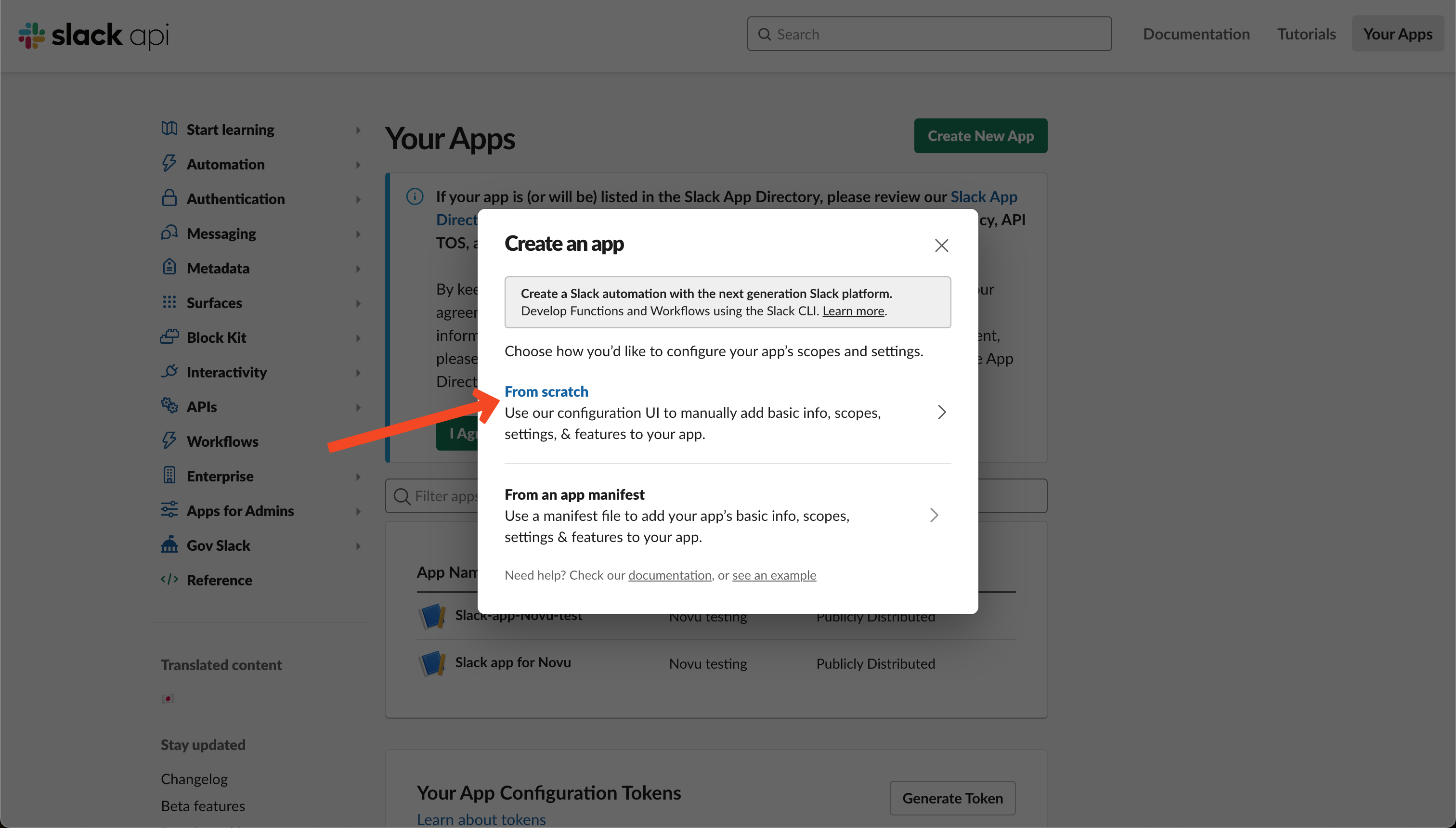
 2. Choose 'From Scratch' from the following dialog:
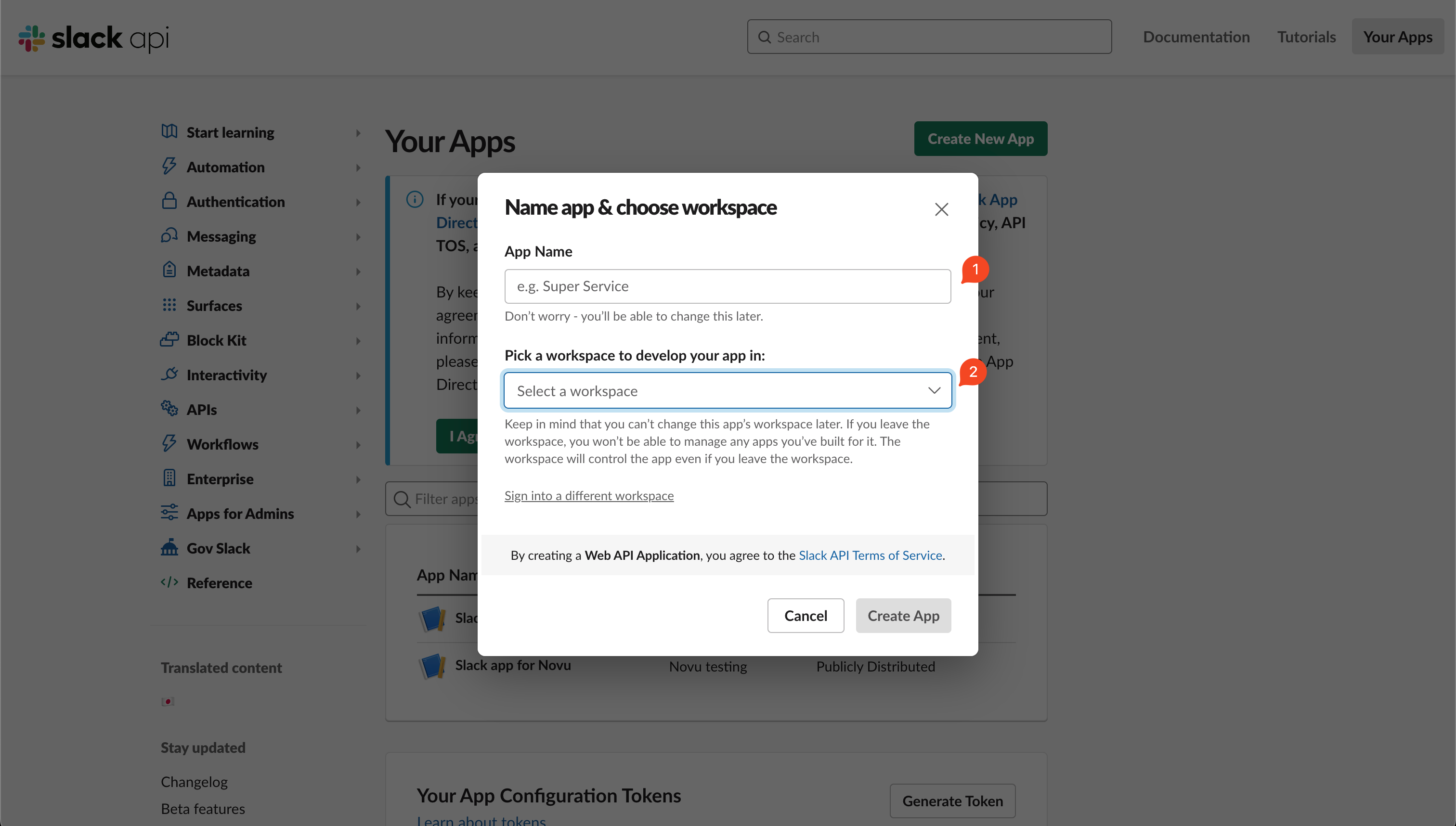
 3. Choose a name for your app and select the Slack workspace in which you want to send notifications:
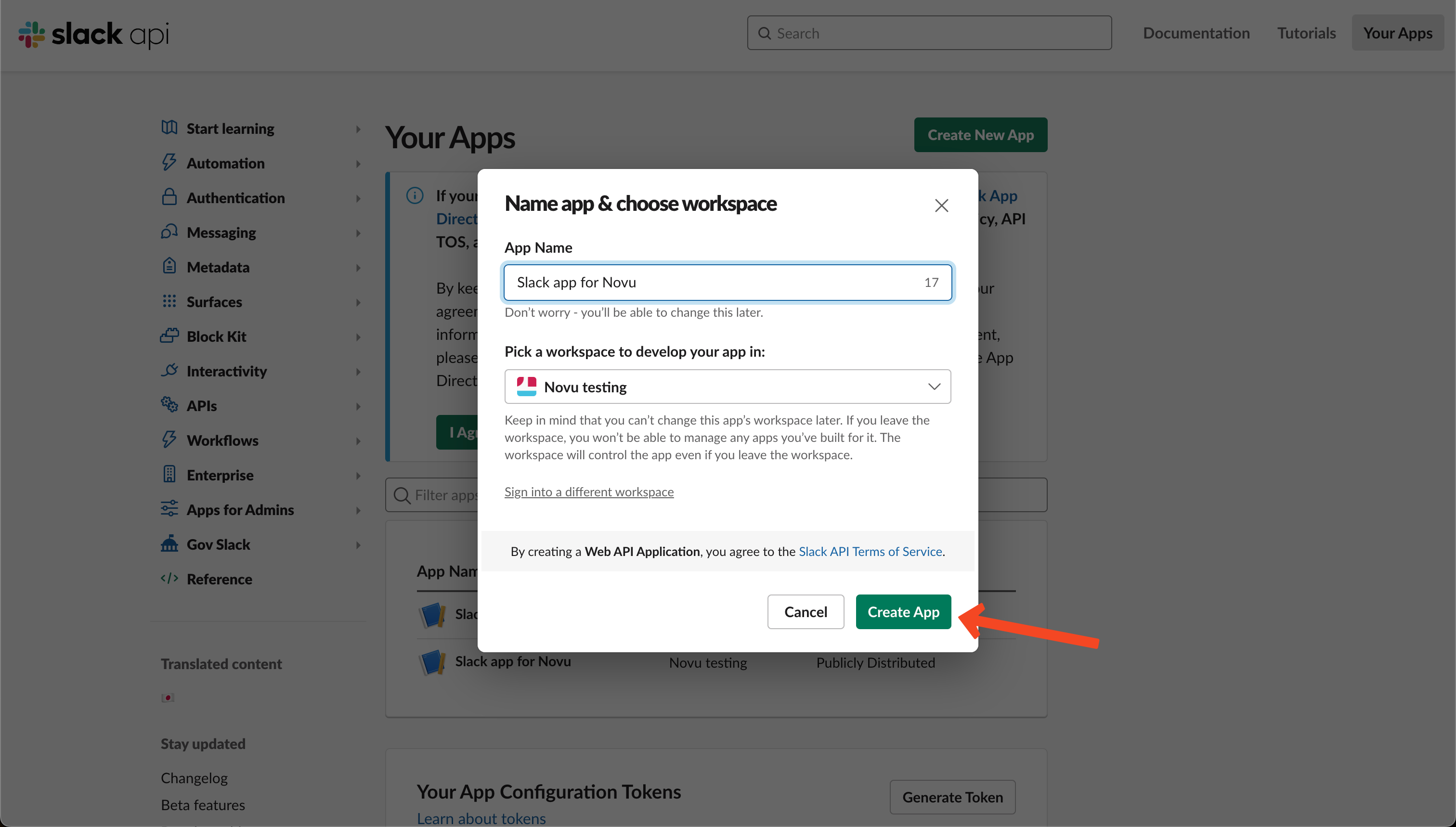
 4. Once you're done, simply click the 'Create App' button:
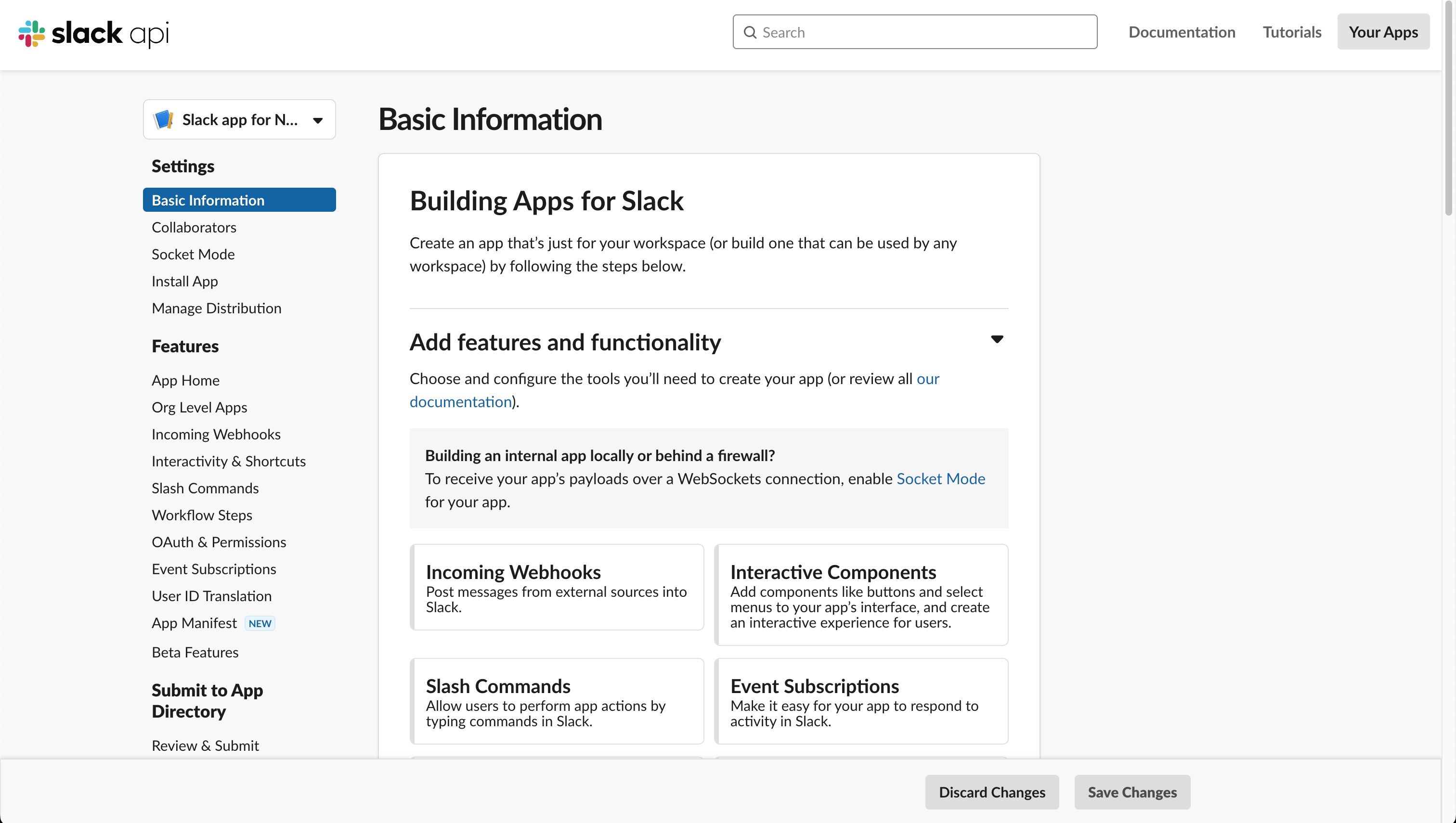
 5. Once done, you'll be greeted with the screen shown below. We'll make a couple of changes here and it'll be ready to go.
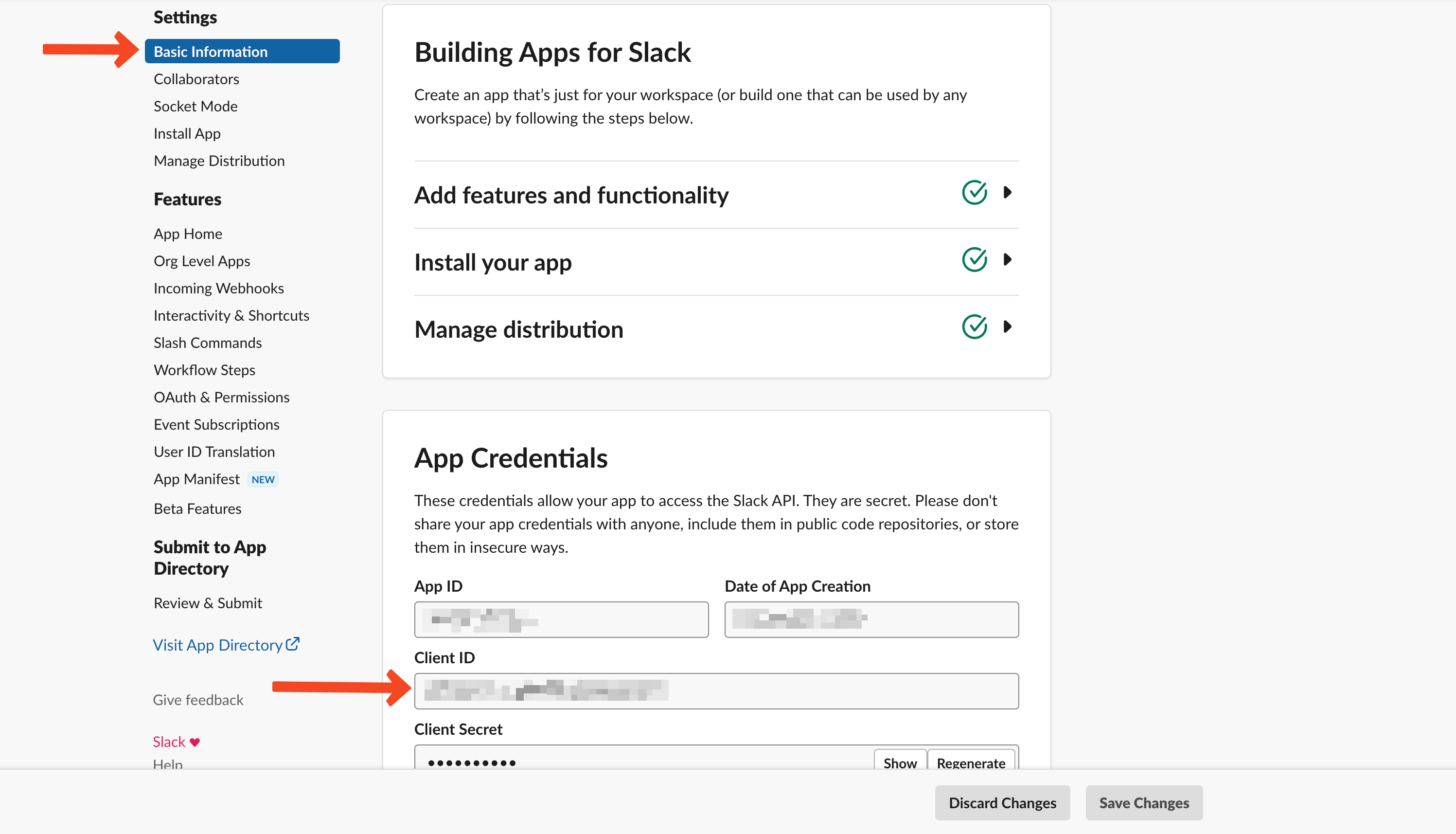
 6. We'll need `Client Id` from the [Slack Developer's Dashboard](https://api.slack.com/apps) for configuring Slack Integration in the [Novu Web Dashboard](https://web.novu.co/integrations?utm_campaign=docs-guides-slack) later, so keep it handy.
 # Create a workflow in the Novu Web Dashboard
1. To create a workflow, head to the workflow section in the [Novu Web Dashboard](https://web.novu.co/workflows?utm_campaign=docs-guides-slack).
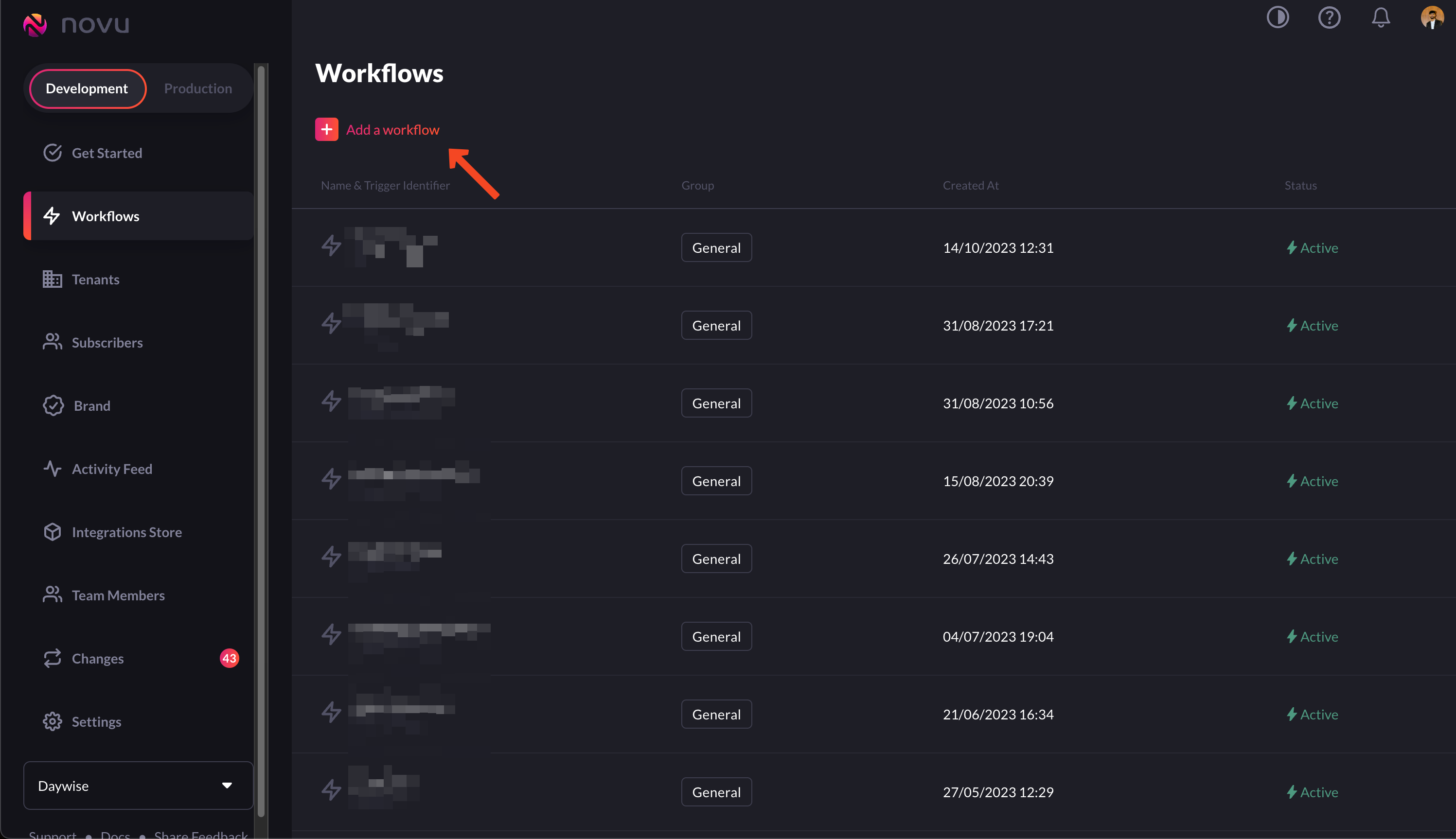
2. Click on the 'Add a workflow' button and select 'Blank workflow' from the dropdown.
# Create a workflow in the Novu Web Dashboard
1. To create a workflow, head to the workflow section in the [Novu Web Dashboard](https://web.novu.co/workflows?utm_campaign=docs-guides-slack).
2. Click on the 'Add a workflow' button and select 'Blank workflow' from the dropdown.
 3. Once there, give your workflow a name and drag and drop the 'chat' option below the 'workflow trigger' step.
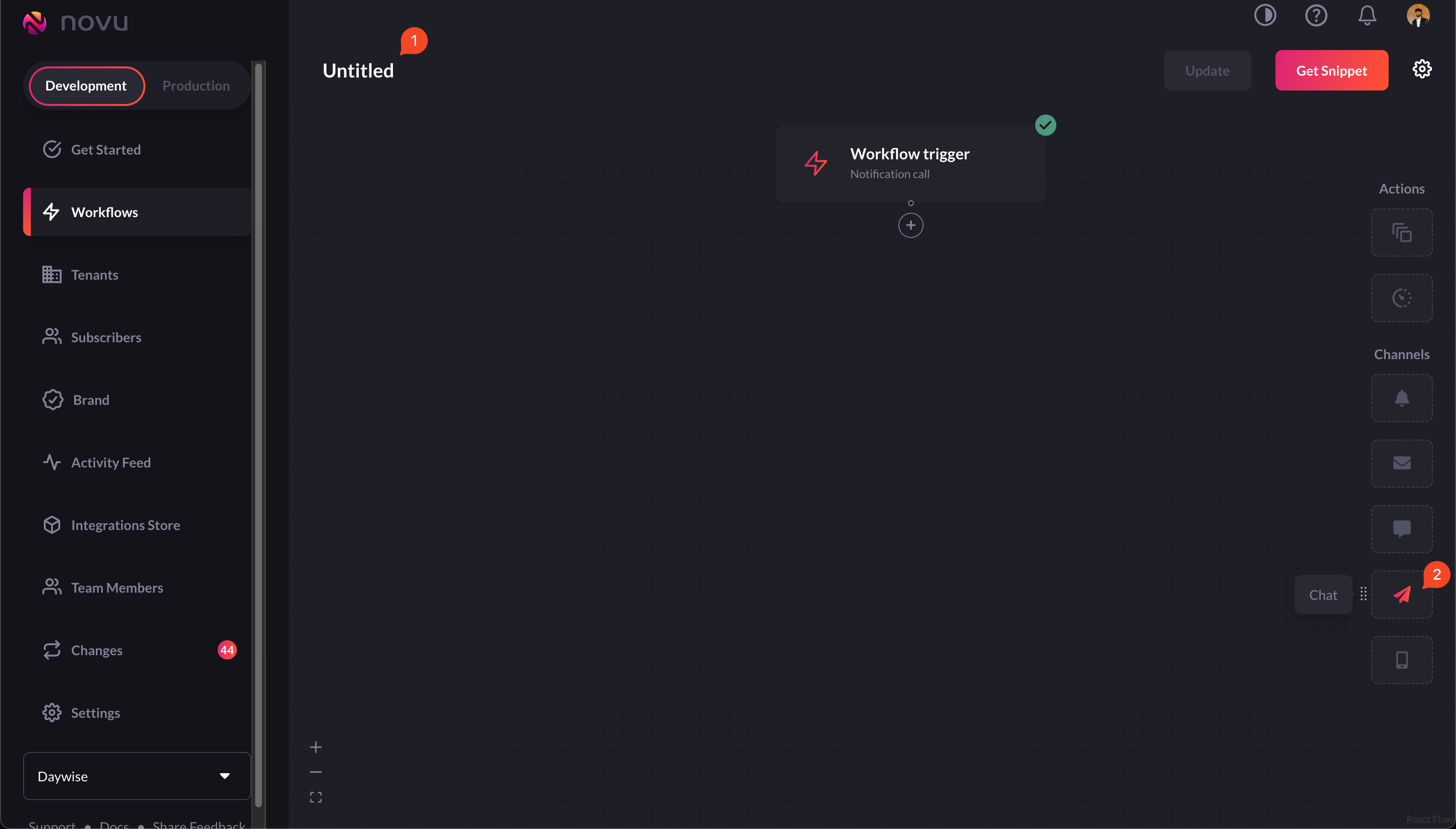 4. You can also add variables in the Workflow Editor. For example, here I've added 'chatMsg' as a variable as I'll be sending data using it.
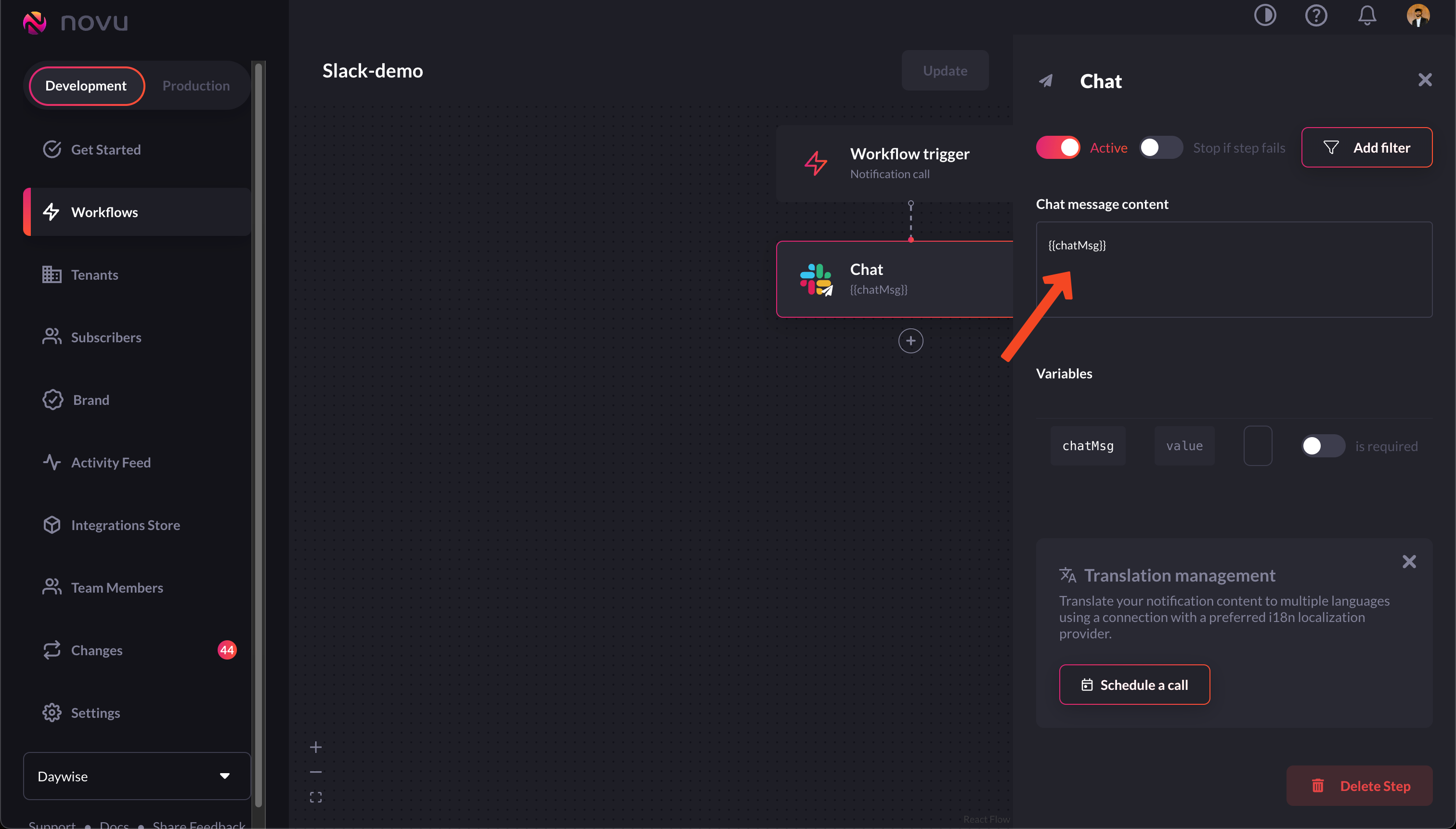 Whatever is placed inside double braces is a variable.
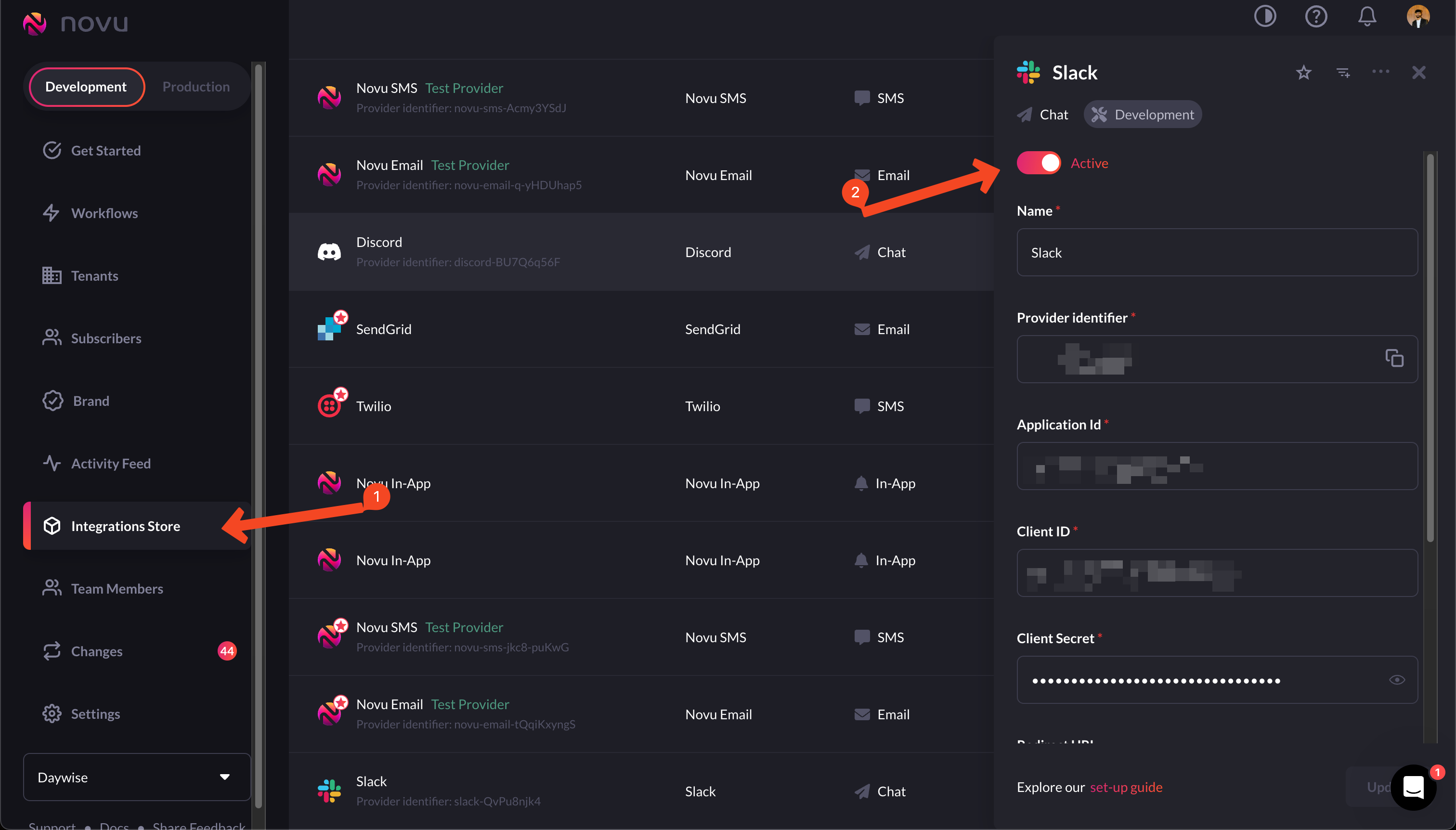
5\. Make sure that you've turned on the Slack integration in the [Integrations Store](https://web.novu.co/integrations?utm_campaign=docs-guides-slack).
Whatever is placed inside double braces is a variable.
5\. Make sure that you've turned on the Slack integration in the [Integrations Store](https://web.novu.co/integrations?utm_campaign=docs-guides-slack).
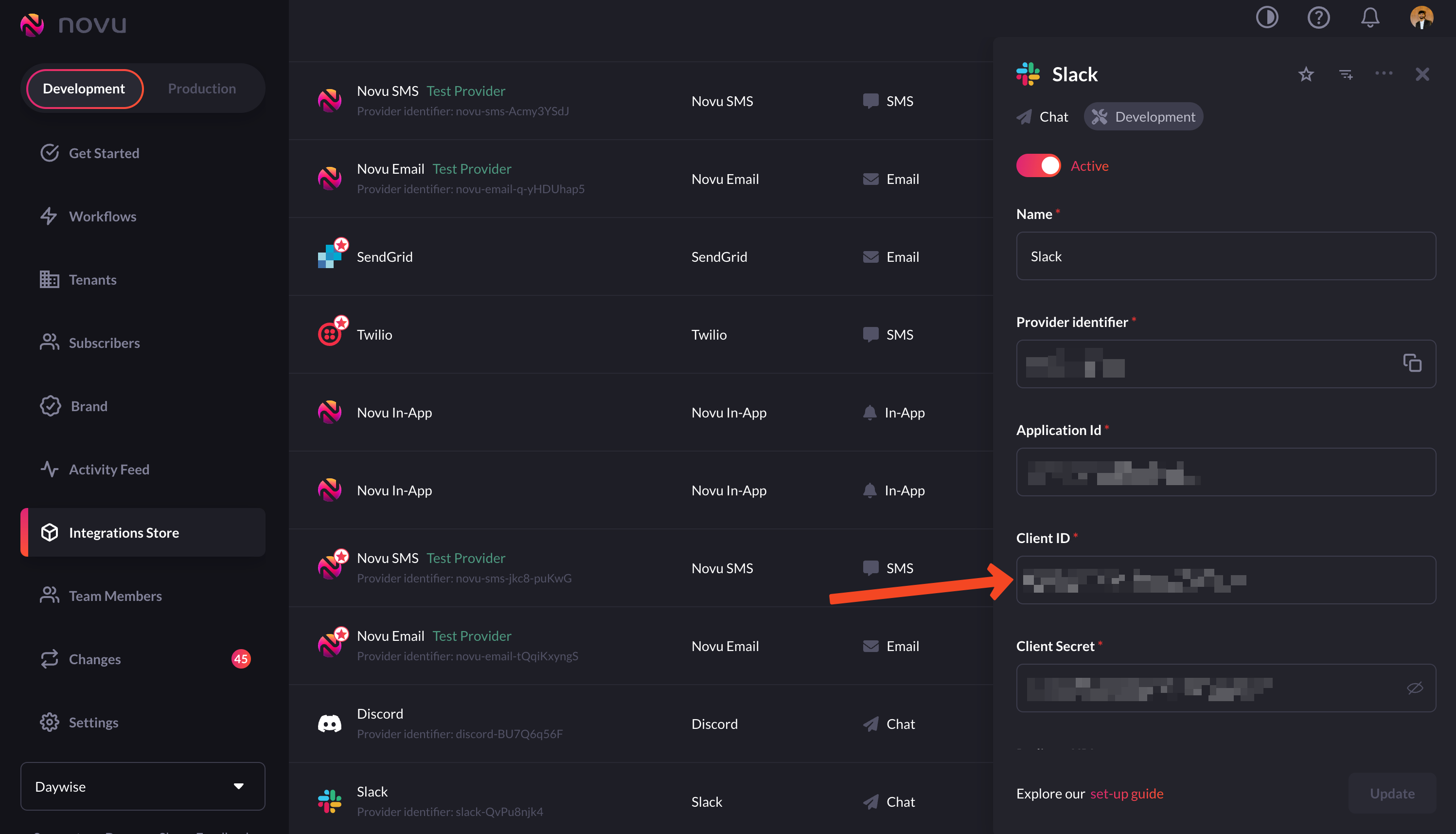
 6. To turn the Slack integration on, you'll need `Client Id`. You should have it already but if you don't, you can obtain it from the [Slack Developer's Dashboard](https://api.slack.com/apps).
7. Once you have it, you need to plug it into the respective field in the [Slack Integration Settings](https://web.novu.co/integrations?utm_campaign=docs-guides-slack) on the Novu Web Dashboard.
6. To turn the Slack integration on, you'll need `Client Id`. You should have it already but if you don't, you can obtain it from the [Slack Developer's Dashboard](https://api.slack.com/apps).
7. Once you have it, you need to plug it into the respective field in the [Slack Integration Settings](https://web.novu.co/integrations?utm_campaign=docs-guides-slack) on the Novu Web Dashboard.
 # Create the backend
The backend for this app is quite simple. Simply install the Novu package:
```bash theme={null}
npm install @novu/node
```
Now, create a route that you'll hit when called from the front end. We'll also need to add it to our Slack app (discussed below). For our demo app, this is the route I've created:
```jsx theme={null}
import express from "express";
import { chatController } from "../controller/chat.js";
const router = express.Router();
router.post("/sendChat", chatController);
export default router;
```
Now, we need a controller function to handle what is to be sent in the trigger's function payload. Here's the controller I wrote:
```jsx theme={null}
import { chat } from "../novu/novu.js"
export const chatController = async (req, res) => {
const { chatMsg } = req.body;
try {
await chat(chatMsg);
res.status(201).json({ message: "Message sent successfully" });
} catch (error) {
res.status(500).json({ message: error.message })
}
}
```
Notice how we're expecting 'chatMsg' in our payload. This is why we added it as a variable in the workflow created earlier.
To make it modular, we’ll keep the trigger code in a separate function in a separate file, `novu.js`, in our case, which is as follows:
```jsx theme={null}
import { Novu, ChatProviderIdEnum } from '@novu/node';
export const chat = async (chatMsg) => {
const novu = new Novu(process.env.YOUR_NOVU_API_KEY_HERE);
await novu.subscribers.identify(process.env.SUB_ID, {
firstName: 'newSubForSlackChat',
});
await novu.trigger('slack', {
to: {
subscriberId: process.env.SUB_ID
},
payload: {
chatMsg: chatMsg
}
});
}
```
In this code snippet above, we're first initializing a new instance of Novu, then using it to 'identify' or [create](https://docs.novu.co/subscribers/subscribers#create-a-subscriber) a [subscriber](https://docs.novu.co/subscribers/subscribers).
The 'identify' method tries to find a subscriber with the given info. If it can't find any such subscriber, it creates a new subscriber with the supplied info.
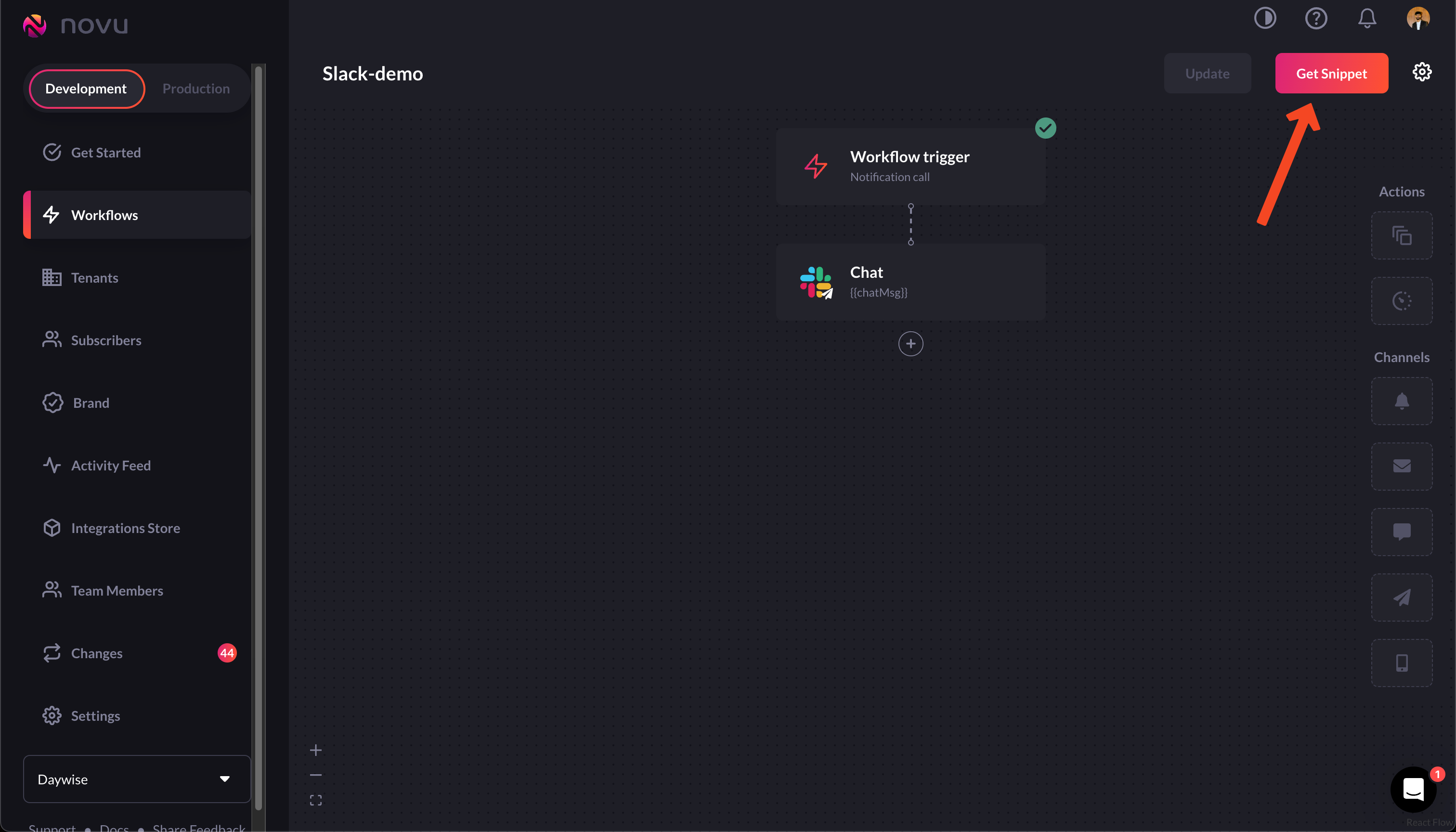
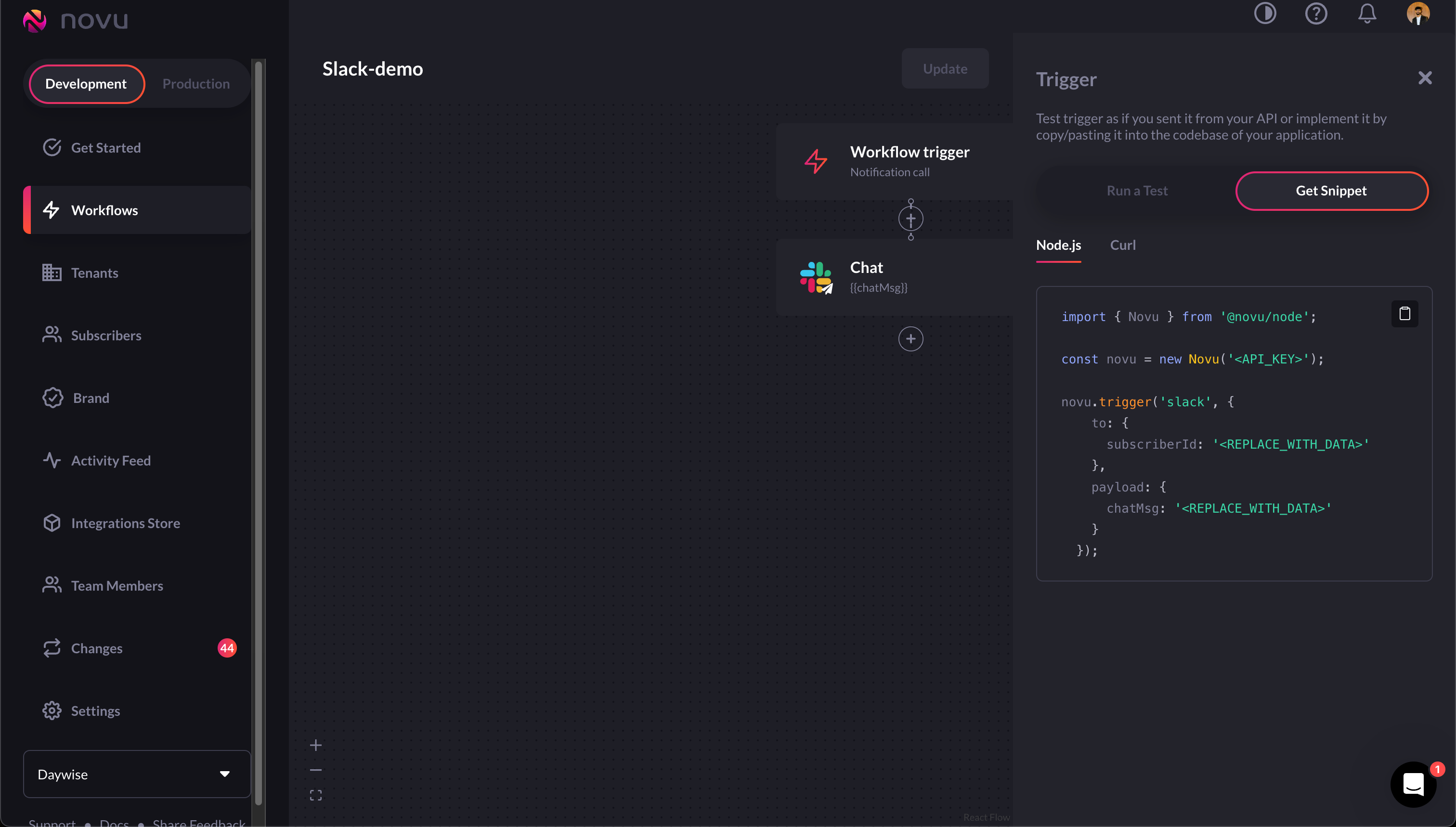
After creating the subscriber, it runs the trigger code for the workflow we had created. You can find the trigger workflow by clicking on the 'Get Snippet' button on the workflow:
# Create the backend
The backend for this app is quite simple. Simply install the Novu package:
```bash theme={null}
npm install @novu/node
```
Now, create a route that you'll hit when called from the front end. We'll also need to add it to our Slack app (discussed below). For our demo app, this is the route I've created:
```jsx theme={null}
import express from "express";
import { chatController } from "../controller/chat.js";
const router = express.Router();
router.post("/sendChat", chatController);
export default router;
```
Now, we need a controller function to handle what is to be sent in the trigger's function payload. Here's the controller I wrote:
```jsx theme={null}
import { chat } from "../novu/novu.js"
export const chatController = async (req, res) => {
const { chatMsg } = req.body;
try {
await chat(chatMsg);
res.status(201).json({ message: "Message sent successfully" });
} catch (error) {
res.status(500).json({ message: error.message })
}
}
```
Notice how we're expecting 'chatMsg' in our payload. This is why we added it as a variable in the workflow created earlier.
To make it modular, we’ll keep the trigger code in a separate function in a separate file, `novu.js`, in our case, which is as follows:
```jsx theme={null}
import { Novu, ChatProviderIdEnum } from '@novu/node';
export const chat = async (chatMsg) => {
const novu = new Novu(process.env.YOUR_NOVU_API_KEY_HERE);
await novu.subscribers.identify(process.env.SUB_ID, {
firstName: 'newSubForSlackChat',
});
await novu.trigger('slack', {
to: {
subscriberId: process.env.SUB_ID
},
payload: {
chatMsg: chatMsg
}
});
}
```
In this code snippet above, we're first initializing a new instance of Novu, then using it to 'identify' or [create](https://docs.novu.co/subscribers/subscribers#create-a-subscriber) a [subscriber](https://docs.novu.co/subscribers/subscribers).
The 'identify' method tries to find a subscriber with the given info. If it can't find any such subscriber, it creates a new subscriber with the supplied info.
After creating the subscriber, it runs the trigger code for the workflow we had created. You can find the trigger workflow by clicking on the 'Get Snippet' button on the workflow:
 # Configure the Slack app
There are two ways to configure the Slack app. One is the Novu managed option and another the manually managed option.
Since the Novu managed is fairly straightforward, I'll demonstrate the manual method here. Follow along to set it up!
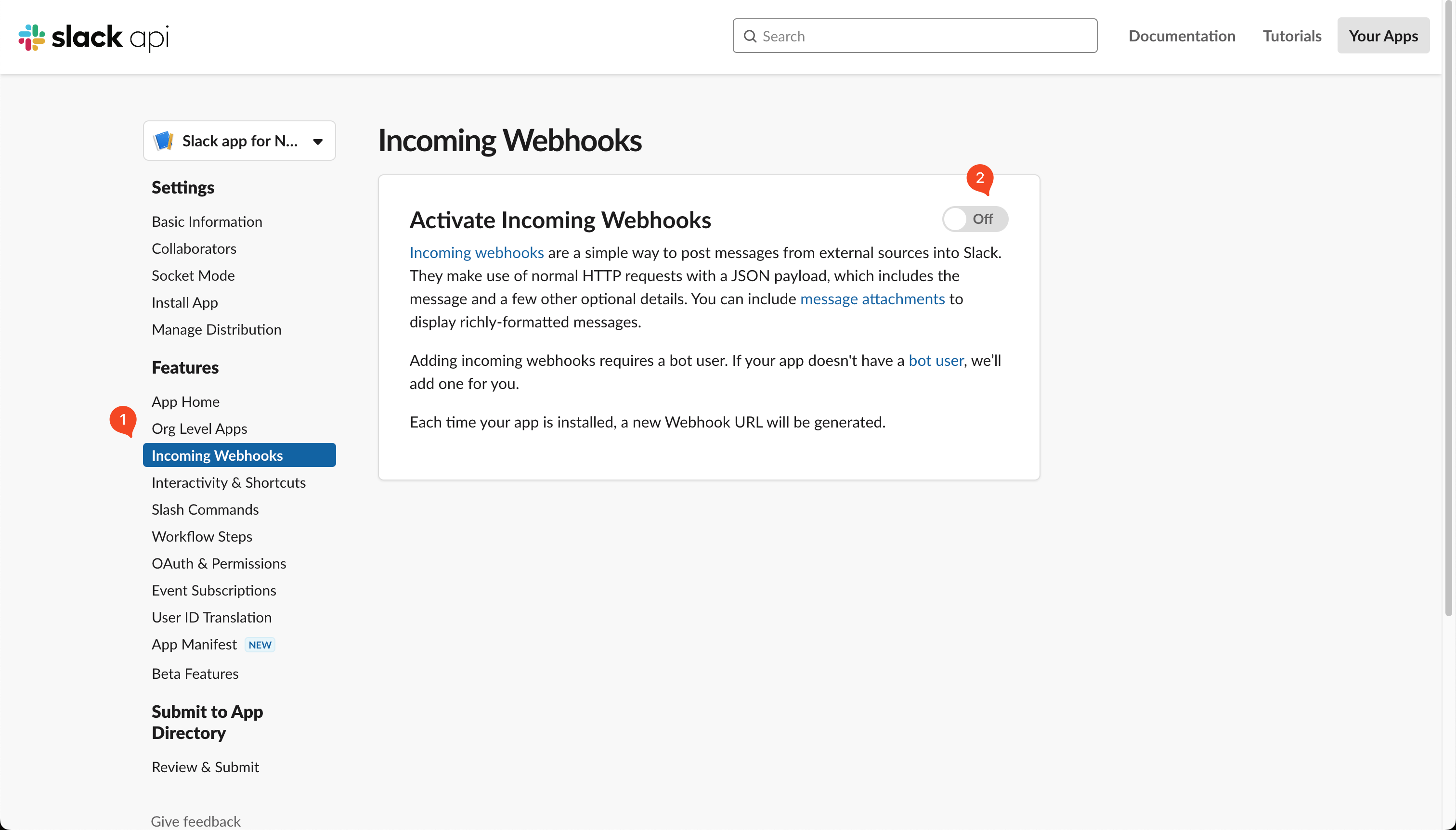
1. Goto 'Incoming Webhooks' in your Slack app settings and turn it on.
# Configure the Slack app
There are two ways to configure the Slack app. One is the Novu managed option and another the manually managed option.
Since the Novu managed is fairly straightforward, I'll demonstrate the manual method here. Follow along to set it up!
1. Goto 'Incoming Webhooks' in your Slack app settings and turn it on.
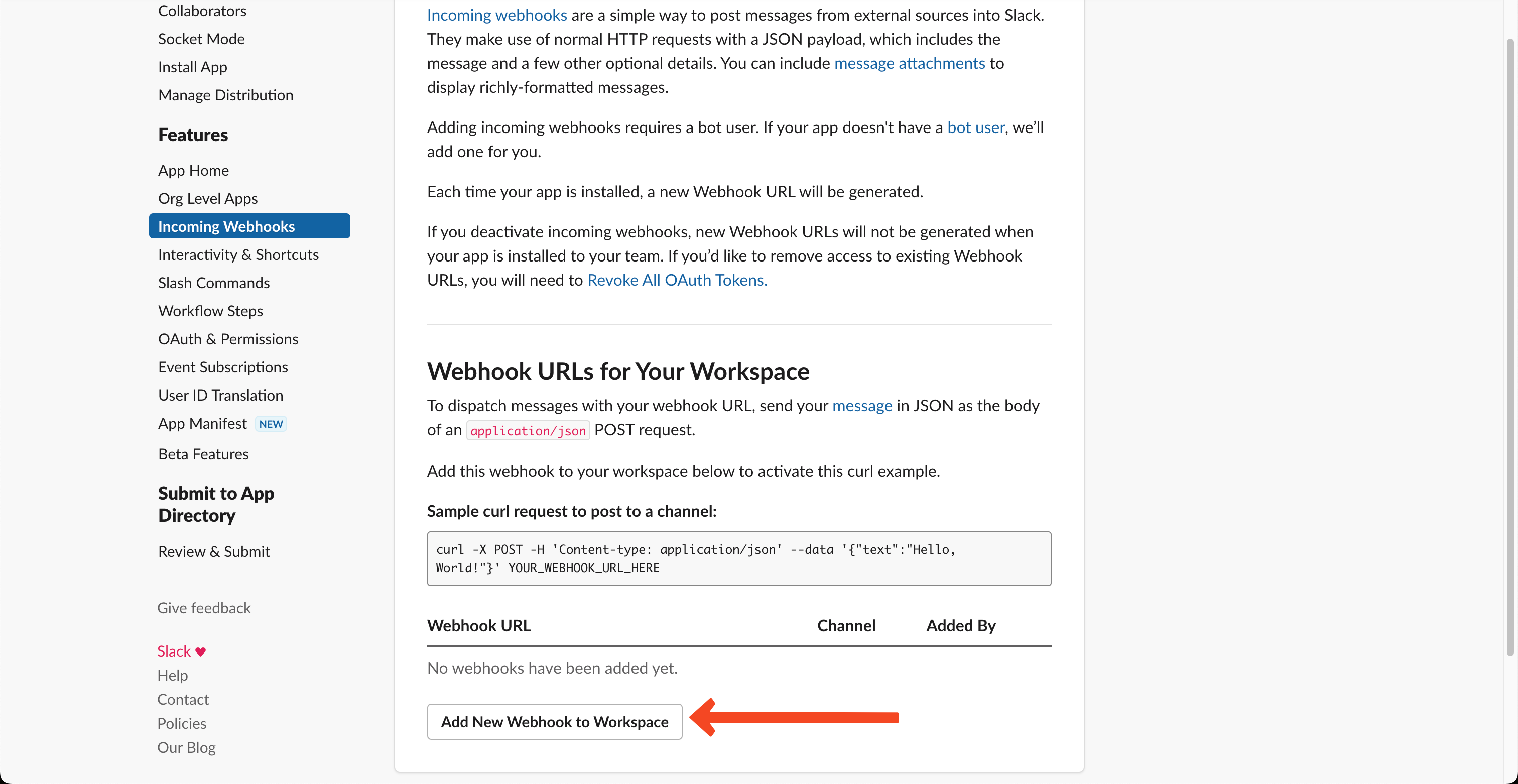
 2. Click on the 'Add New Webhook to Workspace':
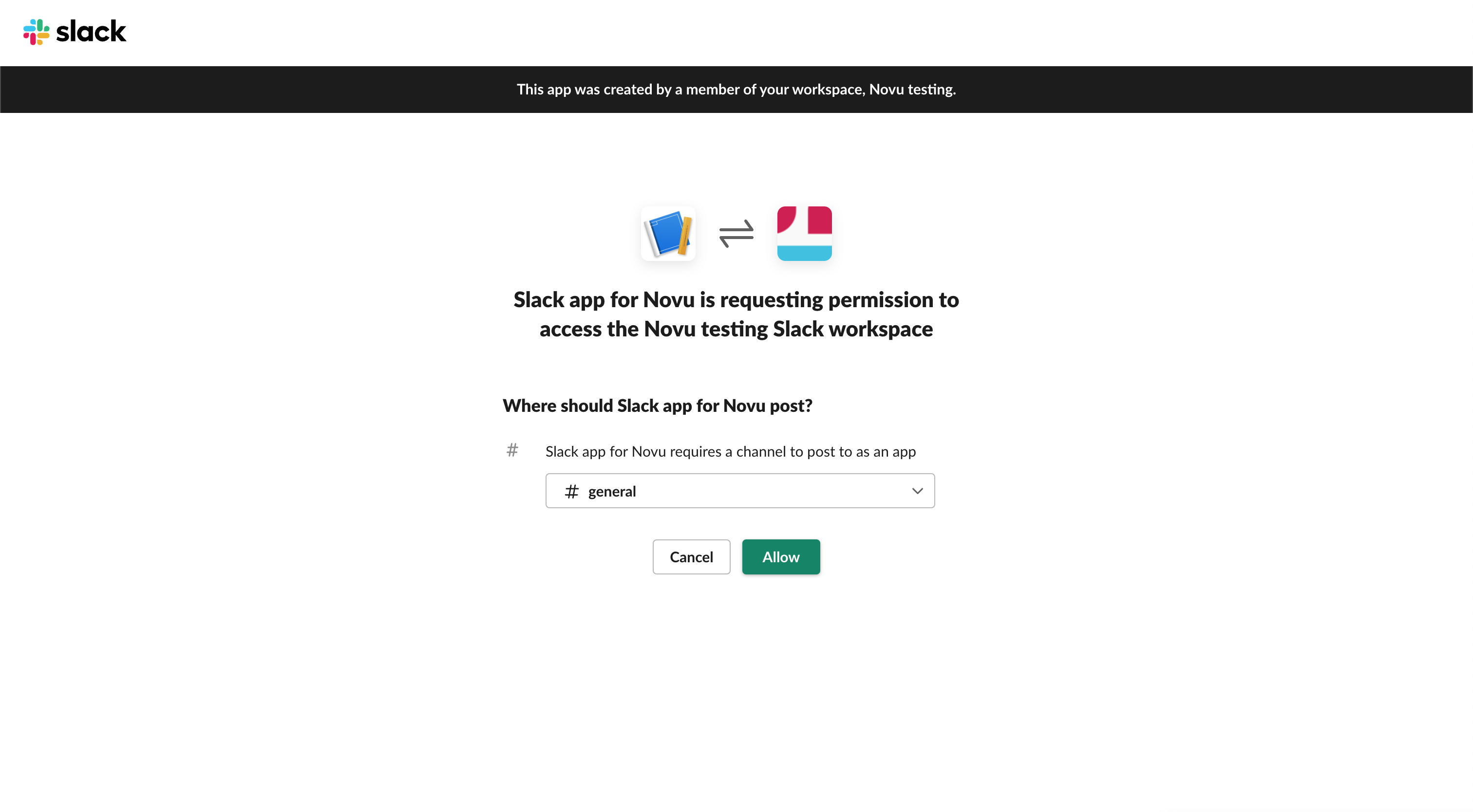
 3. Now, go ahead and select the channel in which you want to send notifications and click 'allow'.
 4. Then, copy the 'webhookUrl' from Slack.
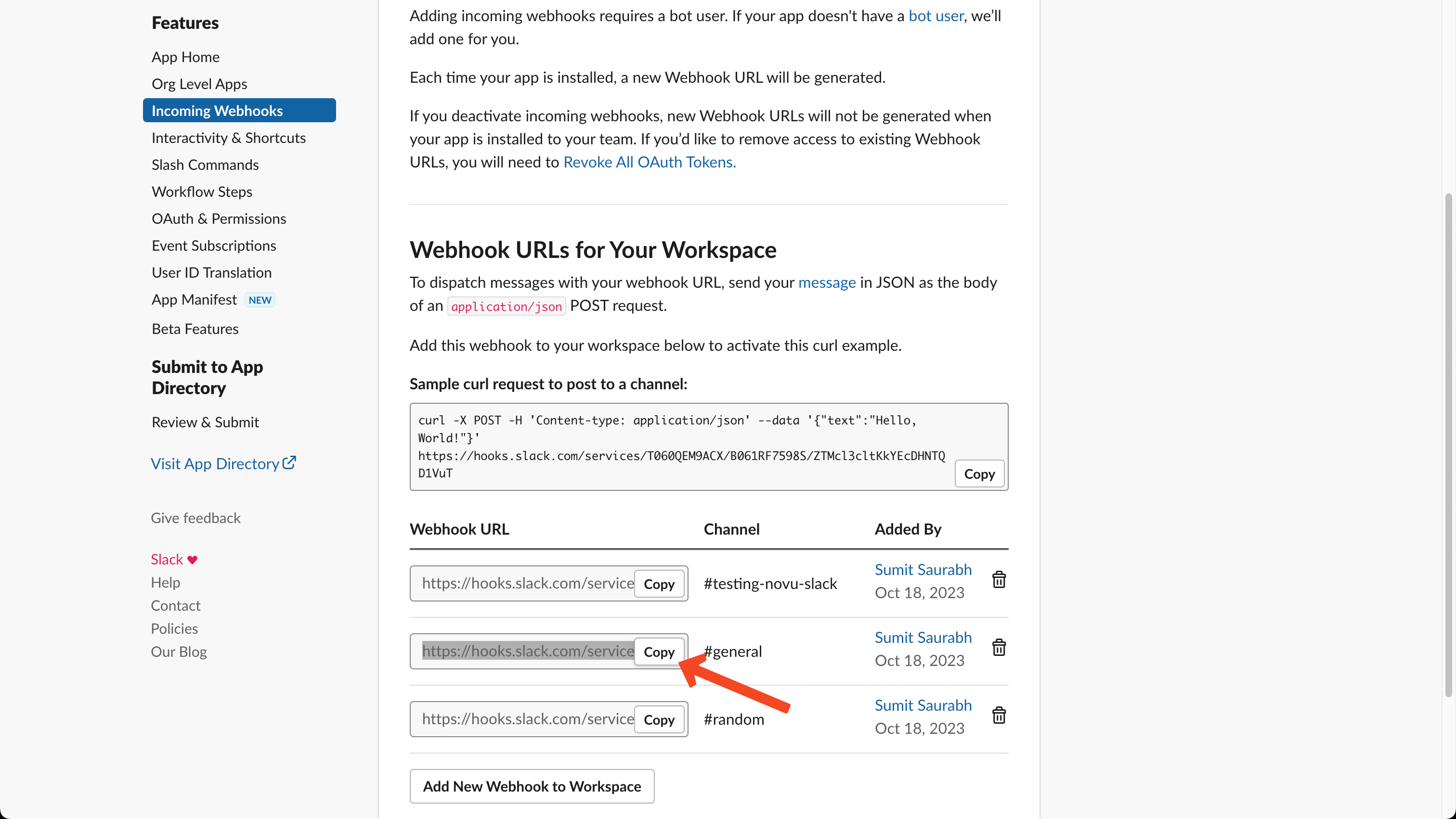 5. Now, add the code below to the backend trigger functionality. Using this code, we are specifying what `webhookUrl` Novu will use to authenticate when using the Slack provider.
```javaScript theme={null}
import {
Novu,
ChatProviderIdEnum
} from '@novu/node';
const novu = new Novu("");
await novu.subscribers.setCredentials('subscriberId', ChatProviderIdEnum.Slack, {
webhookUrl: "",
});
```
```bash theme={null}
curl -L -X PUT 'https://api.novu.co/v1/subscribers//credentials' \
-H 'Content-Type: application/json' \
-H 'Accept: application/json' \
-H 'Authorization: ApiKey ' \
-d '{
"providerId": "slack",
"credentials": {
"webhookUrl": ""
},
"integrationIdentifier": "slack-MnGLxp8uy"
}'
```
In our case, we'll add it to the `Novu.js` file we created earlier so that the final file becomes :
```jsx theme={null}
import { Novu, ChatProviderIdEnum } from '@novu/node';
export const chat = async (chatMsg) => {
const novu = new Novu(process.env.YOUR_NOVU_API_KEY_HERE);
await novu.subscribers.identify(process.env.SUB_ID, {
firstName: 'newSubForSlackChat',
});
await novu.subscribers.setCredentials(process.env.SUB_ID, ChatProviderIdEnum.Slack, {
webhookUrl: process.env.SLACK_WEBHOOK_URL,
});
await novu.trigger('slack', {
to: {
subscriberId: process.env.SUB_ID
},
payload: {
chatMsg: chatMsg
}
});
}
```
6. Finally, we'll add the route we'd created earlier to the redirect URL section, as shown:
5. Now, add the code below to the backend trigger functionality. Using this code, we are specifying what `webhookUrl` Novu will use to authenticate when using the Slack provider.
```javaScript theme={null}
import {
Novu,
ChatProviderIdEnum
} from '@novu/node';
const novu = new Novu("");
await novu.subscribers.setCredentials('subscriberId', ChatProviderIdEnum.Slack, {
webhookUrl: "",
});
```
```bash theme={null}
curl -L -X PUT 'https://api.novu.co/v1/subscribers//credentials' \
-H 'Content-Type: application/json' \
-H 'Accept: application/json' \
-H 'Authorization: ApiKey ' \
-d '{
"providerId": "slack",
"credentials": {
"webhookUrl": ""
},
"integrationIdentifier": "slack-MnGLxp8uy"
}'
```
In our case, we'll add it to the `Novu.js` file we created earlier so that the final file becomes :
```jsx theme={null}
import { Novu, ChatProviderIdEnum } from '@novu/node';
export const chat = async (chatMsg) => {
const novu = new Novu(process.env.YOUR_NOVU_API_KEY_HERE);
await novu.subscribers.identify(process.env.SUB_ID, {
firstName: 'newSubForSlackChat',
});
await novu.subscribers.setCredentials(process.env.SUB_ID, ChatProviderIdEnum.Slack, {
webhookUrl: process.env.SLACK_WEBHOOK_URL,
});
await novu.trigger('slack', {
to: {
subscriberId: process.env.SUB_ID
},
payload: {
chatMsg: chatMsg
}
});
}
```
6. Finally, we'll add the route we'd created earlier to the redirect URL section, as shown:
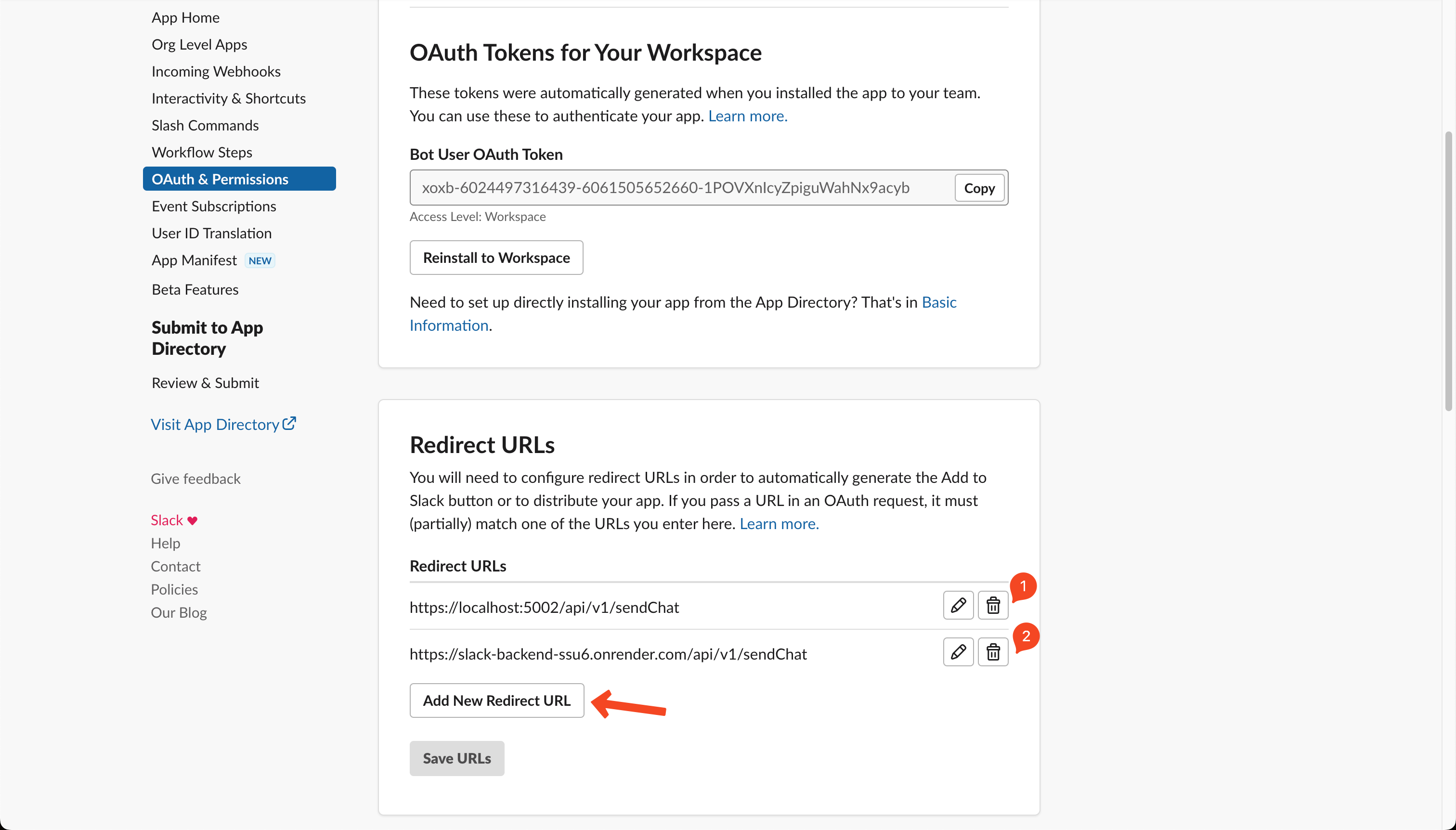 For demonstration purposes, I've added both the local as well as the deployed URL. You only need one depending on whether you're running this locally or have a deployed version.
Now, our backend is all done, our Slack is all setup and all we need to do is hit the URL
# Front end set up
For our demonstration purposes, the front end is pretty basic. All we have to do is have an input field to take the notification text in and send the payload. The front end code for this demo app is available on our [Github repo](https://github.com/novuhq/slack-app/tree/main/frontend).
And here's our app in all its glory!
For demonstration purposes, I've added both the local as well as the deployed URL. You only need one depending on whether you're running this locally or have a deployed version.
Now, our backend is all done, our Slack is all setup and all we need to do is hit the URL
# Front end set up
For our demonstration purposes, the front end is pretty basic. All we have to do is have an input field to take the notification text in and send the payload. The front end code for this demo app is available on our [Github repo](https://github.com/novuhq/slack-app/tree/main/frontend).
And here's our app in all its glory!
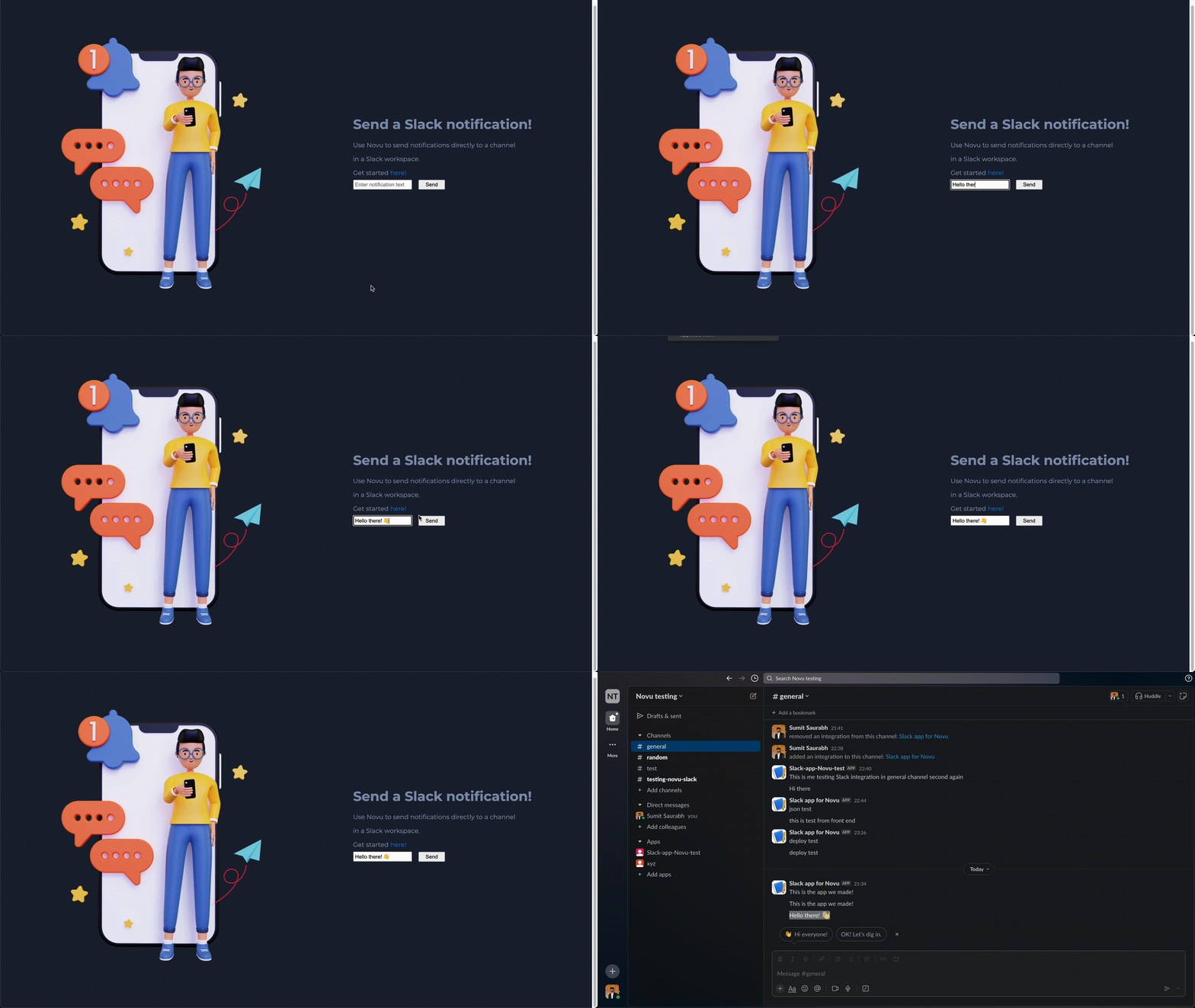 This is how we send Slack notifications using Novu!