> ## Documentation Index
> Fetch the complete documentation index at: https://v0.x-docs.novu.co/llms.txt
> Use this file to discover all available pages before exploring further.
# Configuring Multiple Tabs
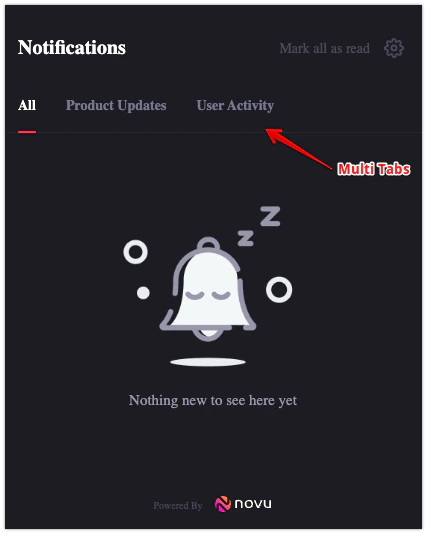
Novu allows to create a multi-tab experience for a notification center, in a way you can fetch the notifications feed using a filtered query.
### Defining stores
To create multiple stores you can use the prop `stores` on the `NovuProvider` component. Each store has `storeId` property that will be used to interact with information related to this store.
```tsx theme={null}
```
Using the `query` object multiple fields can be passed for feed API:
* `feedIdentifier` - Can be configured and created on the WEB UI
* `seen` - Identifies if the notification has been seen or not
After specifying the `stores` prop, you can use the `storeId` property to interact with the store.
### Managing feeds on the web UI
1. How to add a new feed or select existing feed for In-App step?
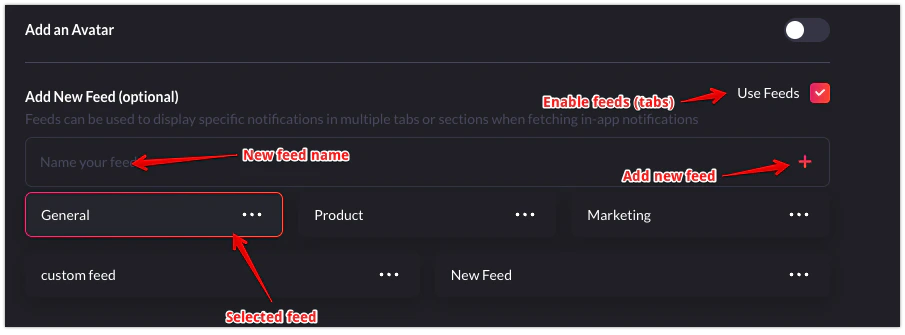
To add a new feed, enable *Use Feeds* checkbox in In-App editor. Select from existing feeds or create a new feed by writing in the input field and then clicking on plus icon in the right side.
 2. How to copy `feedIdentifier` (`storeId`)
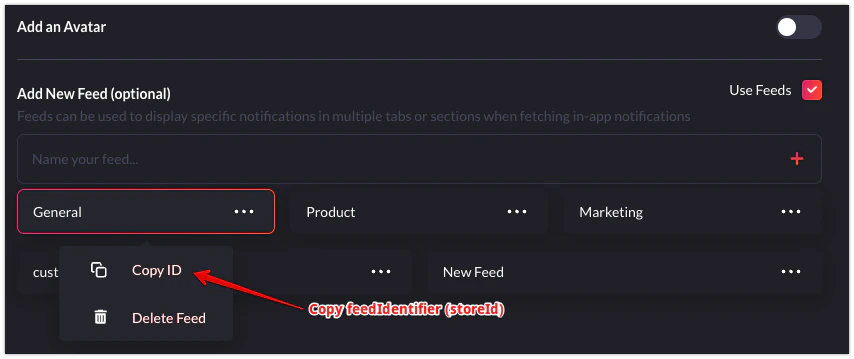
To copy `feedIdentifier` (`storeId`) click on the feed name of existing feeds. copy three dot icon. a menu will appear. click on Copy ID option to copy selected feed's `feedIdentifier`
2. How to copy `feedIdentifier` (`storeId`)
To copy `feedIdentifier` (`storeId`) click on the feed name of existing feeds. copy three dot icon. a menu will appear. click on Copy ID option to copy selected feed's `feedIdentifier`
 By specifying only a storeId, without a query, you could get all notifications.
### Using `tabs` prop on the notification center
```tsx theme={null}
{({ unseenCount }) => {
return (
);
}}
```
By specifying only a storeId, without a query, you could get all notifications.
### Using `tabs` prop on the notification center
```tsx theme={null}
{({ unseenCount }) => {
return (
);
}}
```
 ## Example
[](https://codesandbox.io/s/tabs-in-in-app-xdk74x?fontsize=14\&hidenavigation=1\&theme=dark)
## Important Links
## Example
[](https://codesandbox.io/s/tabs-in-in-app-xdk74x?fontsize=14\&hidenavigation=1\&theme=dark)
## Important Links