> ## Documentation Index
> Fetch the complete documentation index at: https://v0.x-docs.novu.co/llms.txt
> Use this file to discover all available pages before exploring further.
# .NET
> Learn how to use Novu to quickly send multi-channel (SMS, Email, Chat, Push) notifications with .NET.
Learn how to use Novu to quickly send multi-channel (SMS, Email, Chat, Push) notifications from a .NET app.
## Requirements
To follow the steps in this quickstart, you'll need:
* A Novu account. [Sign up for free](http://web.novu.co/?utm_campaign=docs-gs-quick-dotnet) if you don’t have one yet.
* A working .NET development environment with a .NET version of .NET Core 2.0+ and .NET Framework of 4.6.1+.
You can also [view the completed code](https://github.com/novuhq/novu-dotnet-quickstart) of this quick start in a GitHub repo.
## Install Novu .NET SDK
The [.NET SDK](https://github.com/novuhq/novu-dotnet) provides a fluent and expressive interface for interacting with Novu's API and managing notifications.
Now install the Novu .NET SDK by running the following command in your terminal:
```bash theme={null}
dotnet add package Novu
```
Otherwise, modify your .csproj file add the following to it:
```xml theme={null}
```
Next, install the SDK by running the following `dotnet` command:
```bash theme={null}
dotnet restore
```
## Initialize & Configure the Novu SDK
Create a new file, `Program.cs` in your application and add the following code to it:
Program.cs:
```csharp theme={null}
using Novu.DTO;
using Novu.DTO.Topics;
using Novu.Models;
using Novu;
var novuConfiguration = new NovuClientConfiguration
{
ApiKey = "",
};
var novu = new NovuClient(novuConfiguration);
```
Replace the `ApiKey`’s value with the authentic key from the **API Key** section of your [Novu Dashboard](https://web.novu.co/settings?utm_campaign=docs-quick-dotnet) and be sure to use your specific Novu instance URL.
Please do not hardcode your credentials in a file in production. Use environment variables instead.
## Set Up A Channel Provider
A channel provider is a service that provides one or more notification functionality such as sending an email, SMS, push notification etc. Our [integration store](https://web.novu.co/integrations?utm_campaign=docs-quick-dotnet) includes four channels: Email, SMS, Chat, and Push. These channels have multiple providers associated with them.
| Channel | Providers |
| ------- | ------------------------------------------------------------------- |
| Email | MailGun, Mandrill, MailJet, Amazon SES, Sendgrid, Postmark, Netcore |
| SMS | Twilio, Amazon SNS, Plivo, SMS, SMSCentral, Kannel, Infobip, Termii |
| Chat | Mattermost, Slack, Microsoft Teams, Discord |
| Push | FCM, APNS, Expo |
Only one provider can be **active** per **channel**. Connect any of your favourite providers to get started. The email channel comes with Novu's email provider, which is active by default and includes 300 credits.
## Create A Workflow
A workflow is a blueprint for the notifications that will be sent. It holds the entire flow of messages sent to the subscriber. This is where all the different channels are tied together under a single entity.
The workflow includes the following:
* Workflow name and Identifier
* Channel-tailored content:
| Channel
| Content Style
| Custom Variables
`{{handlebars}}` format |
| ------------------- | ------------------------- | :-------------------------------------------: |
| **Email** | HTML | ✅ |
| | Visual Editor | ✅ |
| **SMS** | Text | ✅ |
| **Chat** | Text | ✅ |
| **In-App** | Text | ✅ |
| **Push** | Text | ✅ |
Proper authorization needs to be set for the Chat channel for subscribers.
Please proceed to create a workflow.
1. Click **Workflows** on the left sidebar of your Novu dashboard.
2. Click the **Create Workflow** button on the top right.
3. The name of the new workflow is currently **Untitled.** Rename it to a more suitable title.
4. Select **Email** as the channel you want to add.
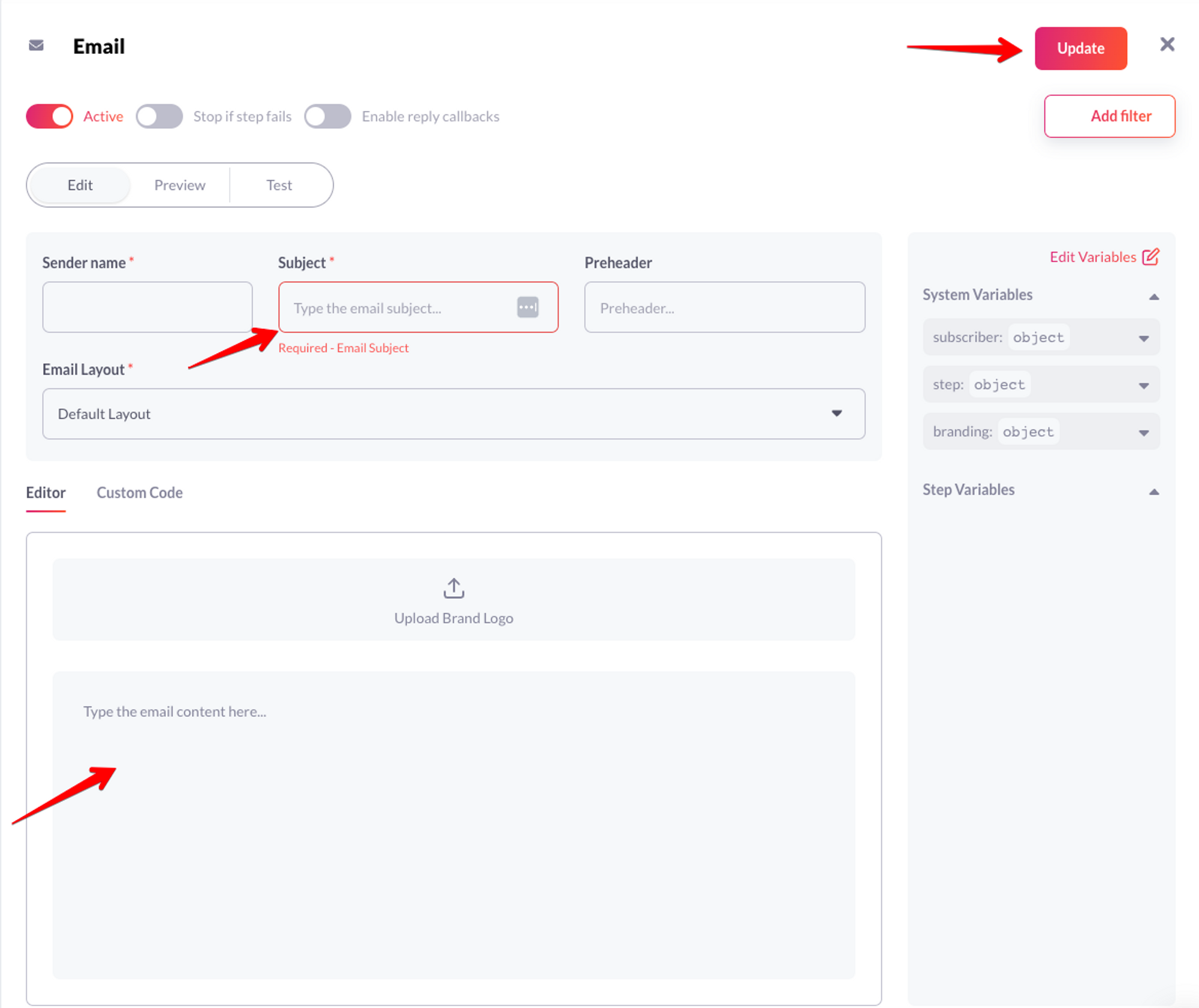
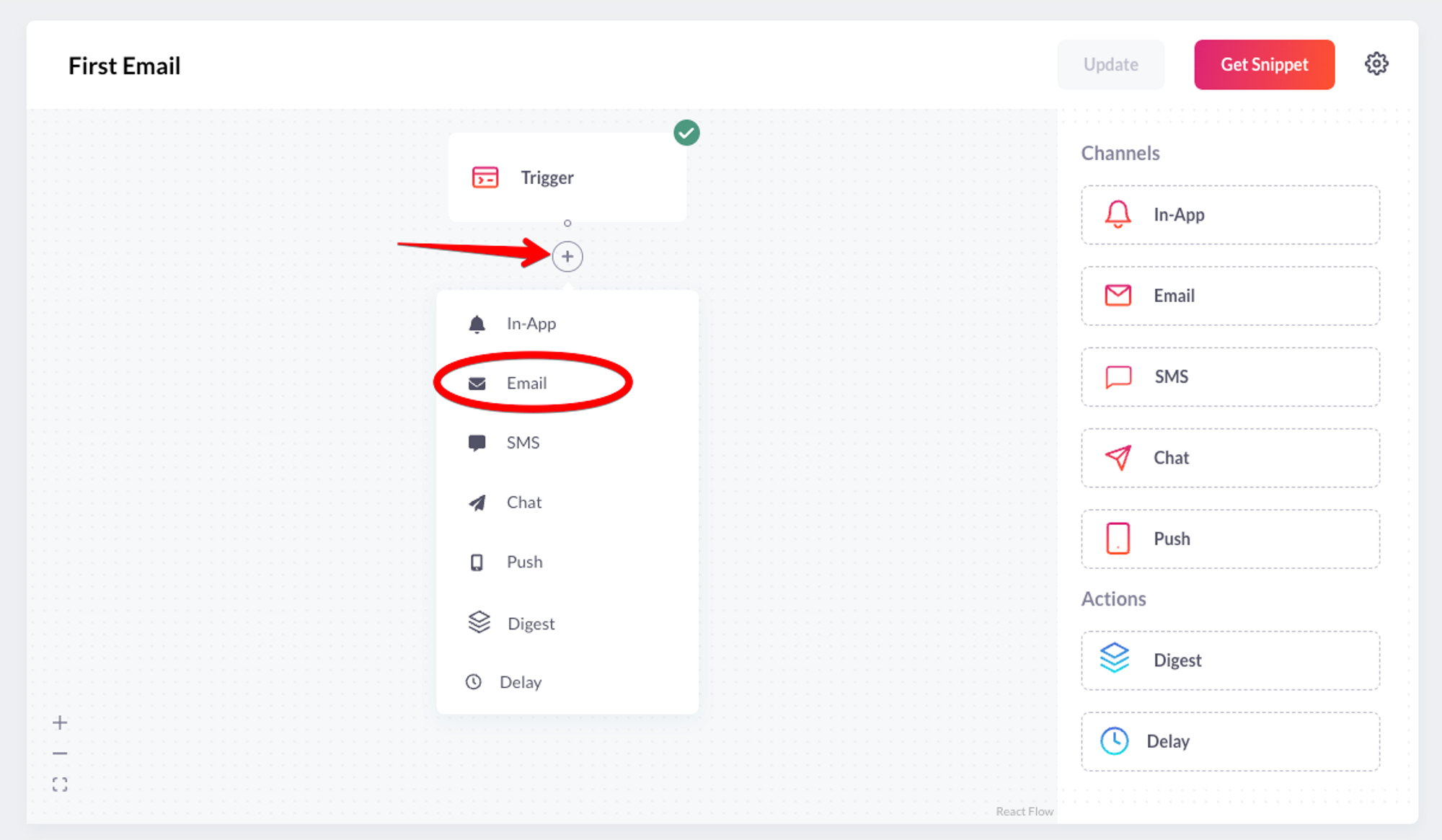 5. Click on the recently added channel, fill the email subject and click “Update”.
 6. Click on the “Test” tab and send a test email to verify your workflow.
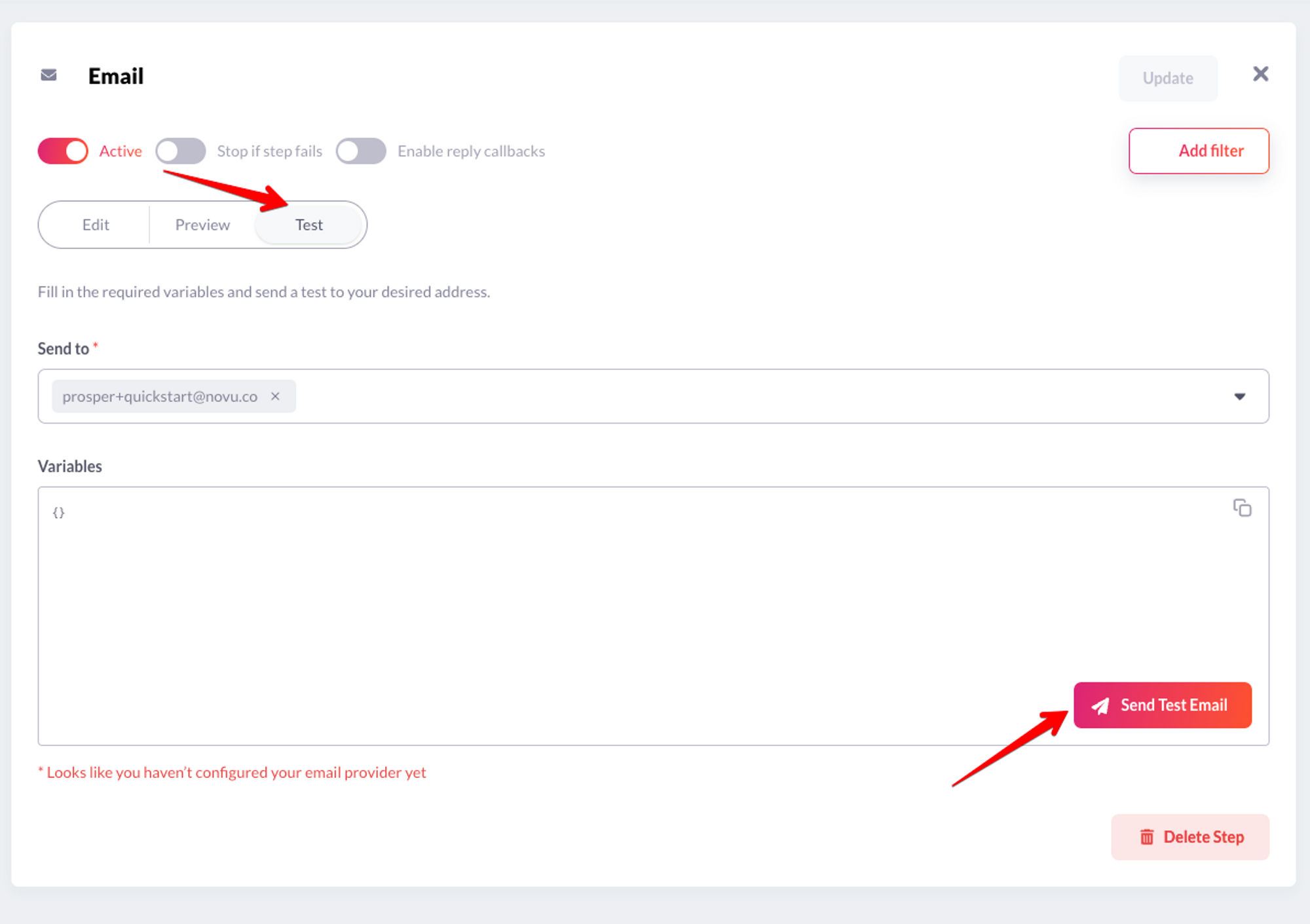 You should get an email within seconds. Yaaay, you have successfully sent your first notification via the Novu dashboard! Now, let’s take it a step further to trigger notifications via code.
## Create A Subscriber
The recipients of a triggered notification are called subscribers.
Click “Subscribers” on the left sidebar of the Novu dashboard to see all subscribers. By default, the dashboard will display a subscriber, as you were added automatically during sign-up.
You should get an email within seconds. Yaaay, you have successfully sent your first notification via the Novu dashboard! Now, let’s take it a step further to trigger notifications via code.
## Create A Subscriber
The recipients of a triggered notification are called subscribers.
Click “Subscribers” on the left sidebar of the Novu dashboard to see all subscribers. By default, the dashboard will display a subscriber, as you were added automatically during sign-up.
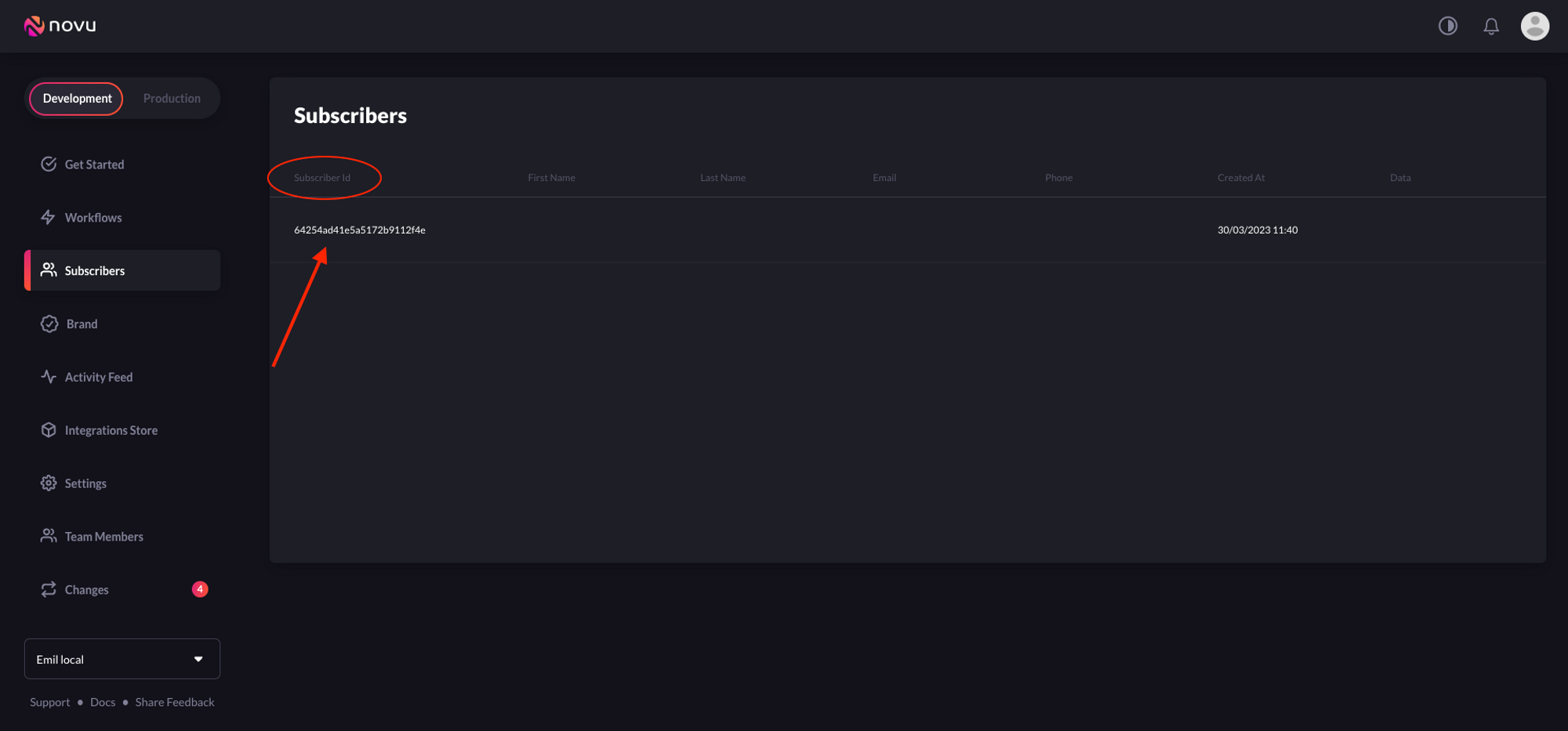 Now, let's create a subscriber on Novu. Copy and paste the following code to do so:
```csharp theme={null}
// Create subscriber
var newSubscriberDto = new SubscriberCreateData
{
SubscriberId = "77809", //replace with system_internal_user_id
FirstName = "John",
LastName = "Doe",
Email = "benlin1994@gmail.com",
Data = new List{
new AdditionalDataDto
{
Key = "External ID",
Value = "1122334455"
},
new AdditionalDataDto
{
Key = "Job Title",
Value = "Software Engineer"
}
}
};
var subscriber = await novu.Subscriber.Create(newSubscriberDto);
```
Run the code in your terminal like so:
```bash theme={null}
dotnet run Program.cs
```
You should see the subscriber on your Novu dashboard.
Now, let's create a subscriber on Novu. Copy and paste the following code to do so:
```csharp theme={null}
// Create subscriber
var newSubscriberDto = new SubscriberCreateData
{
SubscriberId = "77809", //replace with system_internal_user_id
FirstName = "John",
LastName = "Doe",
Email = "benlin1994@gmail.com",
Data = new List{
new AdditionalDataDto
{
Key = "External ID",
Value = "1122334455"
},
new AdditionalDataDto
{
Key = "Job Title",
Value = "Software Engineer"
}
}
};
var subscriber = await novu.Subscriber.Create(newSubscriberDto);
```
Run the code in your terminal like so:
```bash theme={null}
dotnet run Program.cs
```
You should see the subscriber on your Novu dashboard.
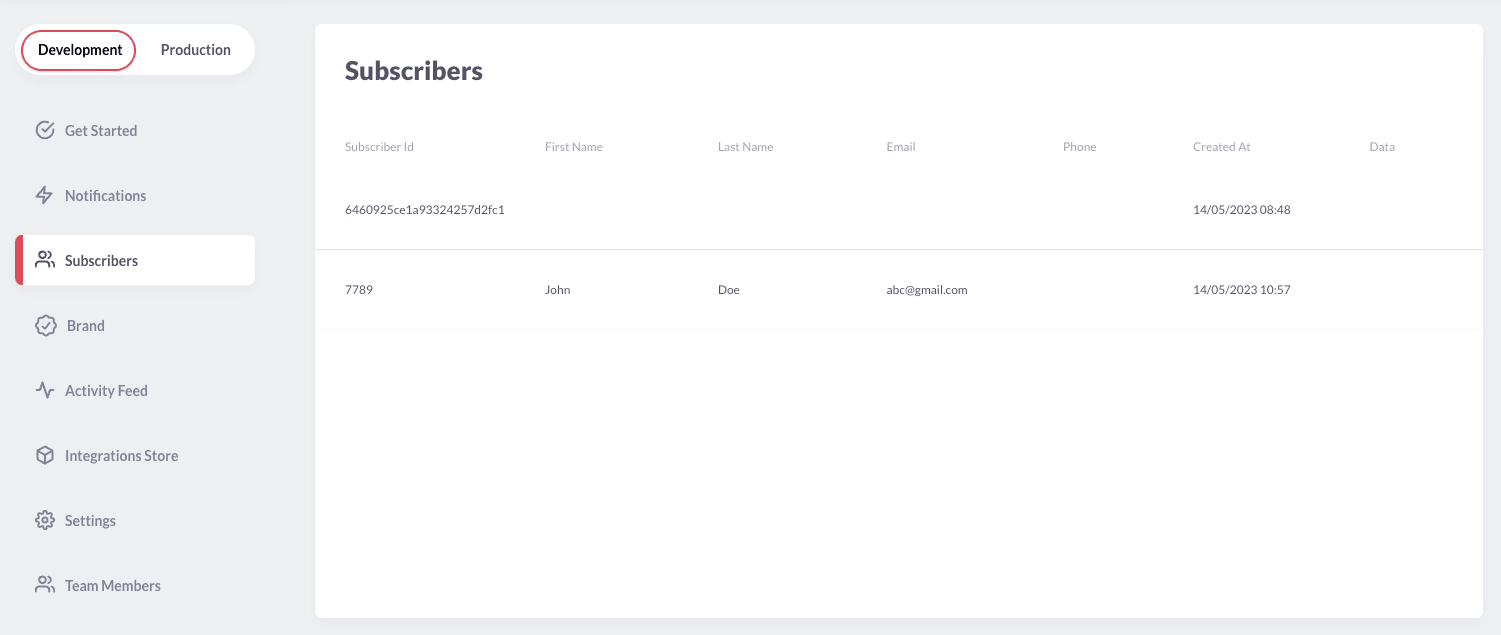 I’d like to publicly announce that `abc@gmail.com` is a random unlikely email your users will have. To update this to an alternative email, you can call the `UpdateSubscriber` method like so:
Program.cs:
```csharp theme={null}
// Update subscriber detail
var subscriber7789 = await novu.Subscriber.GetSubscriber("7789");
subscriber7789.Email = "validemail@gmail.com"; // replace with valid email
subscriber7789.FirstName = ""; // optional
subscriber7789.LastName = ""; // optional
var updatedSubscriber = await novu.Subscriber.Update("7789",subscriber7789);
```
Other valid fields that can be updated are `phone`, `avatar`, and `data` . The `data` field can accept an array of metadata that you want to attach to the subscriber.
To make all of your app users subscribers, you need to programmatically add them to Novu.
## Trigger A Notification
Copy and paste the following code into your app to trigger a notification:
OnboardEventPayload.cs:
```csharp theme={null}
// OnboardEventPayload.cs
public class OnboardEventPayload
{
[JsonProperty("username")]
public string Username { get; set; }
[JsonProperty("welcomeMessage")]
public string WelcomeMessage { get; set; }
}
```
Program.cs:
```csharp theme={null}
var onboardingMessage = new OnboardEventPayload
{
Username = "jdoe",
WelcomeMessage = "Welcome to novu-dotnet"
};
var payload = new EventCreateData()
{
EventName = "onboarding", //make sure you have a trigger named "onboarding"
To = { SubscriberId = "7789" },
Payload = onboardingMessage
};
var trigger = await novu.Event.Trigger(payload);
if (trigger.Data.Acknowledged)
{
Console.WriteLine("Trigger has been created.");
}
```
Before running the code, make sure you understand the following:
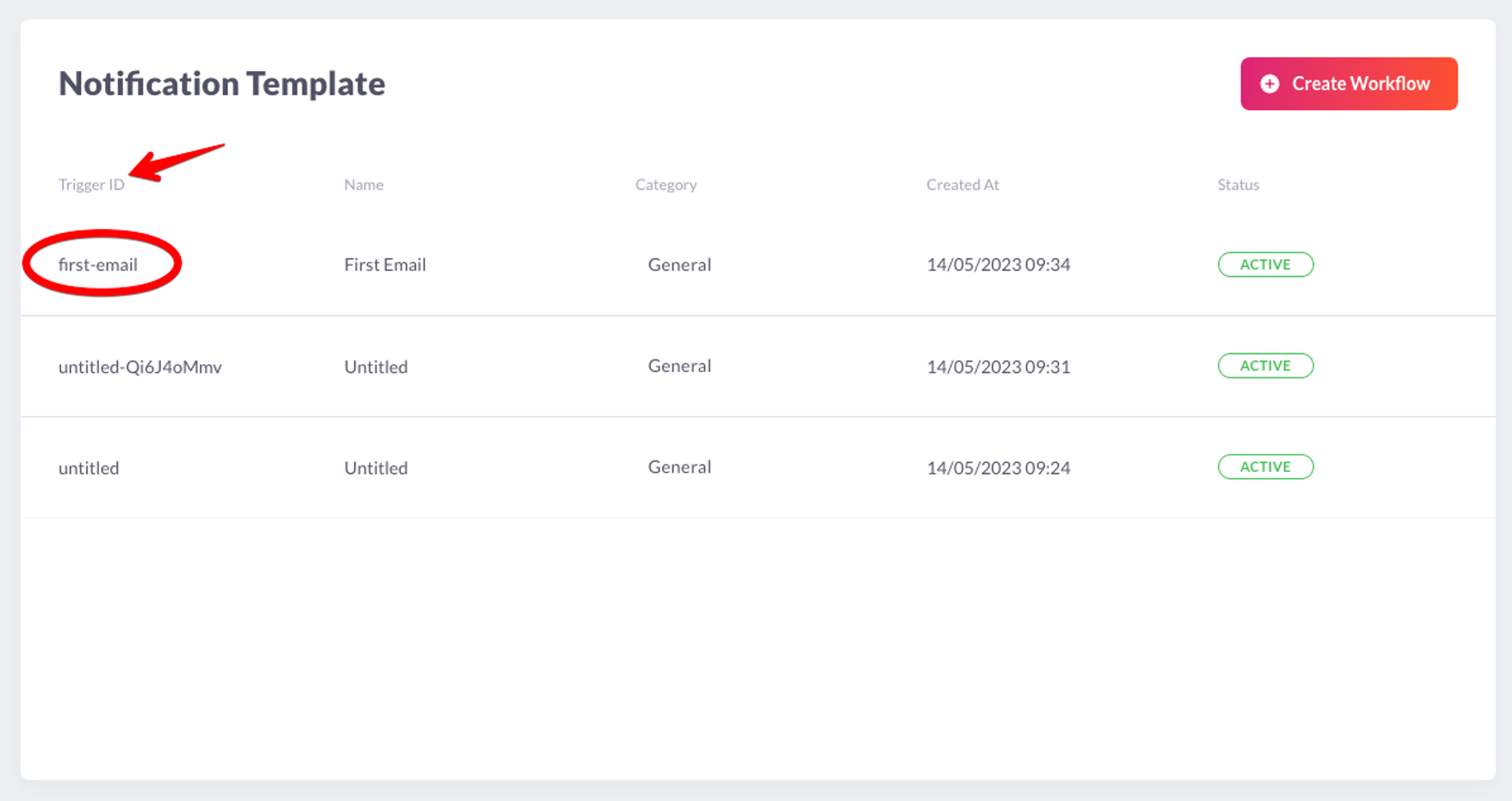
* The value of `EventName` should be the workflow’s trigger ID/slug(it's the value all in small caps).
I’d like to publicly announce that `abc@gmail.com` is a random unlikely email your users will have. To update this to an alternative email, you can call the `UpdateSubscriber` method like so:
Program.cs:
```csharp theme={null}
// Update subscriber detail
var subscriber7789 = await novu.Subscriber.GetSubscriber("7789");
subscriber7789.Email = "validemail@gmail.com"; // replace with valid email
subscriber7789.FirstName = ""; // optional
subscriber7789.LastName = ""; // optional
var updatedSubscriber = await novu.Subscriber.Update("7789",subscriber7789);
```
Other valid fields that can be updated are `phone`, `avatar`, and `data` . The `data` field can accept an array of metadata that you want to attach to the subscriber.
To make all of your app users subscribers, you need to programmatically add them to Novu.
## Trigger A Notification
Copy and paste the following code into your app to trigger a notification:
OnboardEventPayload.cs:
```csharp theme={null}
// OnboardEventPayload.cs
public class OnboardEventPayload
{
[JsonProperty("username")]
public string Username { get; set; }
[JsonProperty("welcomeMessage")]
public string WelcomeMessage { get; set; }
}
```
Program.cs:
```csharp theme={null}
var onboardingMessage = new OnboardEventPayload
{
Username = "jdoe",
WelcomeMessage = "Welcome to novu-dotnet"
};
var payload = new EventCreateData()
{
EventName = "onboarding", //make sure you have a trigger named "onboarding"
To = { SubscriberId = "7789" },
Payload = onboardingMessage
};
var trigger = await novu.Event.Trigger(payload);
if (trigger.Data.Acknowledged)
{
Console.WriteLine("Trigger has been created.");
}
```
Before running the code, make sure you understand the following:
* The value of `EventName` should be the workflow’s trigger ID/slug(it's the value all in small caps).
 * The value of `Payload` is an array of the data that you want to be dynamically injected into the workflow content.
* The value of `SubscriberId` is the id of the subscriber on Novu. Replace `7789` with your subscriberId.
Run the code to trigger a notification!
```bash theme={null}
dotnet run Program.cs
```
Next, we’ll learn how to send notifications to different groups of subscribers easily via **Topics.**
## Topics
Novu provides a simple API that offers an easy interface for triggering notifications to multiple subscribers at once. This API is called **Topics** and allows users to manage their bulk notifications without having to implement complex loops.
A topic is identified by a custom key and this key will be the identifier used when triggering notifications. You can assign a name to a topic for descriptive purposes. This name does not need to be unique and can be changed programmatically.
The topic key should be unique and can't be changed once chosen. Novu also safeguards for key uniqueness behind the scenes.
A topic can have multiple subscribers who will receive a notification whenever a message is sent to the topic.
## Create a Topic
Copy and paste the following code into your app to create a topic:
```csharp theme={null}
// Create Topic
var topicRequest = new TopicCreateData
{
Key = "frontend-users",
Name = "All frontend users",
};
var topic = await novu.Topic.Create(topicRequest);
```
Before running the code, make sure you understand the following:
* When creating a `Key`, ensure it is unique and accurately identifies the topic. Document naming conventions and communicate them to team members to avoid confusion and ensure a smooth workflow.
* The value of `Name` should be a descriptive topic name.
## Add Subscribers to a Topic
Copy and paste the following code into your app to add subscribers to a topic:
```csharp theme={null}
// Add Subscriber to Topic
var topicKey = "frontend-users";
var subscriberList = new TopicSubscriberUpdateDto
{
Keys = new List
{
"7789",
"7790",
}
};
//Or
var subscriberList = new TopicSubscriberCreateData(new List
{
"7789",
"7790"
});
var result = await novu.Topic.AddSubscriber(topicKey, subscriberList);
```
## Sending a Notification to a Topic
Thanks to the topics feature, it is possible to trigger a notification to all subscribers assigned to a topic. This helps avoid listing all subscriber identifiers in the `to` field of the notification trigger.
To trigger a notification to all subscribers of a topic, copy and paste the code below:
Program.cs
```csharp theme={null}
// Send notifications to a topic (all frontend users)
var onboardingMessage = new OnboardEventPayload
{
WelcomeMessage = "Welcome to novu-dotnet"
};
var payloadTopic = new EventTopicTriggerDto
{
EventName = "onboarding",
Payload = onboardingMessage,
Topic = { Type = "7789", TopicKey = "frontend-users" },
};
var triggerTopic = await novu.Event.TriggerTopicAsync(payloadTopic);
if (triggerTopic.TriggerResponsePayloadDto.Acknowledged);
{
Console.WriteLine("Trigger has been created.");
}
```
## Conclusion
Great job! If you've reached this point, you should now have successfully created a subscriber, workflow, configured a channel provider and triggered a notification in your application.
* The value of `Payload` is an array of the data that you want to be dynamically injected into the workflow content.
* The value of `SubscriberId` is the id of the subscriber on Novu. Replace `7789` with your subscriberId.
Run the code to trigger a notification!
```bash theme={null}
dotnet run Program.cs
```
Next, we’ll learn how to send notifications to different groups of subscribers easily via **Topics.**
## Topics
Novu provides a simple API that offers an easy interface for triggering notifications to multiple subscribers at once. This API is called **Topics** and allows users to manage their bulk notifications without having to implement complex loops.
A topic is identified by a custom key and this key will be the identifier used when triggering notifications. You can assign a name to a topic for descriptive purposes. This name does not need to be unique and can be changed programmatically.
The topic key should be unique and can't be changed once chosen. Novu also safeguards for key uniqueness behind the scenes.
A topic can have multiple subscribers who will receive a notification whenever a message is sent to the topic.
## Create a Topic
Copy and paste the following code into your app to create a topic:
```csharp theme={null}
// Create Topic
var topicRequest = new TopicCreateData
{
Key = "frontend-users",
Name = "All frontend users",
};
var topic = await novu.Topic.Create(topicRequest);
```
Before running the code, make sure you understand the following:
* When creating a `Key`, ensure it is unique and accurately identifies the topic. Document naming conventions and communicate them to team members to avoid confusion and ensure a smooth workflow.
* The value of `Name` should be a descriptive topic name.
## Add Subscribers to a Topic
Copy and paste the following code into your app to add subscribers to a topic:
```csharp theme={null}
// Add Subscriber to Topic
var topicKey = "frontend-users";
var subscriberList = new TopicSubscriberUpdateDto
{
Keys = new List
{
"7789",
"7790",
}
};
//Or
var subscriberList = new TopicSubscriberCreateData(new List
{
"7789",
"7790"
});
var result = await novu.Topic.AddSubscriber(topicKey, subscriberList);
```
## Sending a Notification to a Topic
Thanks to the topics feature, it is possible to trigger a notification to all subscribers assigned to a topic. This helps avoid listing all subscriber identifiers in the `to` field of the notification trigger.
To trigger a notification to all subscribers of a topic, copy and paste the code below:
Program.cs
```csharp theme={null}
// Send notifications to a topic (all frontend users)
var onboardingMessage = new OnboardEventPayload
{
WelcomeMessage = "Welcome to novu-dotnet"
};
var payloadTopic = new EventTopicTriggerDto
{
EventName = "onboarding",
Payload = onboardingMessage,
Topic = { Type = "7789", TopicKey = "frontend-users" },
};
var triggerTopic = await novu.Event.TriggerTopicAsync(payloadTopic);
if (triggerTopic.TriggerResponsePayloadDto.Acknowledged);
{
Console.WriteLine("Trigger has been created.");
}
```
## Conclusion
Great job! If you've reached this point, you should now have successfully created a subscriber, workflow, configured a channel provider and triggered a notification in your application.