> ## Documentation Index
> Fetch the complete documentation index at: https://v0.x-docs.novu.co/llms.txt
> Use this file to discover all available pages before exploring further.
# Angular
> Learn how to use Novu to quickly send multi-channel (SMS, Email, Chat, Push) notifications with Angular.
Learn how to use Novu to quickly send multi-channel (SMS, Email, Chat, Push) notifications and integrate a rich, customizable and ready-to-use real-time UI In-App notification center in Angular apps.
## Requirements
To follow the steps in this quickstart, you'll need:
* A Novu account. [Sign up for free](http://web.novu.co/?utm_campaign=docs-gs-quick-angluar) if you don’t have one yet
* Angular CLI (Command Line Interface) installed on your machine
* Angular version 15 or higher
You can also [view the completed code](https://github.com/novuhq/angular-quickstart) of this quick start in a GitHub repo.
## Create a new Angular app
To create a new Angular app, open a terminal or command prompt and run the following command:
```bash theme={null}
ng new my-app
```
Here, `my-app` is the name of your new Angular app. This command will create a new Angular app with a basic file structure and all the necessary dependencies installed.
Navigate to the app directory by running the following command:
```bash theme={null}
cd my-app
```
Once you are in the app directory, you can start the development server by running the following command:
```bash theme={null}
ng serve
```
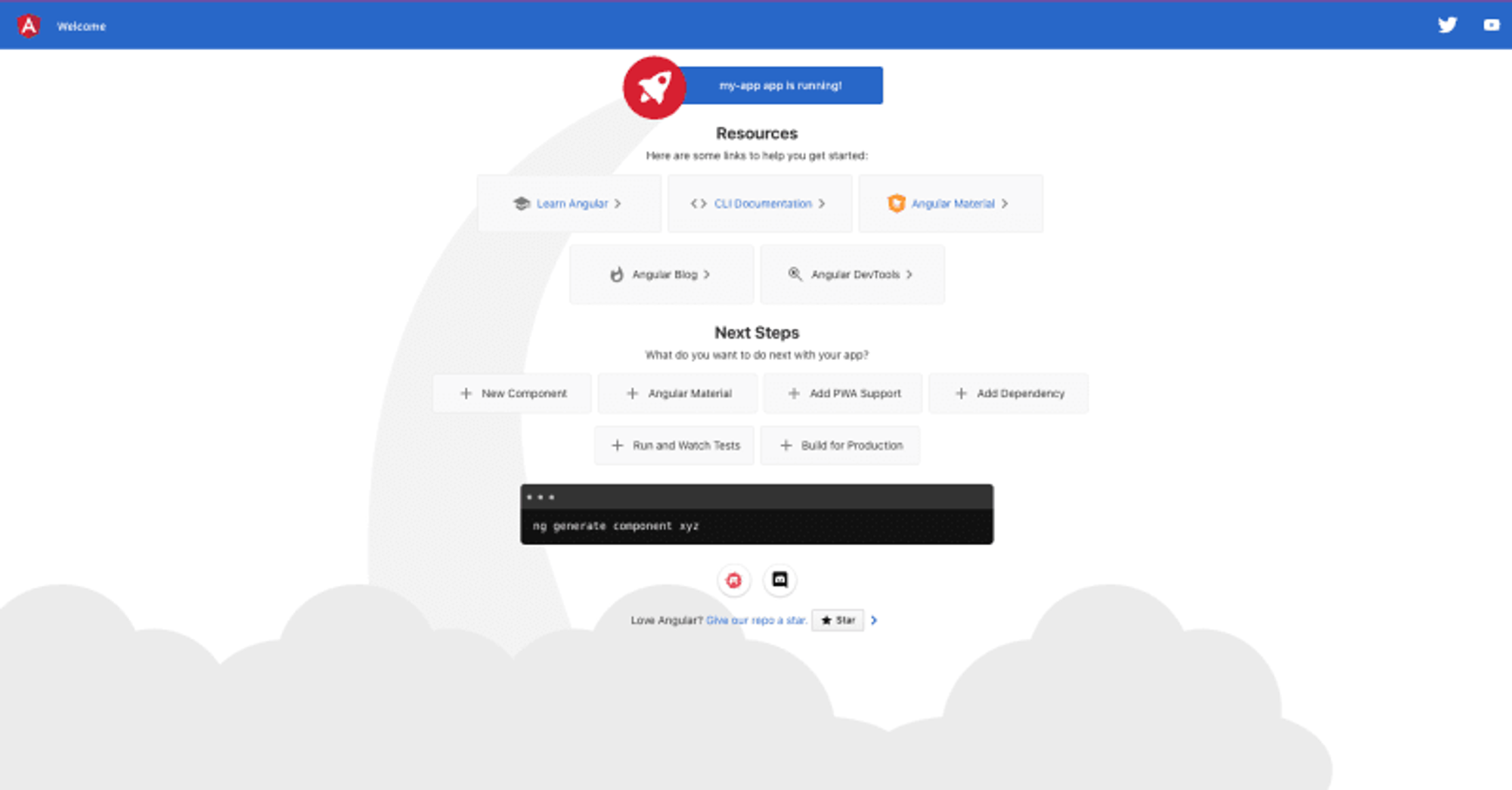
This command will start the development server and launch your app in the default browser. You can access your app by navigating to `http://localhost:4200/`.
 ## Install Novu Angular Notification Center Package
The Novu Angular package provides a Angular component wrapper over the web component that you can use to integrate the notification center into your Angular application.
Navigate to the root directory of your Angular application. Now install the Angular Notification Center package by running the following command in your terminal:
```bash pnpm theme={null}
pnpm i @novu/notification-center-angular
```
```bash npm theme={null}
npm i @novu/notification-center-angular
```
```bash yarn theme={null}
yarn add @novu/notification-center-angular
```
## Configuring Application Environments
Using the Angular CLI, start by running the [generate environments command](https://angular.io/cli/generate#environments-command)
shown here to create the `src/environments/`directory and configure the project to use these files.
```bash theme={null}
ng generate environments
```
Navigate to `my-app/src/environments/environment.ts` and add the following variables: `subscriberId`, `applicationIdentifier`
* **`applicationIdentifier`** can be found here: [https://web.novu.co/settings](https://web.novu.co/settings)
* **`subscriberId`** can be found here: [https://web.novu.co/subscribers](https://web.novu.co/subscribers)
```tsx theme={null}
export const environment = {
production: false,
subscriberId: '',
applicationIdentifier: '',
};
```
Copy and paste the same code into `my-app/src/environments/environment.development.ts`
These variables are needed for the `GET` request our notification center will make to Novu’s API to push notifications into the feed.
## Adding Novu Module
Now, navigate to the `app.module.ts` file `(my-app/src/app/app.module.ts)`
* Import `CUSTOM_ELEMENTS_SCHEMA` from `'@angular/core'`
* Add Novu’s notification center module
```jsx theme={null}
import { CUSTOM_ELEMENTS_SCHEMA, NgModule } from '@angular/core';
import { BrowserModule } from '@angular/platform-browser';
import { AppComponent } from './app.component';
import { NotificationCenterModule } from '@novu/notification-center-angular';
@NgModule({
declarations: [AppComponent],
imports: [BrowserModule, NotificationCenterModule],
schemas: [CUSTOM_ELEMENTS_SCHEMA],
providers: [],
bootstrap: [AppComponent],
})
export class AppModule {}
```
Head to `my-app/src/app/app.component.ts` file.
⚠️ The `app.component.ts` file is a critical part of an Angular application, as it defines the root component and provides the foundation for the rest of the app's functionality.
Now, we are going to import the `environment` variables to make them accessible in the `app.component.html` and the `styles` properties of our notification center
(there are many properties, but you can discover them later on)
```tsx theme={null}
import { Component } from '@angular/core';
import { environment } from '../environments/environment';
@Component({
selector: 'app-root',
templateUrl: './app.component.html',
styleUrls: ['./app.component.css'],
})
export class AppComponent {
title = 'my-app';
subscriberId = environment.subscriberId;
applicationIdentifier = environment.applicationIdentifier;
styles = {
bellButton: {
root: {
svg: {
color: 'white',
width: '45px',
height: '40px',
fill: 'white',
},
},
dot: {
rect: {
fill: 'rgb(221, 0, 49)',
strokeWidth: '0.2',
stroke: 'white',
width: '3.5px',
height: '3.5px',
},
left: '40%',
},
},
header: {
root: {
backgroundColor: '',
'&:hover': { backgroundColor: '' },
'.some_class': { color: '' },
},
},
layout: {
root: {
backgroundColor: '',
},
},
popover: {
arrow: {
backgroundColor: '',
border: '',
},
},
};
sessionLoaded = (data: unknown) => {
console.log('loaded', { data });
};
}
```
The Angular component is generated as a wrapper around the original React component. This approach is clever, as it allows Novu's engineers to focus on creating and developing things in the React way.
Additionally, many other frameworks can still use the created components using the wrapping approach.
Now head to the `my-app/tsconfig.json` file, we’re going to add `"allowSyntheticDefaultImports": true` to the `compilerOptions` array.
```diff theme={null}
{
"compilerOptions": {
+ "allowSyntheticDefaultImports": true,
}
}
```
## Use & Display The Notification Center Component
Open the `my-app/src/app/app.component.html` file.
This file contain the CSS code along with the HTML one - ideally you should separate the CSS to the `my-app/src/app/app.component.css` file, but it’s not mandatory.
We will add our notification center to the .toolbar div.
Paste the following into your `app.component.html` file:
```jsx theme={null}
## Install Novu Angular Notification Center Package
The Novu Angular package provides a Angular component wrapper over the web component that you can use to integrate the notification center into your Angular application.
Navigate to the root directory of your Angular application. Now install the Angular Notification Center package by running the following command in your terminal:
```bash pnpm theme={null}
pnpm i @novu/notification-center-angular
```
```bash npm theme={null}
npm i @novu/notification-center-angular
```
```bash yarn theme={null}
yarn add @novu/notification-center-angular
```
## Configuring Application Environments
Using the Angular CLI, start by running the [generate environments command](https://angular.io/cli/generate#environments-command)
shown here to create the `src/environments/`directory and configure the project to use these files.
```bash theme={null}
ng generate environments
```
Navigate to `my-app/src/environments/environment.ts` and add the following variables: `subscriberId`, `applicationIdentifier`
* **`applicationIdentifier`** can be found here: [https://web.novu.co/settings](https://web.novu.co/settings)
* **`subscriberId`** can be found here: [https://web.novu.co/subscribers](https://web.novu.co/subscribers)
```tsx theme={null}
export const environment = {
production: false,
subscriberId: '',
applicationIdentifier: '',
};
```
Copy and paste the same code into `my-app/src/environments/environment.development.ts`
These variables are needed for the `GET` request our notification center will make to Novu’s API to push notifications into the feed.
## Adding Novu Module
Now, navigate to the `app.module.ts` file `(my-app/src/app/app.module.ts)`
* Import `CUSTOM_ELEMENTS_SCHEMA` from `'@angular/core'`
* Add Novu’s notification center module
```jsx theme={null}
import { CUSTOM_ELEMENTS_SCHEMA, NgModule } from '@angular/core';
import { BrowserModule } from '@angular/platform-browser';
import { AppComponent } from './app.component';
import { NotificationCenterModule } from '@novu/notification-center-angular';
@NgModule({
declarations: [AppComponent],
imports: [BrowserModule, NotificationCenterModule],
schemas: [CUSTOM_ELEMENTS_SCHEMA],
providers: [],
bootstrap: [AppComponent],
})
export class AppModule {}
```
Head to `my-app/src/app/app.component.ts` file.
⚠️ The `app.component.ts` file is a critical part of an Angular application, as it defines the root component and provides the foundation for the rest of the app's functionality.
Now, we are going to import the `environment` variables to make them accessible in the `app.component.html` and the `styles` properties of our notification center
(there are many properties, but you can discover them later on)
```tsx theme={null}
import { Component } from '@angular/core';
import { environment } from '../environments/environment';
@Component({
selector: 'app-root',
templateUrl: './app.component.html',
styleUrls: ['./app.component.css'],
})
export class AppComponent {
title = 'my-app';
subscriberId = environment.subscriberId;
applicationIdentifier = environment.applicationIdentifier;
styles = {
bellButton: {
root: {
svg: {
color: 'white',
width: '45px',
height: '40px',
fill: 'white',
},
},
dot: {
rect: {
fill: 'rgb(221, 0, 49)',
strokeWidth: '0.2',
stroke: 'white',
width: '3.5px',
height: '3.5px',
},
left: '40%',
},
},
header: {
root: {
backgroundColor: '',
'&:hover': { backgroundColor: '' },
'.some_class': { color: '' },
},
},
layout: {
root: {
backgroundColor: '',
},
},
popover: {
arrow: {
backgroundColor: '',
border: '',
},
},
};
sessionLoaded = (data: unknown) => {
console.log('loaded', { data });
};
}
```
The Angular component is generated as a wrapper around the original React component. This approach is clever, as it allows Novu's engineers to focus on creating and developing things in the React way.
Additionally, many other frameworks can still use the created components using the wrapping approach.
Now head to the `my-app/tsconfig.json` file, we’re going to add `"allowSyntheticDefaultImports": true` to the `compilerOptions` array.
```diff theme={null}
{
"compilerOptions": {
+ "allowSyntheticDefaultImports": true,
}
}
```
## Use & Display The Notification Center Component
Open the `my-app/src/app/app.component.html` file.
This file contain the CSS code along with the HTML one - ideally you should separate the CSS to the `my-app/src/app/app.component.css` file, but it’s not mandatory.
We will add our notification center to the .toolbar div.
Paste the following into your `app.component.html` file:
```jsx theme={null}
```
And in the `