> ## Documentation Index
> Fetch the complete documentation index at: https://v0.x-docs.novu.co/llms.txt
> Use this file to discover all available pages before exploring further.
# Step Conditions
> Learn how to customize your notifications flow in Novu.
Workflow step conditions allow you to customize the flow of notifications in your workflow by specifying criteria for which notifications should be delivered.
You can use these conditions to ensure that only relevant notifications are sent to your subscribers, improving the efficiency and effectiveness of your communication.
**Step Conditions** used to be called **Step Filters**.
## On Condition
* On `payload`: You can specify a list of keywords or values that the `payload` field must match in order for the notification to be delivered. This is useful if you only want to receive notifications that contain certain information.
* On `subscriber`: You can filter which subscriber should receive notifications based on subscriber information. This means that you can send notifications to specific individuals or groups rather than all subscribers. It checks on subscriber attributes. Read more about [subscriber attributes](https://docs.novu.co/subscribers/subscribers#subscriber-attributes).
* On `webhook`: You can use this feature to provide information about subscribers from specified webhook response and use that information to filter the notification flow. For example, if your webhook returns a field indicating whether a subscriber is currently online, you can use this field to send notifications only to online subscribers.
* On `online right now`: You can filter notifications on the basis of the current online status of the subscriber. For example, You can choose to send a notification if the subscriber is currently online or offline.
* On `online in the last "X" time period`: You can use this to filter notifications for a subscriber if the subscriber was online in the last `X` minutes/hours/days.
### Steps to set Conditions
1. Create a step in your workflow. This step will be the location where you will apply your filter.
2. Add a condition to the step. This will allow you to specify the criteria that must be met for the notification to be delivered.
 3. If you want to add multiple conditions, you will need to choose a logical condition between `AND` and `OR` . This will determine how the conditions are applied to the notification. For example, if you choose `AND`, the notification will only be delivered if all of the conditions are met. If you choose `OR`, the notification will be delivered if any of the conditions are met.
4. Add a rule to the condition. This will specify the criteria that must be met for the notification to be delivered. You can use the `payload`, `subscriber`, or `webhook` field as the basis for your rule. For example, you might specify that the `payload` field must contain a certain keyword or that the `subscriber` must be in a specific group.
## Condition rule
A condition rule is composed of the following fields:
* **On** : This specifies which field the rule should be applied to, such as `Payload`, `Subscriber`, or `Webhook` response.
* **Key** : This specifies the object key that the rule should be applied to. For example, if the `On` field is `Subscriber`, the `Key` field might be `name`, `email` etc.
* **Operator** : This specifies the comparison operator to use when evaluating the rule. Options include **Equal**, **Not equal** , **Larger** , **Smaller** , **Larger or equal**, **Smaller or equal** , **Contains**, **Not contains** and **Is Defined**.
* **Value** : This specifies the `value` to compare to the object key value using the selected `operator`. The value field also accepts variables.
3. If you want to add multiple conditions, you will need to choose a logical condition between `AND` and `OR` . This will determine how the conditions are applied to the notification. For example, if you choose `AND`, the notification will only be delivered if all of the conditions are met. If you choose `OR`, the notification will be delivered if any of the conditions are met.
4. Add a rule to the condition. This will specify the criteria that must be met for the notification to be delivered. You can use the `payload`, `subscriber`, or `webhook` field as the basis for your rule. For example, you might specify that the `payload` field must contain a certain keyword or that the `subscriber` must be in a specific group.
## Condition rule
A condition rule is composed of the following fields:
* **On** : This specifies which field the rule should be applied to, such as `Payload`, `Subscriber`, or `Webhook` response.
* **Key** : This specifies the object key that the rule should be applied to. For example, if the `On` field is `Subscriber`, the `Key` field might be `name`, `email` etc.
* **Operator** : This specifies the comparison operator to use when evaluating the rule. Options include **Equal**, **Not equal** , **Larger** , **Smaller** , **Larger or equal**, **Smaller or equal** , **Contains**, **Not contains** and **Is Defined**.
* **Value** : This specifies the `value` to compare to the object key value using the selected `operator`. The value field also accepts variables.
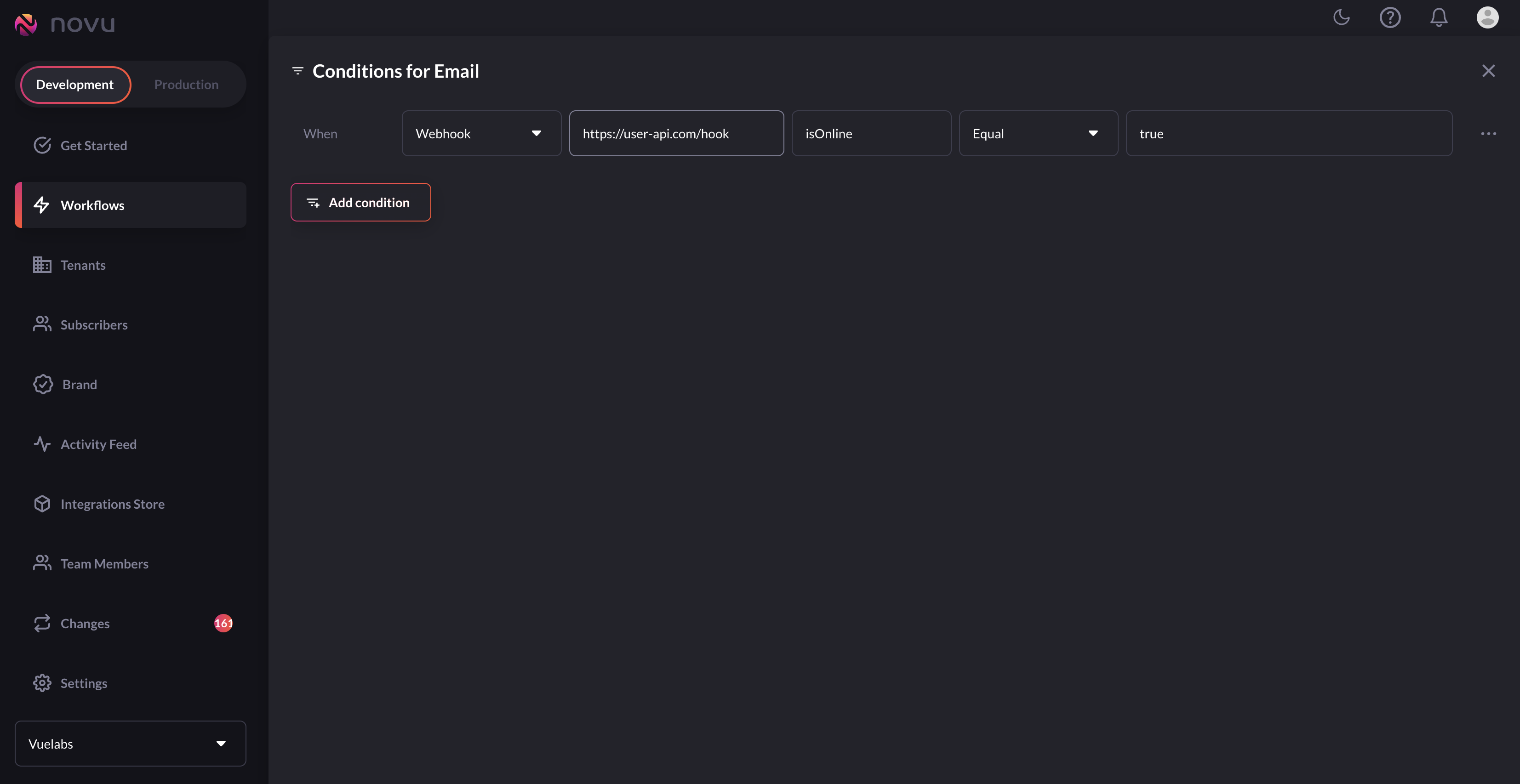
 **Example of a condition rule**:
In this condition, the notification will only be delivered if the webhook response includes a field called `isOnline` that is set to `true`.
**Example of a condition rule**:
In this condition, the notification will only be delivered if the webhook response includes a field called `isOnline` that is set to `true`.
 ## Conditions with Webhook
To filter notifications based on a webhook response, you will need to create a webhook that accepts POST requests and returns a one-level object. The webhook should be set up to receive object the following parameters:
* **subscriber** - This is an object containing information about the subscriber that the notification is being sent to.
* **payload** - This is an object containing the payload of the trigger that initiated the notification.
* **identifier** - workflow identifier is a unique identifier for the notification template being used.
* **providerId** - provider identifier is a unique identifier for the communication provider you used on this notification.
* **channel** - The channel identifier specifies the type of notification channel that was used to send the notification.
### Securing your webhooks
To secure your webhooks, Novu uses the `nv-hmac-256` header as a security measure.
This header contains an HMAC hash that is calculated based on your `API Key`
and `Environment Id`, ensuring that the request is coming from Novu.
This helps in protection against unauthorized access and tampering with your webhooks.
To verify the authenticity of the request, you can use the following code:
```jsx theme={null}
import { createHmac } from 'crypto';
const hmacHash = createHmac('sha256', 'NOVU_API_KEY').update('ENVIRONMENT_ID').digest('hex');
if (hmacHash === hmac) {
// The request is authentic
} else {
// The request is not authentic
}
```
> **ENVIRONMENT\_ID** can be accessed in the webhook subscriber parameter in the request body. **NOVU\_API\_KEY** can be found in the settings section of the Novu client.
The webhook should return a one-level object containing any information that you want to use to filter the notification flow. For example, you might include a field called `isOnline` having value `true` or `false` that specifies whether the subscriber is currently online or not.
## Subscriber online conditions
This allows you to apply a condition on a workflow step based on the `subscriber's` online status. The condition can be applied to determine if the subscriber is currently online or if the subscriber was online in the **X** time-period.
**Example** : To send an email notification to all subscribers who were active within the last 30 minutes, follow these steps:
* On the Workflow editor page, add an `Email` step after trigger in workflow.
* Click on the email step to edit its content template.
* Click on the `Add conditions` button from the upper right position.
## Conditions with Webhook
To filter notifications based on a webhook response, you will need to create a webhook that accepts POST requests and returns a one-level object. The webhook should be set up to receive object the following parameters:
* **subscriber** - This is an object containing information about the subscriber that the notification is being sent to.
* **payload** - This is an object containing the payload of the trigger that initiated the notification.
* **identifier** - workflow identifier is a unique identifier for the notification template being used.
* **providerId** - provider identifier is a unique identifier for the communication provider you used on this notification.
* **channel** - The channel identifier specifies the type of notification channel that was used to send the notification.
### Securing your webhooks
To secure your webhooks, Novu uses the `nv-hmac-256` header as a security measure.
This header contains an HMAC hash that is calculated based on your `API Key`
and `Environment Id`, ensuring that the request is coming from Novu.
This helps in protection against unauthorized access and tampering with your webhooks.
To verify the authenticity of the request, you can use the following code:
```jsx theme={null}
import { createHmac } from 'crypto';
const hmacHash = createHmac('sha256', 'NOVU_API_KEY').update('ENVIRONMENT_ID').digest('hex');
if (hmacHash === hmac) {
// The request is authentic
} else {
// The request is not authentic
}
```
> **ENVIRONMENT\_ID** can be accessed in the webhook subscriber parameter in the request body. **NOVU\_API\_KEY** can be found in the settings section of the Novu client.
The webhook should return a one-level object containing any information that you want to use to filter the notification flow. For example, you might include a field called `isOnline` having value `true` or `false` that specifies whether the subscriber is currently online or not.
## Subscriber online conditions
This allows you to apply a condition on a workflow step based on the `subscriber's` online status. The condition can be applied to determine if the subscriber is currently online or if the subscriber was online in the **X** time-period.
**Example** : To send an email notification to all subscribers who were active within the last 30 minutes, follow these steps:
* On the Workflow editor page, add an `Email` step after trigger in workflow.
* Click on the email step to edit its content template.
* Click on the `Add conditions` button from the upper right position.
 * Click `Add condition` to add a rule.
* Select `Last time was online` and choose `minutes` as the time period.
* Enter `30` in the input field.
* Click `Add condition` to add a rule.
* Select `Last time was online` and choose `minutes` as the time period.
* Enter `30` in the input field.
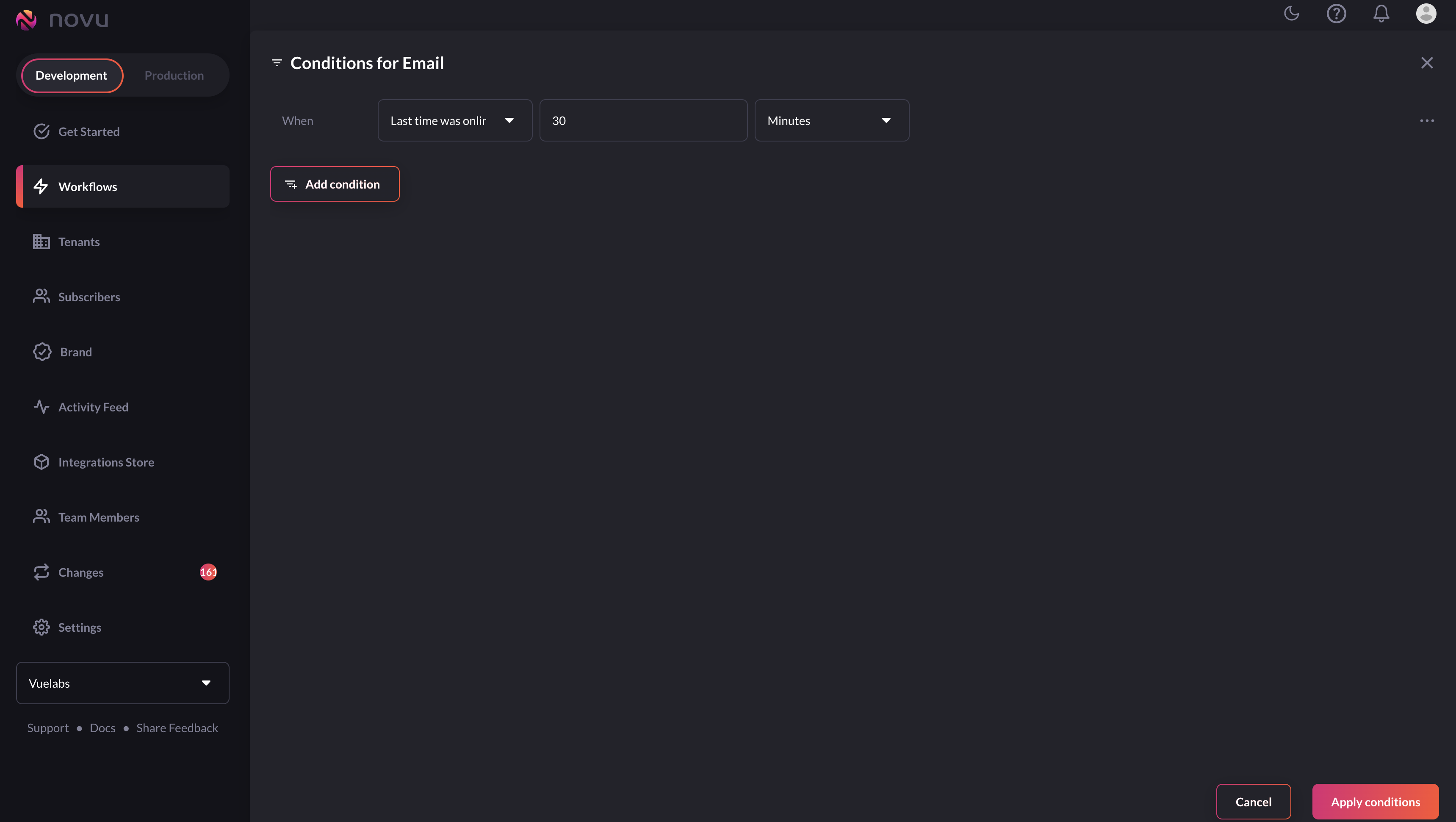 By applying this condition, the notification will only be delivered to subscribers that were last active in the past 30 minutes, ensuring that the message is reaching engaged and active recipients.
### Online condition mechanism
Novu uses a websocket connection within the `notification-center` package to track the online status of subscribers. The `isOnline` and `lastOnlineAt` fields of the subscriber's entity are updated accordingly.
When a subscriber comes online, an active websocket connection is established with the server. Novu then updates the `isOnline` field of the subscriber's entity to `isOnline: true`. When the subscriber disconnects, Novu updates `isOnline: false` and `lastOnlineAt: current_timestamp`.
The online condition feature can be used to determine if a subscriber is online right now or if the subscriber was online within a specific time period.
* To determine if a subscriber is online right now, Novu checks the value of the `isOnline` field. If `isOnline` is `true`, the subscriber is online, otherwise when the `isOnline` is `false` the subscriber is considered offline.
* To determine if a subscriber was online within a specific time period, Novu compares both the `isOnline` and `lastOnlineAt` fields. If `isOnline` is `true`, the subscriber is still online and the condition is applied. If `isOnline` is `false`, the difference between the `current timestamp` and the `timestamp` value of `lastOnlineAt` is calculated. If this difference is within the specified time period, the subscriber was online within that time period and the condition is applied. Otherwise, the condition is not applied.
For example, to determine if a subscriber has been online in the last 5 minutes, Novu checks if the subscriber is currently online or if the `lastOnlineAt` timestamp value is less than or equal to 5 minutes ago. If either of these conditions are met, the condition is applied.
## Subscriber Seen / Read Conditions
This condition gives the flexibility of executing successive step notifications based on the status of previous step notification. It currently works for in-app and email step notifications.
**Typical Use Case**:
You have a set of customers to whom you need to send a 2-step email. However, they should only get the second email if they have read/seen the first email.
With the seen/read condition, you can do the following in a workflow:
* Set the first email step.
* Set a delay.
* Set the second email step.
* Create a condition on the second email step that indicates if the previous step needs to be seen/read before it should be executed.
By applying this condition, the notification will only be delivered to subscribers that were last active in the past 30 minutes, ensuring that the message is reaching engaged and active recipients.
### Online condition mechanism
Novu uses a websocket connection within the `notification-center` package to track the online status of subscribers. The `isOnline` and `lastOnlineAt` fields of the subscriber's entity are updated accordingly.
When a subscriber comes online, an active websocket connection is established with the server. Novu then updates the `isOnline` field of the subscriber's entity to `isOnline: true`. When the subscriber disconnects, Novu updates `isOnline: false` and `lastOnlineAt: current_timestamp`.
The online condition feature can be used to determine if a subscriber is online right now or if the subscriber was online within a specific time period.
* To determine if a subscriber is online right now, Novu checks the value of the `isOnline` field. If `isOnline` is `true`, the subscriber is online, otherwise when the `isOnline` is `false` the subscriber is considered offline.
* To determine if a subscriber was online within a specific time period, Novu compares both the `isOnline` and `lastOnlineAt` fields. If `isOnline` is `true`, the subscriber is still online and the condition is applied. If `isOnline` is `false`, the difference between the `current timestamp` and the `timestamp` value of `lastOnlineAt` is calculated. If this difference is within the specified time period, the subscriber was online within that time period and the condition is applied. Otherwise, the condition is not applied.
For example, to determine if a subscriber has been online in the last 5 minutes, Novu checks if the subscriber is currently online or if the `lastOnlineAt` timestamp value is less than or equal to 5 minutes ago. If either of these conditions are met, the condition is applied.
## Subscriber Seen / Read Conditions
This condition gives the flexibility of executing successive step notifications based on the status of previous step notification. It currently works for in-app and email step notifications.
**Typical Use Case**:
You have a set of customers to whom you need to send a 2-step email. However, they should only get the second email if they have read/seen the first email.
With the seen/read condition, you can do the following in a workflow:
* Set the first email step.
* Set a delay.
* Set the second email step.
* Create a condition on the second email step that indicates if the previous step needs to be seen/read before it should be executed.
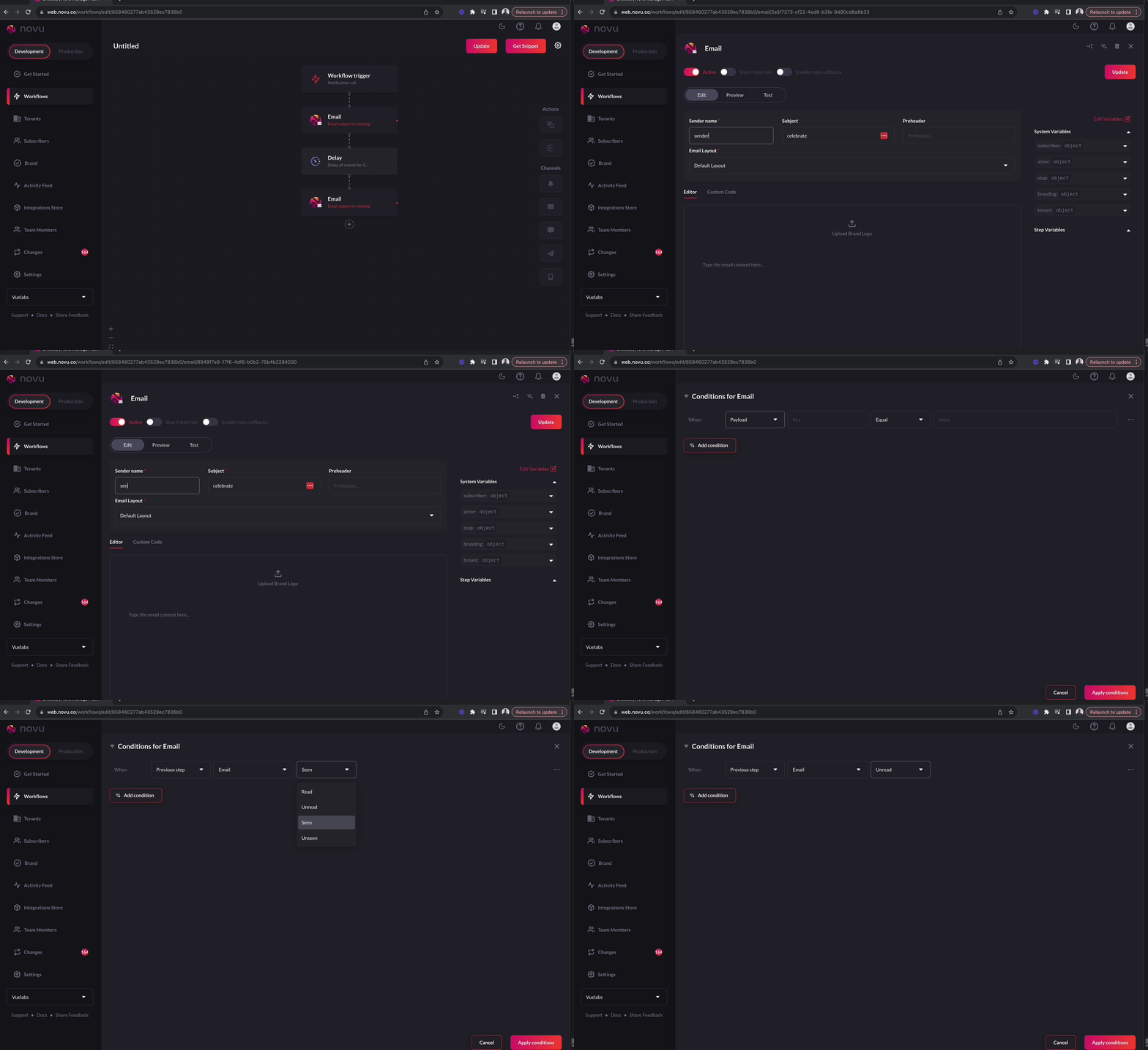 For this condition to work with emails, the webhook url needs to be set up for the active `email` provider you're using on Novu. It's very essential for the condition to work. No extra set up is needed for `in-app` notifications.
## Is Defined Condition
Is Defined condition checks whether specified `key` exists or not. It is different from `Equal` and `Not equal` condition. `Equal` and `Not equal` condition checks whether key value is equal to specified value or not, but `Is Defined` condition just checks whether key is present or not.
For this condition to work with emails, the webhook url needs to be set up for the active `email` provider you're using on Novu. It's very essential for the condition to work. No extra set up is needed for `in-app` notifications.
## Is Defined Condition
Is Defined condition checks whether specified `key` exists or not. It is different from `Equal` and `Not equal` condition. `Equal` and `Not equal` condition checks whether key value is equal to specified value or not, but `Is Defined` condition just checks whether key is present or not.
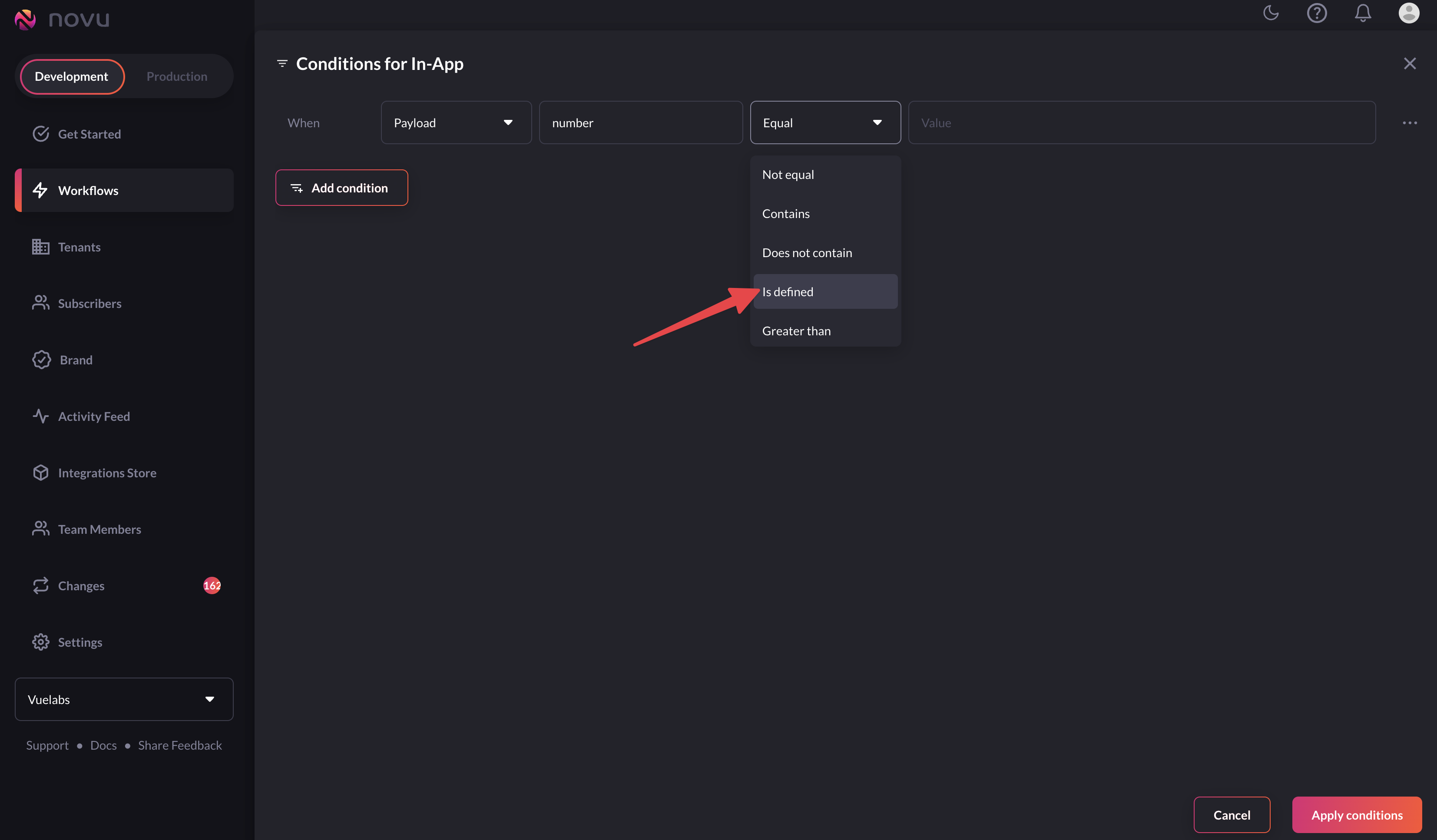 This condition can be used with subscriber, payload and webhook. It can be applied on all channels.
## Monitoring the condition's status inside Activity Feed
To check if the notification sent was conditioned or not, visit the `Activity Feed` page.
* Select the notification you're interested in checking the filter status for.
* A new popup `Execution Details` will open up.
This condition can be used with subscriber, payload and webhook. It can be applied on all channels.
## Monitoring the condition's status inside Activity Feed
To check if the notification sent was conditioned or not, visit the `Activity Feed` page.
* Select the notification you're interested in checking the filter status for.
* A new popup `Execution Details` will open up.
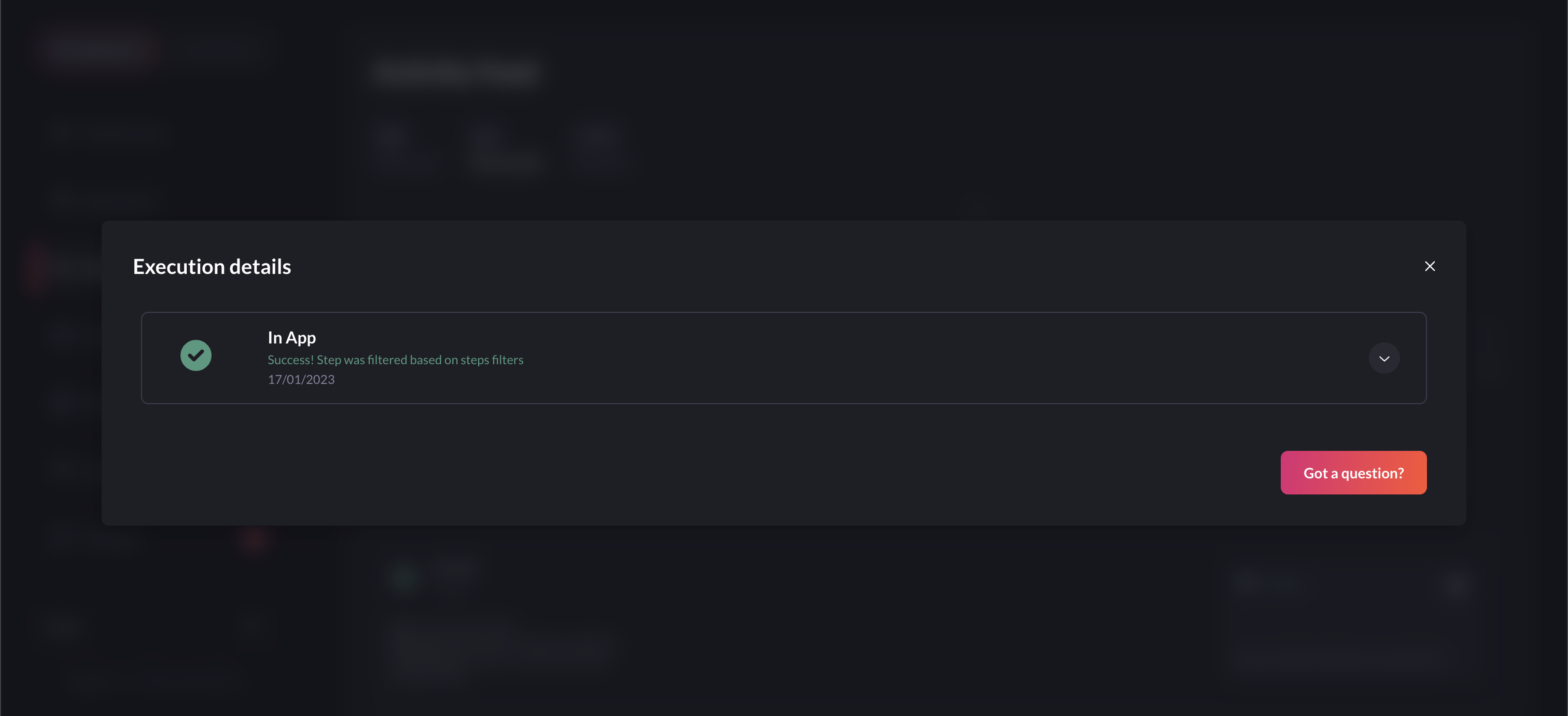 * Click on the notification step row to open up the details for the corresponding step.
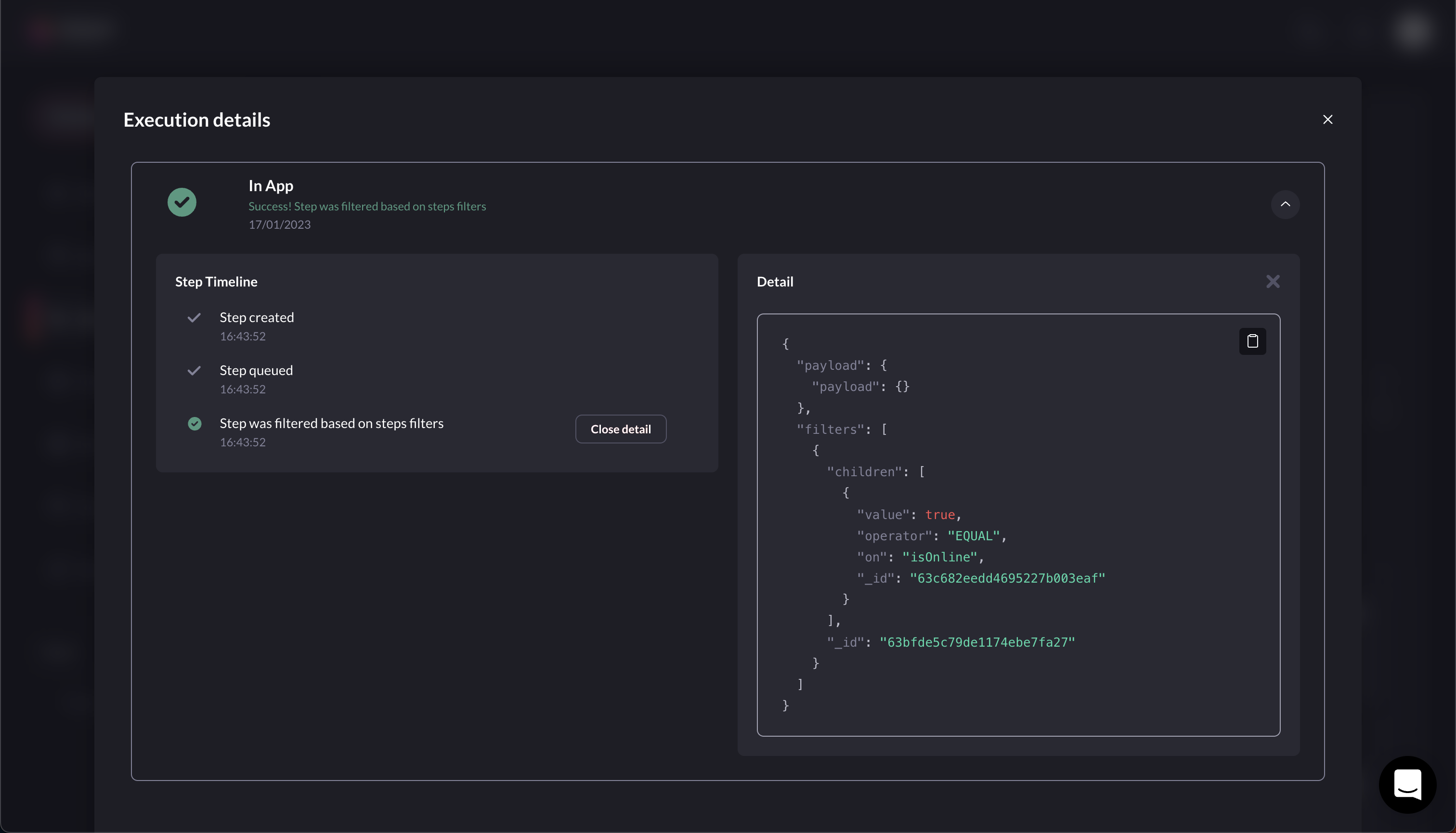
* On this screen, you can monitor the notification status along with filter details if any.
* Click on the notification step row to open up the details for the corresponding step.
* On this screen, you can monitor the notification status along with filter details if any.
 Digest variables (step.digest, step.events, step.total\_count) are not supported in step conditions.